
Update your profile
Keep your name, phone number, USA Swimming ID, and shirt sizes up to date so meet referees can reach you, check your credentials, and order the right shirt for you.
Before you start: you're signed in.
Steps
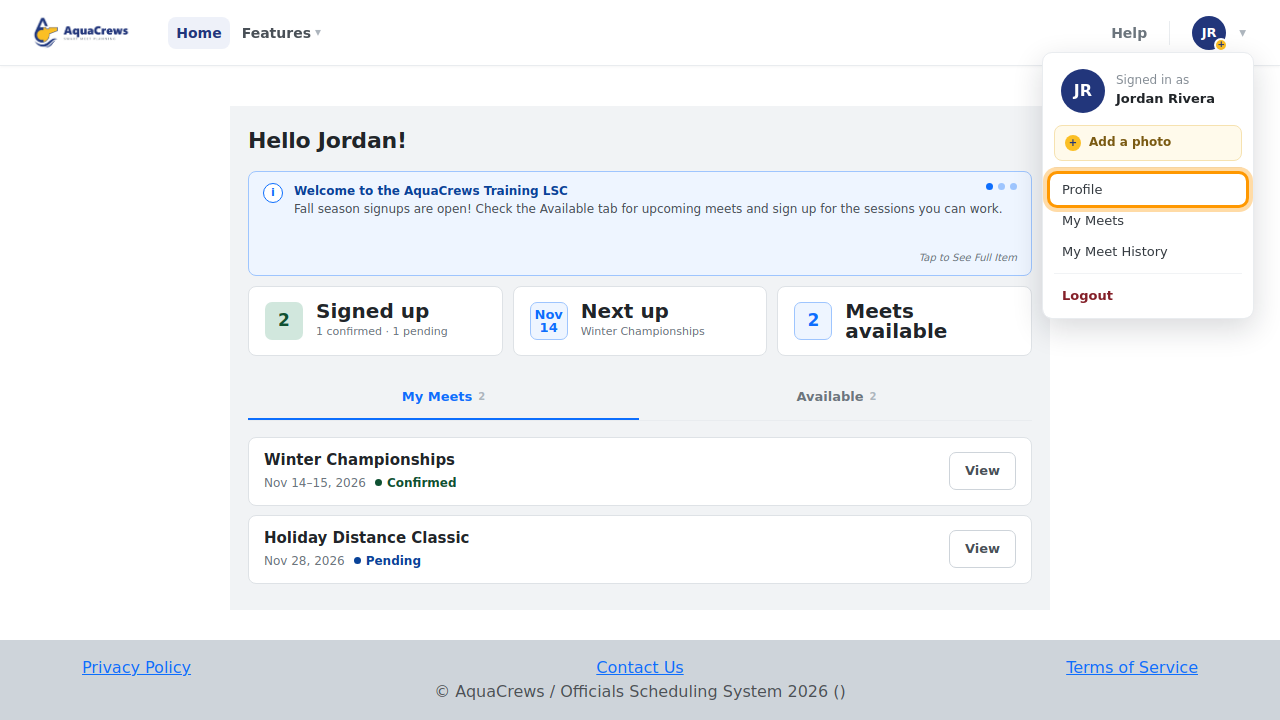
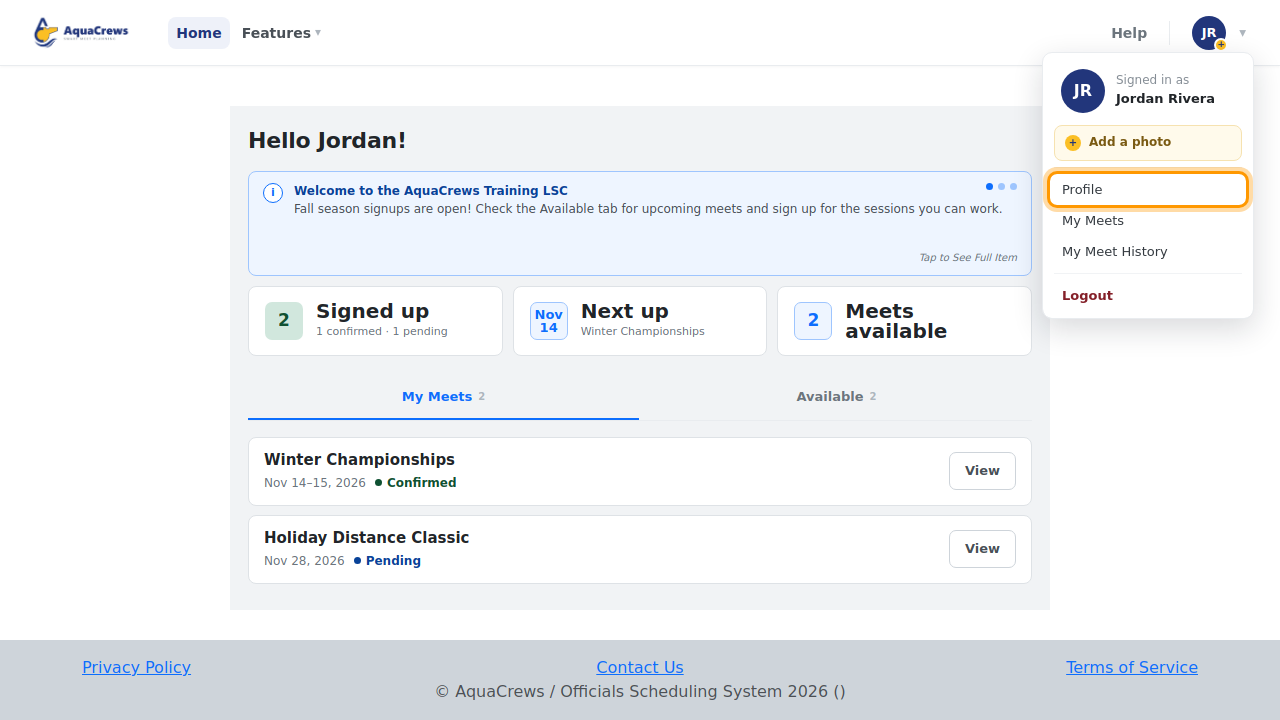
- Click your name in the top-right corner.
-
Click Profile.
Click to see a larger version -
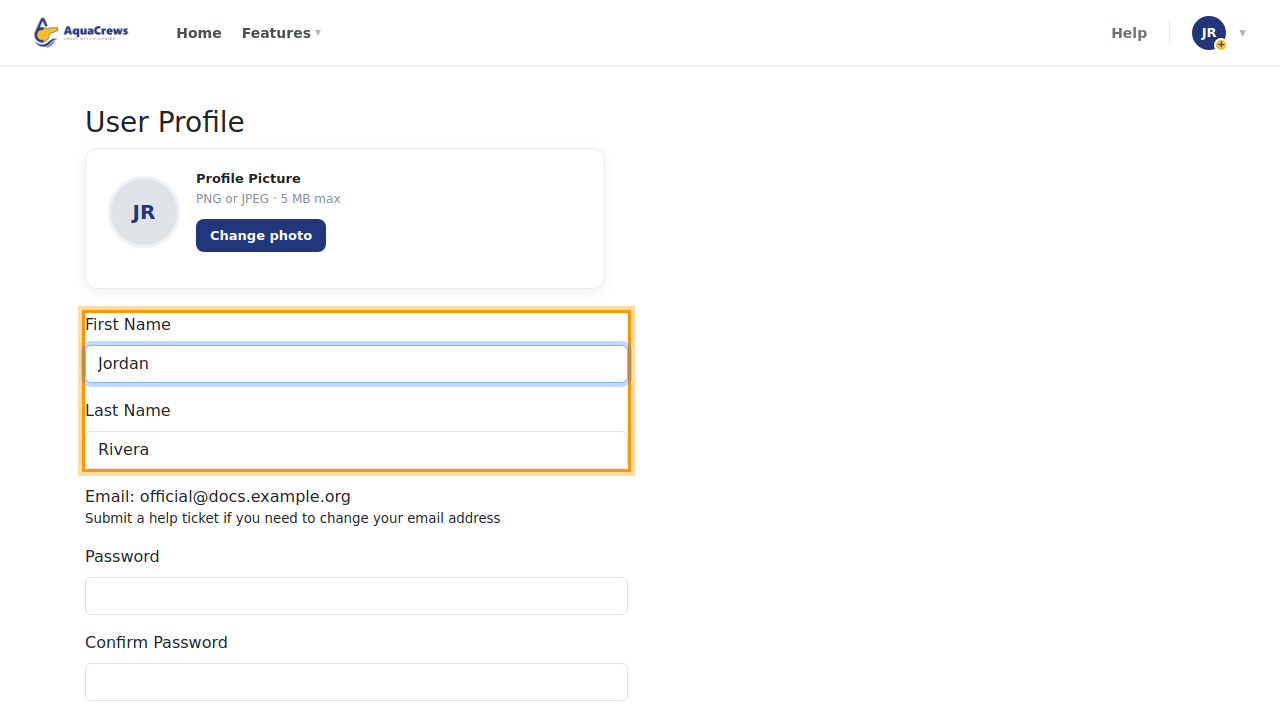
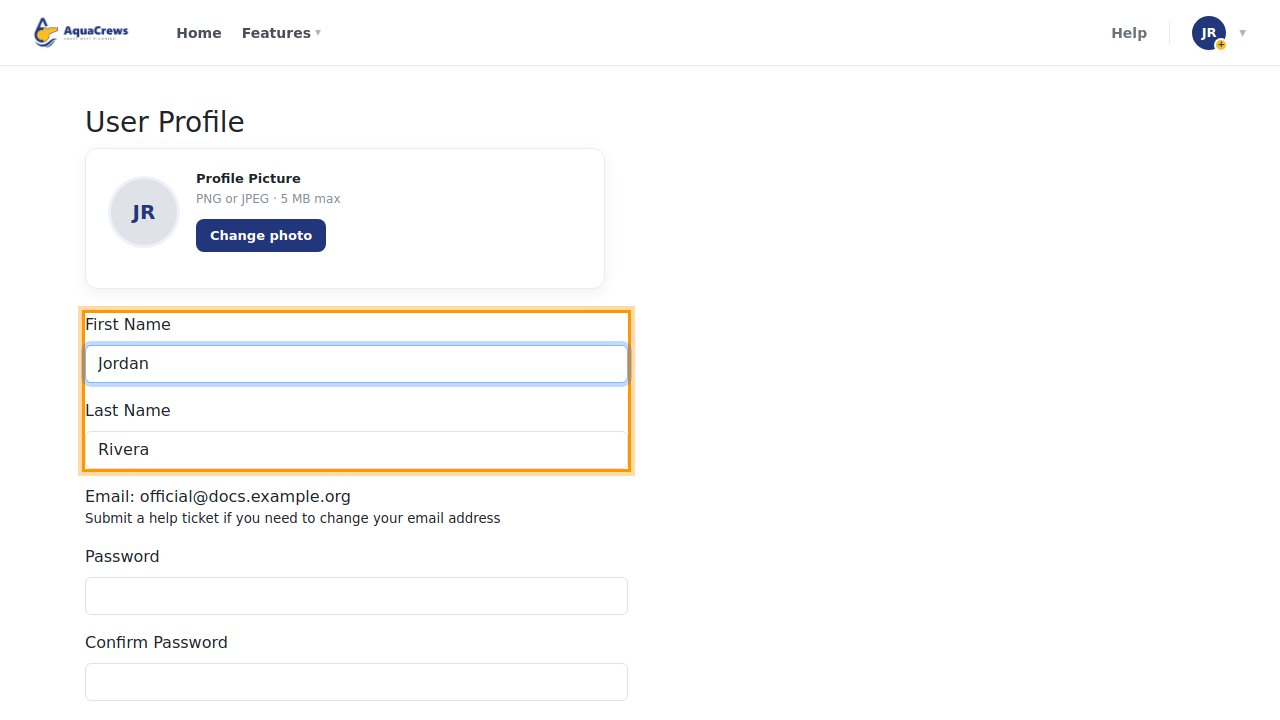
Check that your First Name and Last Name are correct - this is how you appear to meet referees and other officials. Change them if needed.
Click to see a larger version -
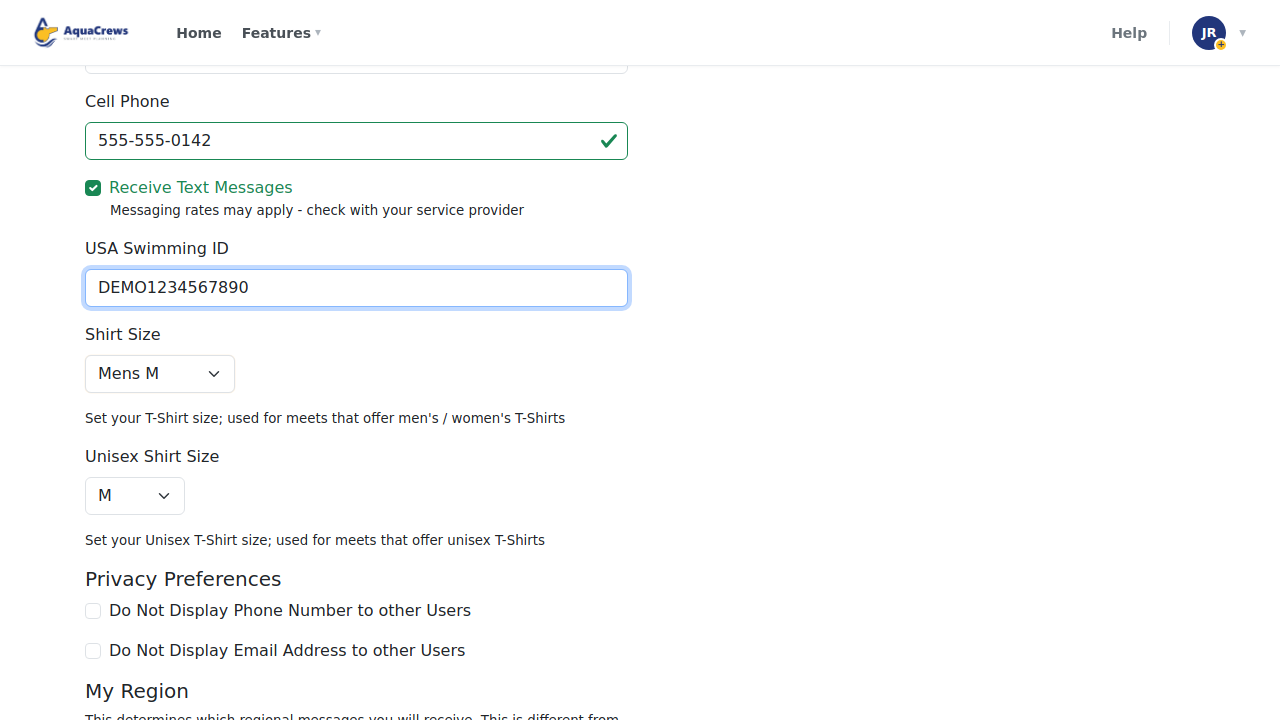
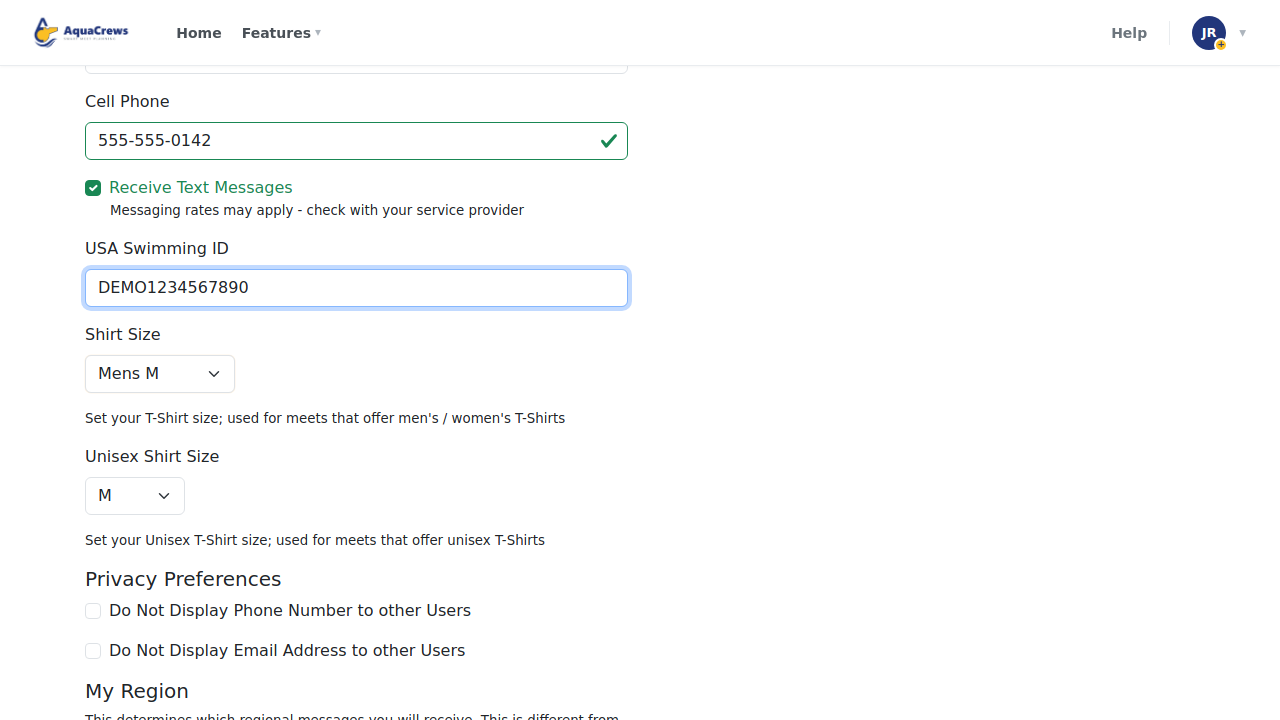
Enter your Cell Phone number.
- To get text messages from AquaCrews, check Receive Text Messages. Messaging rates may apply.
- Enter your USA Swimming ID.
-
Choose your Shirt Size (men's or women's sizes) and Unisex Shirt Size. Meets that hand out shirts use whichever one fits the shirts they order.
Click to see a larger version -
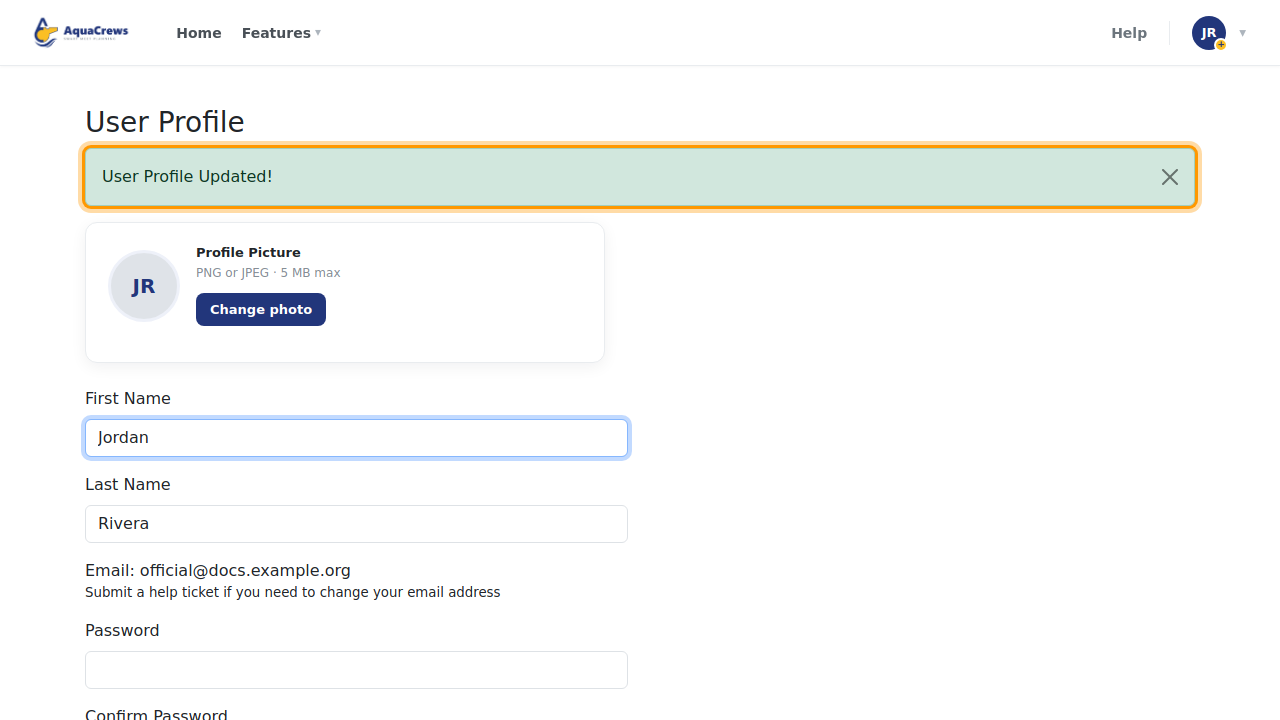
Click Submit at the bottom of the page.
-
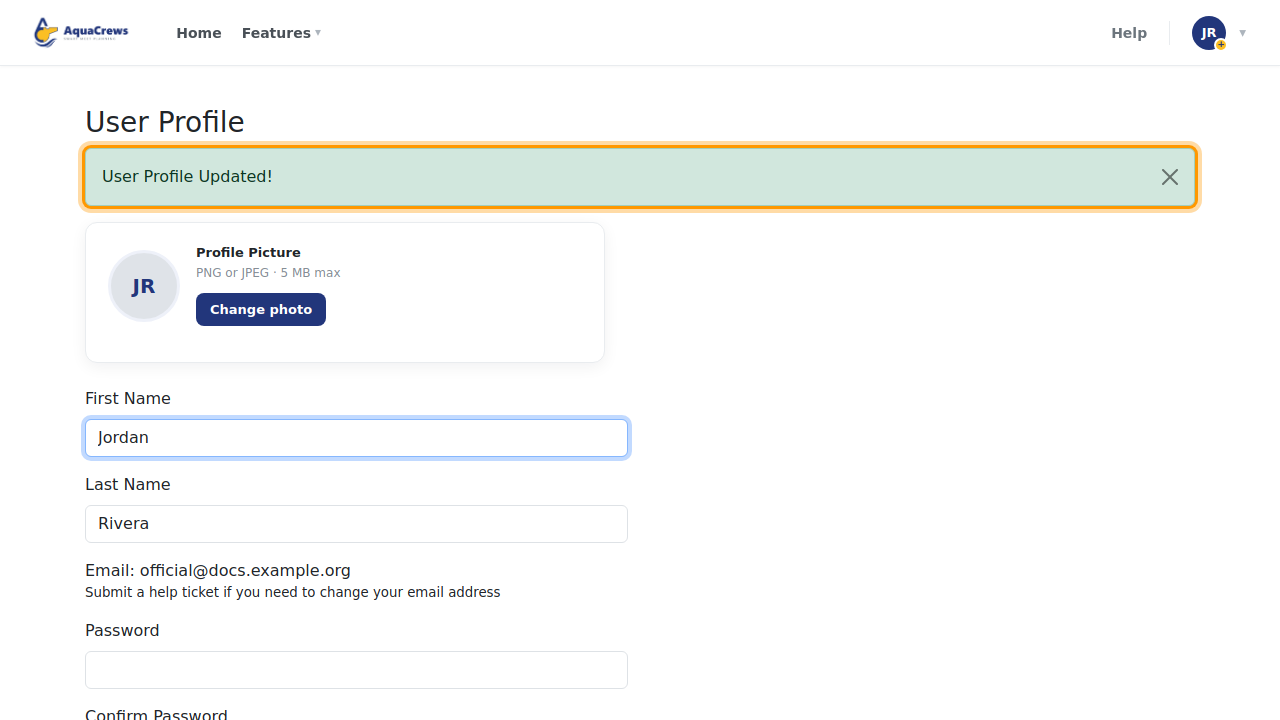
User Profile Updated! appears at the top of the page.
Click to see a larger version
What happens next
Your changes are saved right away. Meet referees see your updated details the next time they open their meet.
Tips & troubleshooting
- Nothing saved? Look for a message in red under a box - fix it and click Submit again. The page shows Error Saving Profile Information at the top when something couldn't be saved.
- Your email address can't be changed here - see Change your password or email.
- The Official Credentials box at the bottom of the page shows what your LSC has on record for you (background check, APT, CPT, registration, and certifications). To correct it, contact your LSC.
- The rest of the Profile page has its own guides: Privacy, My Region, Default meet filters, and Notification preferences.
Related: Add or change your profile photo · Choose your email notifications