
Set your region
Tell AquaCrews which region of your LSC you belong to, so you get the messages meant for officials in your area.
Before you start: you're signed in.
Steps
- Click your name in the top-right corner.
- Click Profile.
- Scroll down to My Region.
-
Choose the region you live or officiate in.
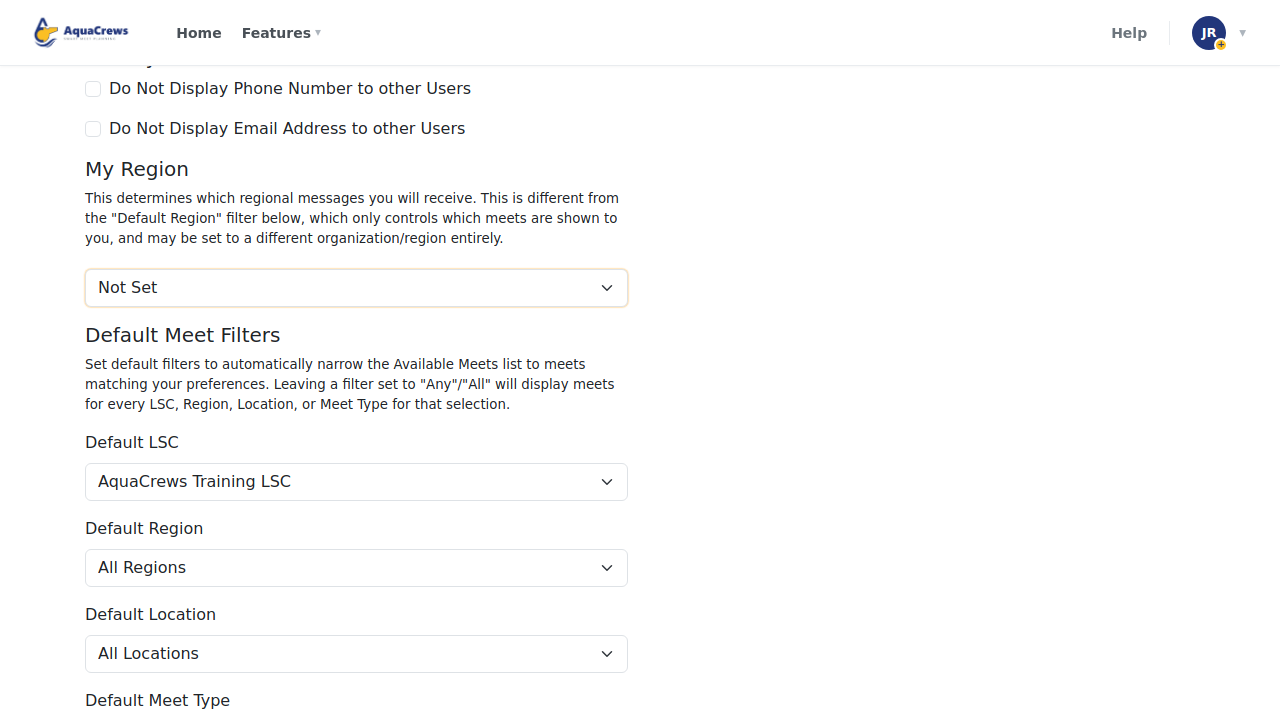
Click to see a larger version -
Click Submit at the bottom of the page.
- User Profile Updated! appears at the top of the page.
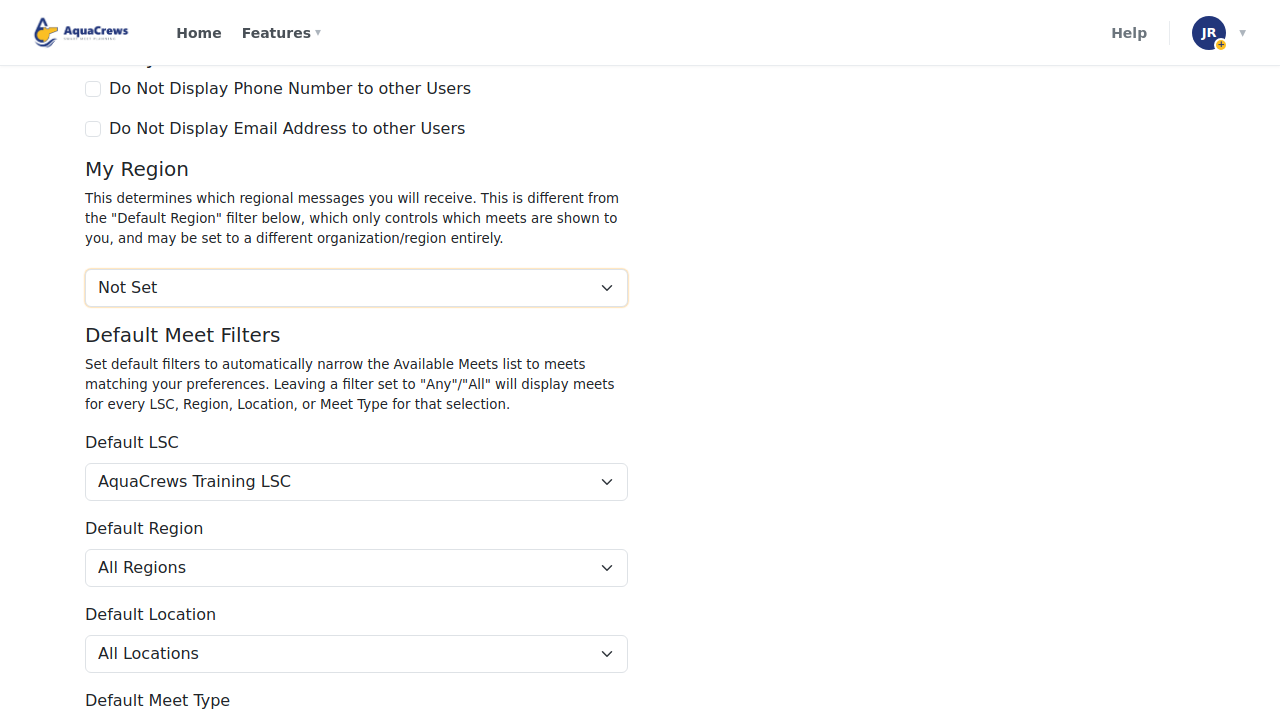
What happens next
Meet referees and LSC administrators can send a message to everyone in one region - for example, to find more officials for a meet in that area. Those messages go to officials who chose that region, plus everyone whose region is Not Set (or Any). Choosing your region means you get the messages for your area and not the others.
Tips & troubleshooting
- My Region is different from Default Region under Default Meet Filters: My Region decides which regional messages you get; Default Region only decides which meets the Available tab shows. See Set default meet filters.
- Leave My Region at Not Set if you want every regional message in your LSC.
- Don't see your region? Your LSC administrator sets up the regions - ask them to add it.
Related: Set default meet filters · Choose your email notifications