
Set default meet filters
Choose which meets the Available tab on the Home page shows when you sign in - for example, only meets in your LSC and region.
Before you start: you're signed in.
Steps
- Click your name in the top-right corner.
- Click Profile.
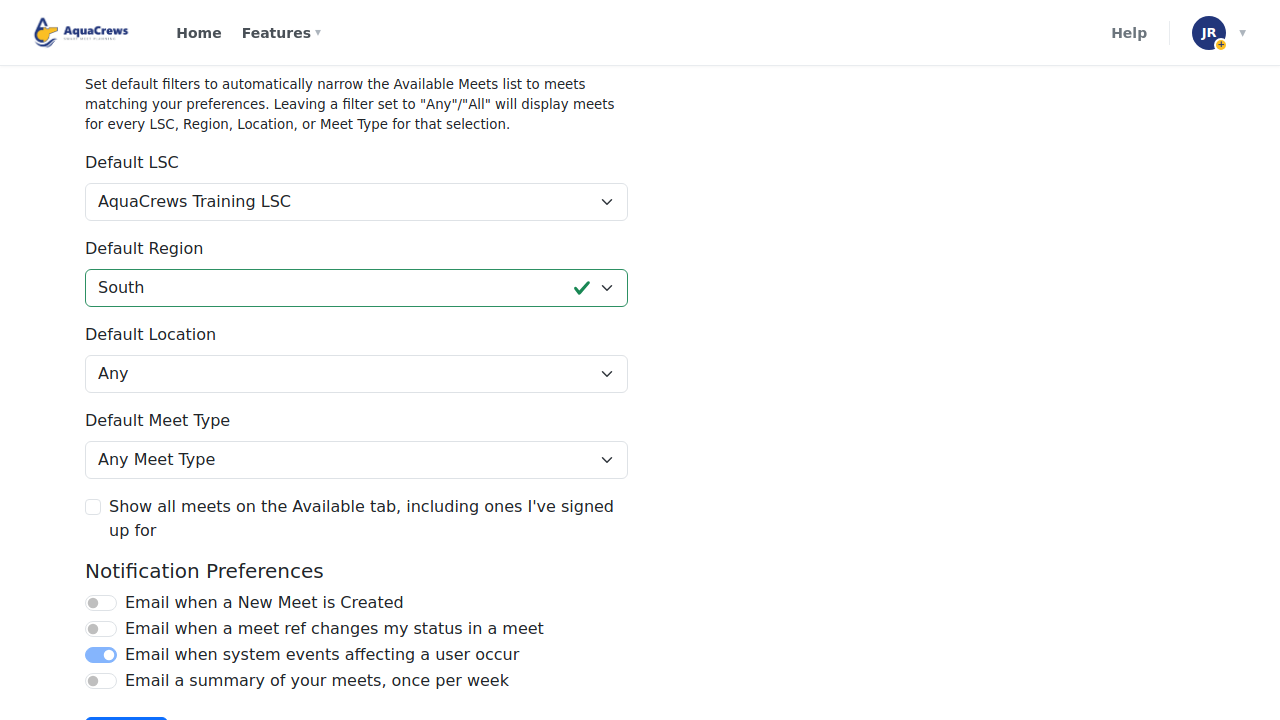
- Under Default Meet Filters, choose your Default LSC.
- Choose a Default Region.
-
Optional: choose a Default Location and a Default Meet Type.

Click to see a larger version -
Click Submit at the bottom of the page.
- User Profile Updated! appears at the top of the page.
- Click Home.
-
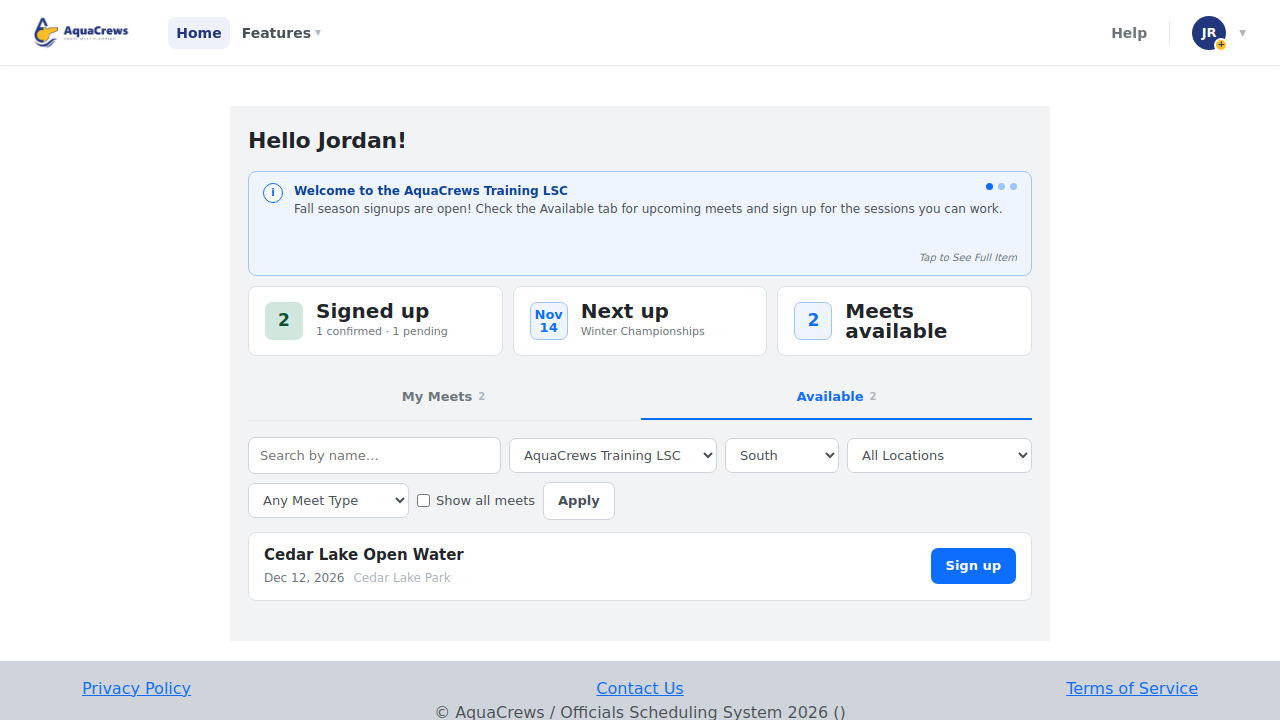
Click the Available tab - it lists only the meets that match your filters.

Click to see a larger version
What happens next
Each time you open the Home page, the Available tab starts with these filters. You can still change the filters on the tab to look at other meets - see Find a meet.
Tips & troubleshooting
- Leave a filter at All LSCs, All Regions, All Locations, or Any Meet Type to include everything for that filter.
- The Default Region and Default Location lists show the regions and pools for the LSC you chose, so choose the LSC first.
- Check Show all meets on the Available tab, including ones I've signed up for if you also want your own meets listed on the Available tab.
- Default Region only filters meets. To choose which regional messages you get, see Set your region.
Related: Find a meet · Set your region