
Privacy: hide your phone or email
Choose whether other AquaCrews users can see your phone number and email address.
Before you start: you're signed in.
Steps
- Click your name in the top-right corner.
- Click Profile.
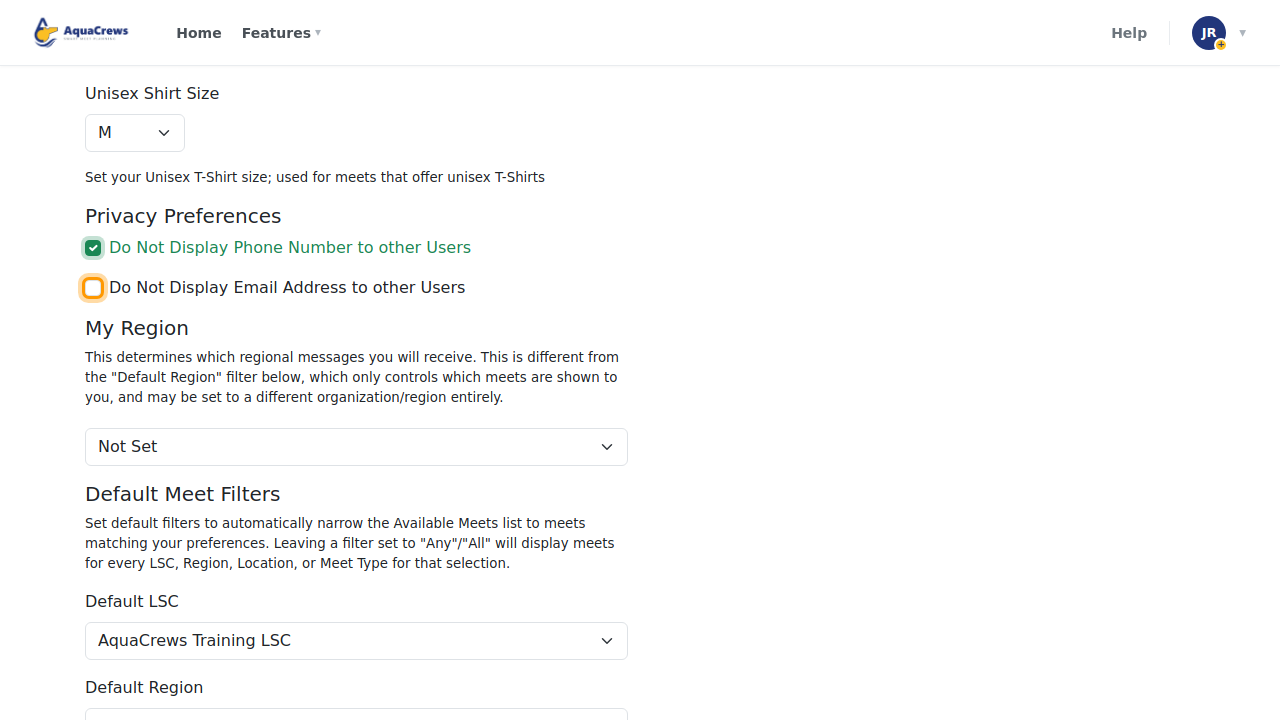
- Scroll down to Privacy Preferences.
- To hide your phone number, check Do Not Display Phone Number to other Users.
-
To hide your email address, check Do Not Display Email Address to other Users.

Click to see a larger version -
Click Submit at the bottom of the page.
- User Profile Updated! appears at the top of the page.
What happens next
- Phone hidden: your number isn't shown to other users - for example, it's left off meet reports that list you as the meet referee.
- Email hidden: your email address isn't shown to other users, including the meet referees of meets you sign up for. They see only your name.
Your LSC administrators can still see your contact details to manage your account, and AquaCrews still sends you the emails you've asked for.
Tips & troubleshooting
- Hiding your email or phone can make it harder for a meet referee to reach you about a meet. Consider keeping at least one of them visible.
- To change which emails you get, see Choose your email notifications.
Related: Update your profile