
Change your password or email
Change the password you use to sign in, or ask for the email address on your account to be changed.
Before you start: you're signed in. If you've forgotten your password, see Fix sign-in problems instead.
Steps
- Click your name in the top-right corner.
- Click Profile.
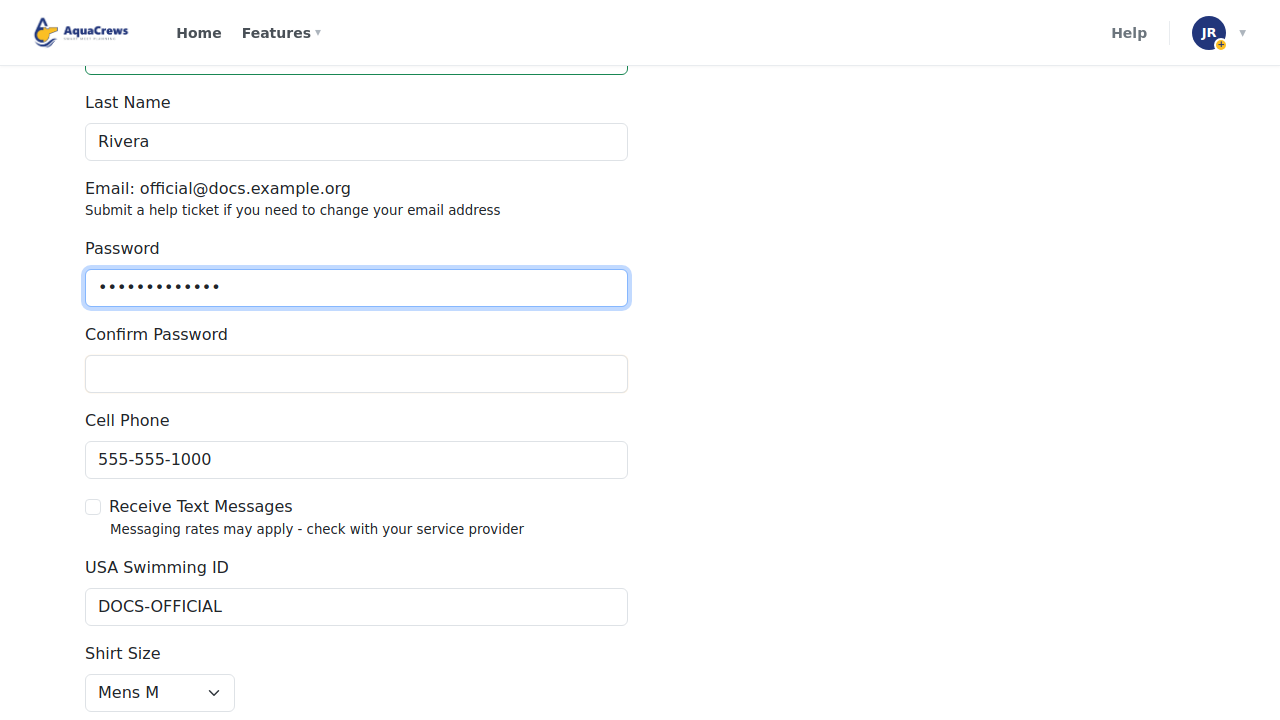
- Enter your new password in Password.
-
Type it again in Confirm Password.

Click to see a larger version -
Click Submit at the bottom of the page.
- User Profile Updated! appears at the top of the page. Use your new password the next time you sign in.
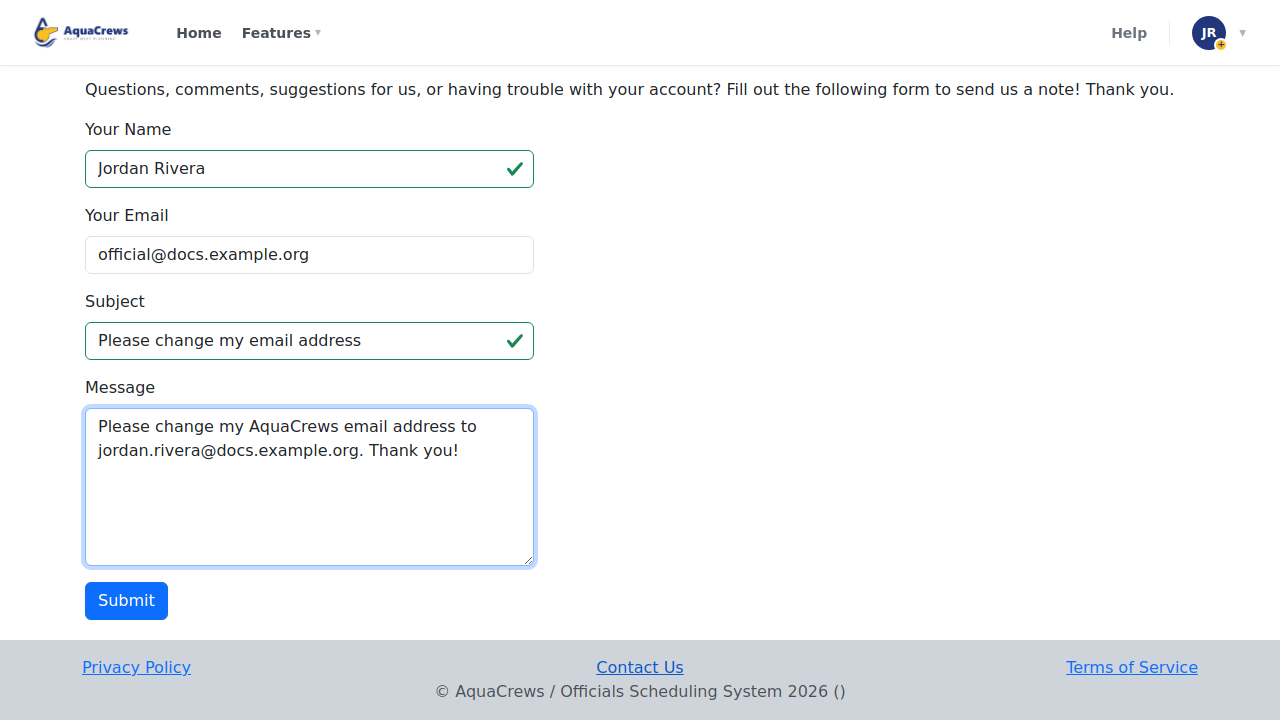
- To change your email address, click Contact Us at the bottom of any page.
- Ask for your email address to be changed, including the new address.
-
Click Submit to send your request.

Click to see a larger version
What happens next
- Password: your new password works right away - use it the next time you sign in.
- Email: the AquaCrews team changes it and lets you know. Your email address is also your sign-in name, so sign in with the new address afterward.
Tips & troubleshooting
- Leave Password and Confirm Password empty when you're changing other parts of your profile - your password only changes when you fill them in.
- An error under Confirm Password means the two boxes don't match - type both again.
- Signed in with Google? Your account doesn't have an AquaCrews password, so the Profile page says so instead of showing the password boxes. Manage your password with Google.
Related: Fix sign-in problems · Update your profile