
Add or change your profile photo
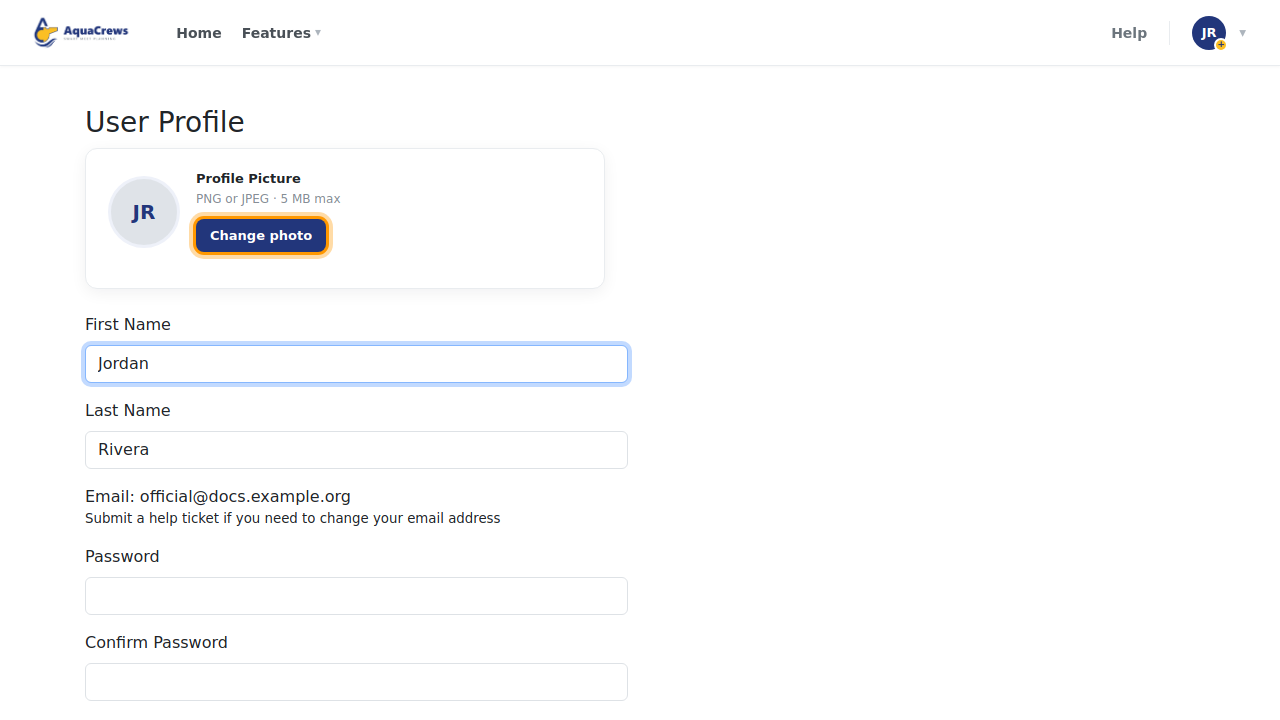
Add a photo so meet referees and other officials can recognize you on deck. Until you add one, AquaCrews shows your initials.
Before you start: you're signed in, and you have a PNG or JPEG photo of 5 MB or less on your computer or phone.
Steps
- Click your name in the top-right corner.
- Click Profile. (Or click Add a photo in the same menu to jump straight to your photo.)
-
Under Profile Picture, click Change photo.
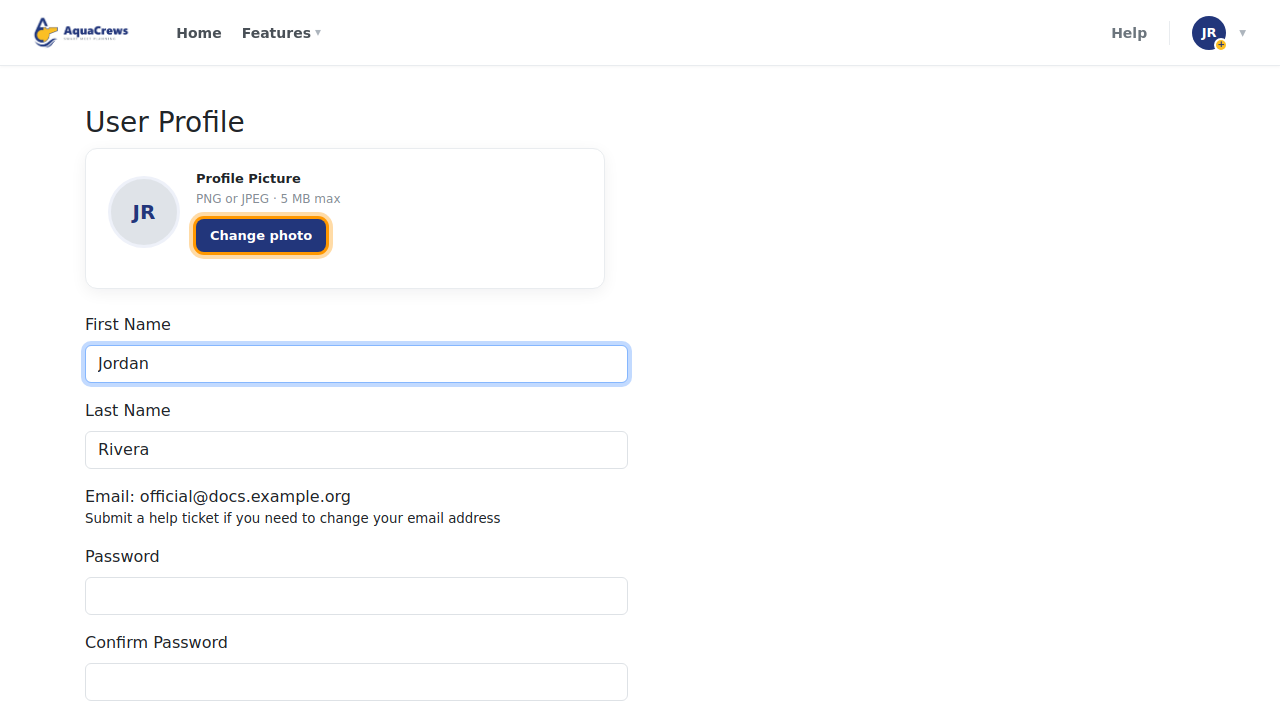
Click to see a larger version -
Pick a PNG or JPEG photo from your computer (5 MB or less).
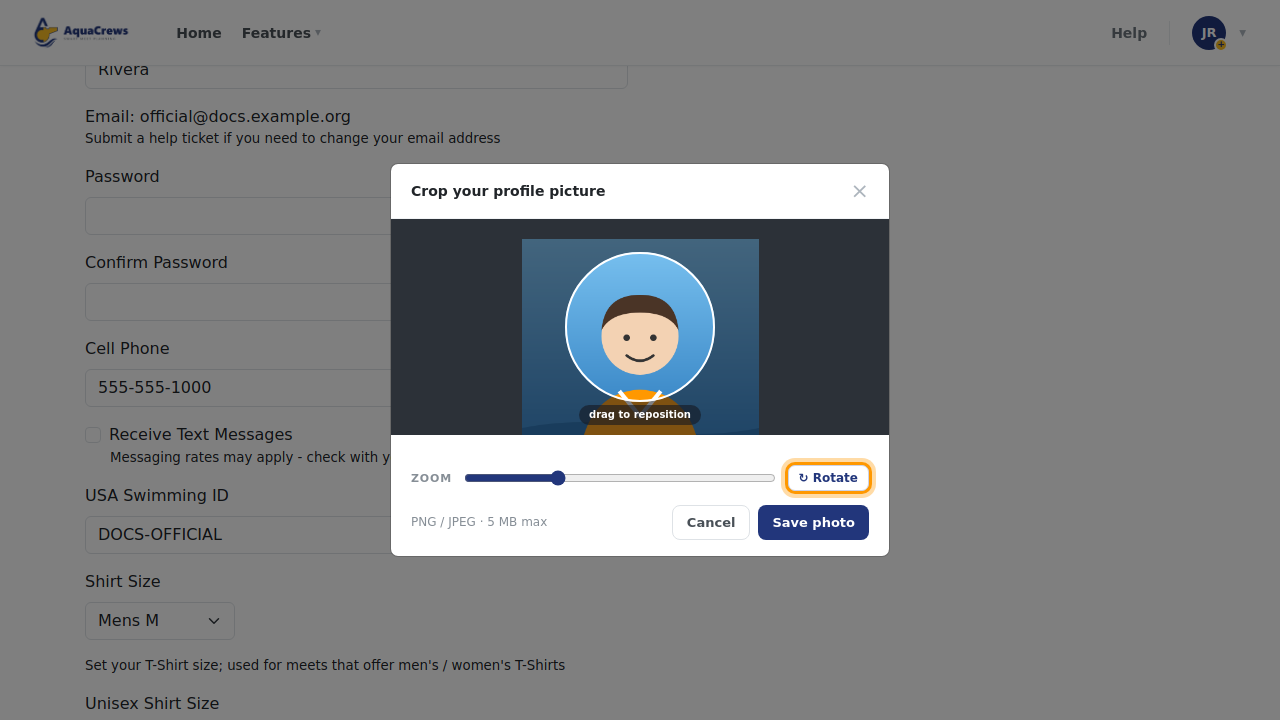
- Drag the photo to center it, and use Zoom to make it bigger.
-
Optional: click Rotate to turn the photo.
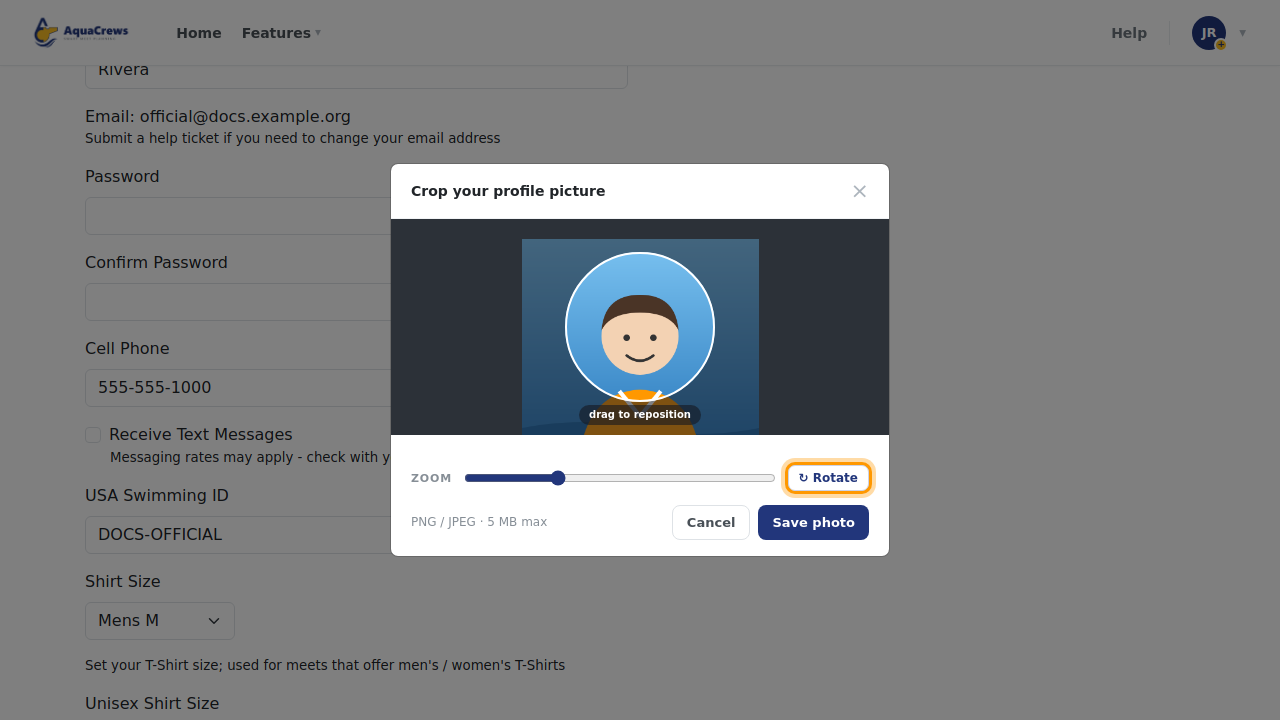
Click to see a larger version -
Click Save photo.
-
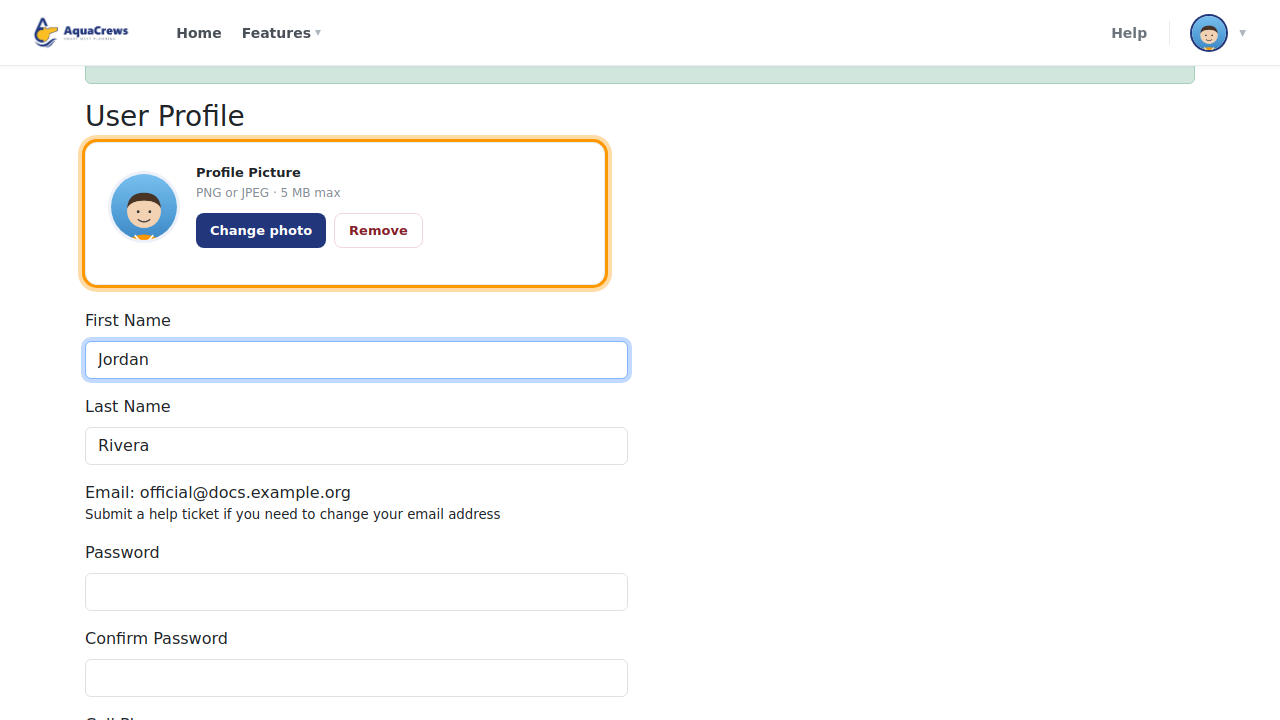
Your photo now shows on your profile and next to your name in the top-right corner.
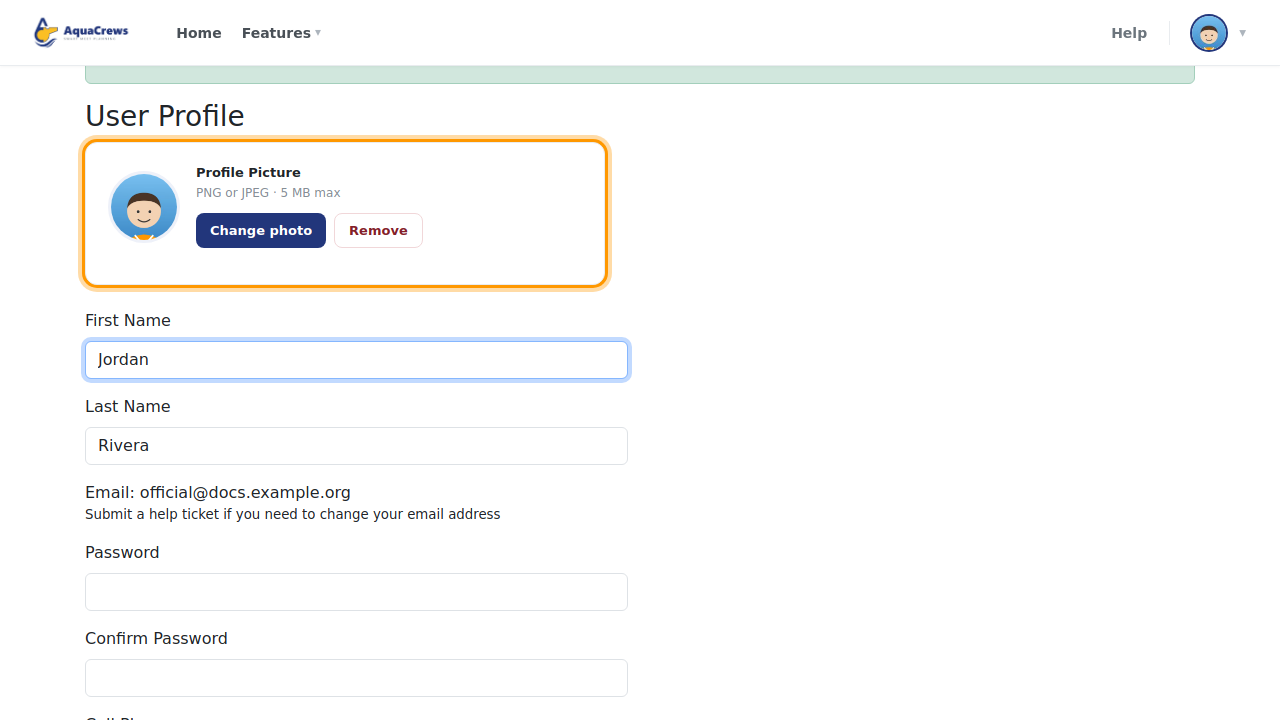
Click to see a larger version -
To take your photo off later, click Remove, then click OK.
Tips & troubleshooting
- Use a clear, recent photo of your face - it helps people find you on deck.
- The photo won't upload? Check that it's a PNG or JPEG and no larger than 5 MB. Photos from some phones are HEIC files - save or export them as JPEG first.
- To pick a different photo, click Change photo again. Click Cancel to close the crop window without saving.
Related: Update your profile