
Tour of the Home page
The Home page is where you land after signing in. It shows your LSC's news, your meets, and the meets you can sign up for.
Before you start: you're signed in.
What's on the page
-
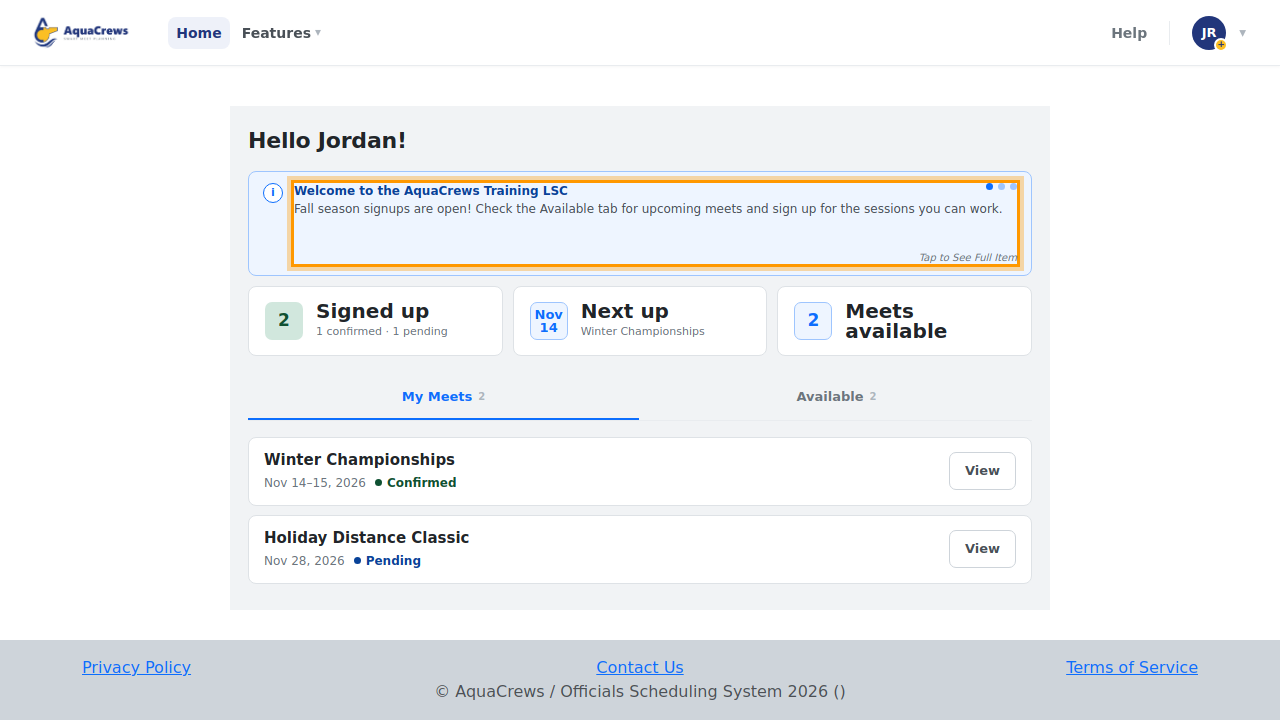
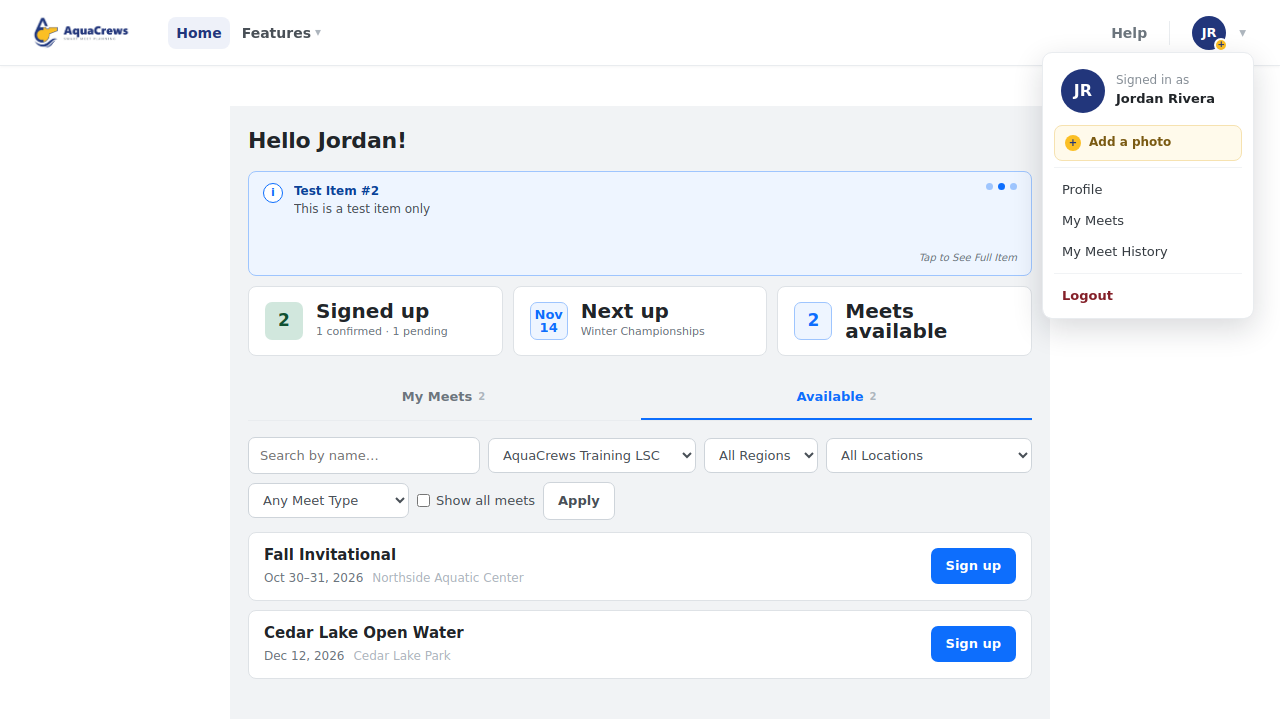
News from your LSC appears at the top - click it to read the whole item. When there's more than one item, they take turns; click the dots to move between them.

Click to see a larger version -
Signed up shows how many meets you're signed up for, and how many are confirmed or pending.
- Next up is your next meet - click it to open that meet.
- Meets available shows how many meets you can still sign up for.
-
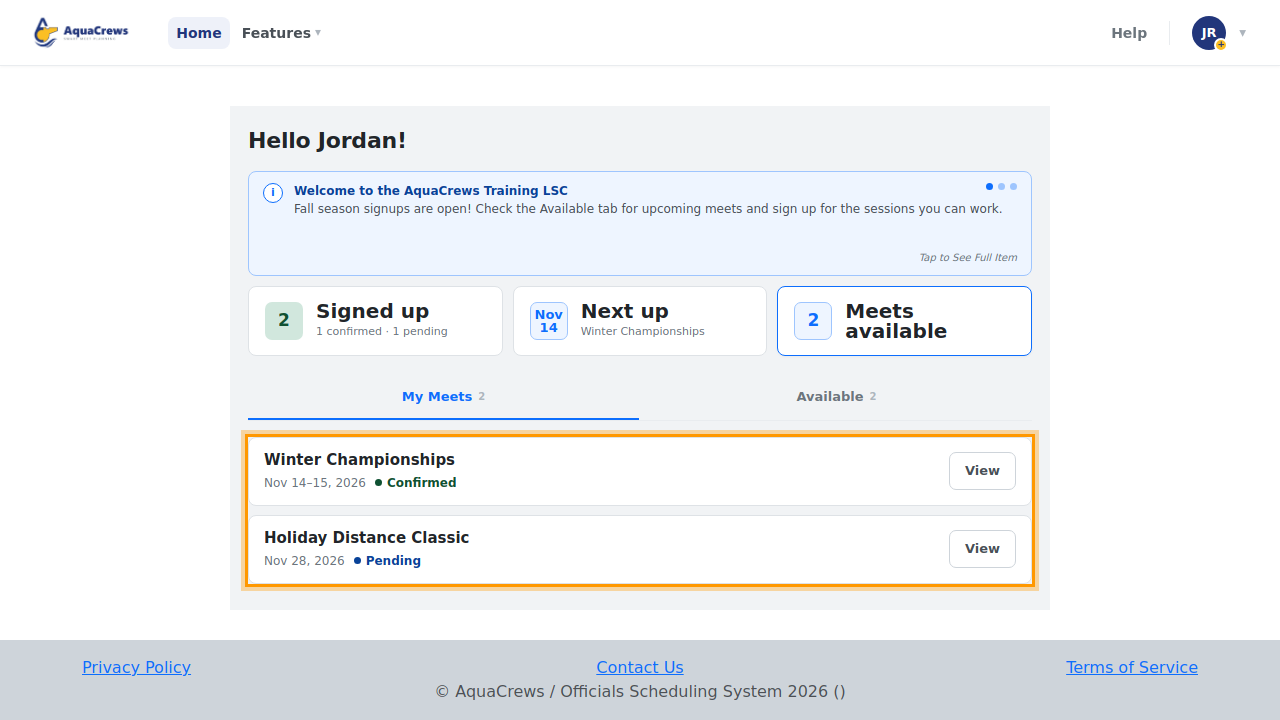
The My Meets tab lists your meets and your status - click View to open one.

Click to see a larger version -
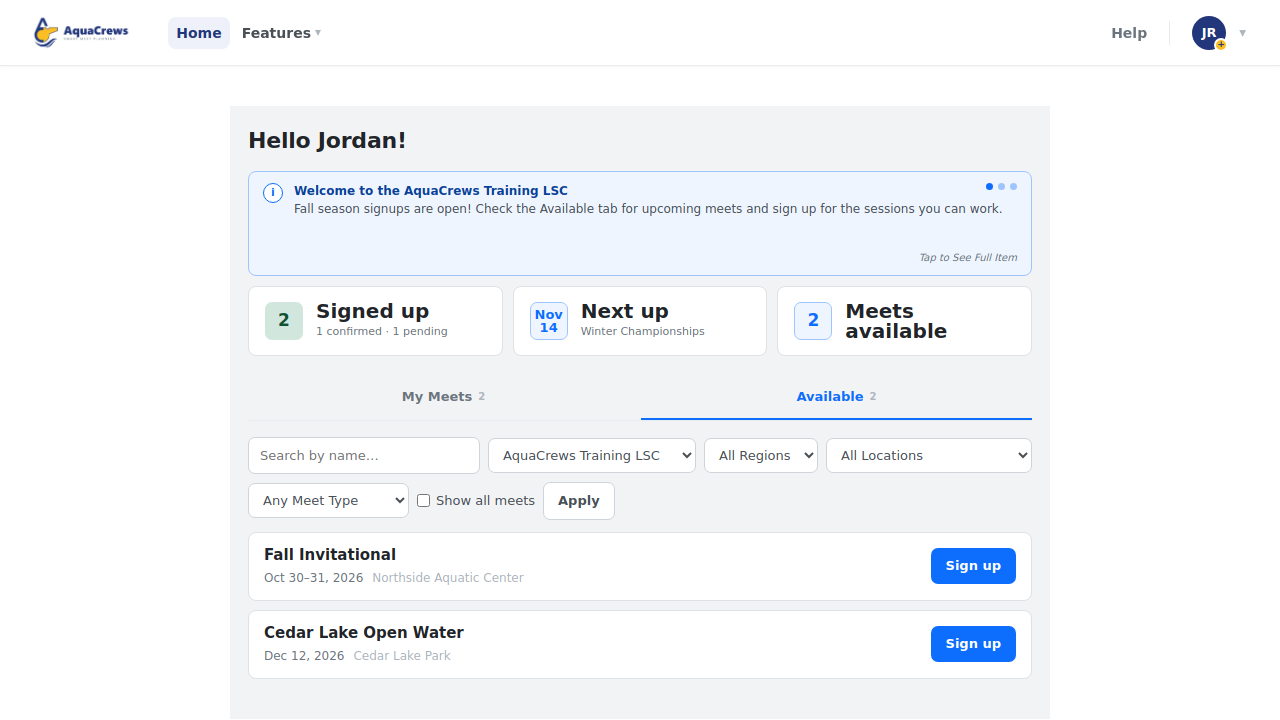
The Available tab lists meets you can sign up for, with filters to narrow the list. See Find a meet.

Click to see a larger version -
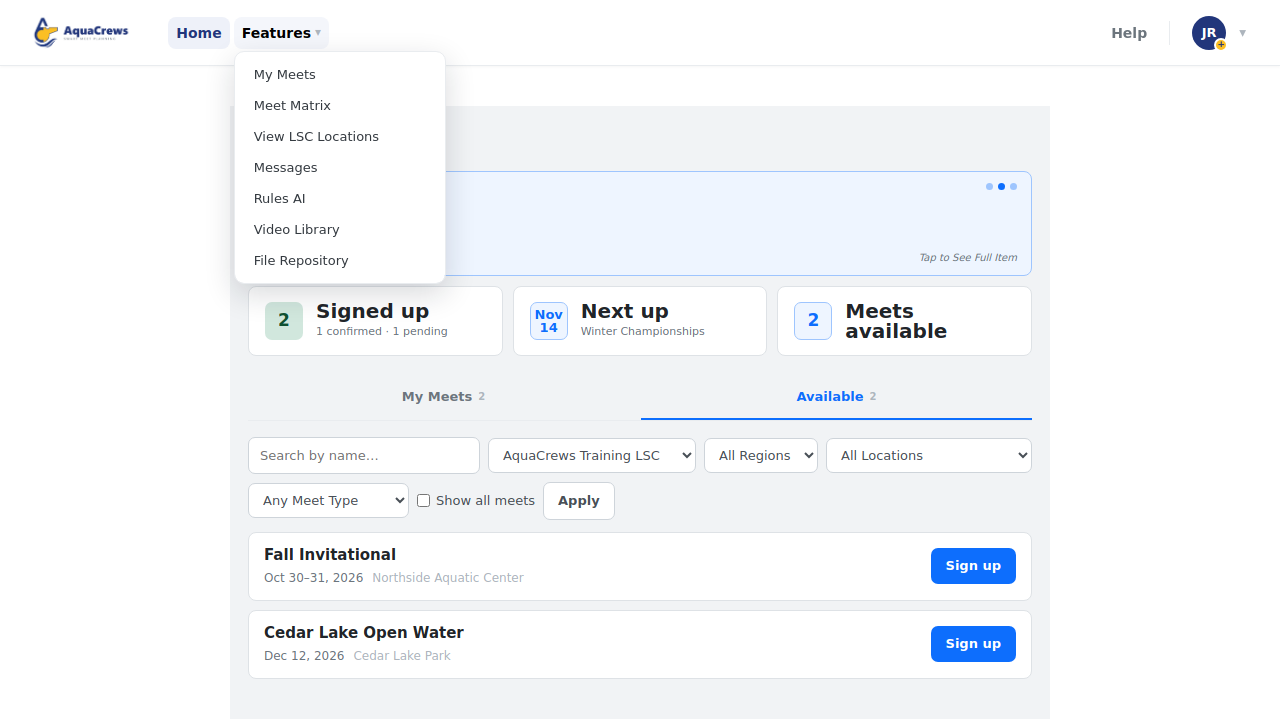
The Features menu has tools like My Meets, the Meet Matrix, and View LSC Locations. Depending on your LSC, you may also see Messages, Rules AI, Video Library, or File Repository.

Click to see a larger version -
Help has the AquaCrews help center and the guided tour - see Take the tour and get help.
-
Click your name for your Profile, My Meets, My Meet History, and Logout.

Click to see a larger version
Your status
On the My Meets tab, each meet shows your status:
- Pending - you've asked to work one or more sessions and the meet referee hasn't answered yet.
- Confirmed - the meet referee has confirmed you for the sessions you asked for.
- Waitlisted - you're on the waitlist in case more officials are needed.
- Declined - the meet referee doesn't need you for the sessions you asked for, often because there are already enough officials.
Turn on email notifications to hear when your status changes - see Choose your email notifications.
Tips & troubleshooting
- Meet referees also see a + Add a meet button and a Meets menu, and LSC administrators see an Admin tab and menu - see their guides.
- To choose which meets the Available tab shows when you sign in, see Set default meet filters.
- There's an Add a photo shortcut in your name's menu until you add a profile photo.
Related: Sign up for a meet · Take the tour and get help · How do I...