
Walkthrough - Create Meet and Manage Signups
The whole basic flow in one go: create a meet, officials sign up, and you confirm them.
Before you start: you're signed in as a meet referee.
Steps
- On the Home page, click + Add a meet.
-
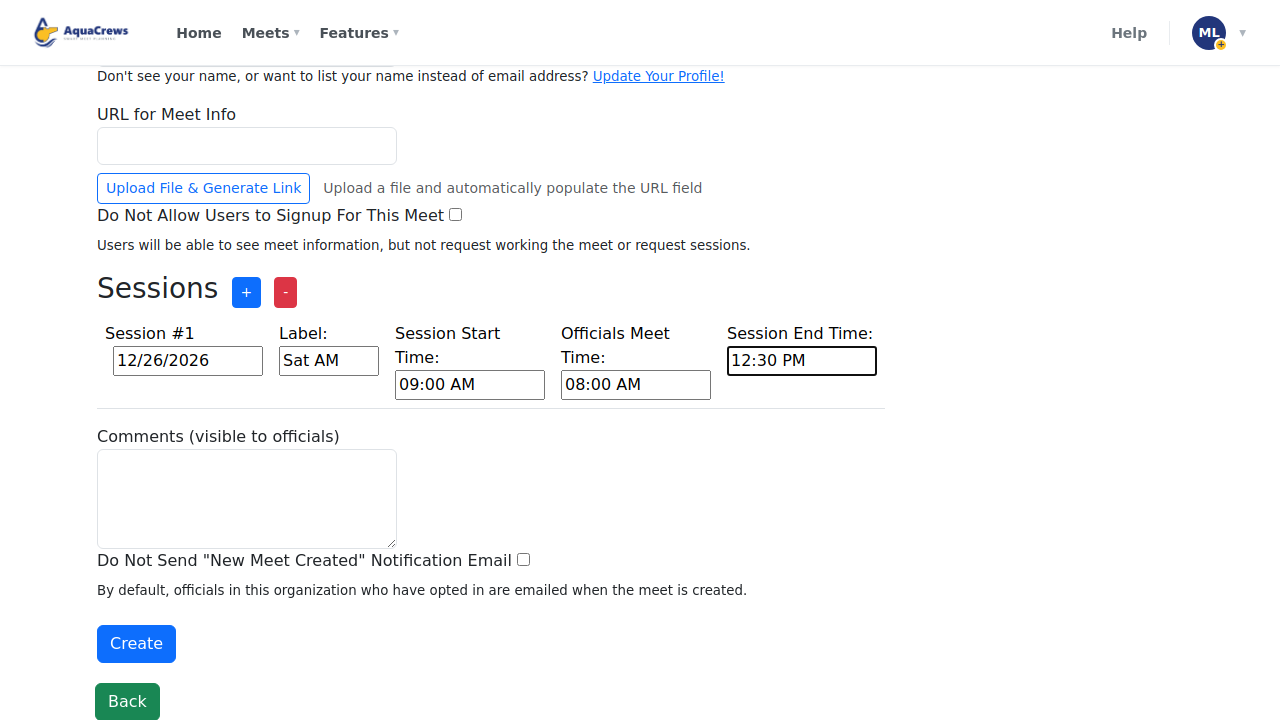
Enter the meet's name, type, location, and its session.
 Click to see a larger version
-
Click Create - officials in your LSC can now see the meet and sign up.
-
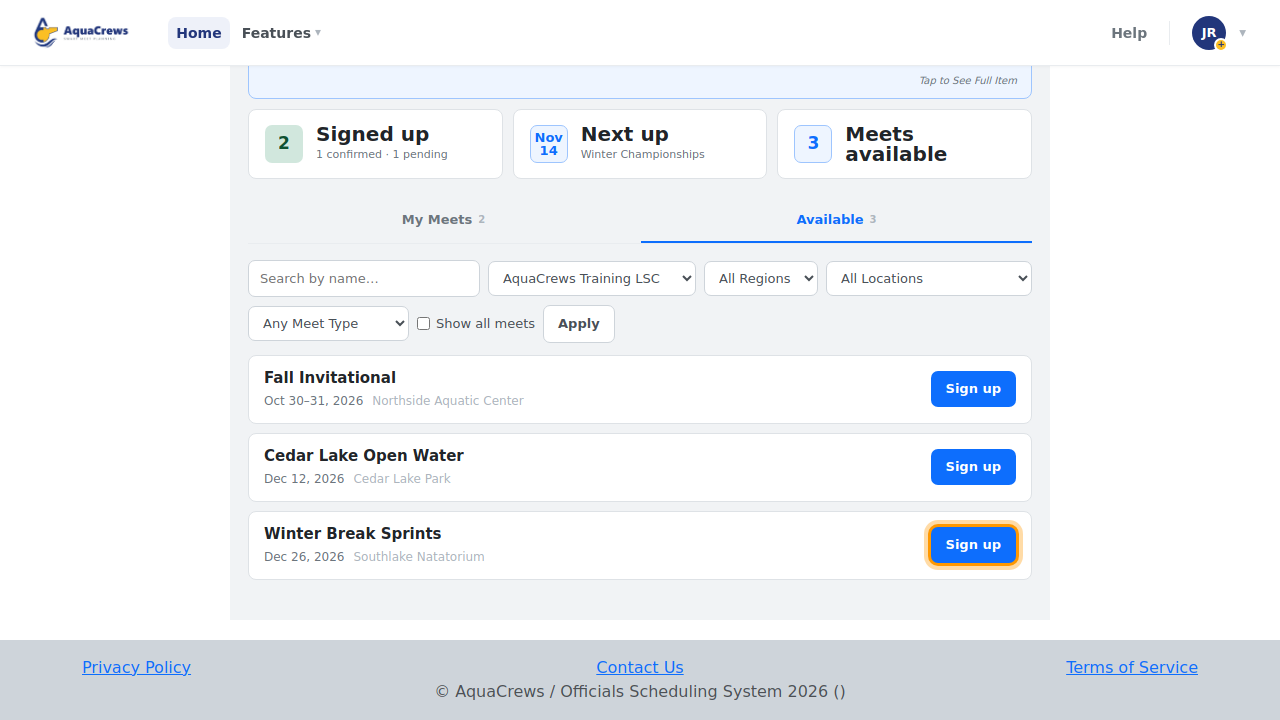
Officials find the meet on their Available tab and sign up.
 Click to see a larger version
-
You're emailed about each signup - on your Home page, click Manage on the meet.
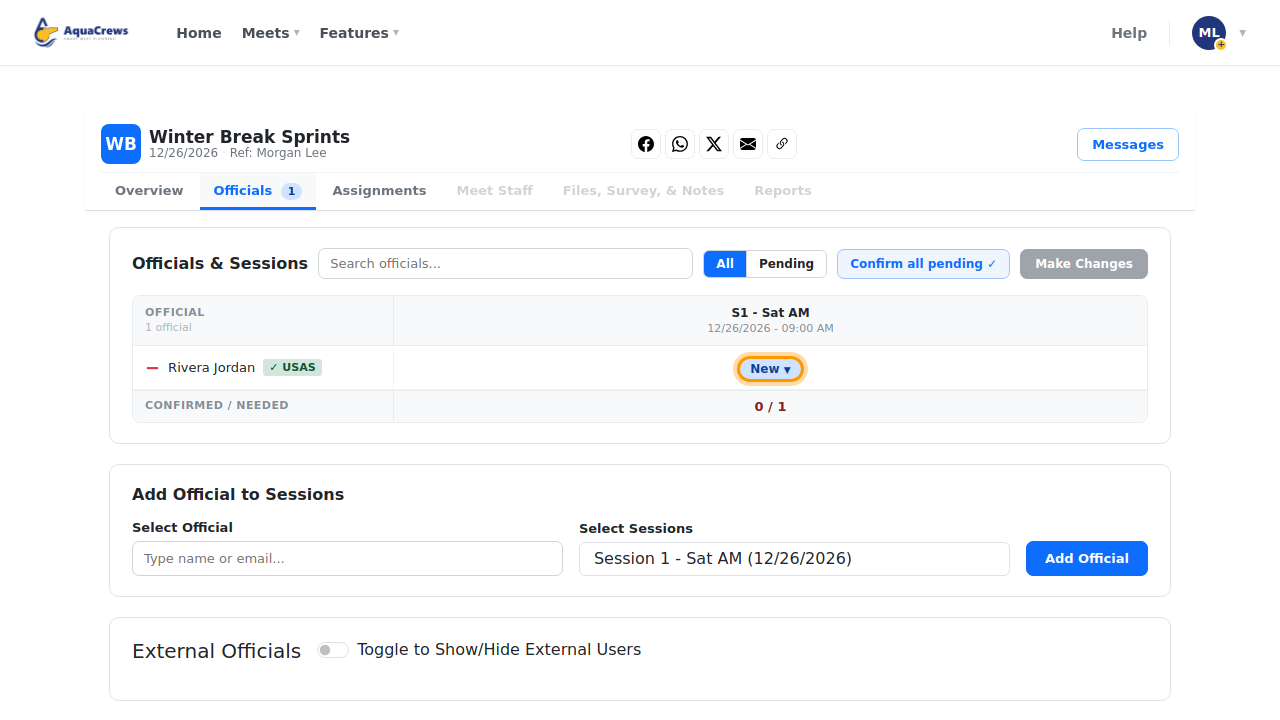
- Click the Officials tab.
-
Click the official's status and choose Confirm.
 Click to see a larger version
-
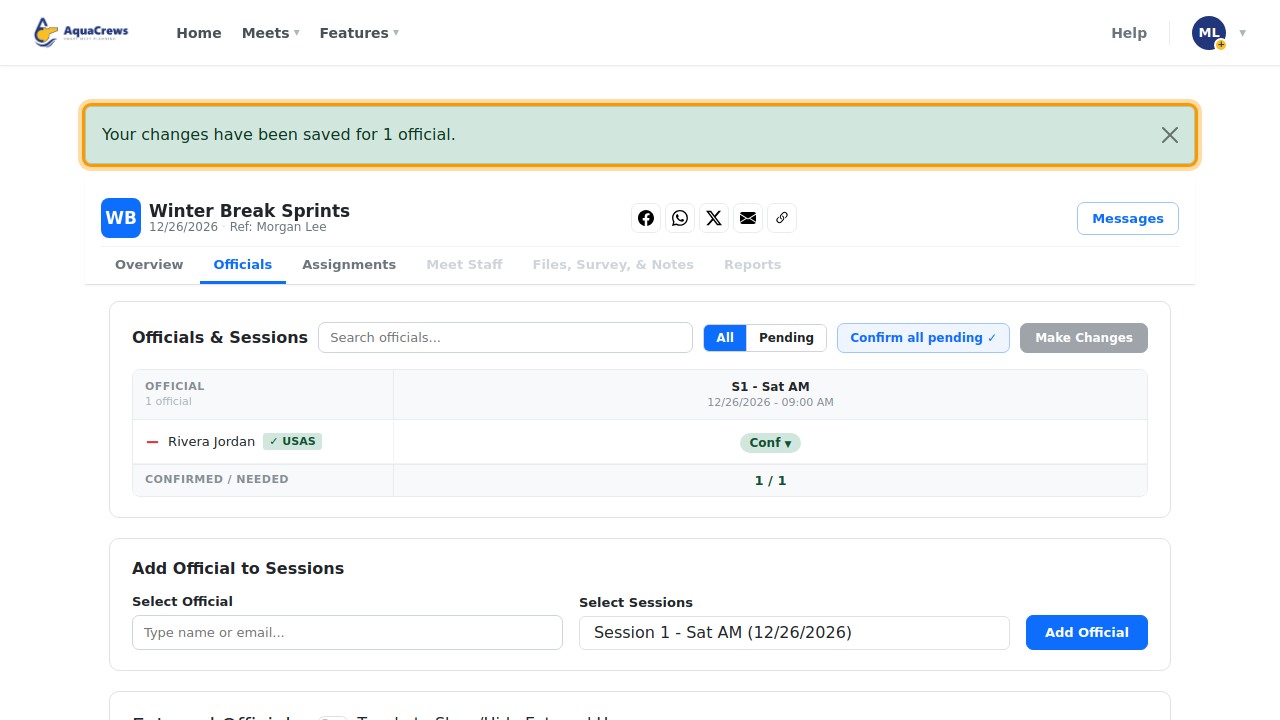
Click Make Changes - the official is emailed that they're confirmed.
-
Repeat as officials sign up, until every session is covered.
 Click to see a larger version
Learn more about each step
- Create a meet - every field on the form
- Approve, waitlist, or decline officials
- Share a meet - to get more officials signing up
- Pause or reopen signups