Walkthrough - Advanced Meet Management
From a new meet to deck assignments: create the meet, confirm officials, turn on the Meet Planner, assign positions, run the Sanity Check, and check coverage with the Officials Role by Session report.
Note: Meet Planner must be enabled for your organization.
Before you start: you're signed in as a meet referee.
Steps
- Click + Add a meet, fill in the meet and its session, and click Create.
- Officials sign up for the sessions they can work.
- Click Manage on the meet, then the Officials tab.
- Confirm the official for the session, then click Make Changes.
-
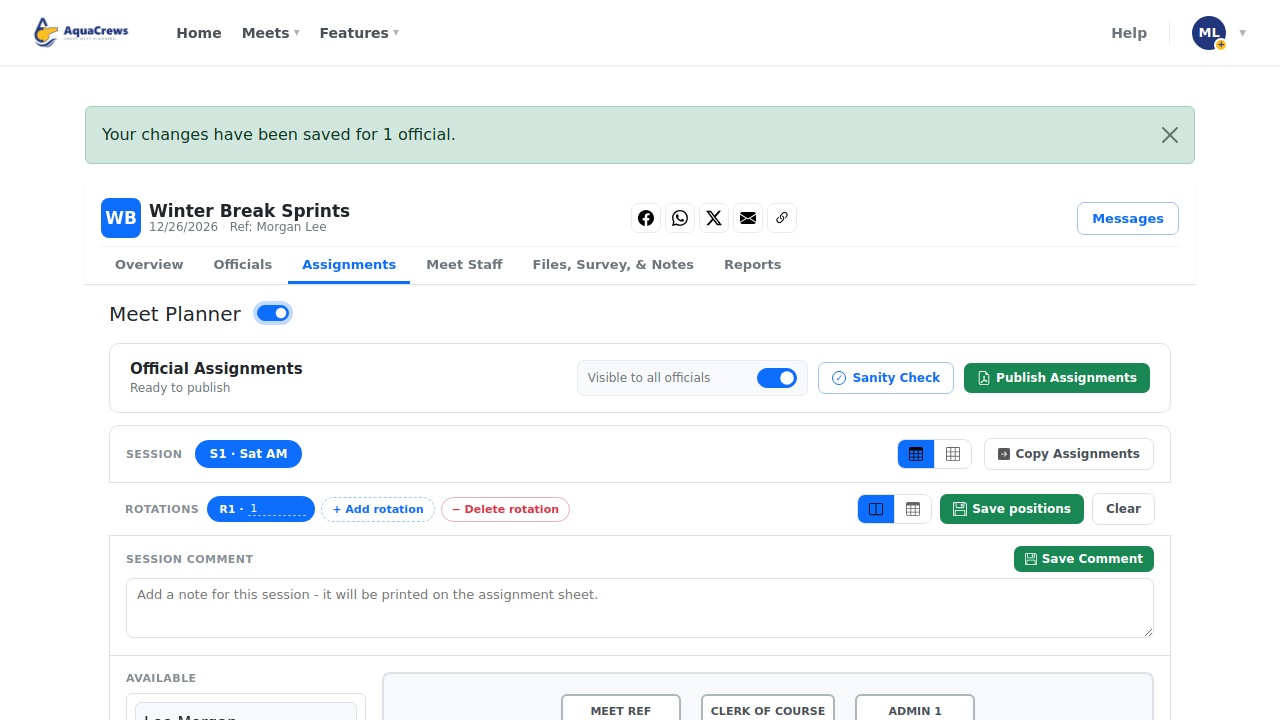
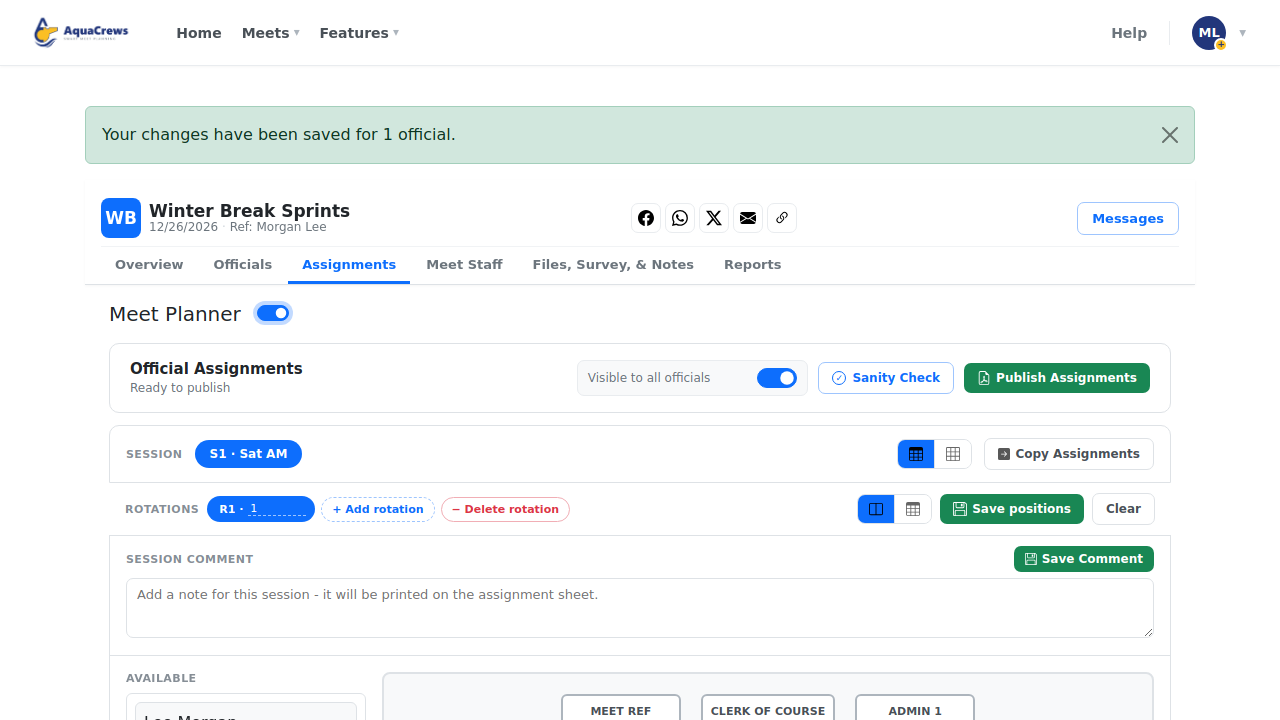
Click the Assignments tab and turn on Meet Planner.
 Click to see a larger version
-
Drag each confirmed official onto a deck position.
- Click Save positions.
-
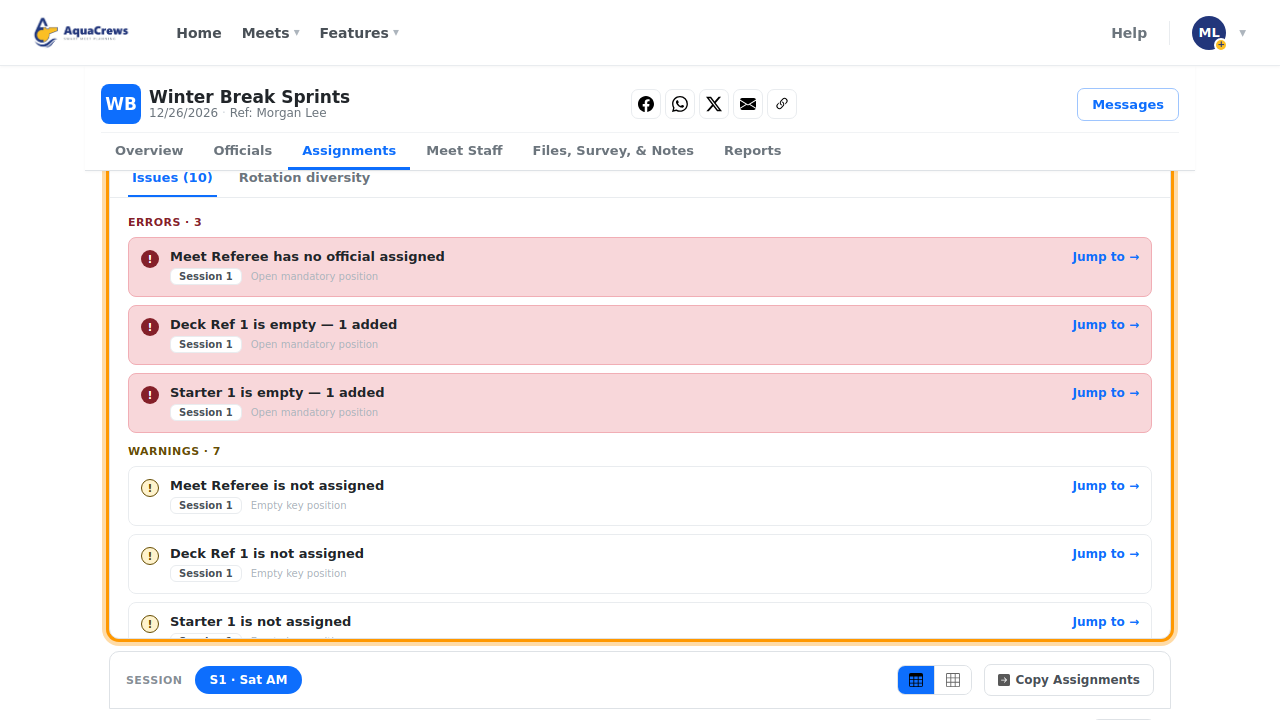
Click Sanity Check to see which positions still need someone.
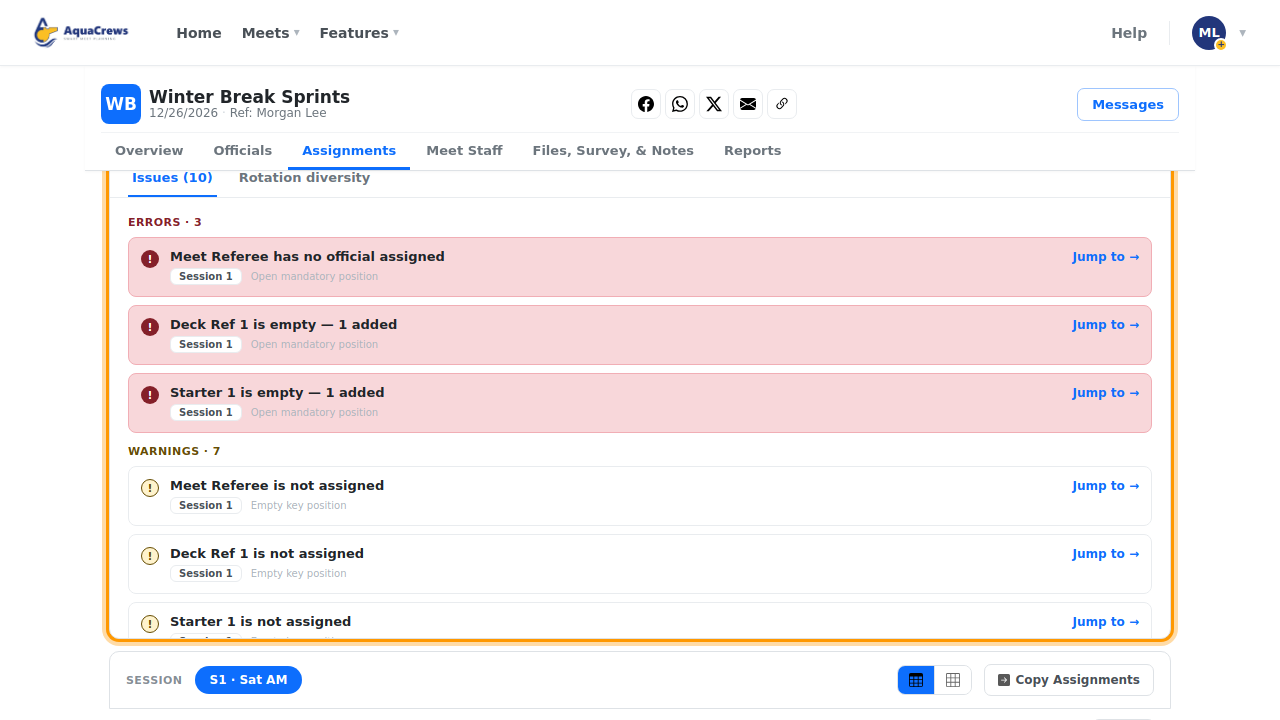 Click to see a larger version
-
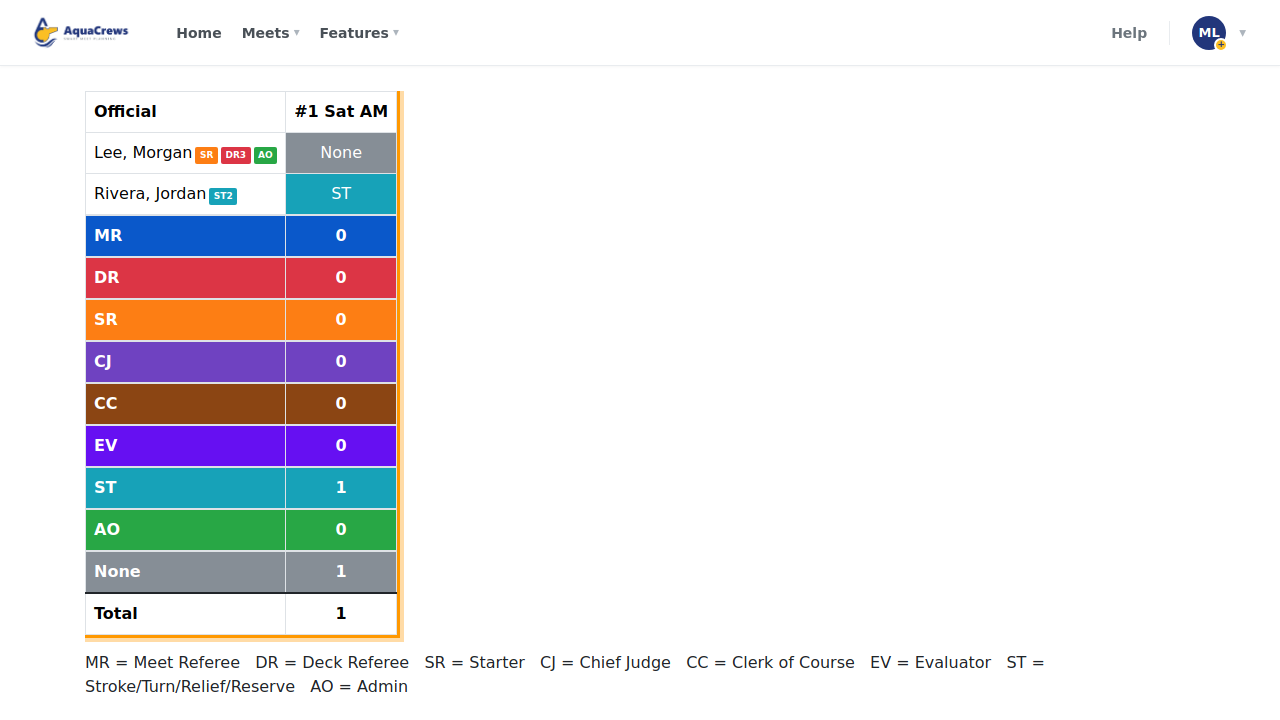
On the Reports tab, open Officials Role by Session to check coverage.
-
Keep confirming and assigning officials, then publish the assignments.
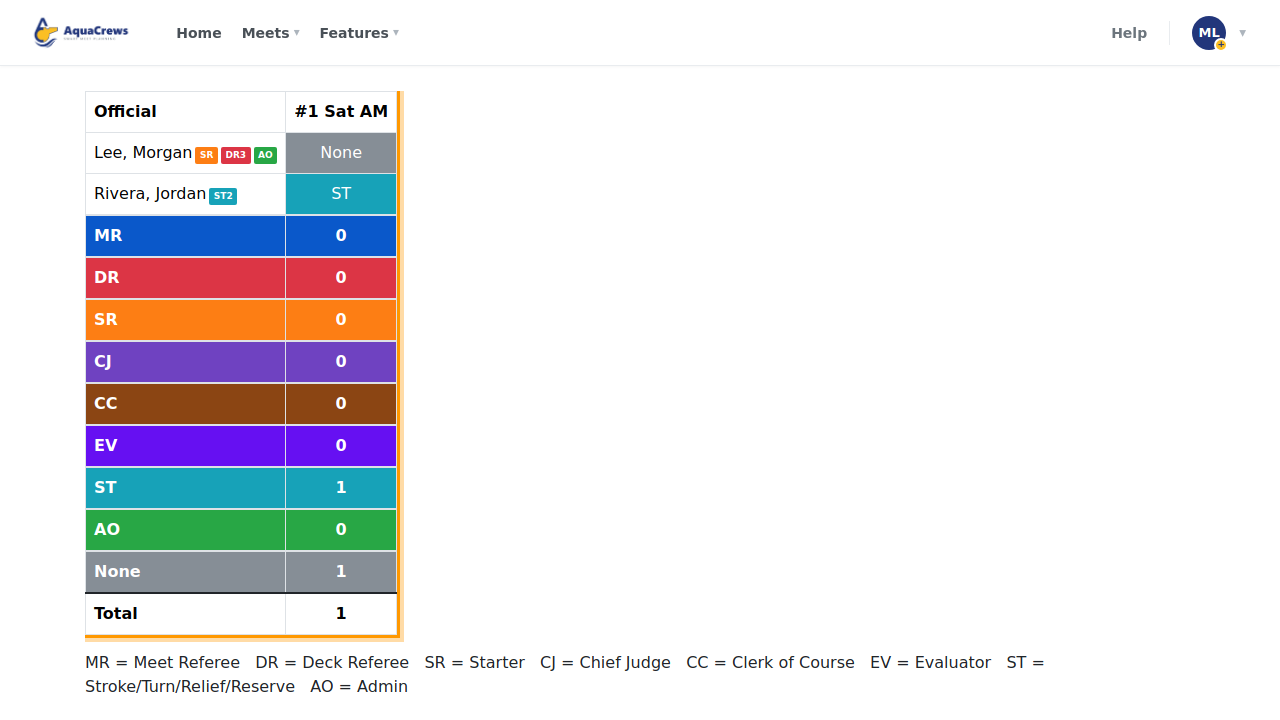 Click to see a larger version