
Build deck assignments
Put your confirmed officials in deck positions for each session by dragging them onto the pool layout.
Note: Meet Planner must be turned on for the meet - see Meet Planner and meet staff.
Before you start: you've confirmed officials for the session, and set up the pools on the Overview tab - see Tour of the meet management page.
Steps
- On the Home page, find the meet under My Meets and click Manage.
- Click the Assignments tab.
- Choose the session to work on.
-
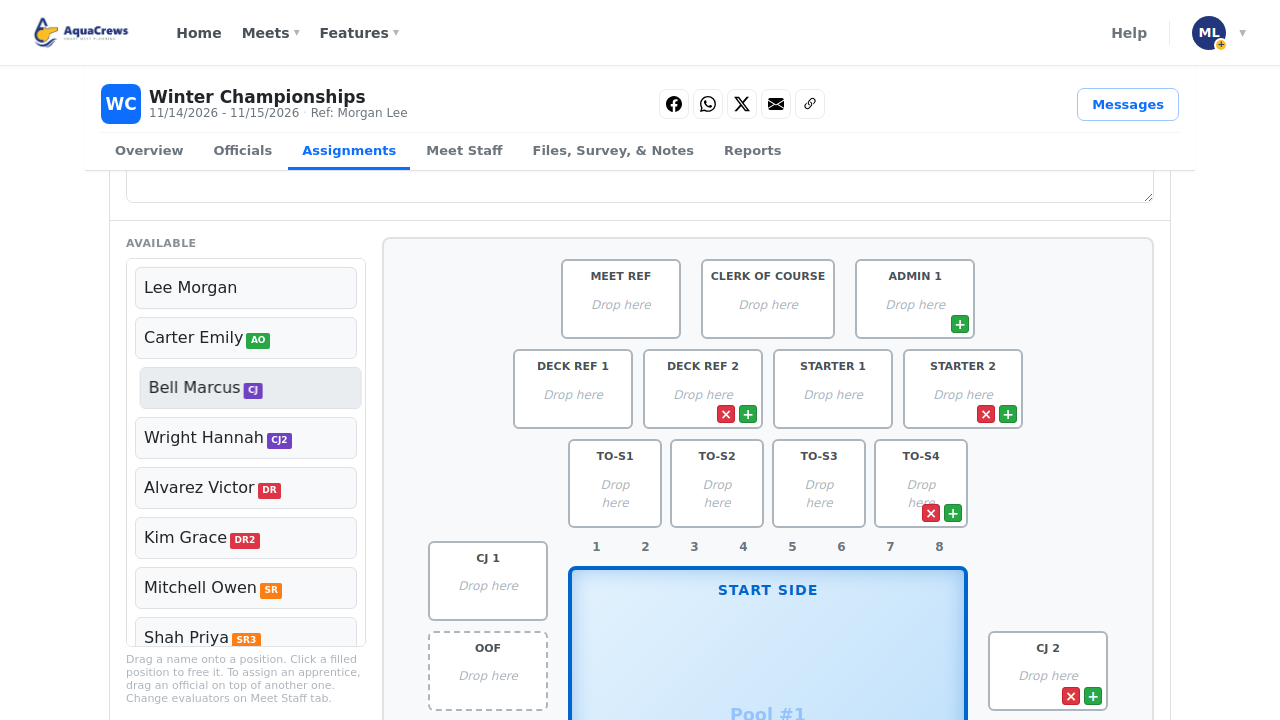
Confirmed officials who aren't assigned yet are listed under Available.
 Click to see a larger version
-
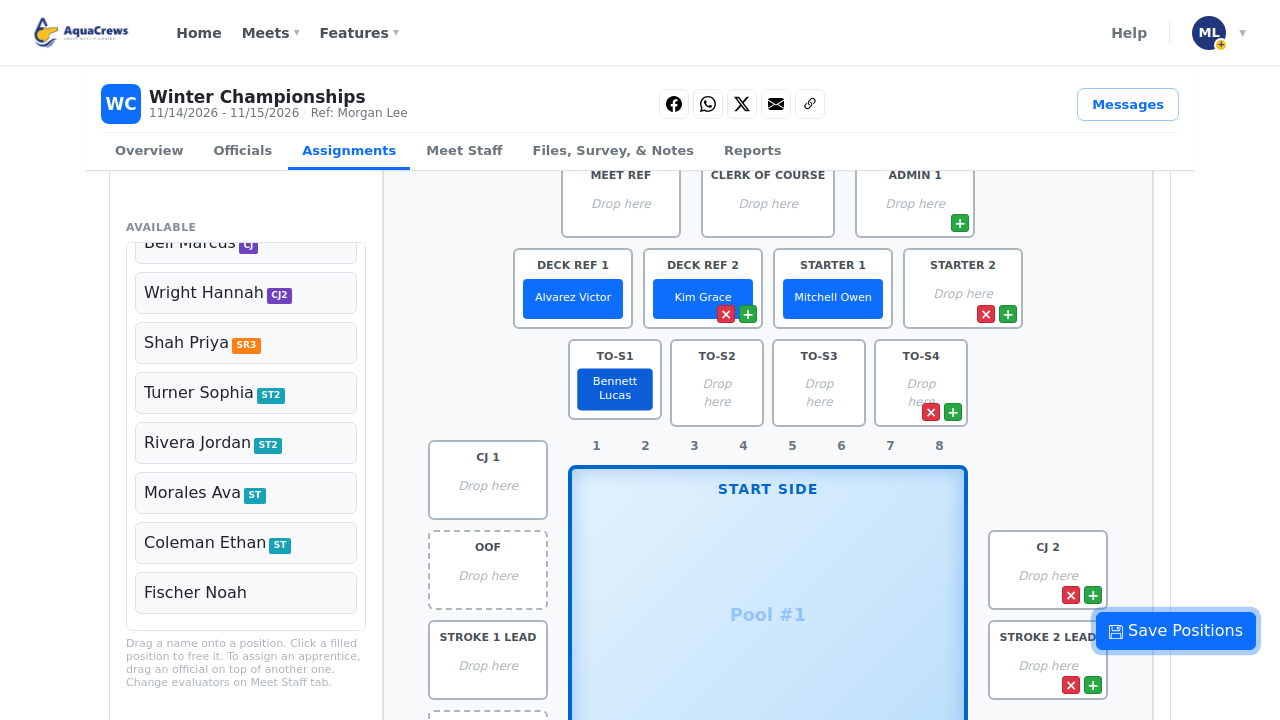
Drag an official onto a position - for example, the Deck Ref.
-
Keep dragging officials onto positions until every position is filled.
 Click to see a larger version
-
To add an apprentice, drag a second official on top of one already assigned.
- To free a position, click the official in it - they go back to Available.
- Click Save positions.
Tips & troubleshooting
- The colored tags next to names (DR, SR, ST, ...) show each official's certifications.
- Use the green + on a position to add another of that position, and the red × to remove one.
- Rotations: click + Add rotation to plan shifts within a session; each rotation has its own positions.
- Use the grid button to switch to a table view, which is handy on a phone.
- Same crew for another session? See Copy assignments between sessions.
- For relays, turn on This session has relay events below the pool - see Report: Relay Take Off Ballots.
Related: Sanity Check and publish assignments · Copy assignments