
Approve, waitlist, or decline officials
When officials sign up for your meet, their requests wait for you as Pending. Confirm the officials you need for each session, waitlist extras, and decline anyone you can't use.
Before you start: you're signed in as the meet's referee, a member of its meet staff, or an LSC administrator.
Steps
-
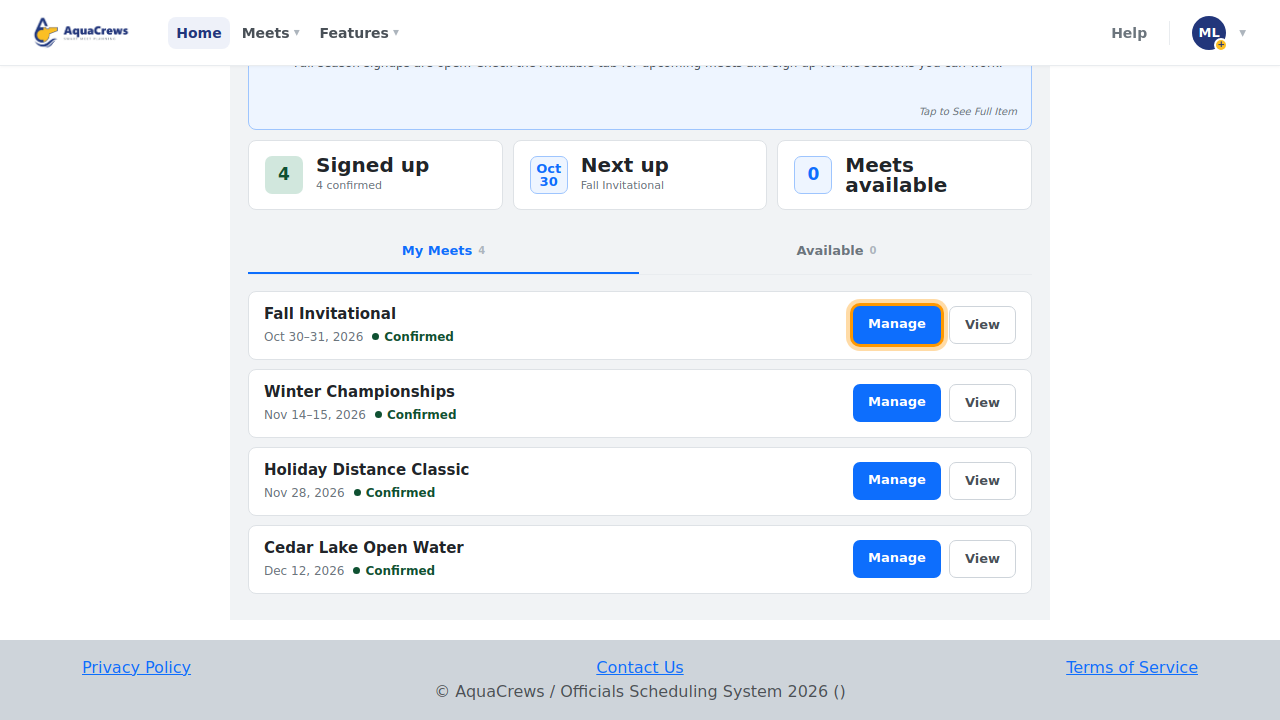
On the Home page, find the meet under My Meets and click Manage.
 Click to see a larger version
-
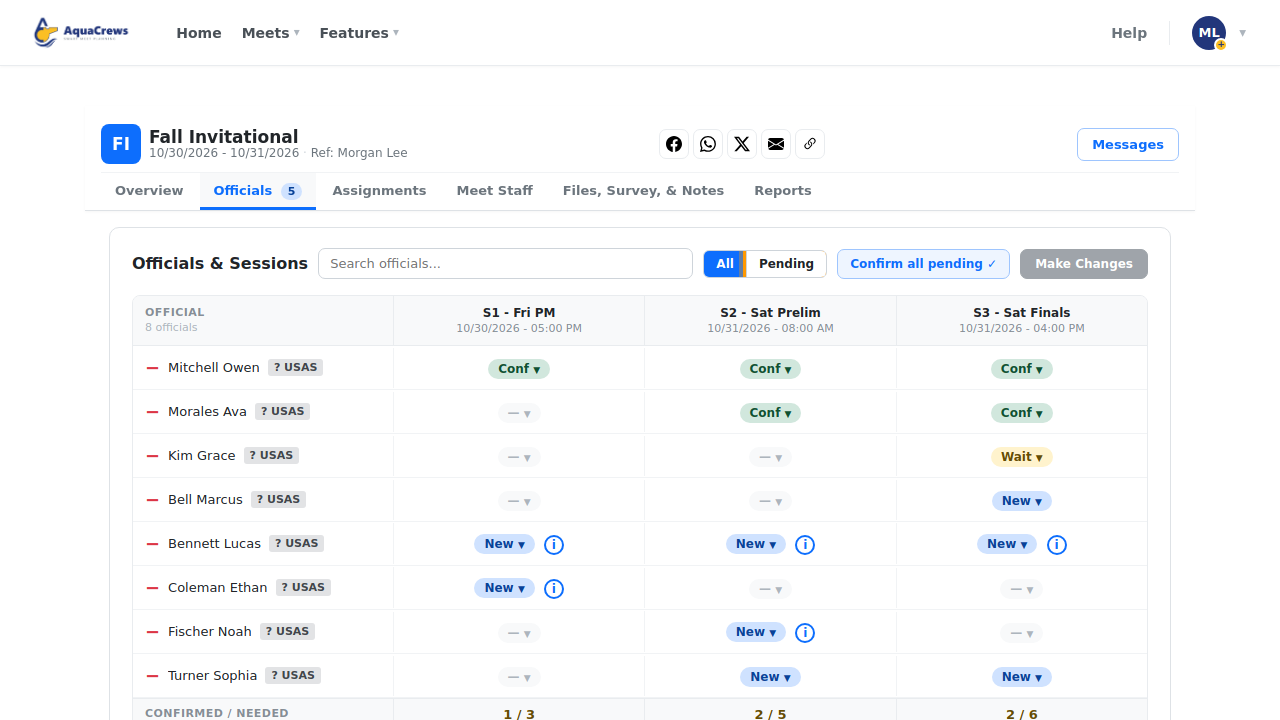
Click the Officials tab. The number on the tab is how many requests are pending.
-
Optional: click Pending to show only officials who are waiting for an answer.
 Click to see a larger version
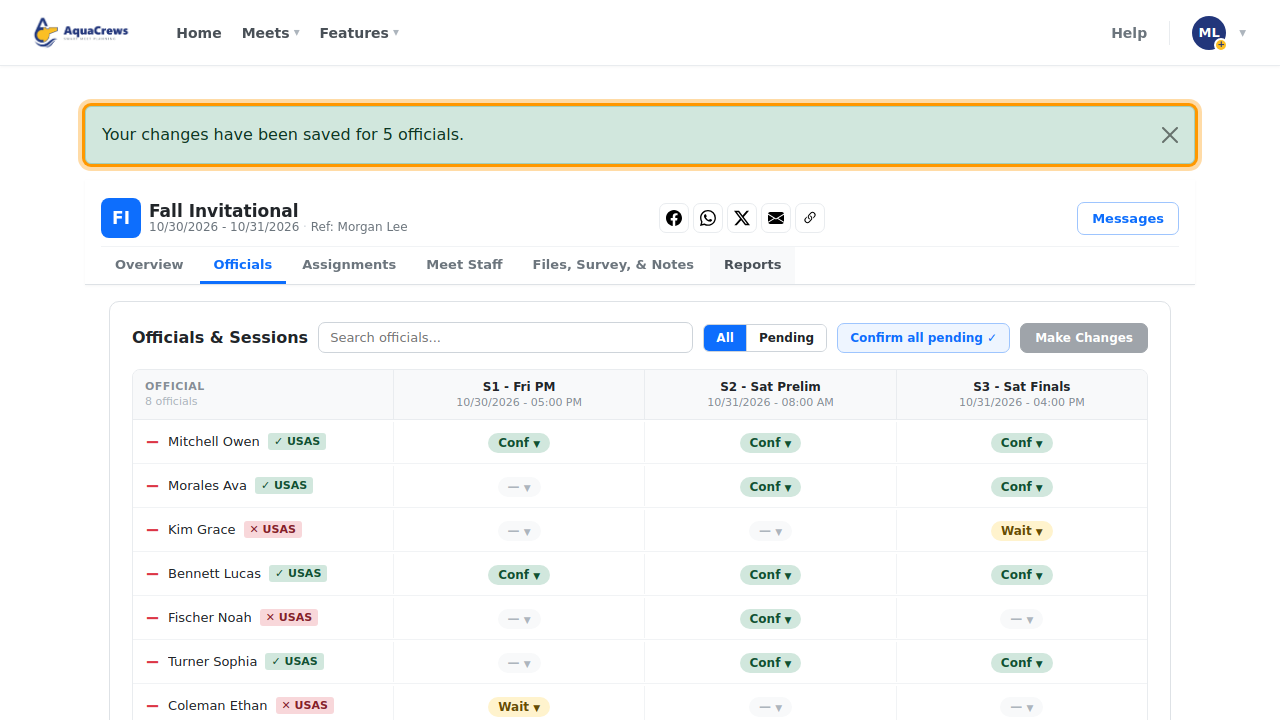
Each row is an official and each column is a session. New means the official asked to work that session and is waiting for you; Conf, Wait, and Decl are confirmed, waitlisted, and declined.
-
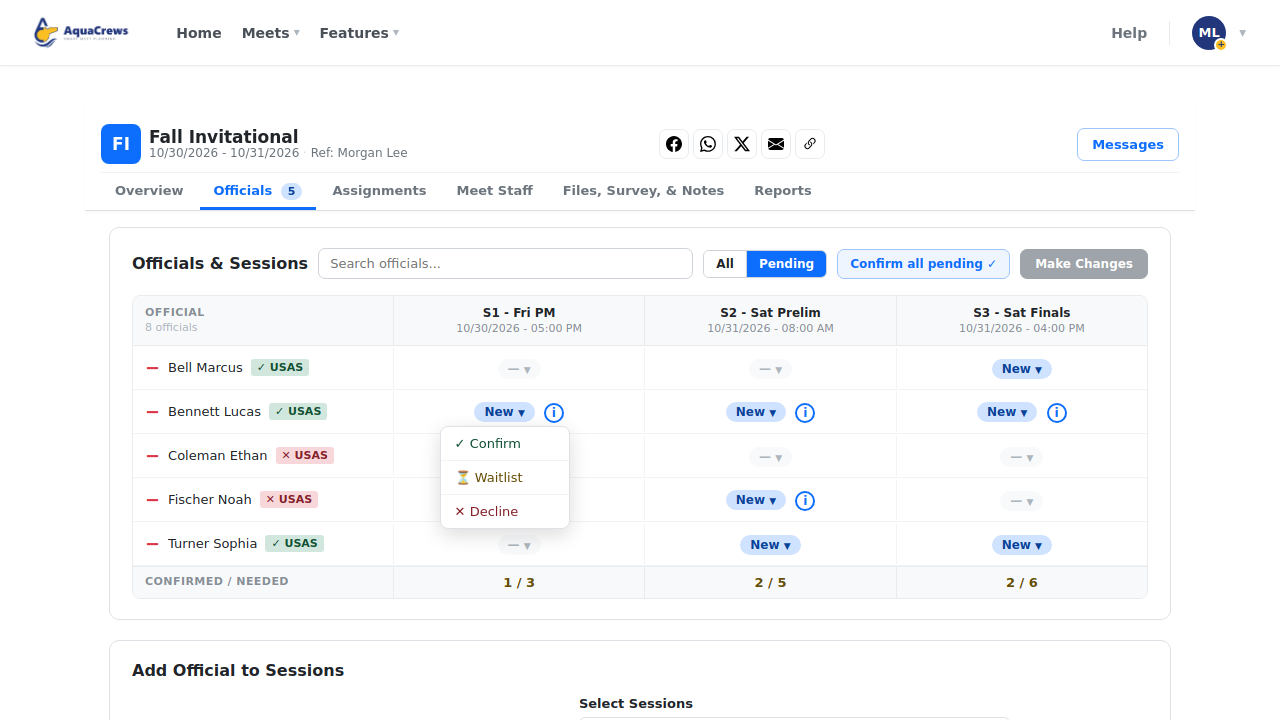
To confirm an official for a session, click their status in that session's column and choose Confirm.
 Click to see a larger version
-
To hold an official in reserve, choose Waitlist instead.
- If you don't need the official for that session, choose Decline.
- Optional: click Confirm all pending to confirm everyone who is still pending.
-
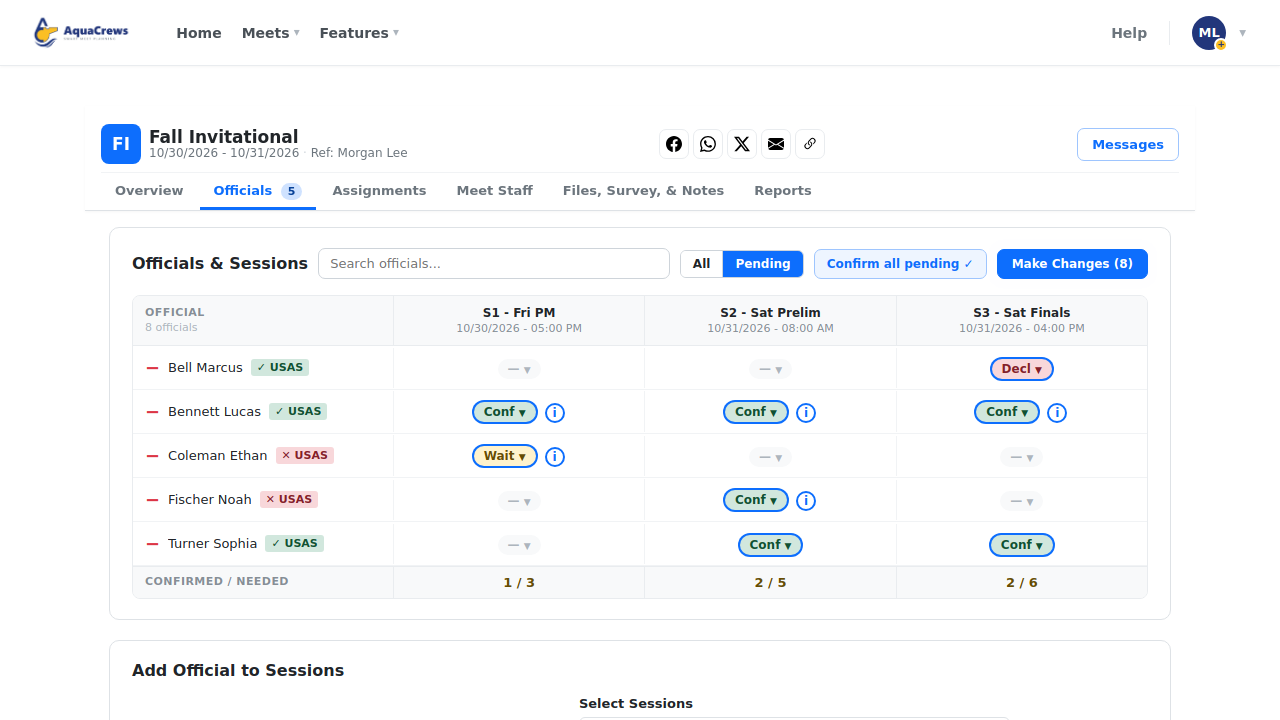
Click Make Changes to save. The button shows how many changes you're saving.
 Click to see a larger version
What happens next
The page reloads with the message Your changes have been saved, and each official's new status shows in the grid. Each official gets an email about their new status, if they have status notifications turned on. Confirmed officials are now available to place on the Assignments tab - see Build deck assignments.
Click to see a larger version
Tips & troubleshooting
- Editing assignments at the same time? If you have unsaved changes on the Assignments tab, the page doesn't reload - the saved message appears above the Officials & Sessions grid instead, so your assignment edits are kept.
- Changes aren't saved until you click Make Changes. Changed statuses have a blue ring until then. If you leave the page first, your changes are lost.
- Want to know why someone signed up for only some sessions? Officials can leave a note when they sign up; it shows with their request.
- Need to add someone who didn't sign up? See Add officials yourself.
Related: Tour of the meet management page · Add officials yourself · Build deck assignments