
Tour of the meet management page
The meet management page is where you run your meet. Here's what's on each tab.
Before you start: you're the meet's referee, or an LSC administrator.
What's on the page
- On the Home page, find the meet under My Meets and click Manage.
-
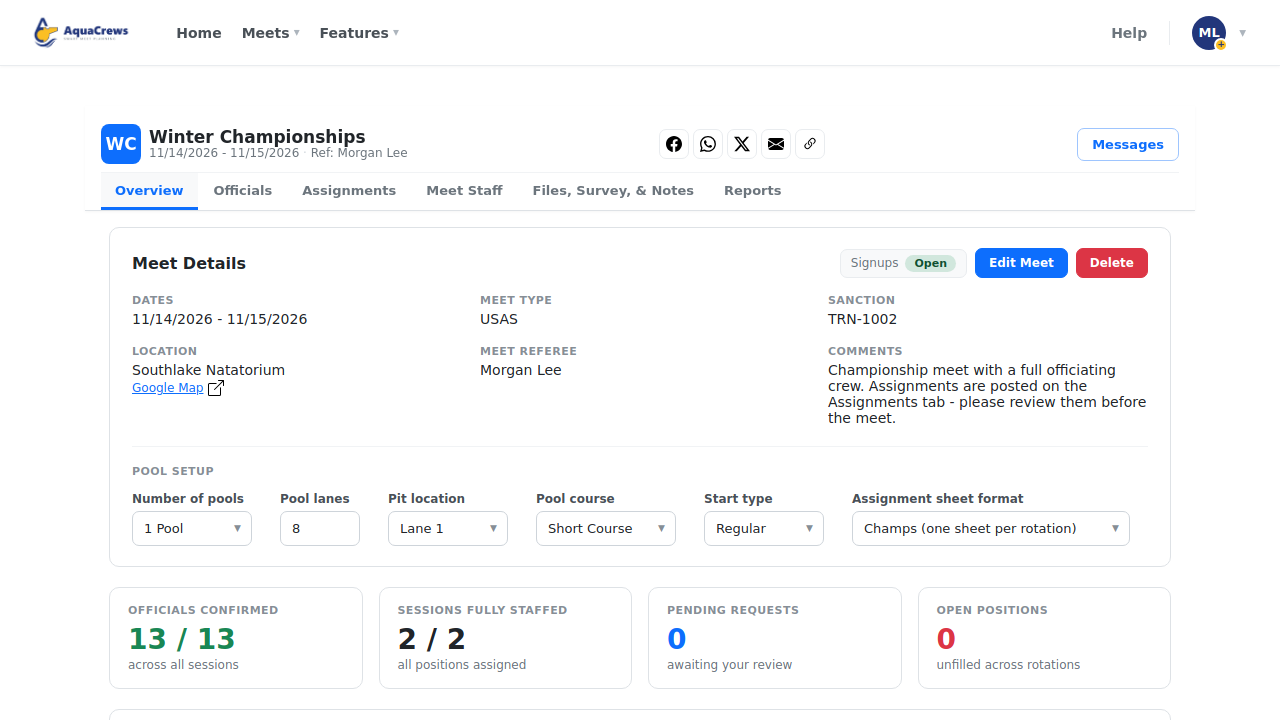
Overview has the meet details, signups Open or Paused, pool setup, and staffing totals.
 Click to see a larger version
-
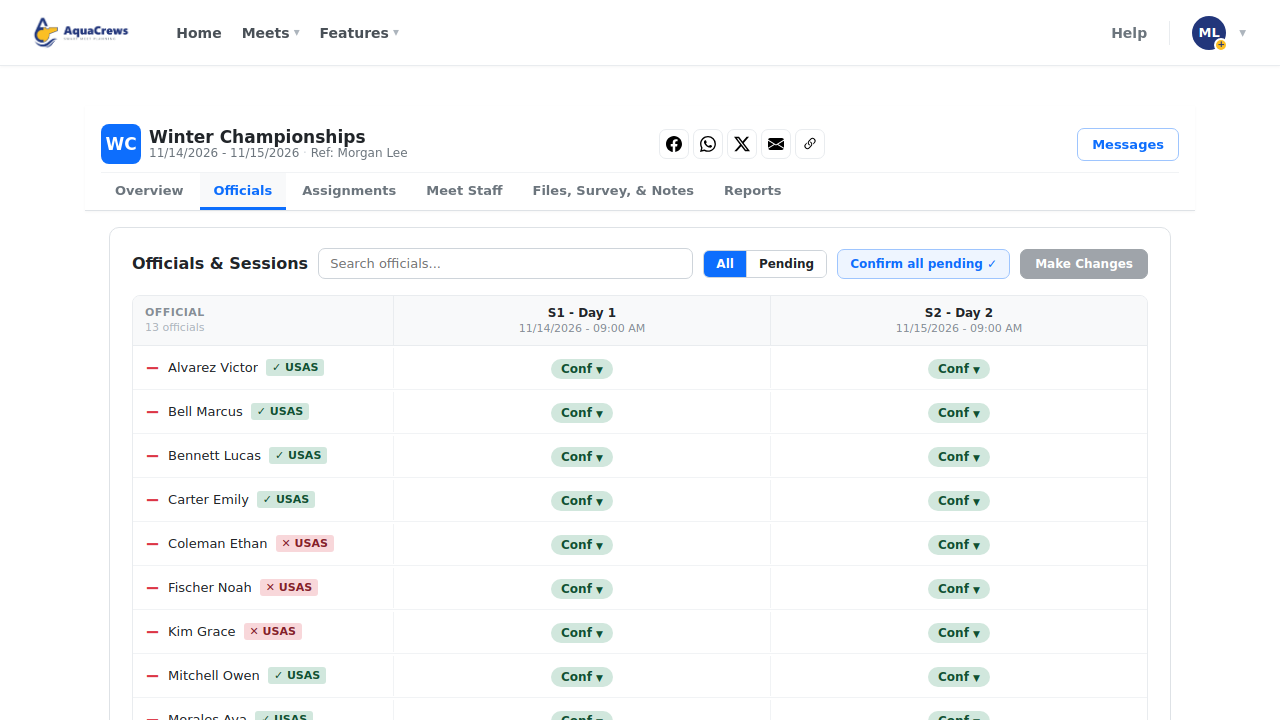
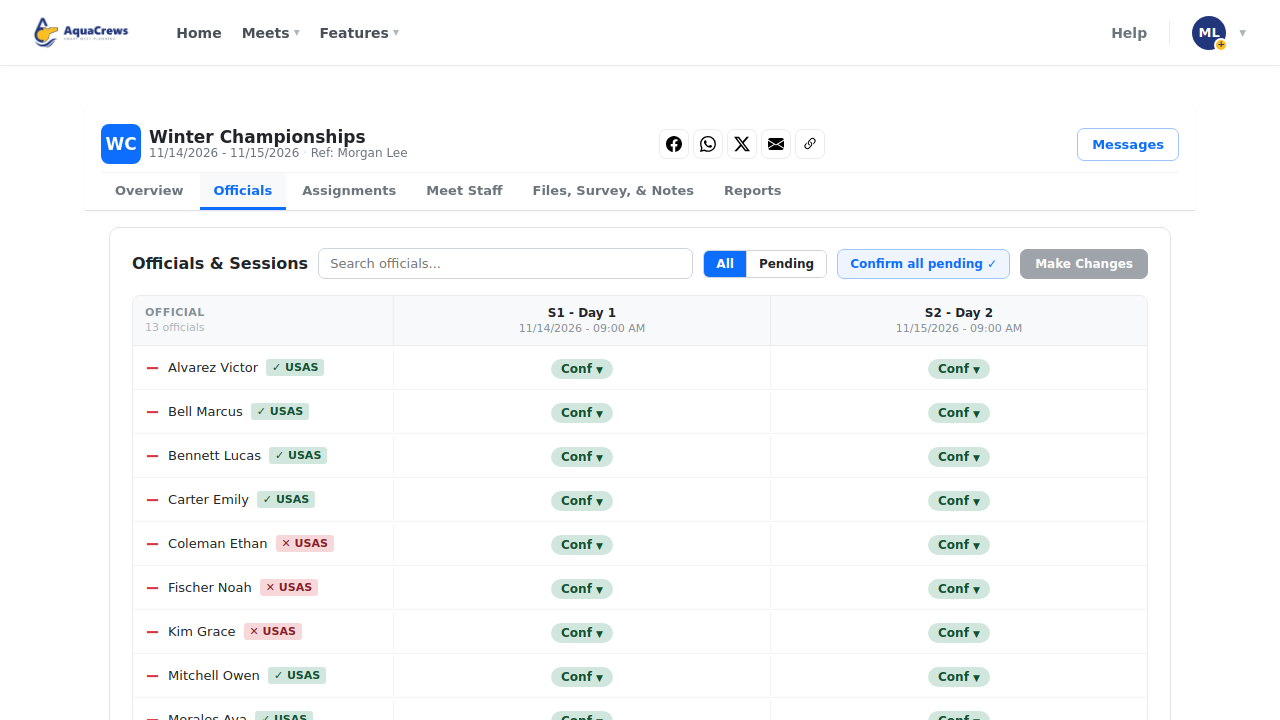
Officials is where you confirm, waitlist, or decline officials for each session.
 Click to see a larger version
-
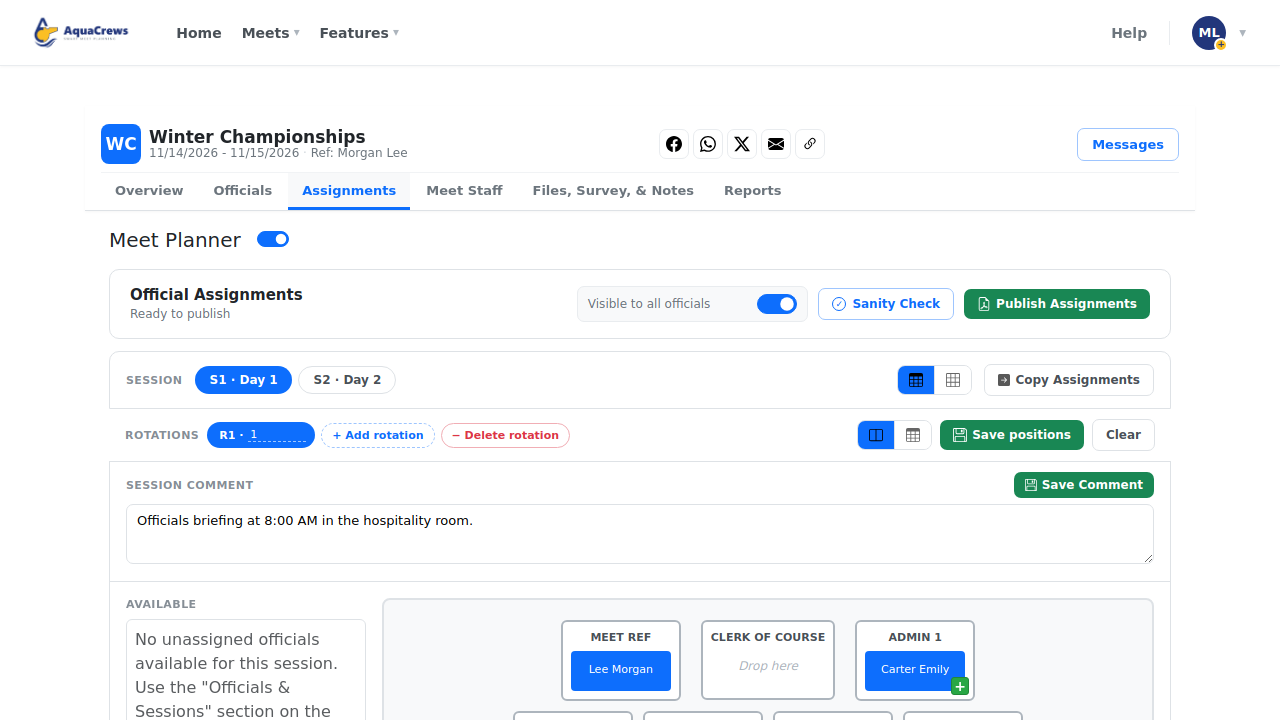
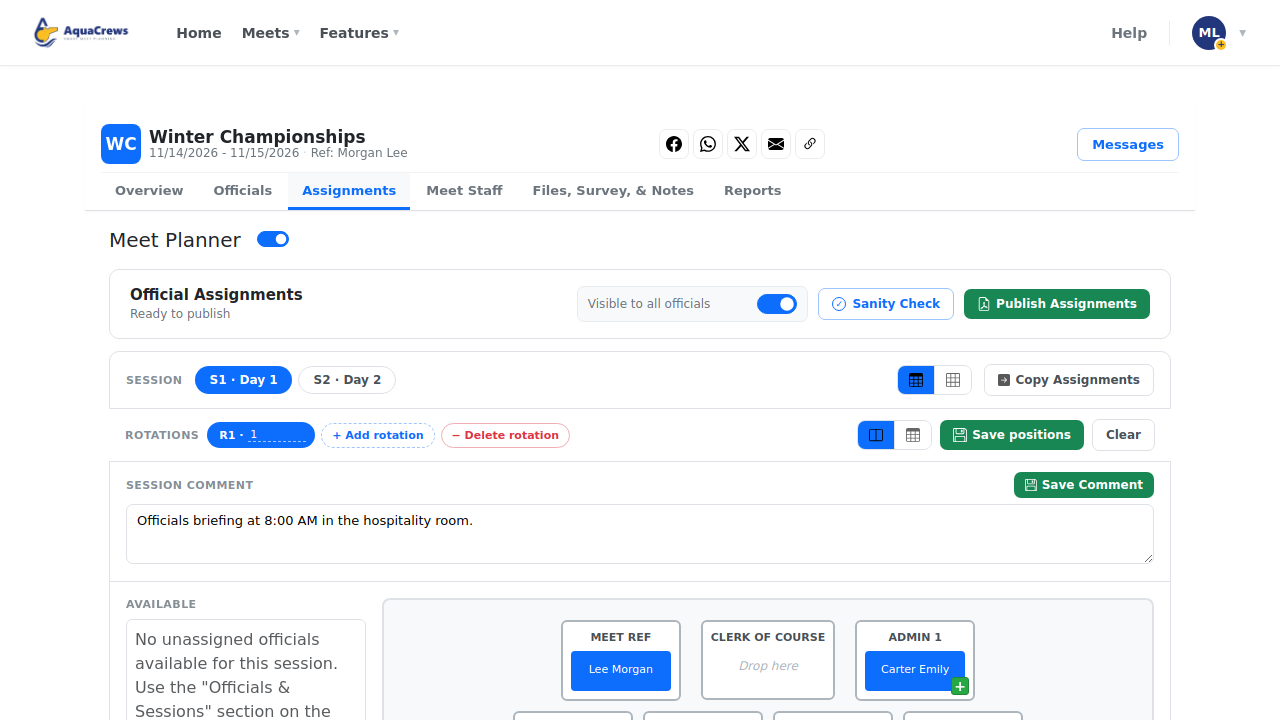
Assignments is where you put officials in deck positions and publish them.
 Click to see a larger version
-
Turn on Meet Planner to use the drag-and-drop planner, meet staff, files, and notes.
-
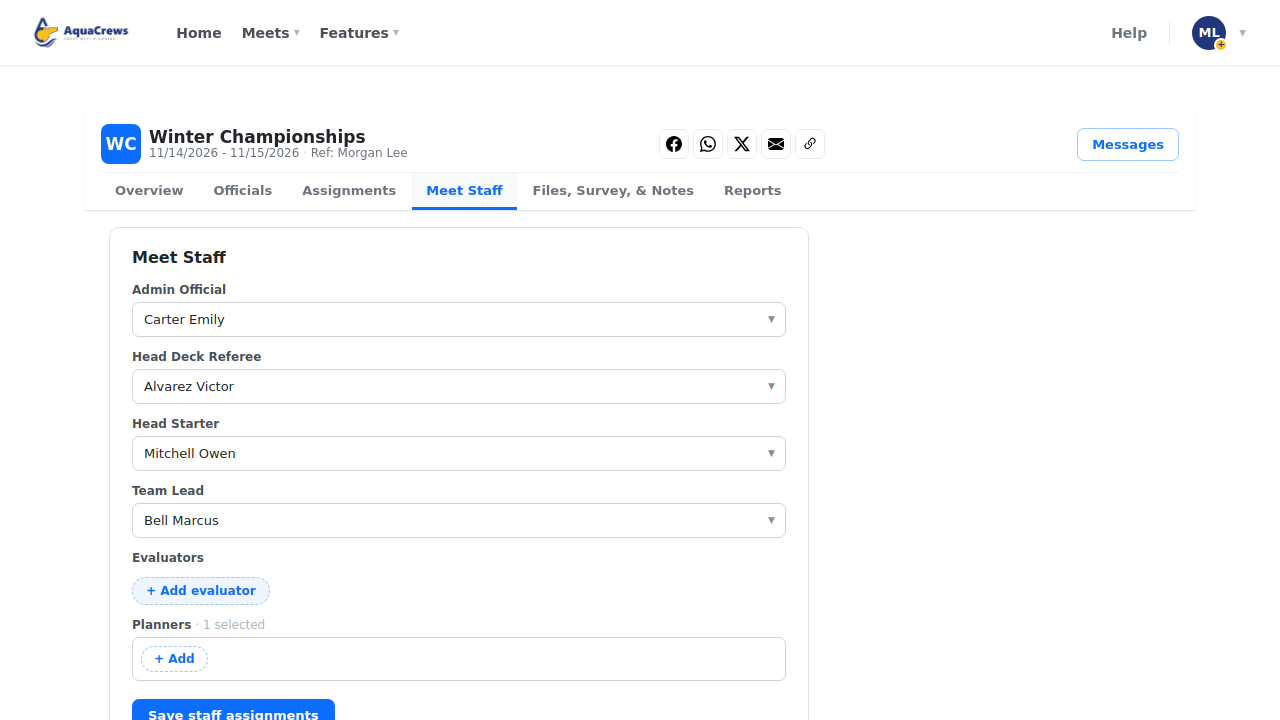
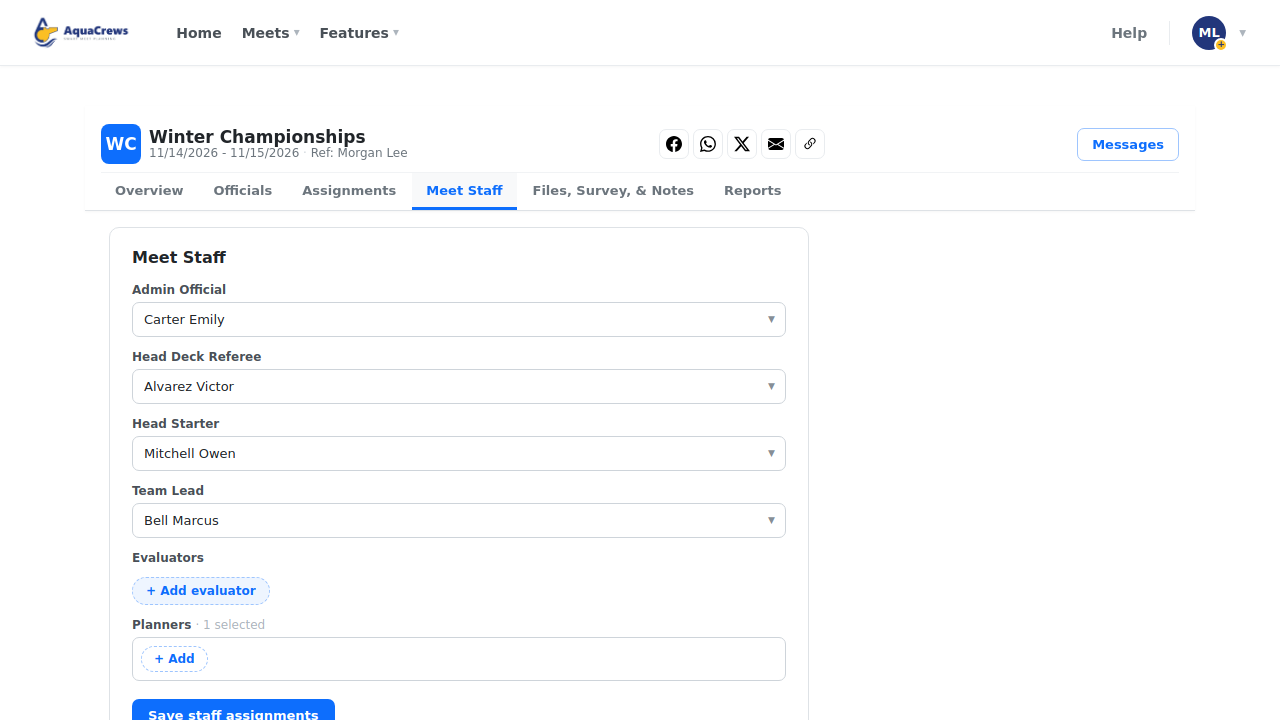
Meet Staff names the admin official, head deck referee, head starter, team lead, evaluators, and planners.
 Click to see a larger version
-
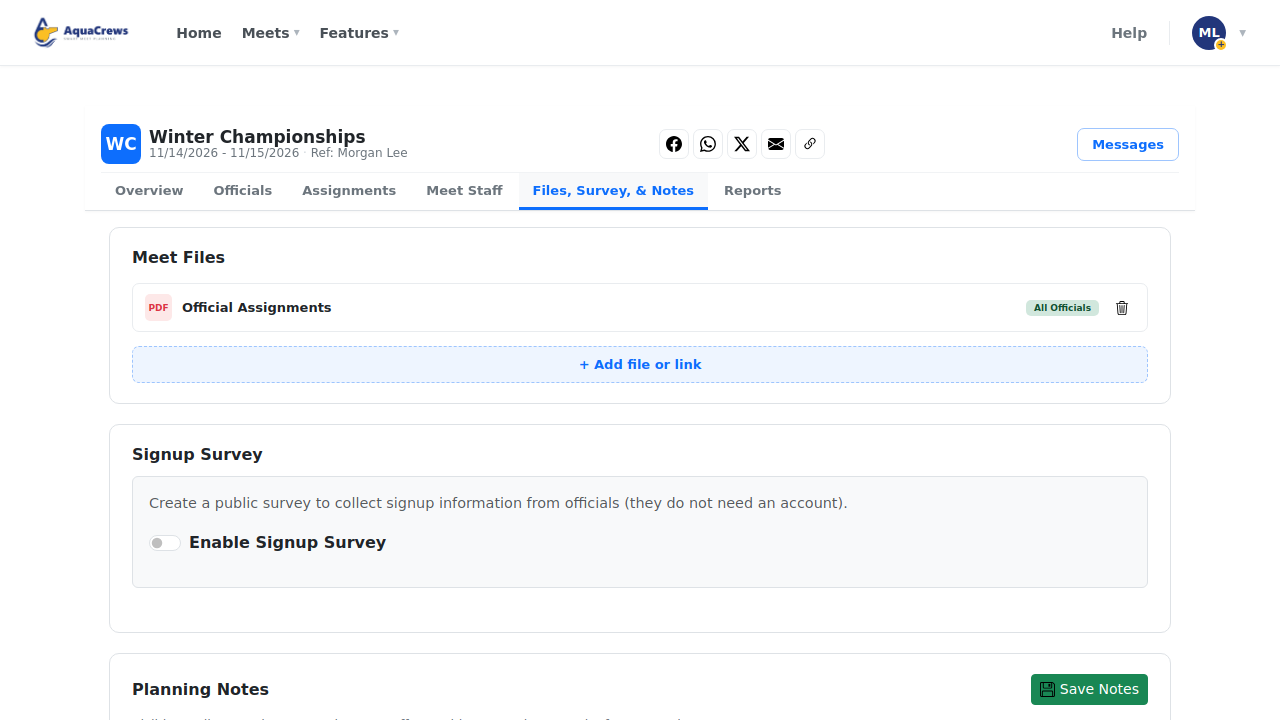
Files, Survey, & Notes holds meet files and links, and planning notes for your staff.
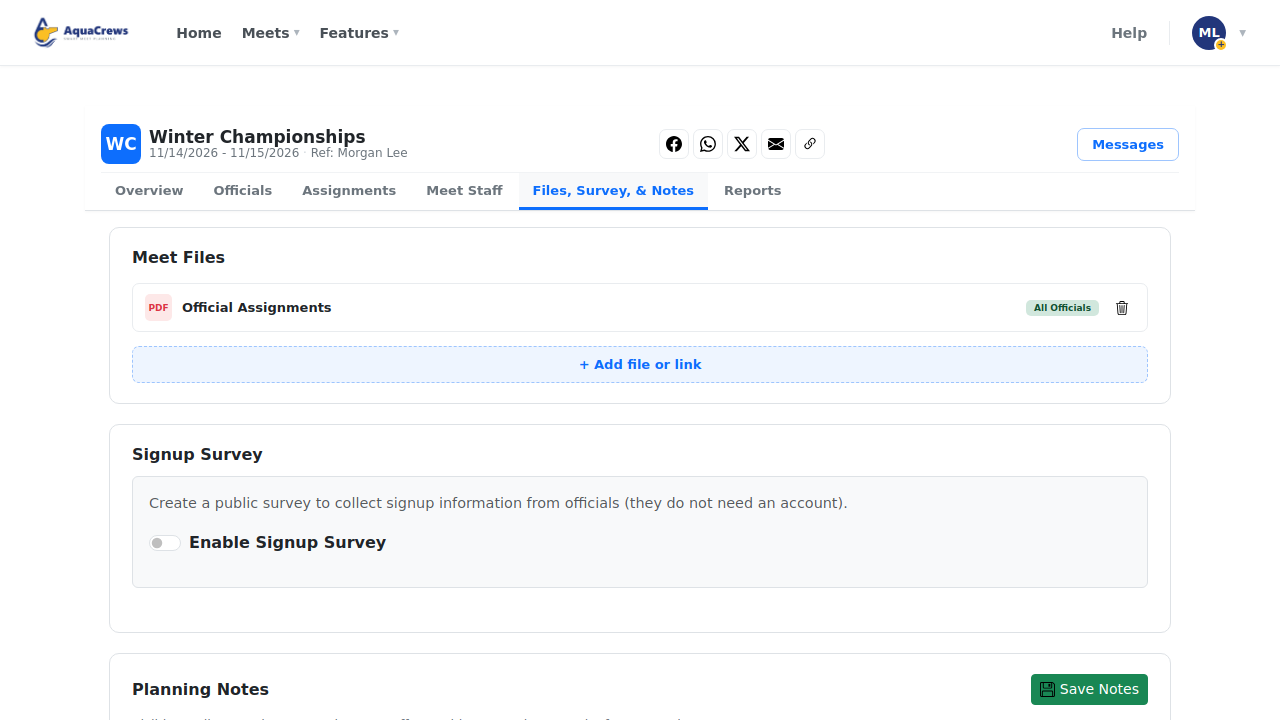 Click to see a larger version
-
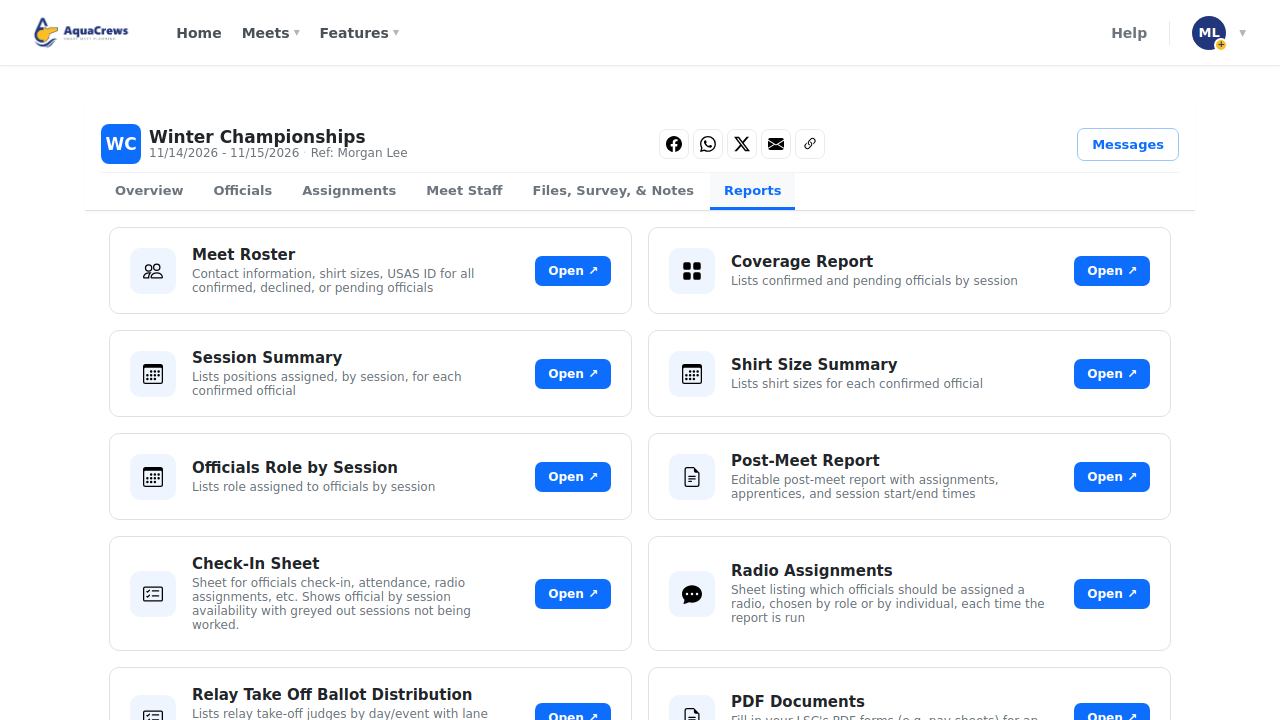
Reports has the roster, coverage, check-in sheet, and the other meet reports.
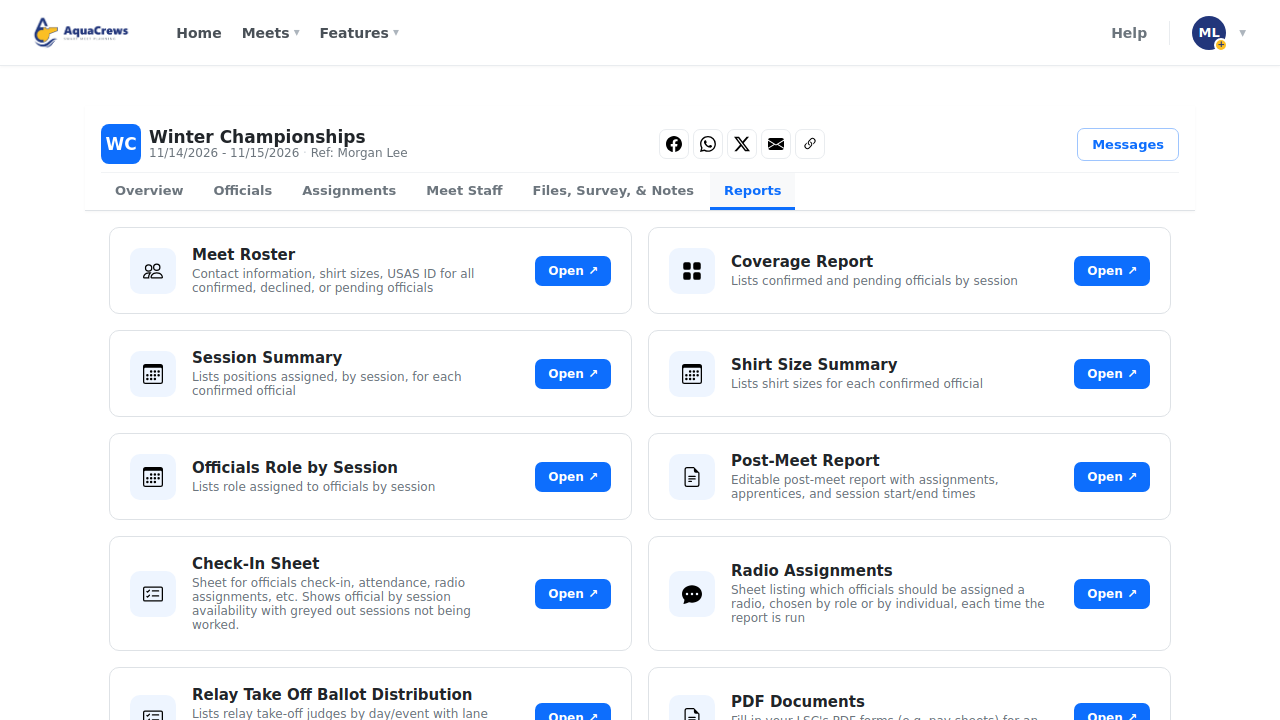 Click to see a larger version
-
Click Messages to email the officials in this meet.
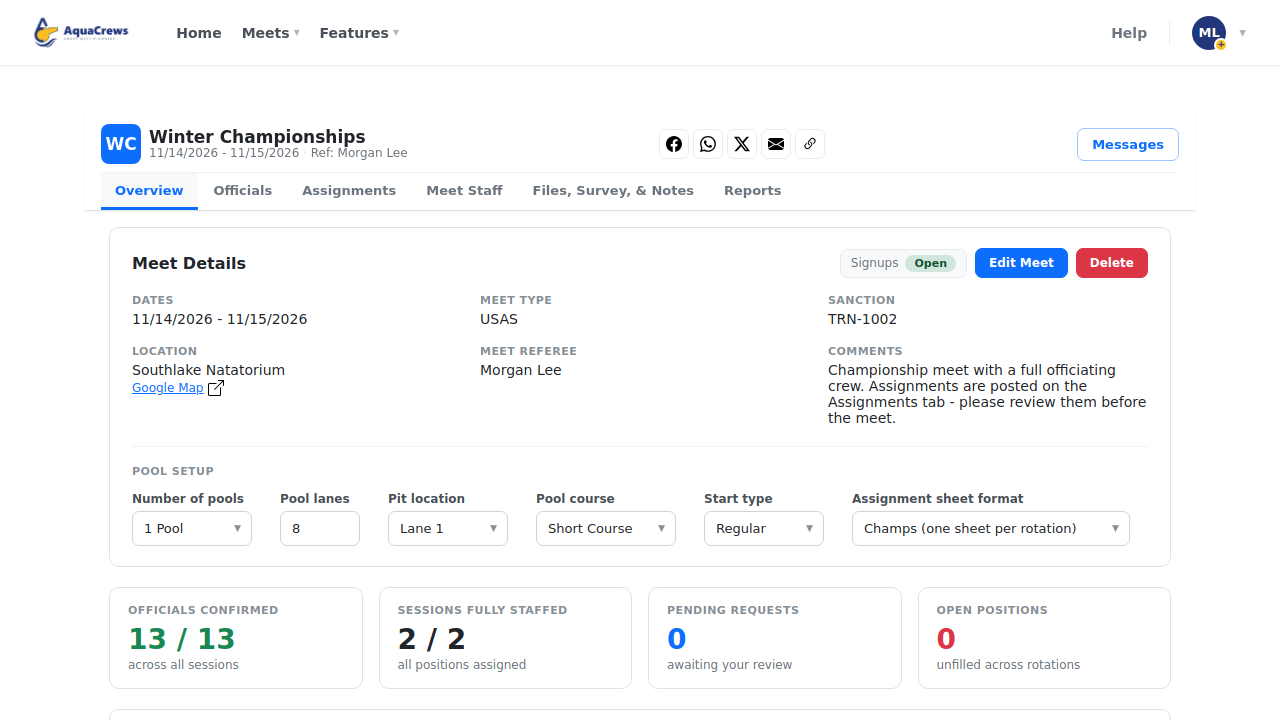
Pool setup (Overview tab)
Set these before you build assignments - they decide which positions the planner shows: Number of pools, Pool lanes, Pit location, Pool course (short or long - long course adds turn-end positions), Start type, and Assignment sheet format.
Note: Meet Planner must be enabled for your organization.
Related: Approve officials · Build deck assignments · Meet Planner and meet staff · How do I...