
Add officials yourself (incl. external)
Add an official to your meet without waiting for them to sign up - including officials who don't have an AquaCrews account (external officials).
Before you start: you're the meet's referee, or an LSC administrator.
Steps
- On the Home page, find the meet under My Meets and click Manage.
- Click the Officials tab.
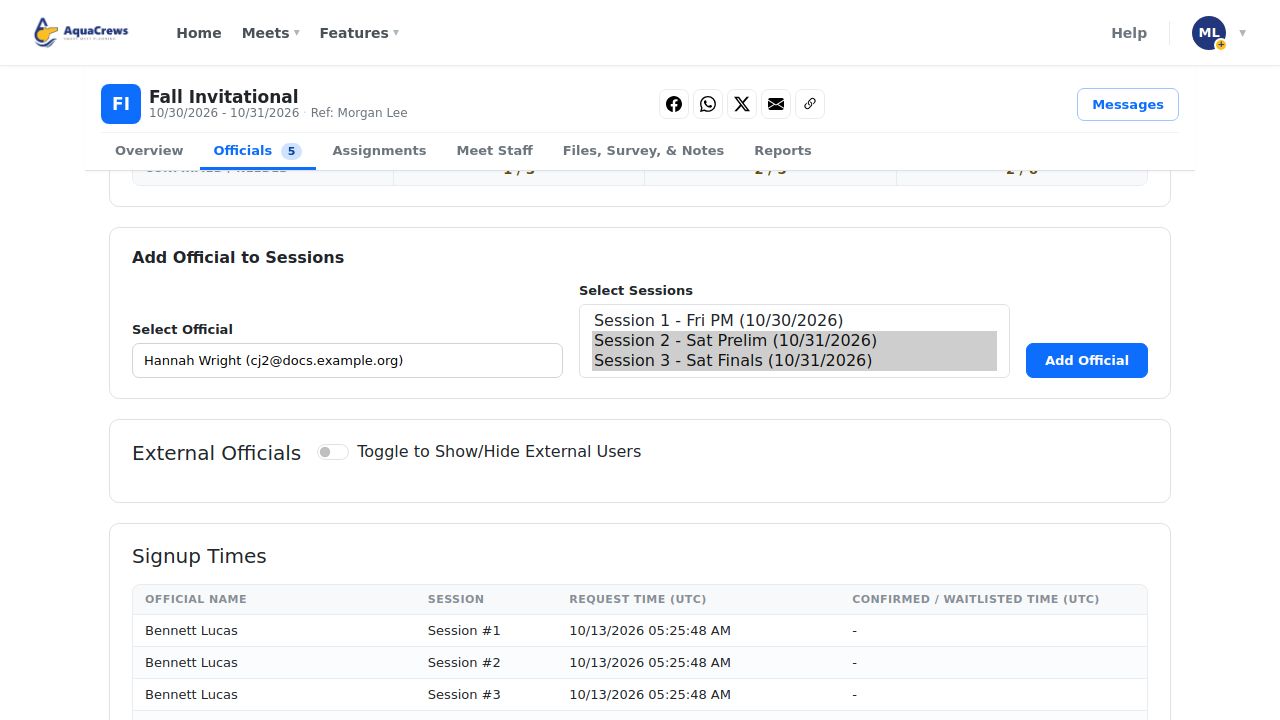
- Under Add Official to Sessions, type the official's name and choose them.
-
Select the sessions they'll work (hold Ctrl, or Cmd on a Mac, to pick more than one).
 Click to see a larger version
-
Click Add Official - they're added as Confirmed.
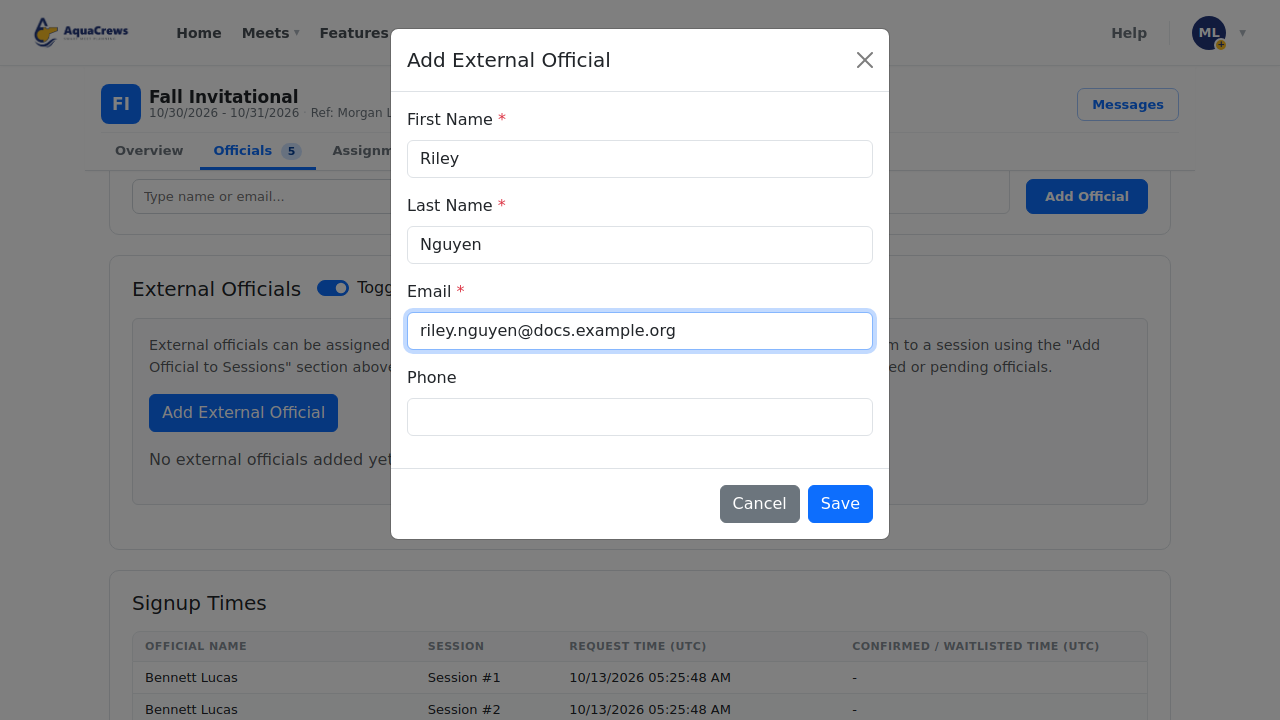
- For an official without an AquaCrews account, turn on External Officials.
- Click Add External Official.
-
Enter their First Name, Last Name, and Email, then click Save.
 Click to see a larger version
-
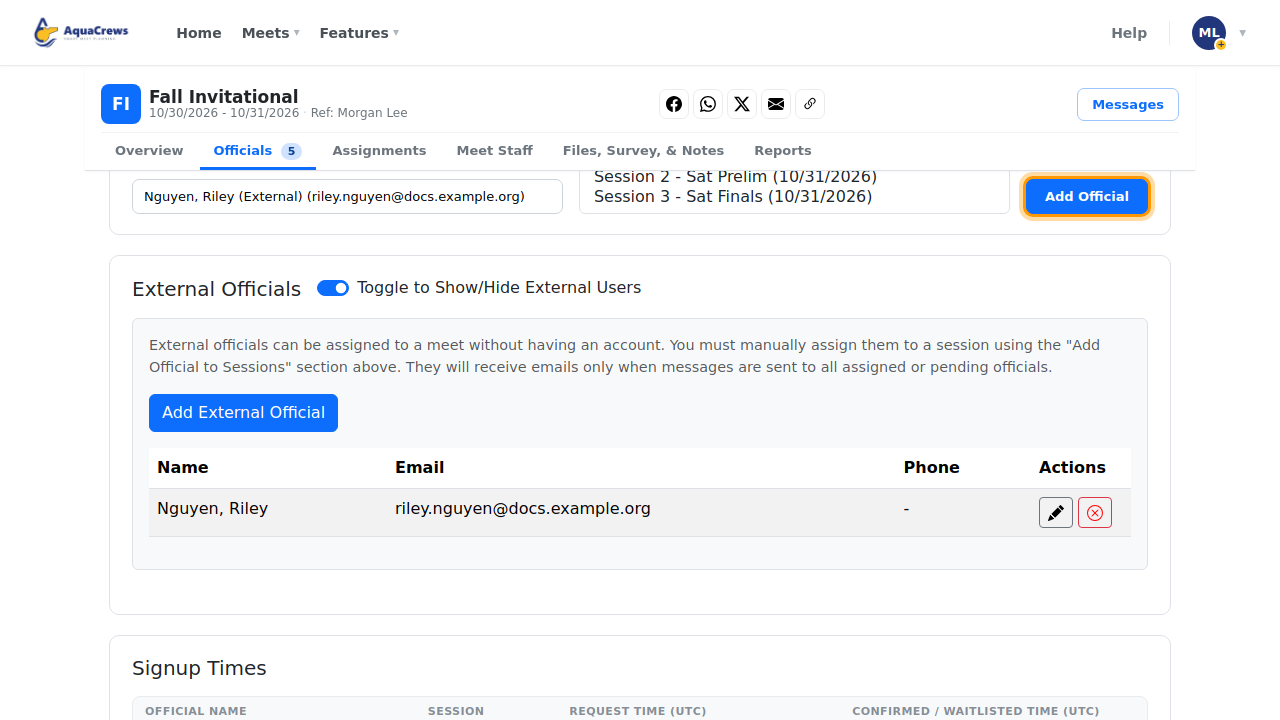
Add them to sessions with Add Official to Sessions, like any other official.
 Click to see a larger version
Tips & troubleshooting
- You can add officials whose AquaCrews account is in another LSC. Search by their name (they show their LSC's name instead of an email) or by their full, exact email address.
- External officials show (External) after their name. They get emails only when you message all assigned or pending officials.
- Use the pencil to edit an external official, or the red button to remove them.
- To remove any official from the whole meet, click the red - next to their name in Officials & Sessions.
Related: Approve, waitlist, or decline officials · Check officials' credentials