
Signup surveys (create & review)
Collect signups from officials who don't have an AquaCrews account - or ask everyone extra questions, such as which evaluation they want - with a survey that has its own public link. You review each response and add the official to your meet's sessions.
Before you start: you're the meet's referee, an LSC administrator, or on the meet's staff.
Steps
- On the Home page, find the meet under My Meets and click Manage.
- Click the Files, Survey, & Notes tab.
- Under Signup Survey, turn on Enable Signup Survey.
-
The survey is created with its own public link - click Configure Questions.
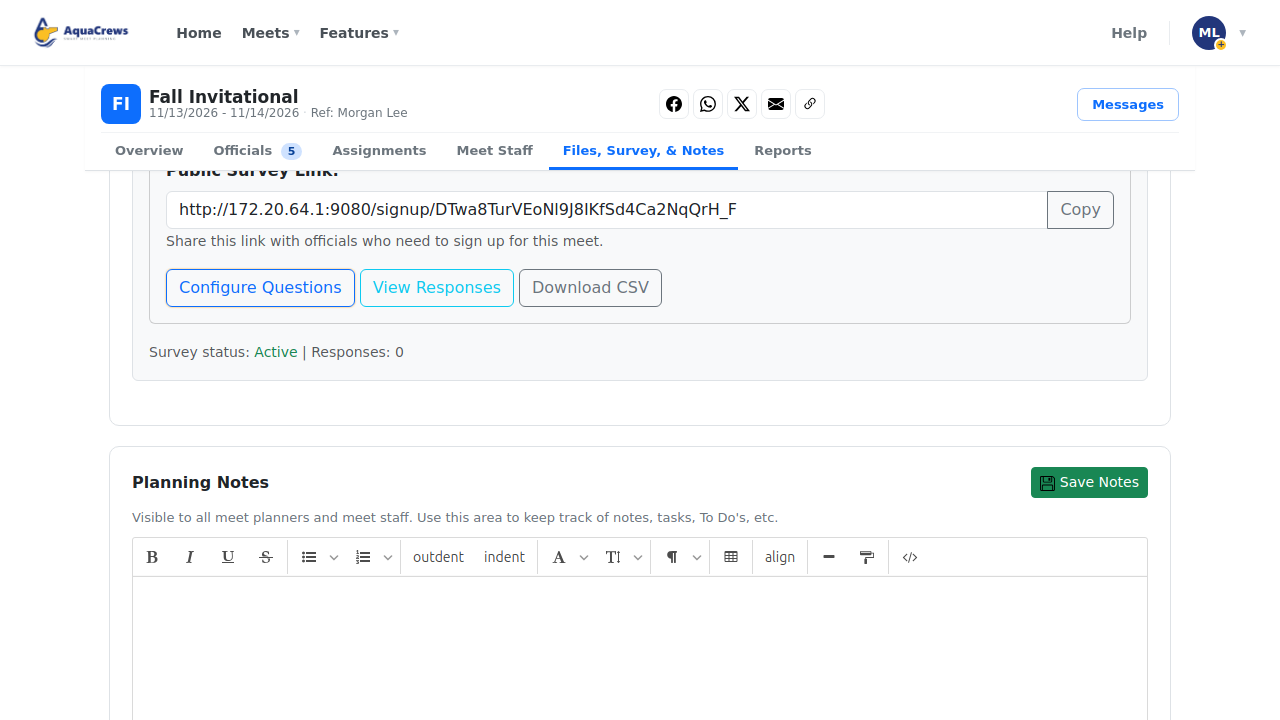
Click to see a larger version -
Check the Survey Title, add a Description, and click Save Changes.
-
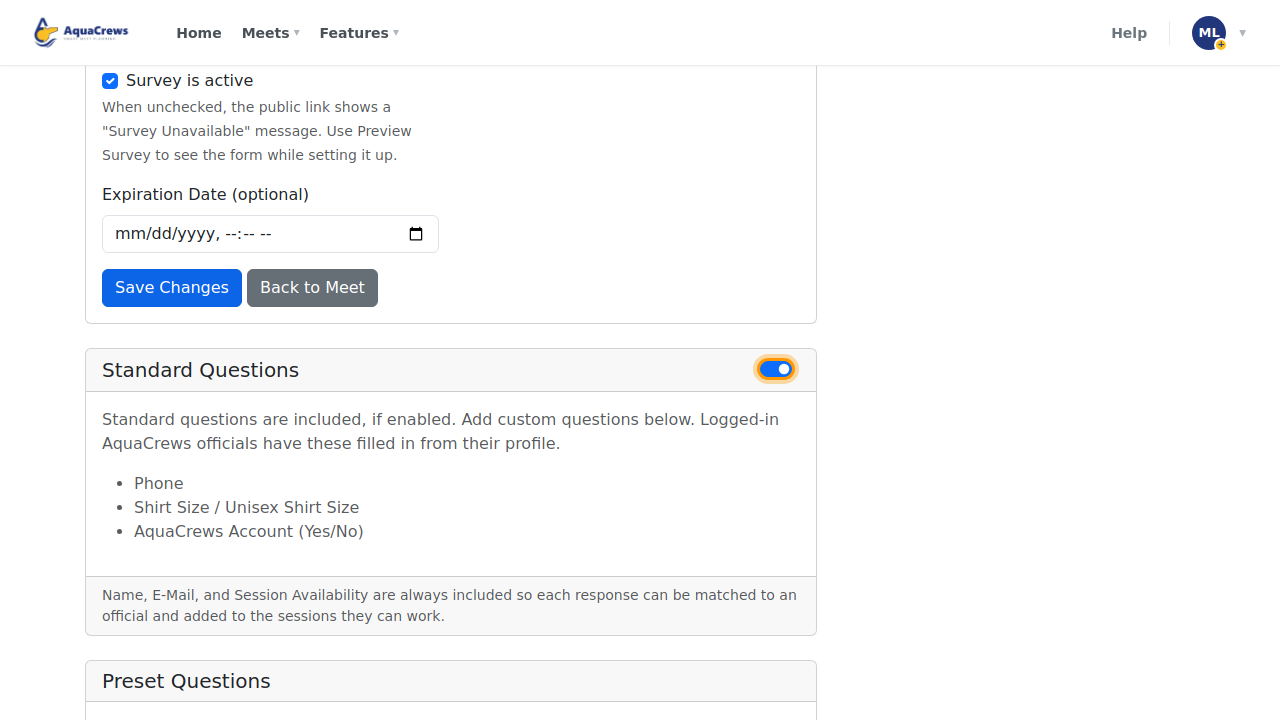
Name, email, and session availability are always asked - the Standard Questions switch adds phone and shirt sizes.
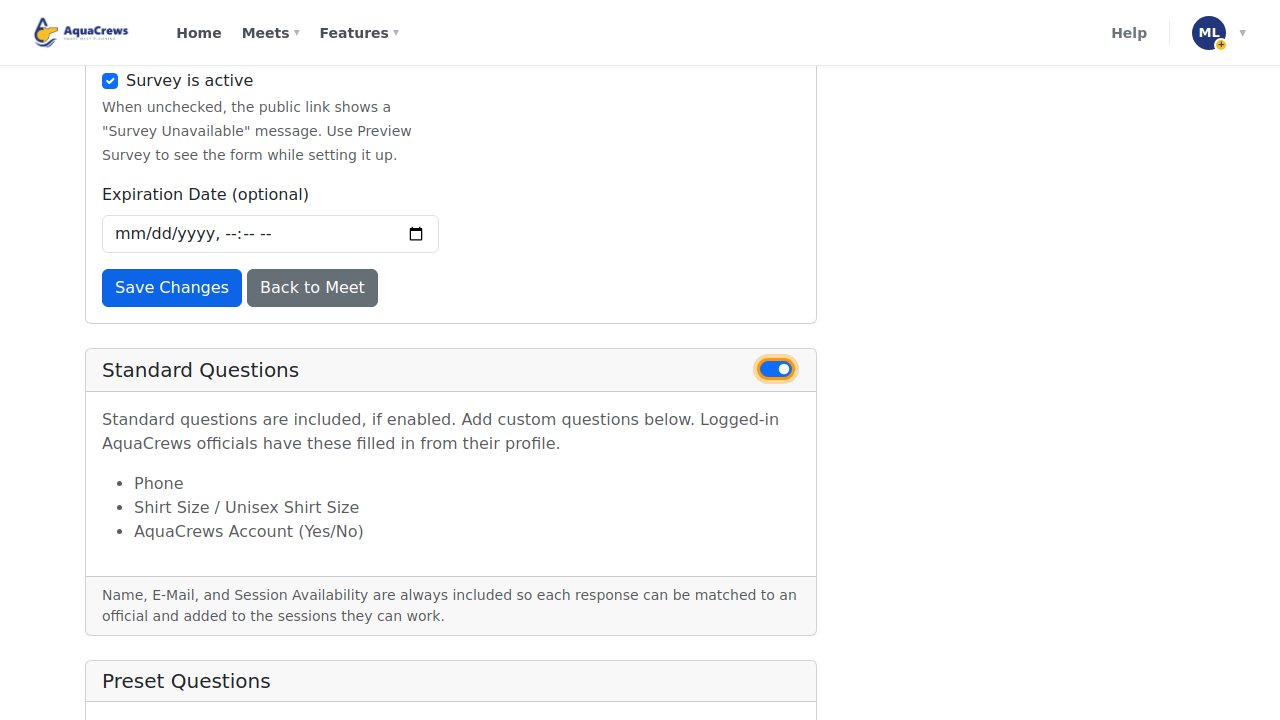
Click to see a larger version -
Under Preset Questions, turn on the ready-made questions you want - for example, certifications or comments.
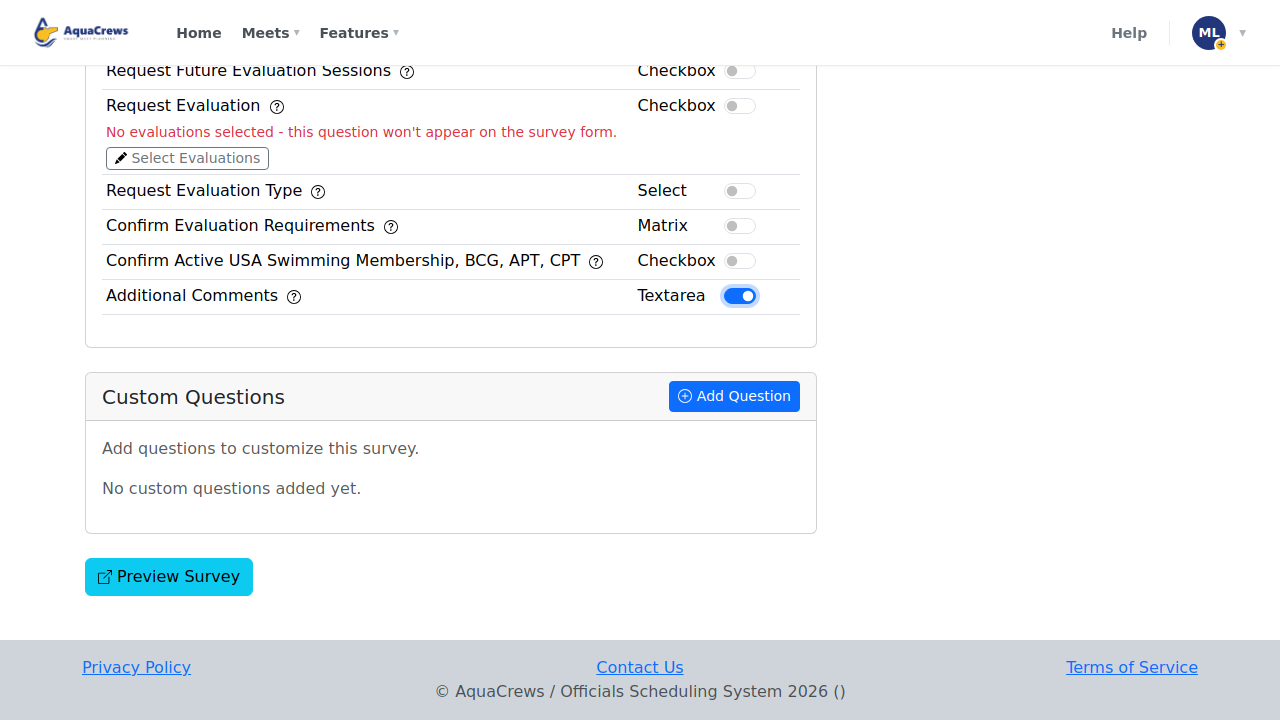
Click to see a larger version -
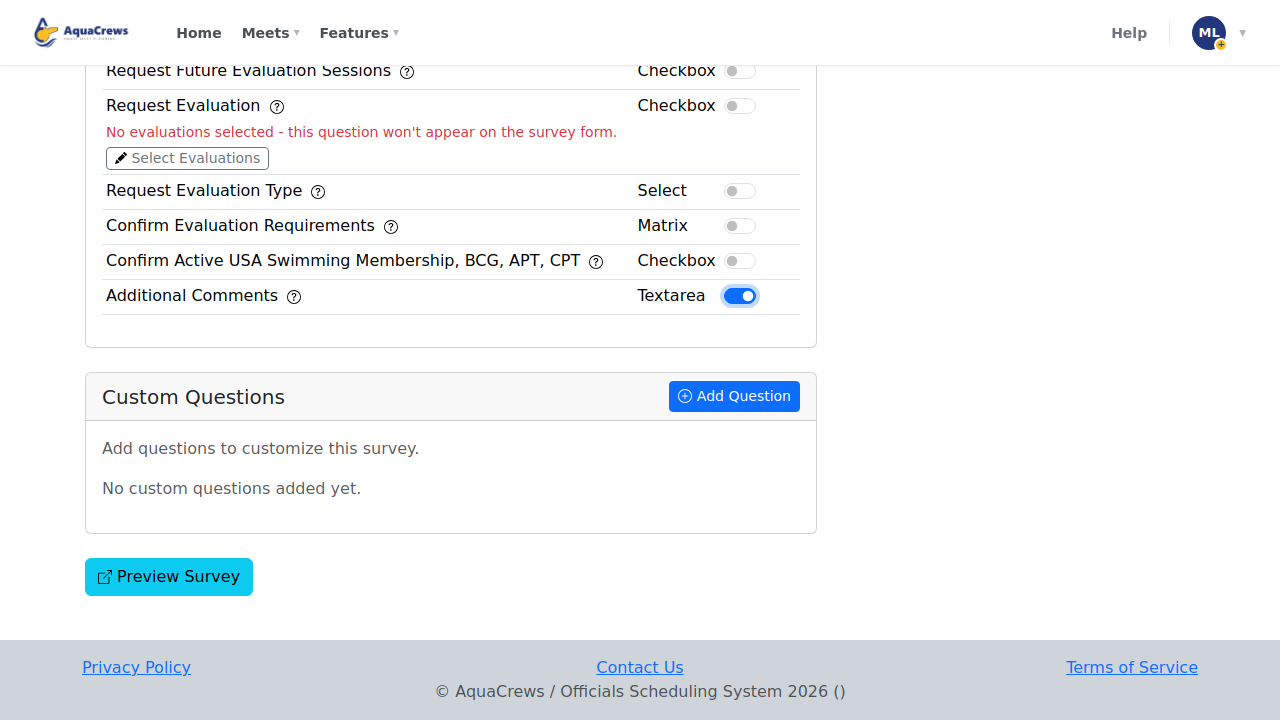
To offer evaluations, turn on Request Evaluation, then click Select Evaluations. Until you pick some, the question says No evaluations selected and doesn't appear on the survey form.
-
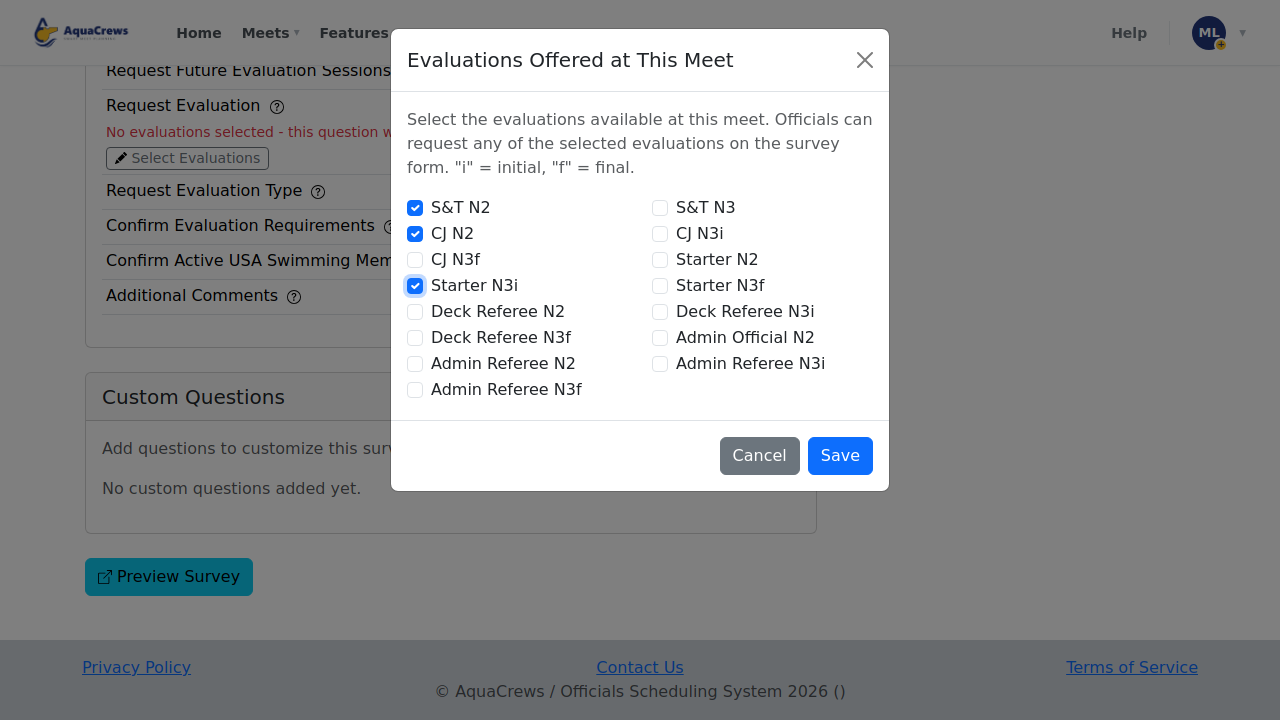
Under Evaluations Offered at This Meet, check each evaluation you can run at this meet and click Save. Officials can request only the evaluations you check ("i" = initial, "f" = final).
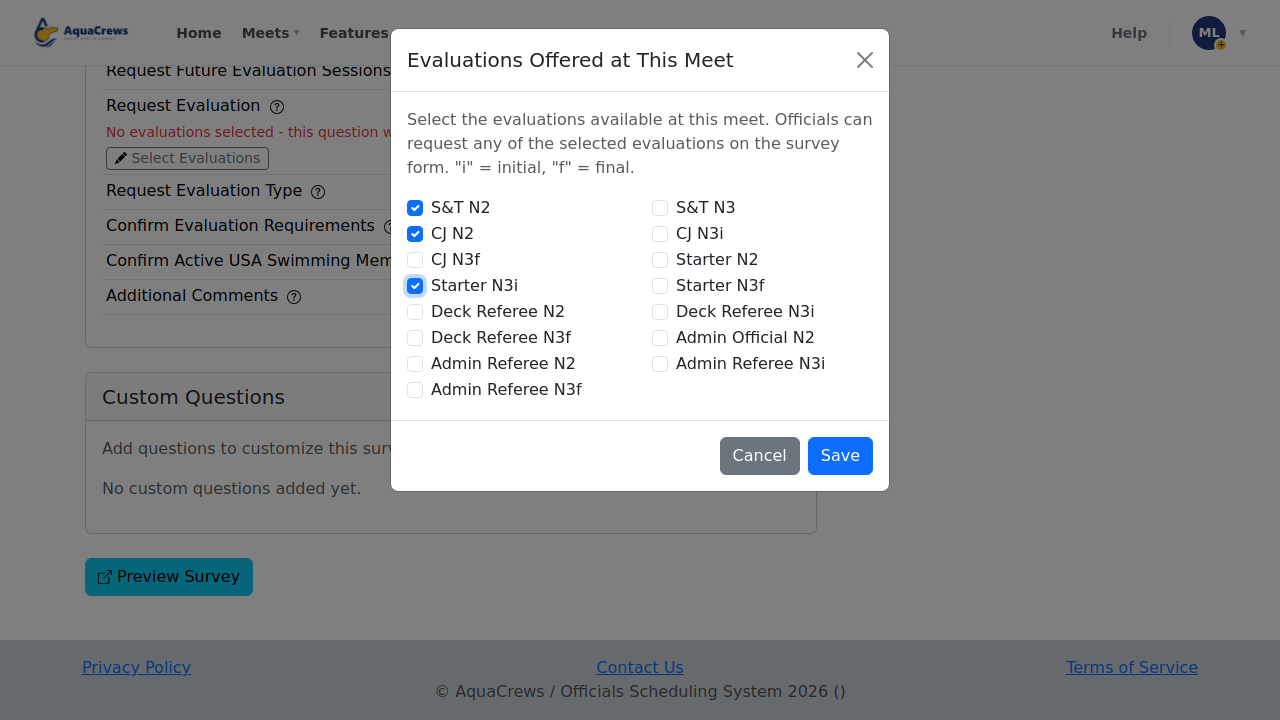
Click to see a larger version -
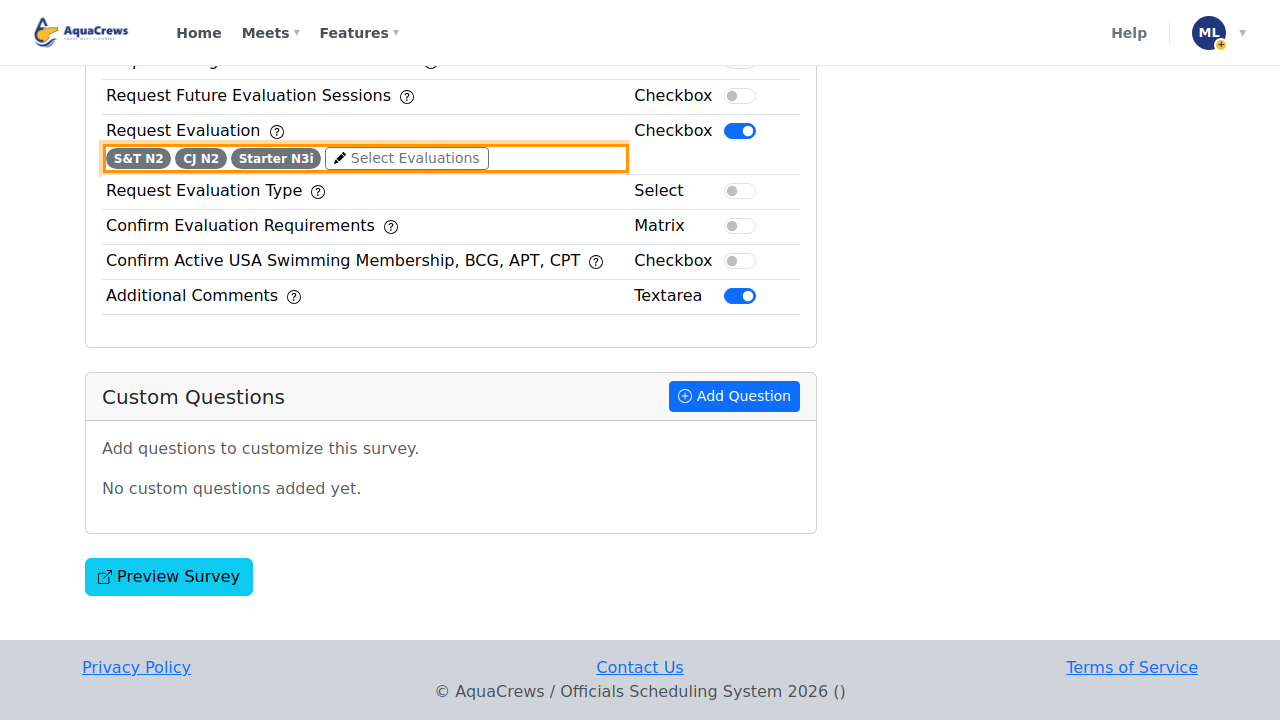
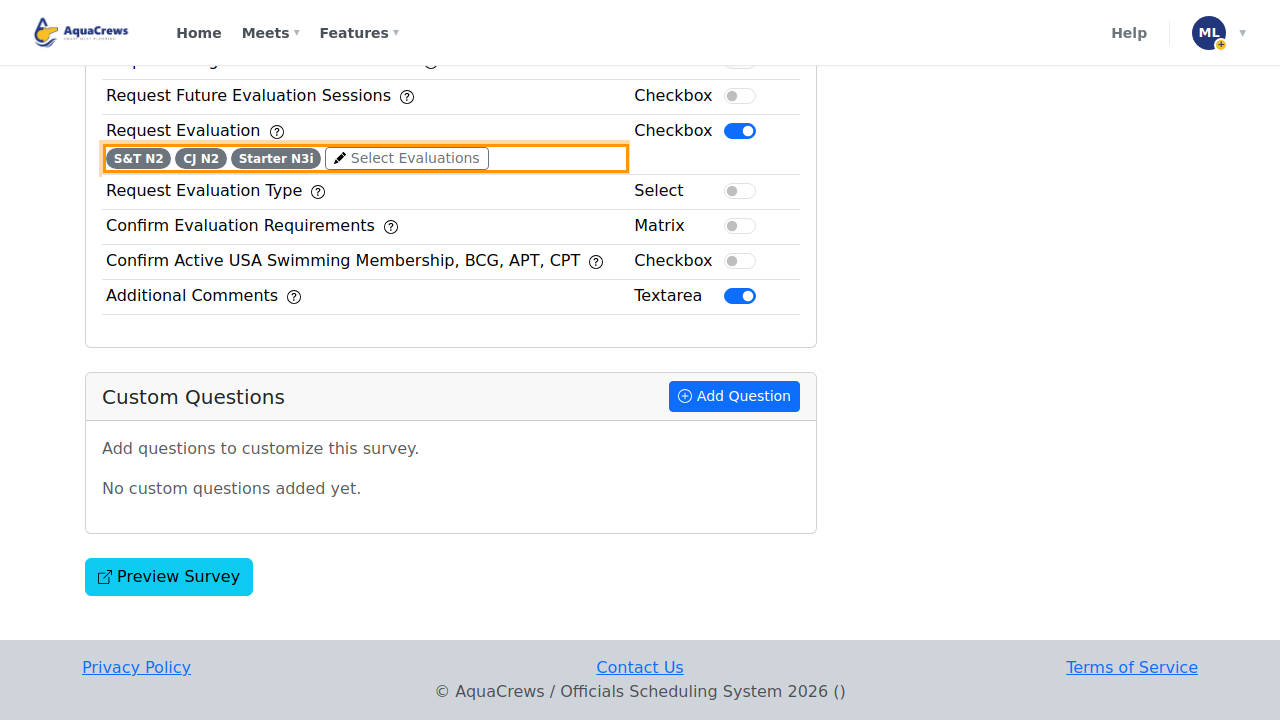
The evaluations you picked are listed under Request Evaluation. Click Select Evaluations again any time to change them.
Click to see a larger version -
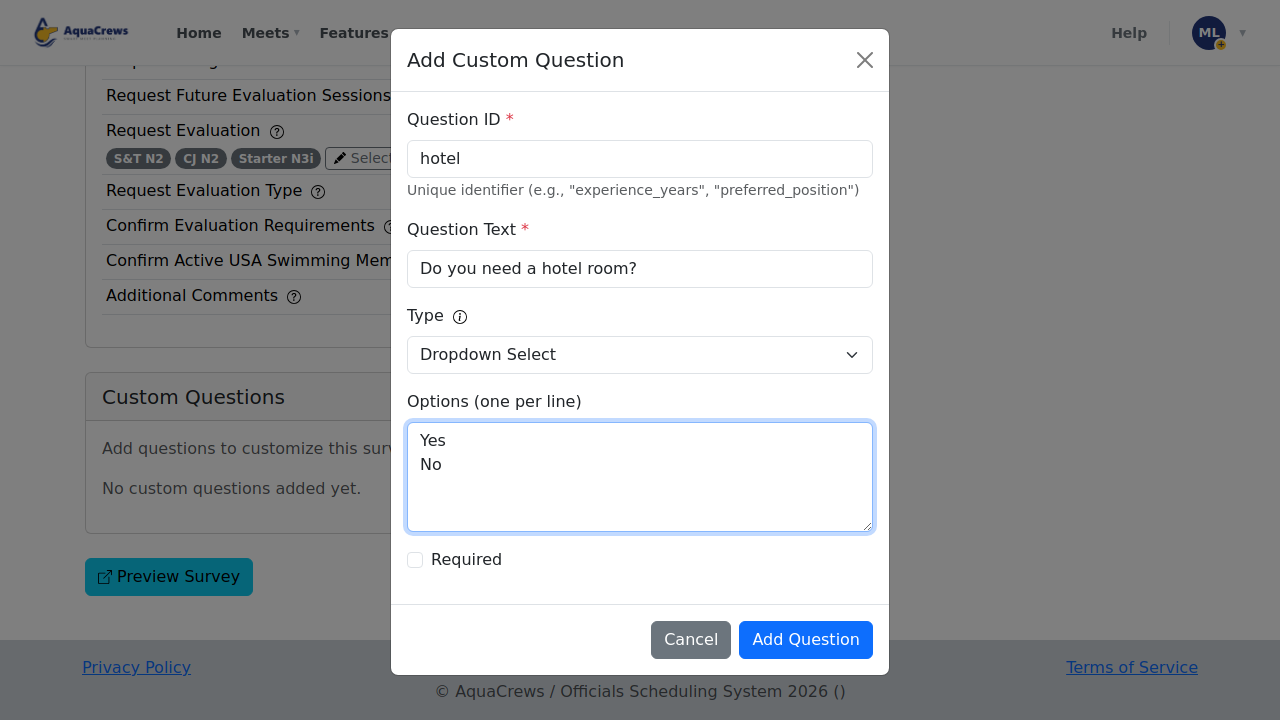
To ask something else, click Add Question under Custom Questions.
-
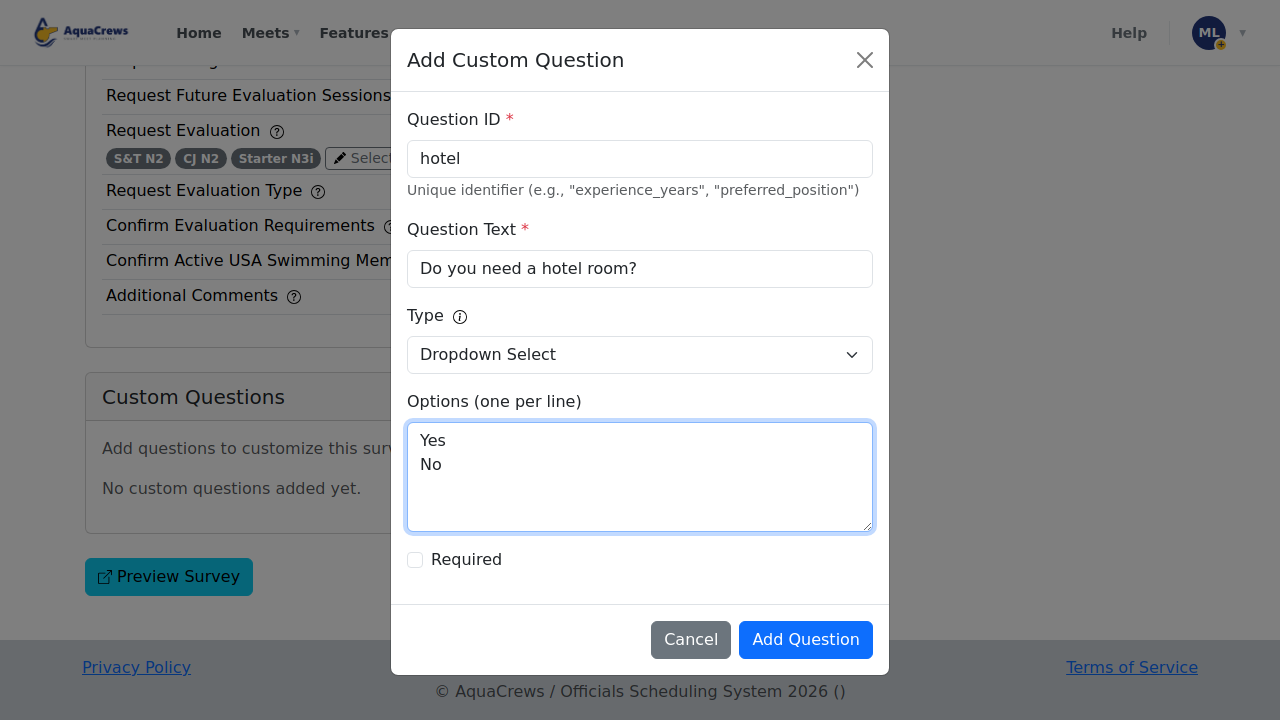
Enter a Question ID and the Question Text, choose the Type, and click Add Question.
Click to see a larger version -
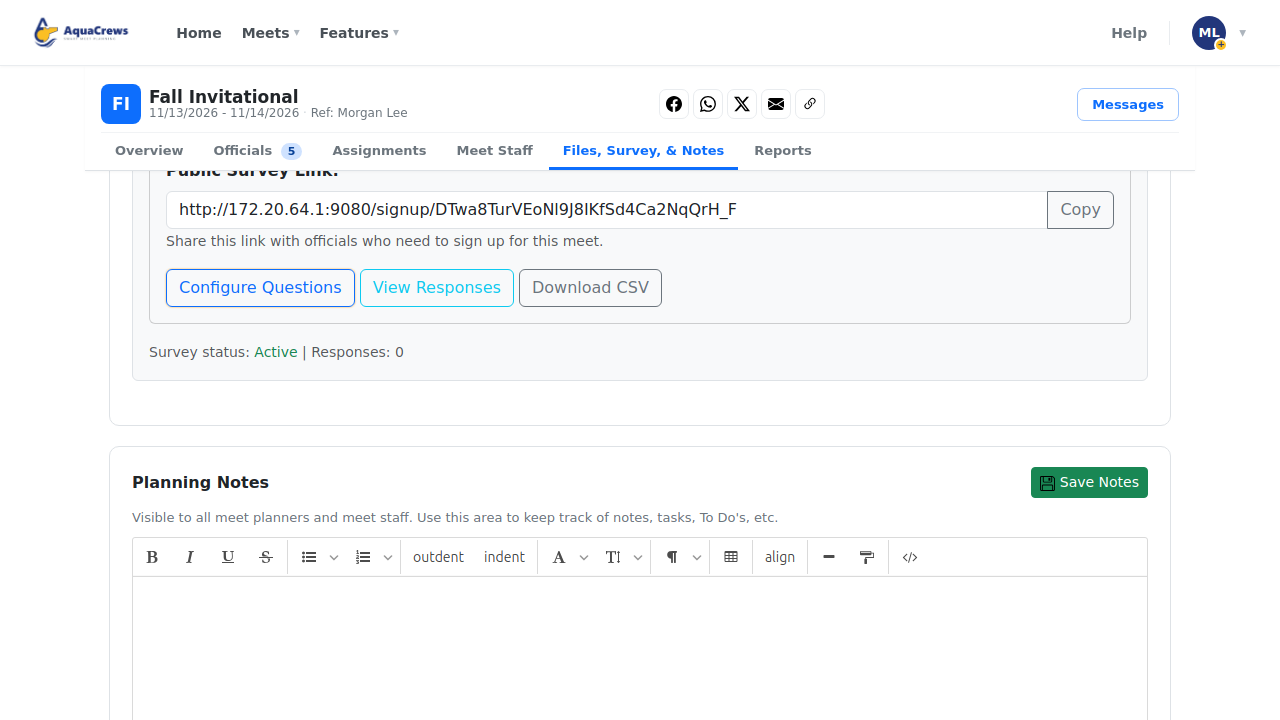
Copy the survey link and share it with officials - by email, text, or social media.
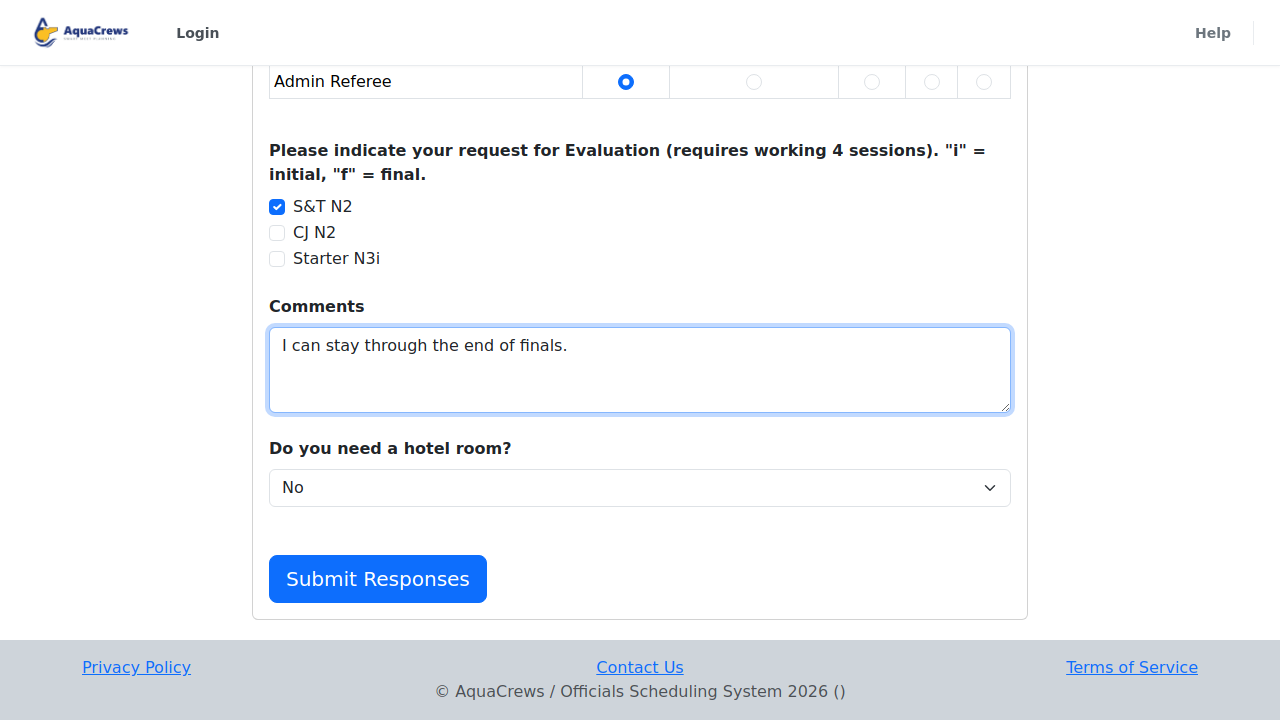
- Officials open the link and enter their name, email, and the sessions they can work - no account needed.
-
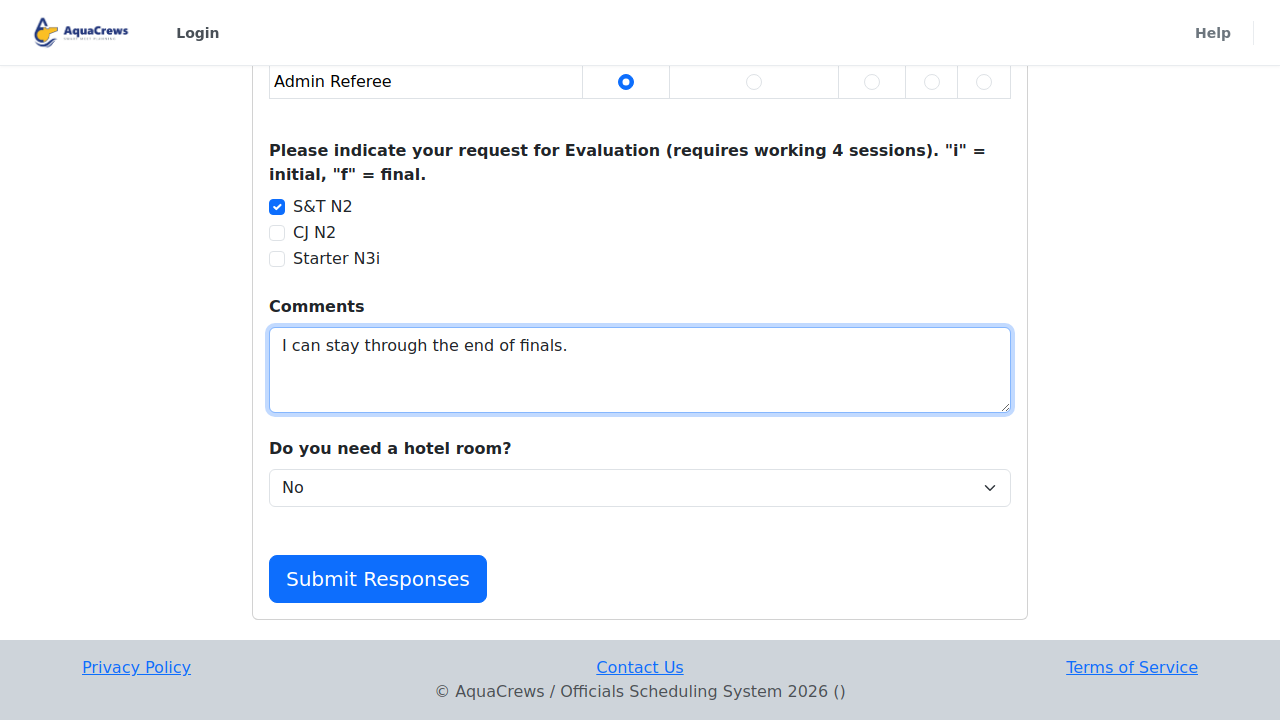
They answer your questions, then click Submit Responses.
Click to see a larger version -
Back on the meet's Files, Survey, & Notes tab, click View Responses.
-
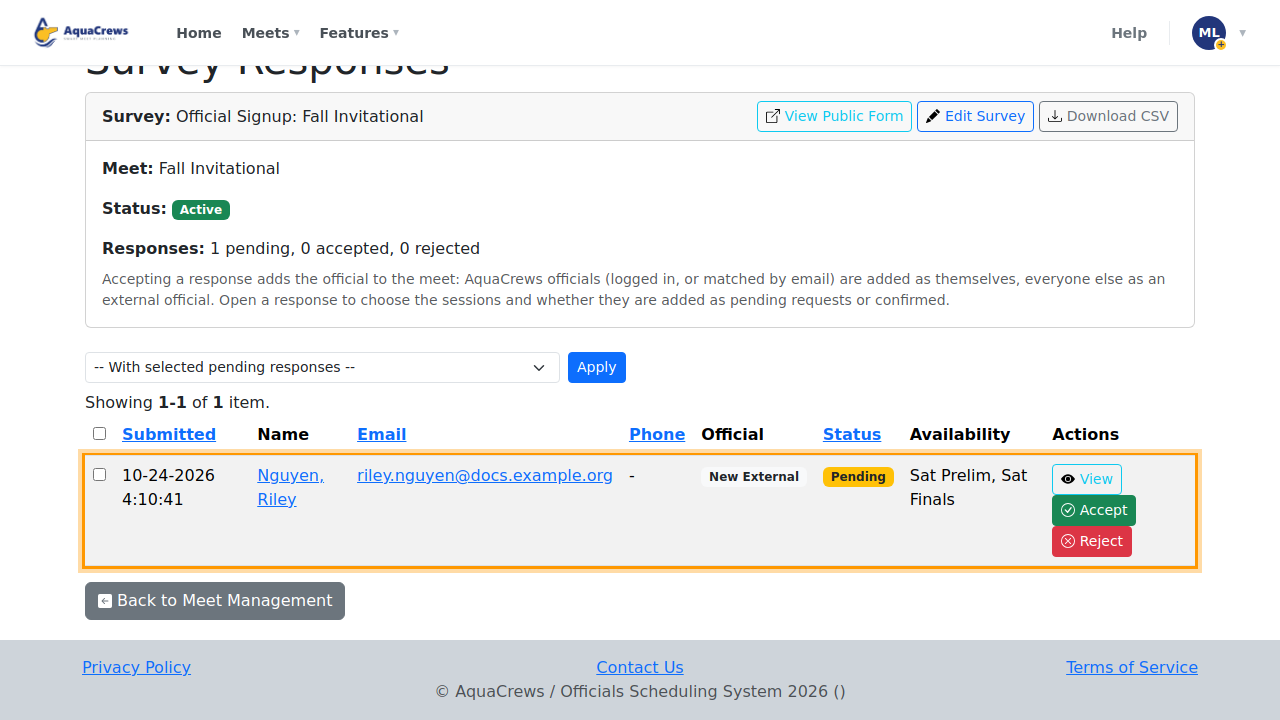
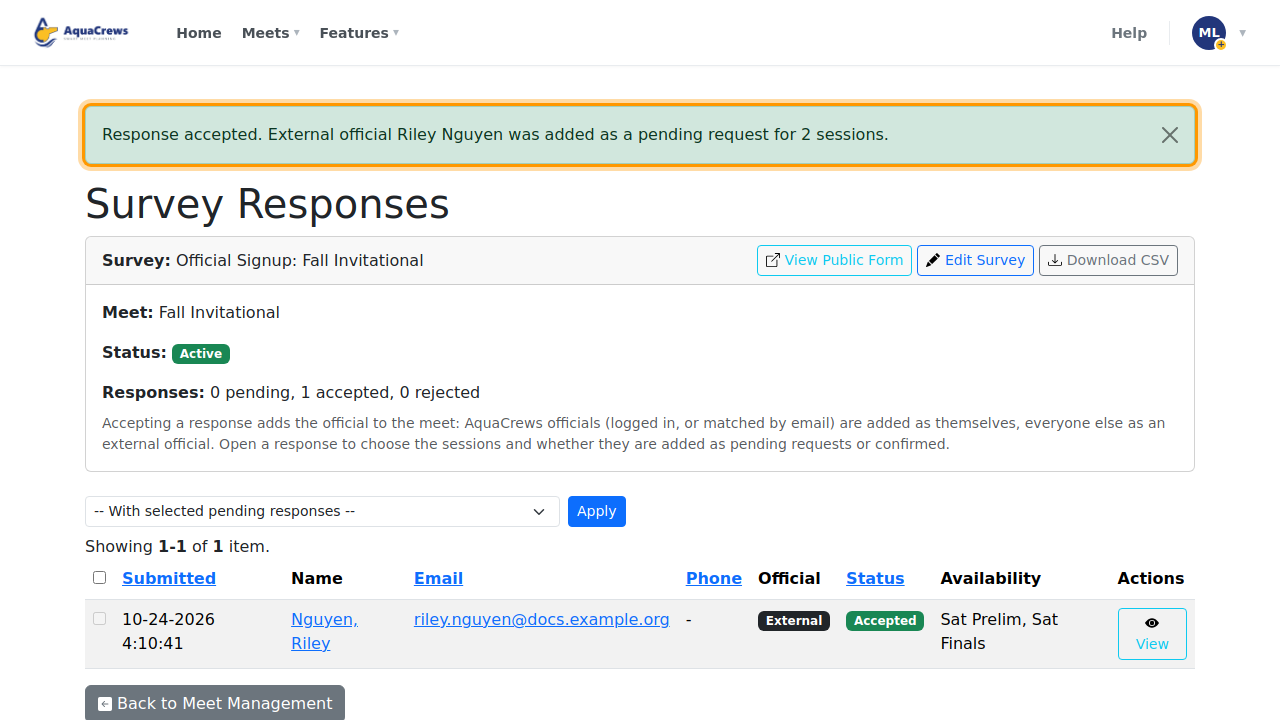
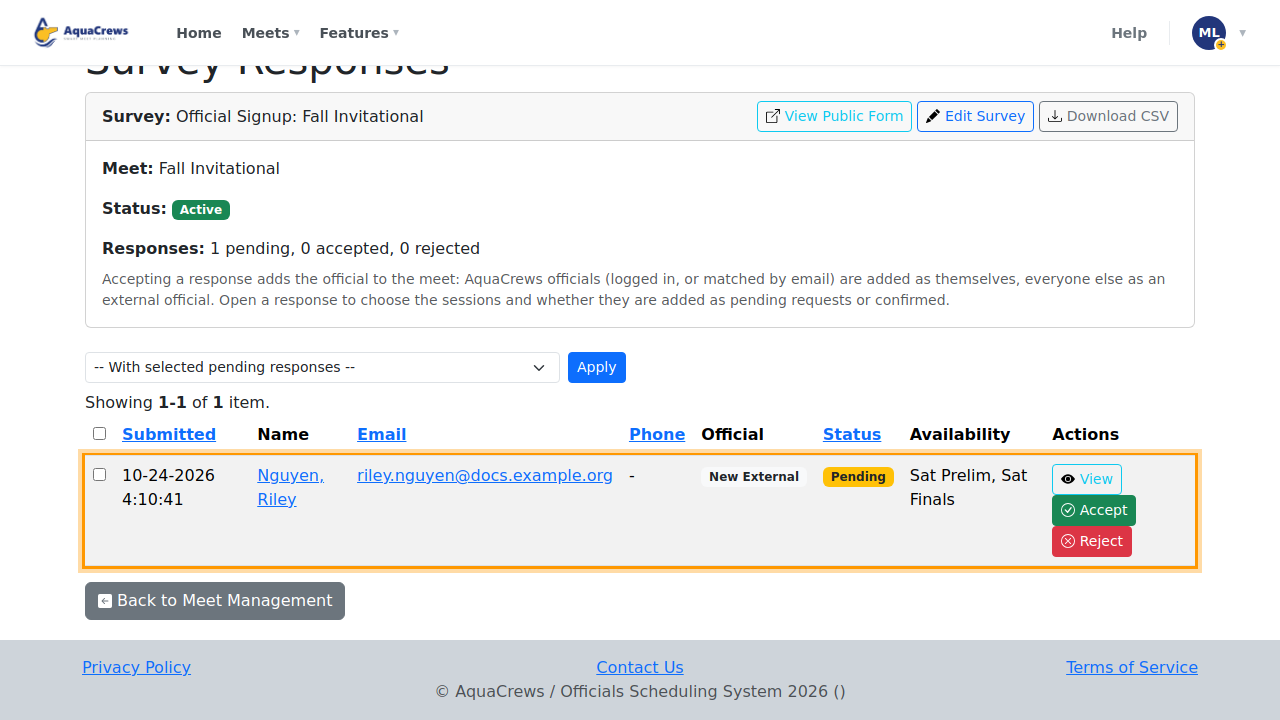
Each response shows the official and the sessions they can work - click View.
Click to see a larger version -
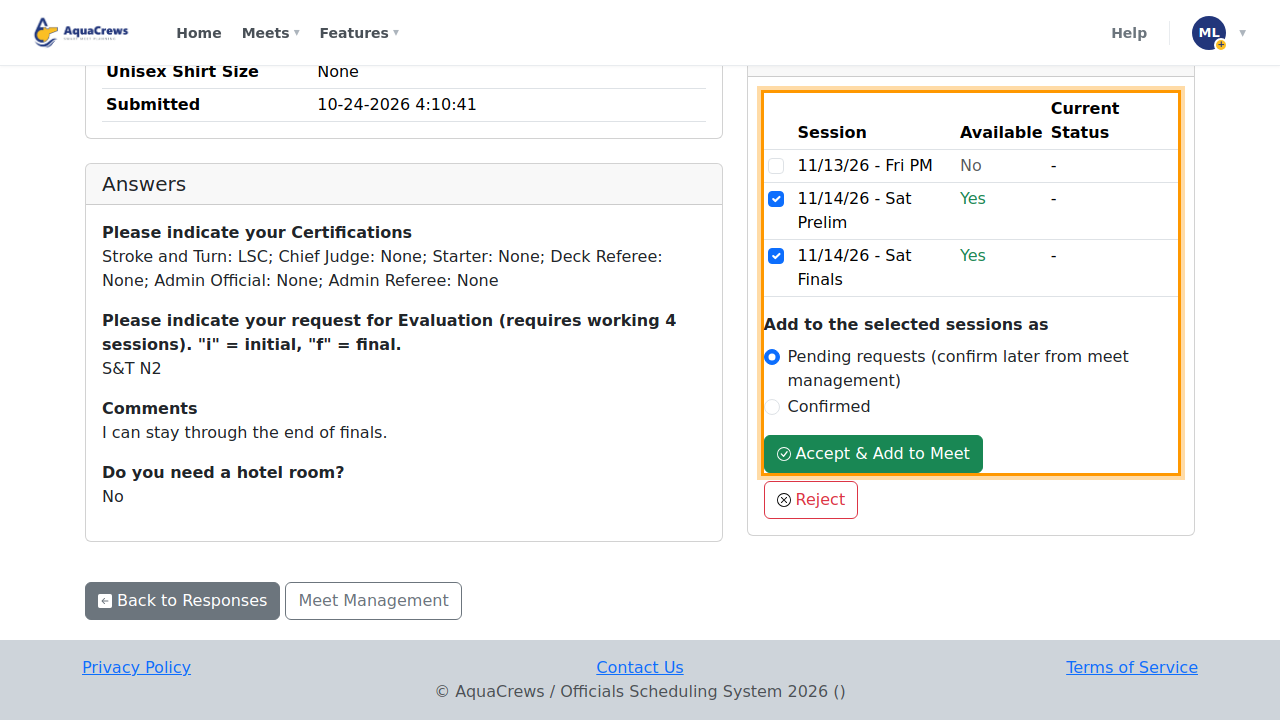
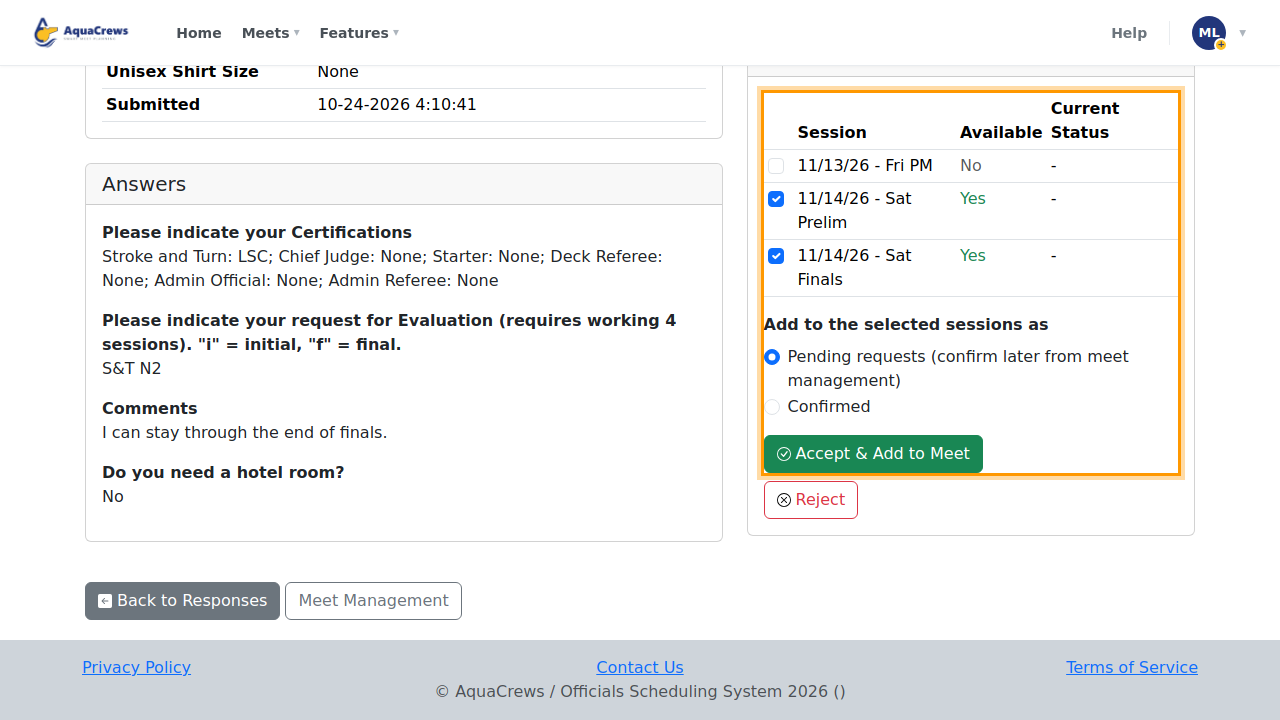
Choose their sessions, and whether they're added as Pending requests or Confirmed.
Click to see a larger version -
Click Accept & Add to Meet - or Reject.
-
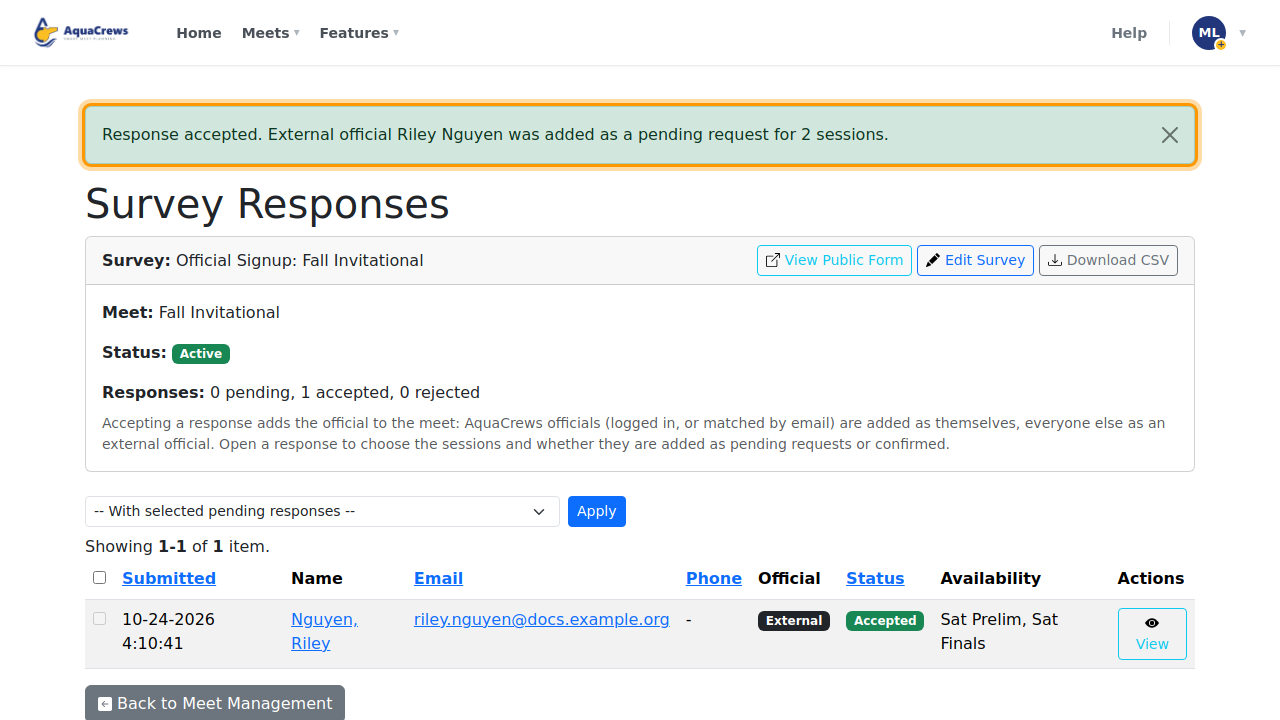
The official is added to the meet - confirm them on the Officials tab as usual.
Click to see a larger version
Tips & troubleshooting
- AquaCrews officials who are signed in when they fill in the survey (or whose email matches an account) are added as themselves. Everyone else is added as an external official.
- Once you've accepted an official who requested an evaluation, Sanity Check on the assignments warns you if they aren't assigned to at least 4 sessions in that role - see Build assignments.
- Preview Survey shows the form as officials see it, while you're setting it up.
- Uncheck Survey is active, or set an Expiration Date, to stop taking responses.
- To handle several responses at once, check them and use With selected pending responses.
- Download CSV saves all the responses as a spreadsheet.
- Accepting a response doesn't happen automatically - nobody is added to your meet until you accept them.
Related: Add officials yourself · Approve officials