
Edit or delete a meet
Change a meet's details, add, remove, or delete sessions, update the comments for officials, or delete the meet.
Before you start: you're the meet's referee, or an LSC administrator.
Steps
- On the Home page, find the meet under My Meets and click Manage.
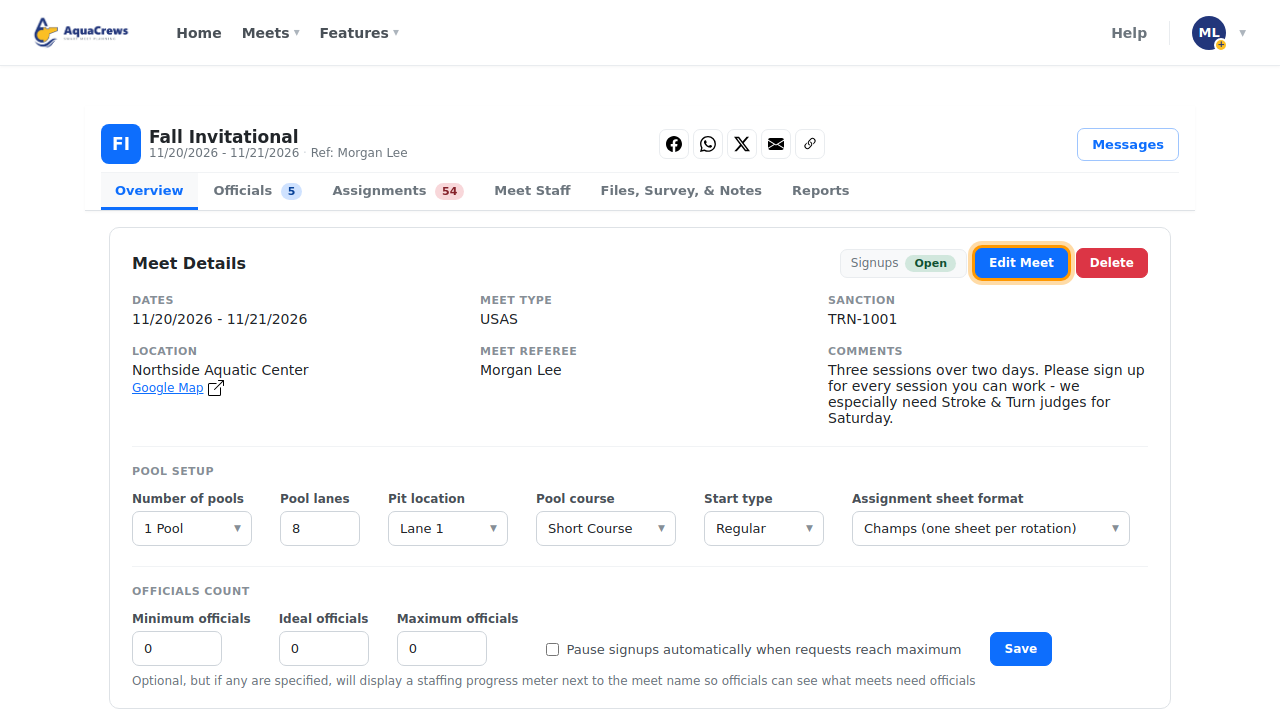
- Click the Overview tab.
-
Click Edit Meet.

Click to see a larger version -
Change any of the meet's details.
-
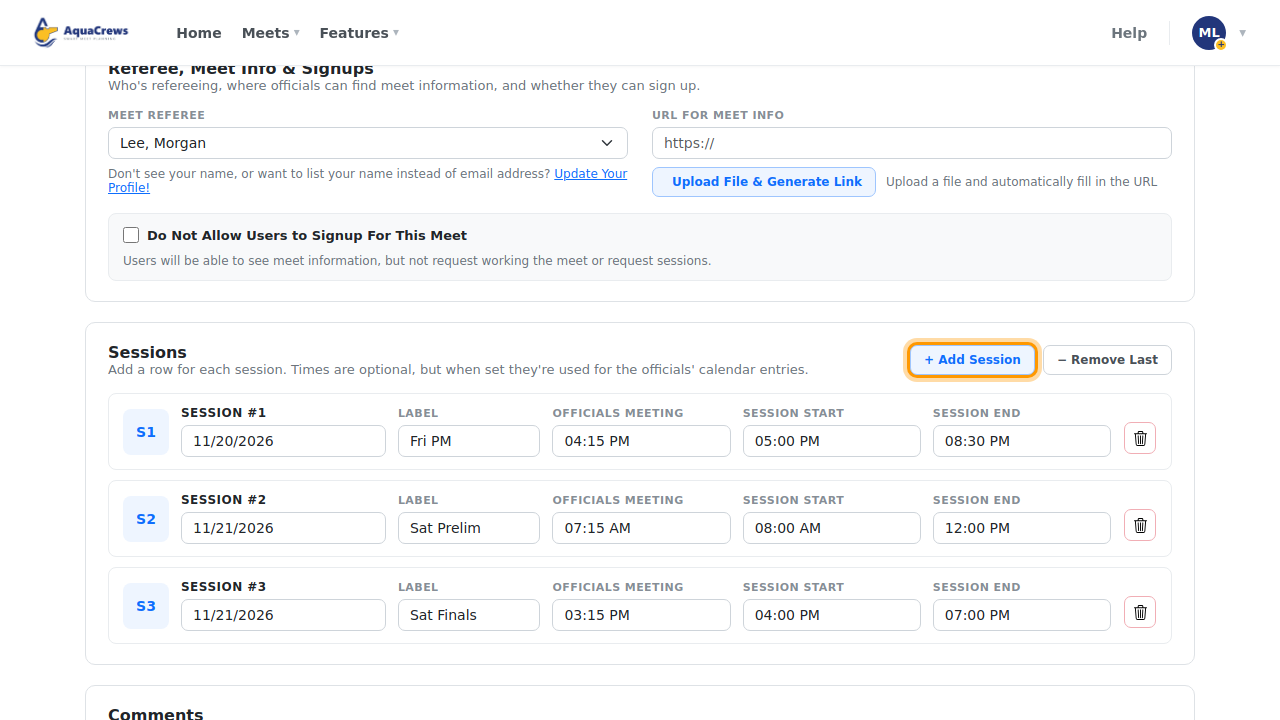
To add a session, click + Add Session and fill in its date, label, and times.

Click to see a larger version -
To remove the last session row, click − Remove Last.
-
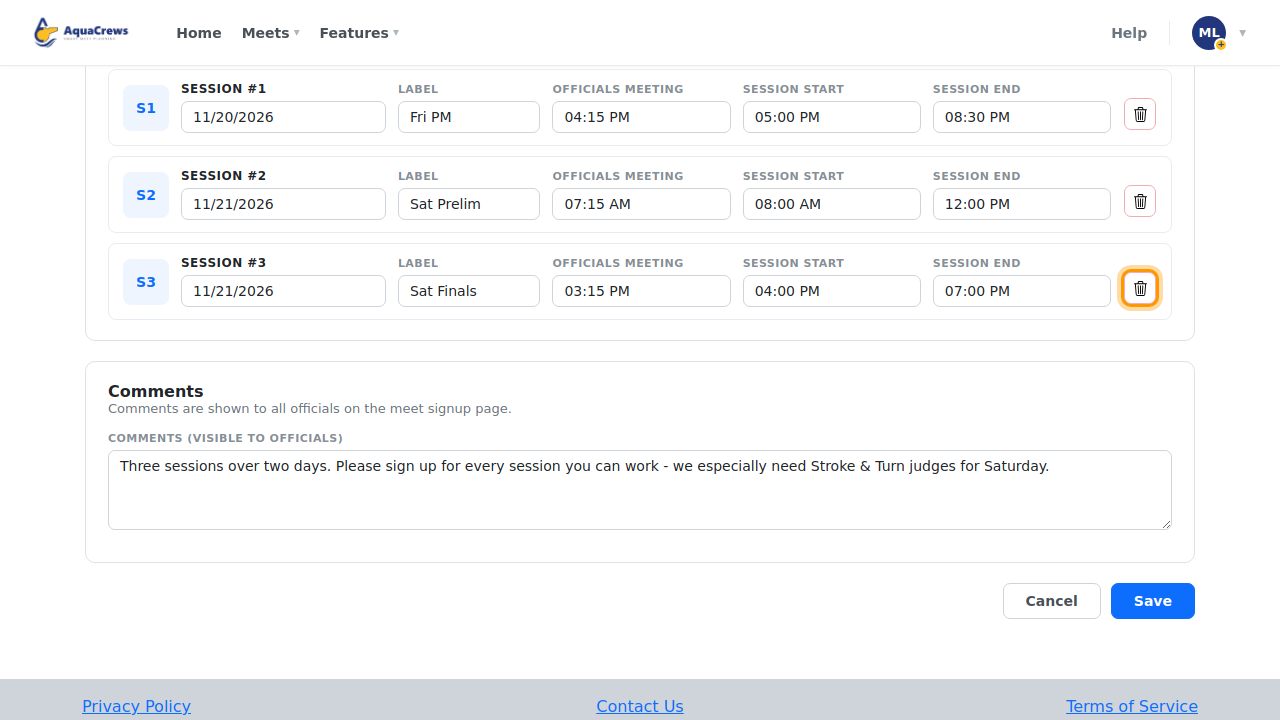
To delete one saved session right away, click its trash button, then OK - its signups and assignments are deleted too, and any later sessions are renumbered.

Click to see a larger version - Update the Comments for officials.
- Click Save (or Cancel to go back to the meet without saving).
-
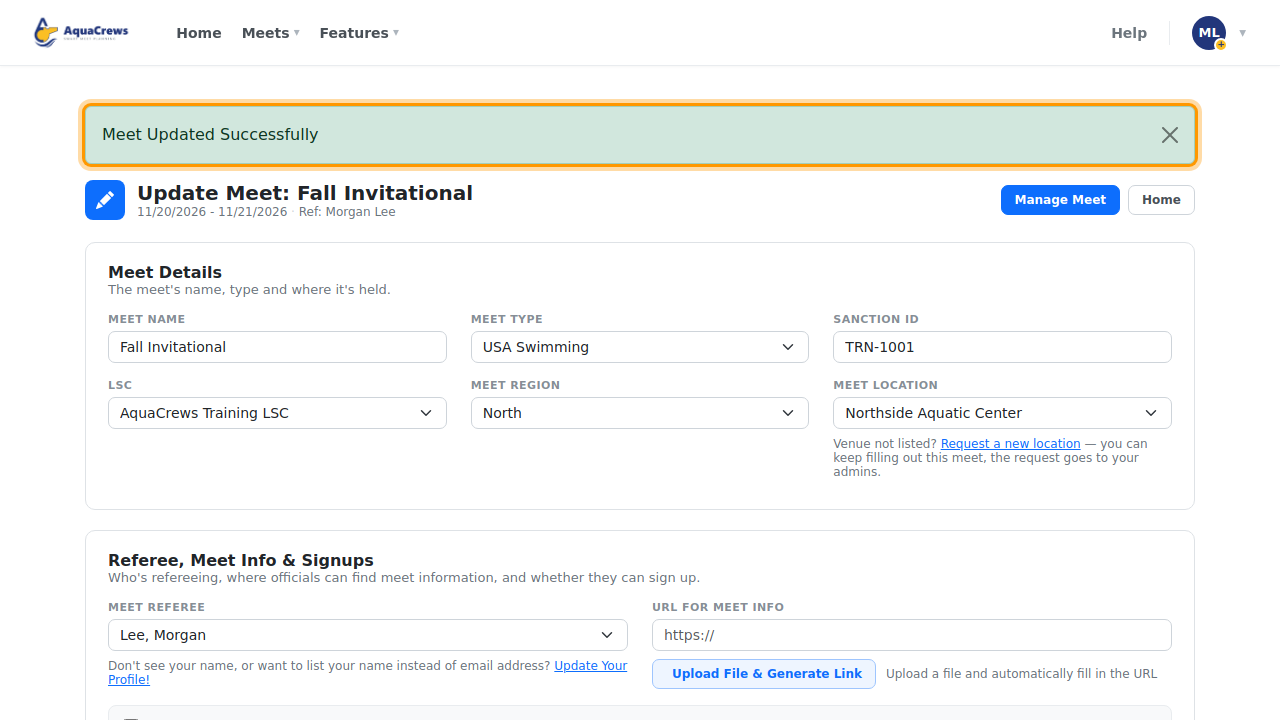
Meet Updated Successfully appears.

Click to see a larger version -
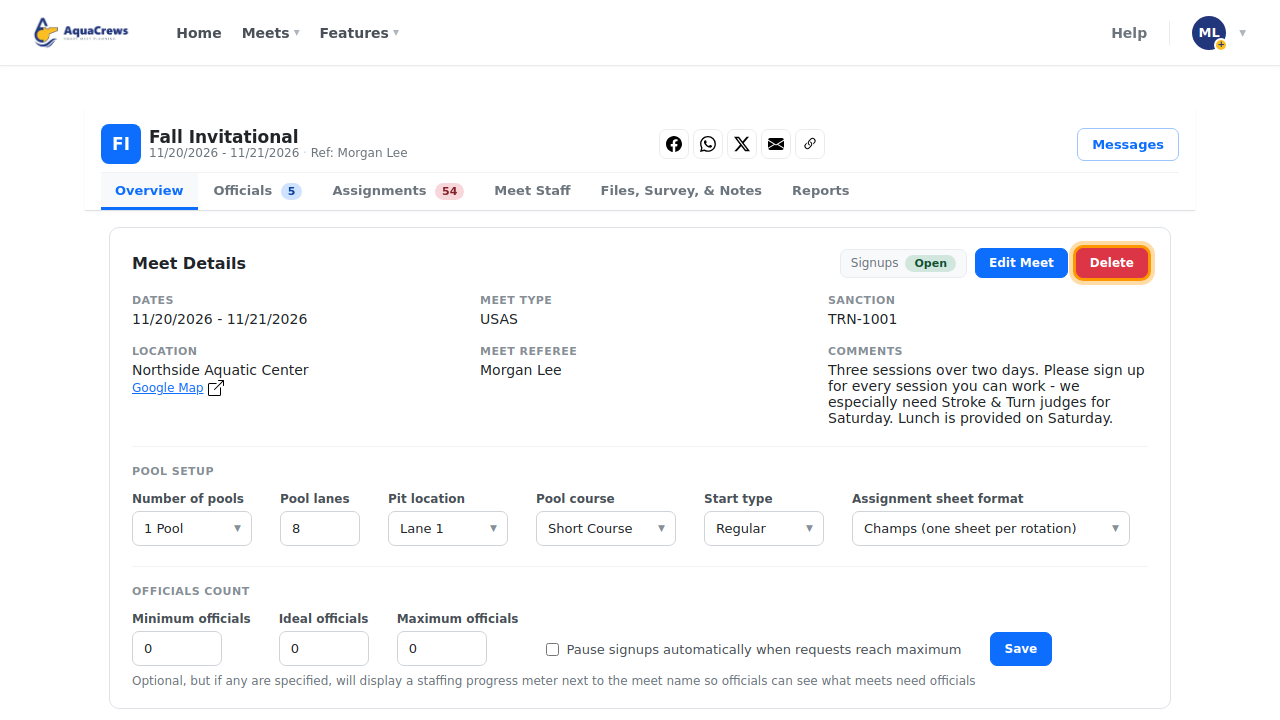
To delete the meet instead, open it with Manage again.
-
Click Delete, then OK - this can't be undone.

Click to see a larger version
Tips & troubleshooting
- Removing a session that officials signed up for? Let them know - use Messages.
- Deleting a session with its trash button happens as soon as you click OK, and any other unsaved changes on the page are lost - save your other changes first.
- A meet's only session can't be deleted - change its details instead, or delete the whole meet.
- Once a meet's dates have passed, Edit Meet is turned off.
- Only an LSC administrator can change the Meet Referee once one has been assigned.
- Deleting removes the meet, its sessions, signups, and assignments. Officials who signed up no longer see it.
Related: Create a meet · Pause or reopen signups