
Message meet officials
Email the officials in your meet - everyone confirmed, everyone still waiting, just the deck refs - from AquaCrews, with attachments if you need them.
Note: Messaging must be enabled for your organization.
Before you start: you're the meet's referee, an LSC administrator, or on the meet's staff.
Steps
- On the Home page, find the meet under My Meets and click Manage.
- Click Messages.
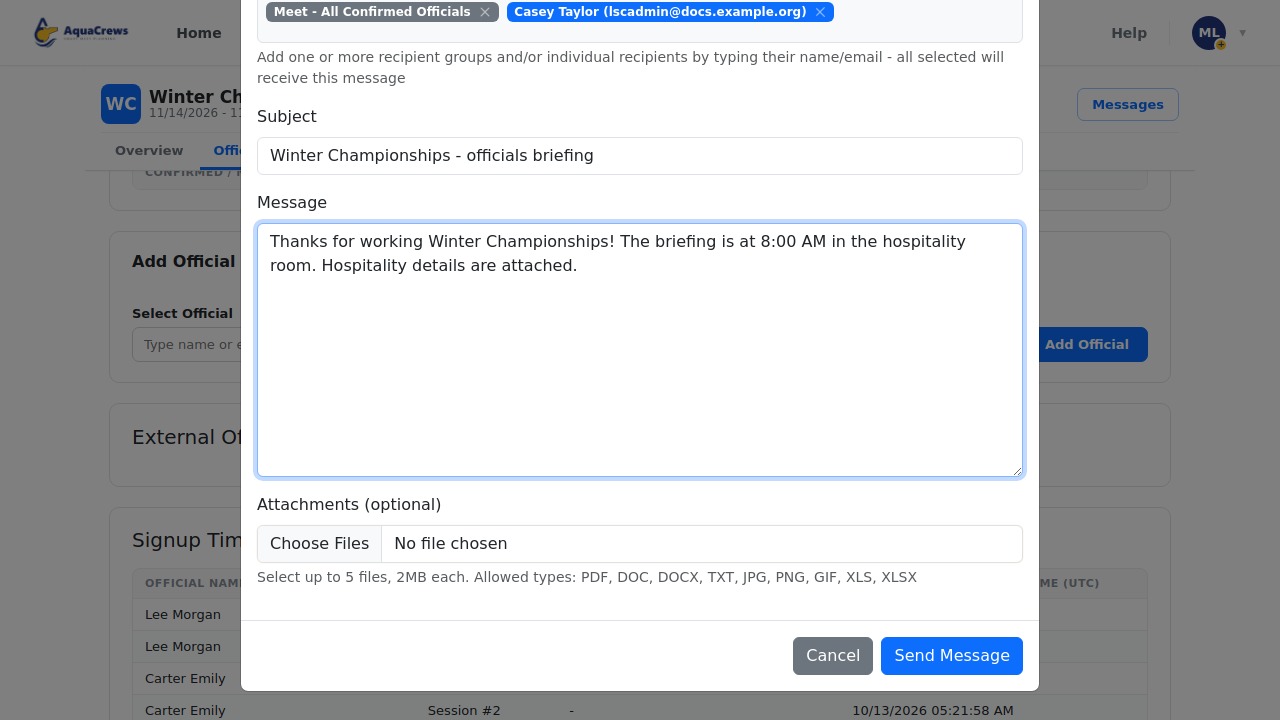
- Choose a recipient group, for example Meet - All Confirmed Officials.
- To add one more person, type their name and choose them from the list.
- Enter a Subject and your Message.
-
Optional: click Choose Files to attach up to 5 files.
 Click to see a larger version
-
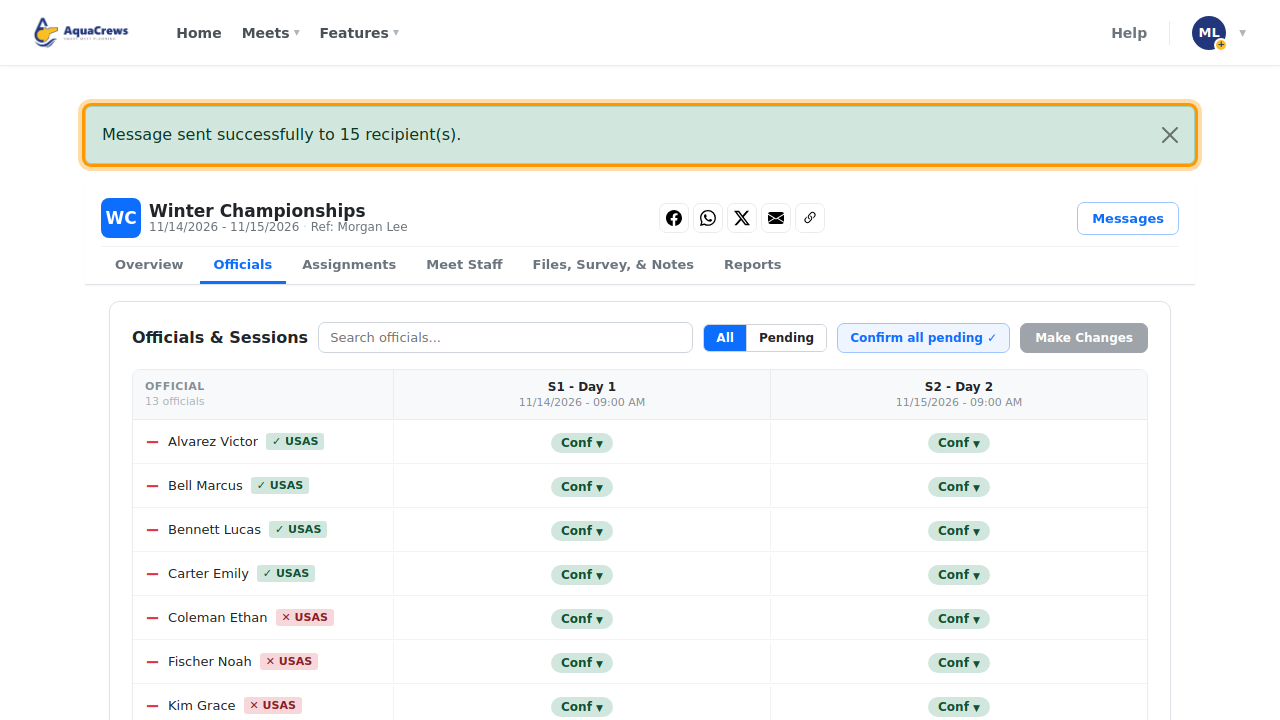
Click Send Message, then click OK to confirm the number of recipients.
-
Your message is sent from AquaCrews, and replies come to your email.
 Click to see a larger version
Recipient groups
| Group | Who gets it |
|---|---|
| Meet - All Confirmed Officials | Everyone confirmed for at least one session |
| Meet - All Non-Confirmed Officials | Everyone pending or waitlisted |
| Meet - All Assigned DRs/SRs | Deck referees and starters in the assignments |
| Meet - All Assigned CJs | Chief judges in the assignments |
| Organization - ... | Everyone in your LSC, all meet referees, or one region |
Tips & troubleshooting
- Messages come from messages@aquacrews.com with your email as the reply-to address.
- Attachments: up to 5 files, 2 MB each (PDF, Word, text, images, Excel).
- You can choose more than one group - each person gets the message once.
Related: Share a meet · Set your region