
My Meets page and calendars
See all your upcoming meets and sessions in one list, email yourself a summary, and add your meets to your own calendar.
Note: Calendar downloads, the calendar subscription link, and the calendar view must be enabled for your organization.
Before you start: you're signed in.
Steps
- Click your name in the top-right corner.
- Click My Meets.
-
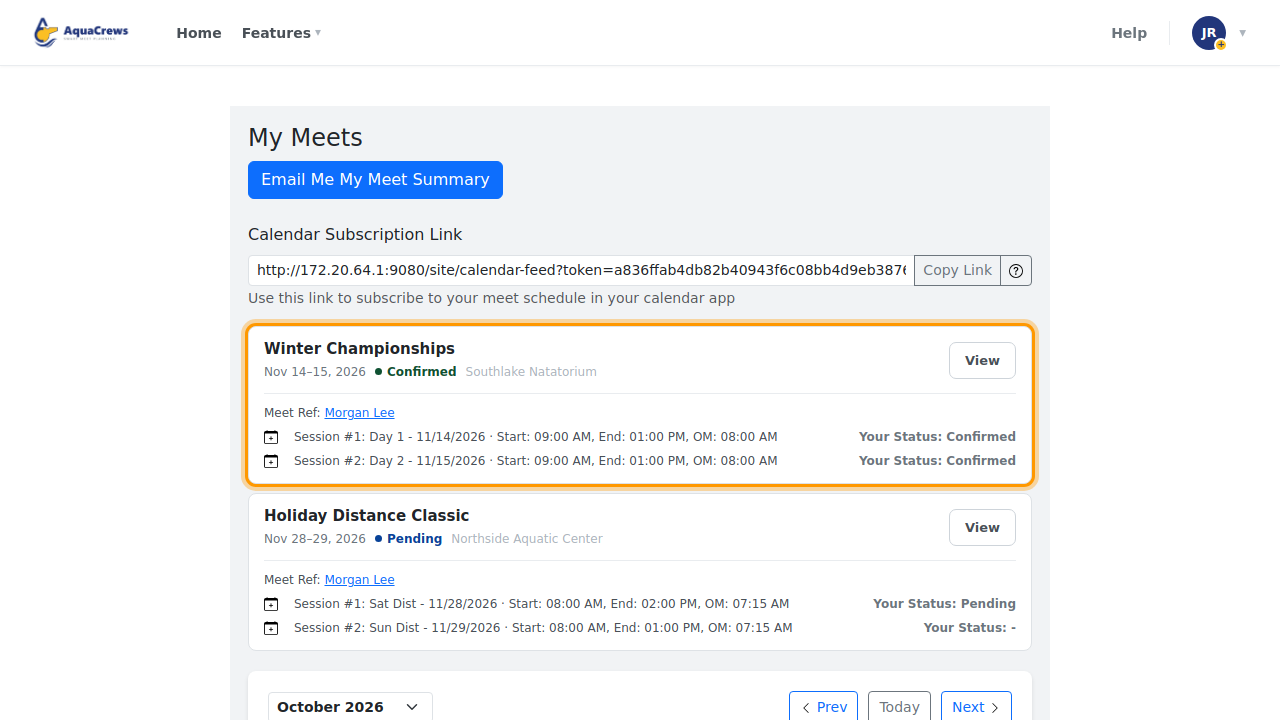
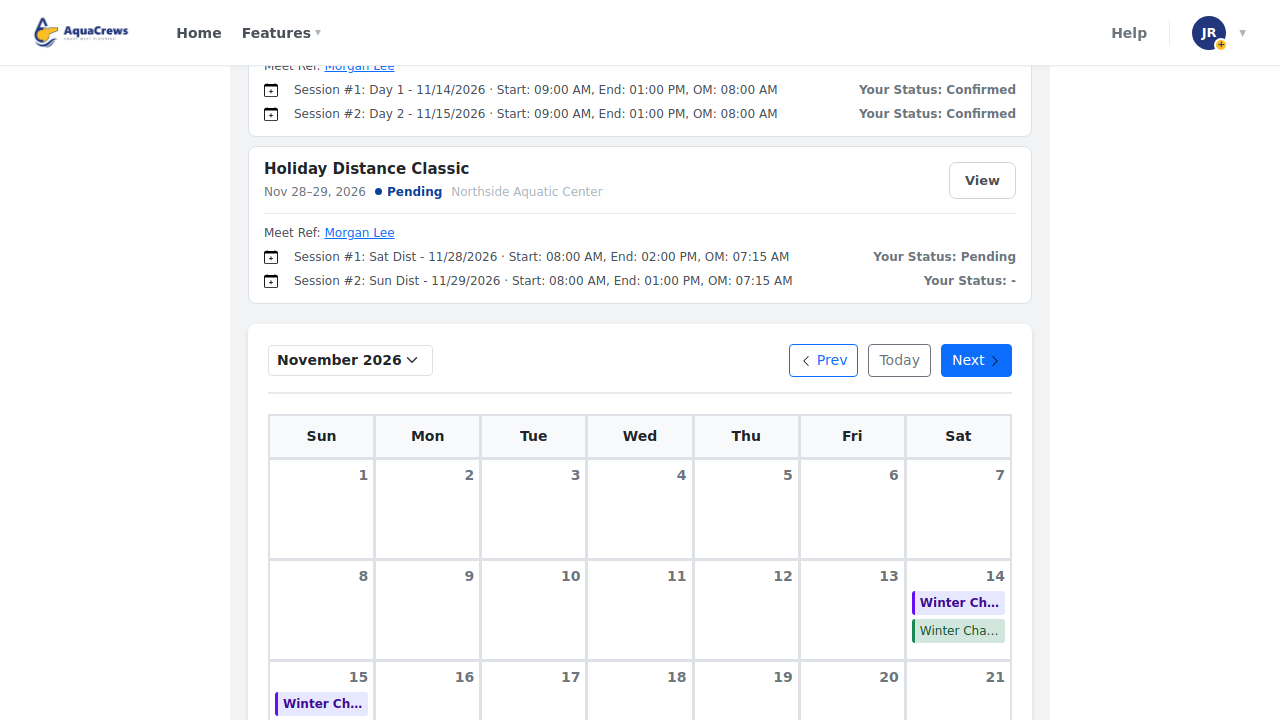
Each meet lists your sessions, times, and your status for each one.

Click to see a larger version -
Click the calendar icon next to a session to add it to your calendar (it downloads a calendar invite).
-
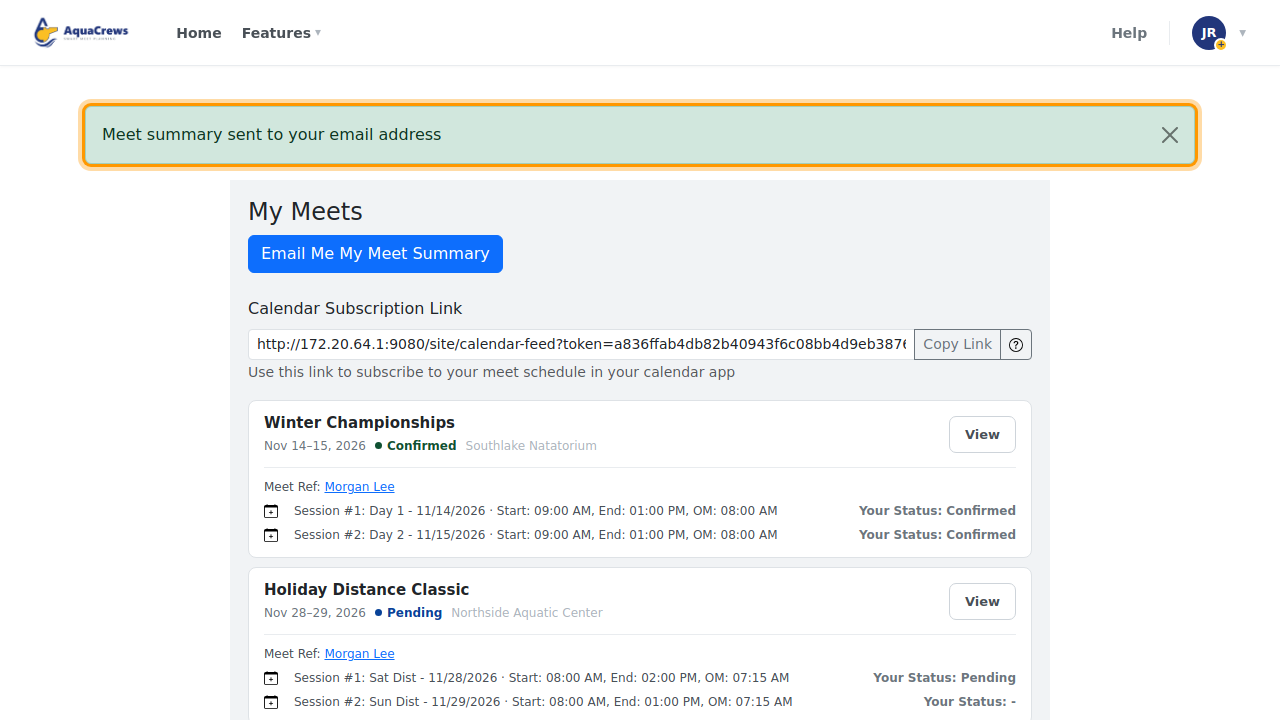
Click Email Me My Meet Summary to get this list by email.

Click to see a larger version -
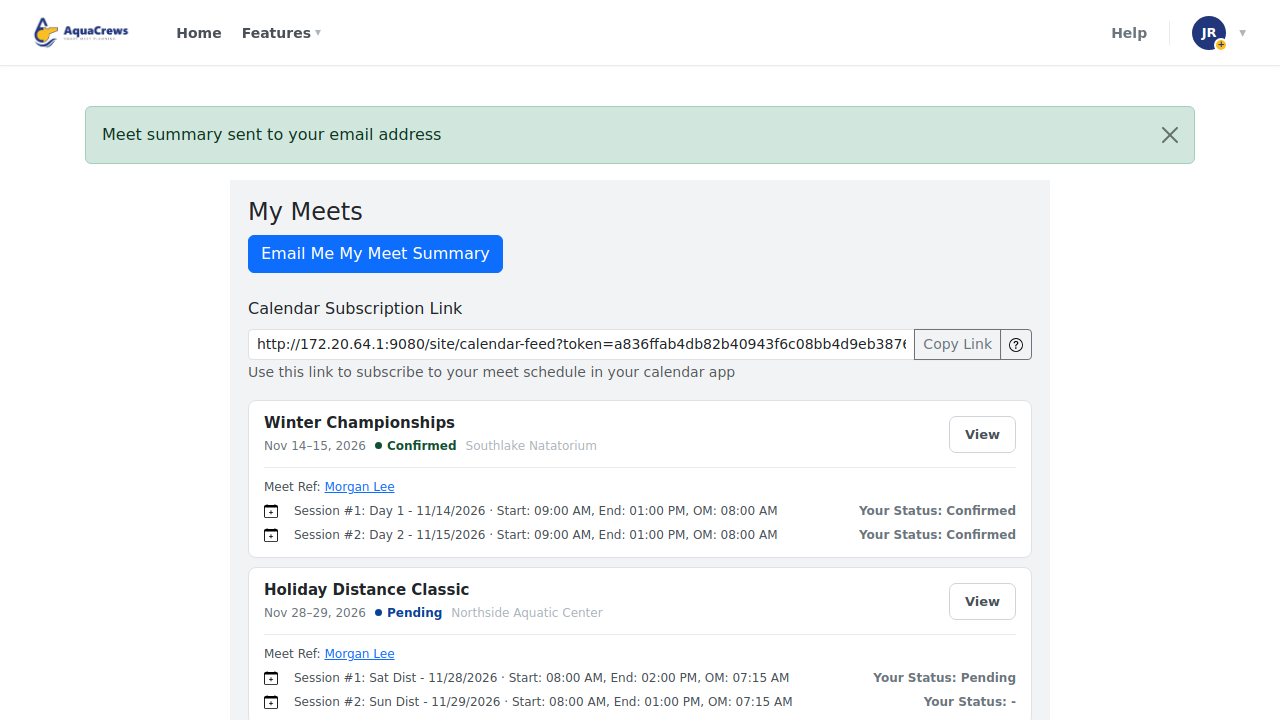
To see your meets in Google, Apple, or Outlook calendars, click Copy Link next to Calendar Subscription Link.

Click to see a larger version -
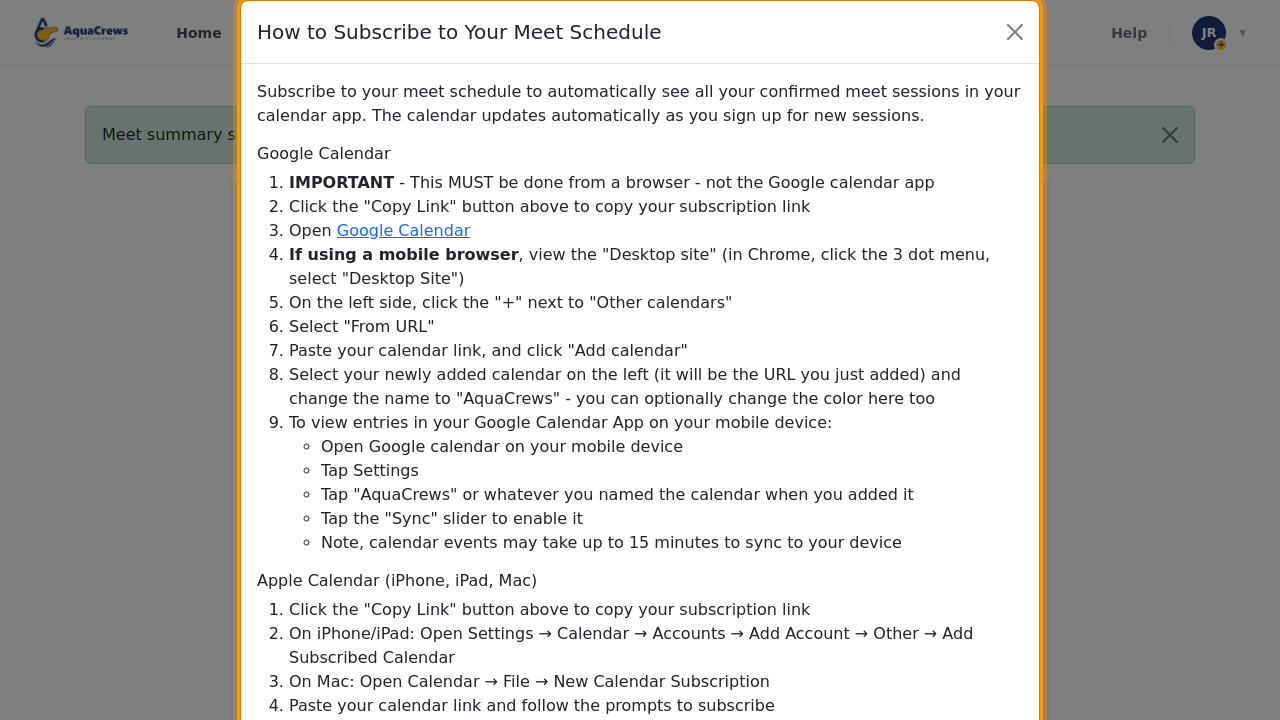
Click ? for how to add the link to your calendar app.

Click to see a larger version -
The calendar shows your meets by date - click Next to see the next month.

Click to see a larger version
Tips & troubleshooting
- Subscribe once, stay up to date. A subscribed calendar updates by itself as your signups change (it can take a while for your calendar app to refresh). A downloaded invite doesn't change if the session does.
- Google Calendar: add the link from a web browser, not the Google Calendar app - see the ? instructions.
- Keep your subscription link private - anyone with it can see your meet schedule.
- The calendar colors show your status: Confirmed, Pending, Declined, Waitlist, and other meets in your LSC (Meet).
- For a weekly email, turn on Email a summary of your meets, once per week - see Choose your email notifications.
Related: My Meet History · The meet info page