
Sign in
Sign in to AquaCrews with your email address and password, or with your Google account - whichever you used to create your account.
Before you start: your account has been approved by your LSC administrator.
Sign in with your email address
-
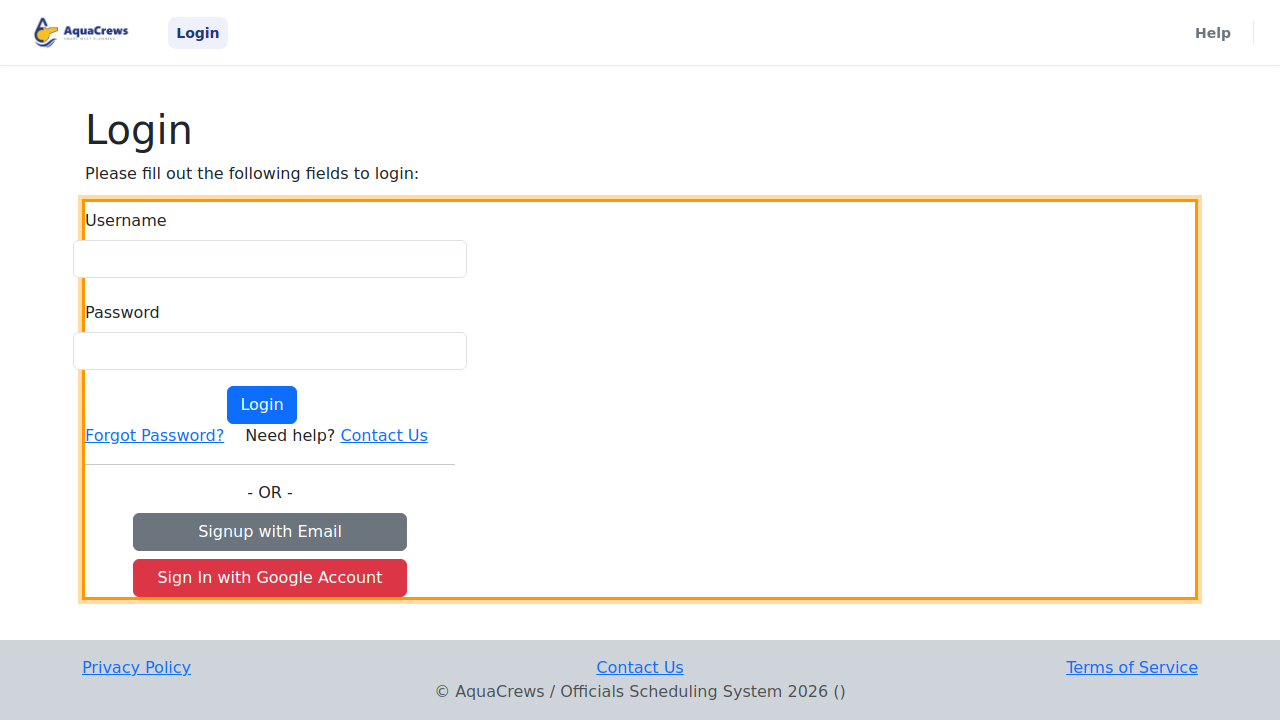
Go to www.aquacrews.com - the Login page opens.
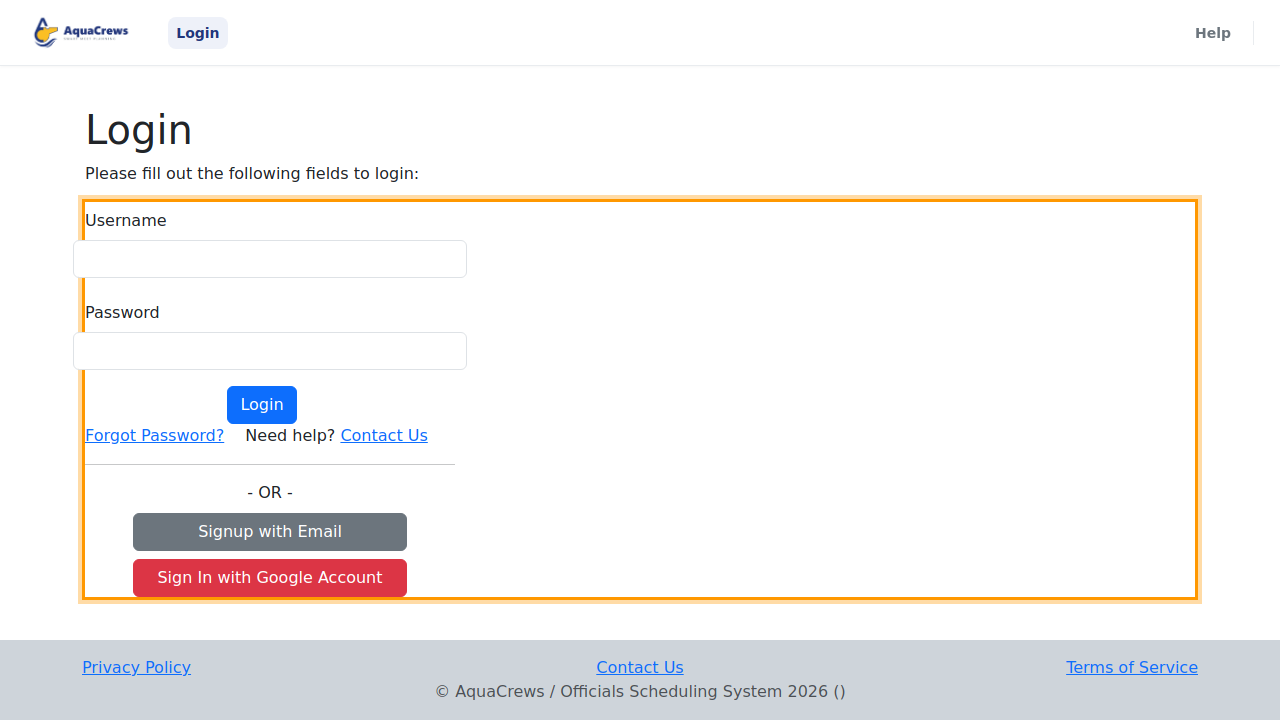
Click to see a larger version -
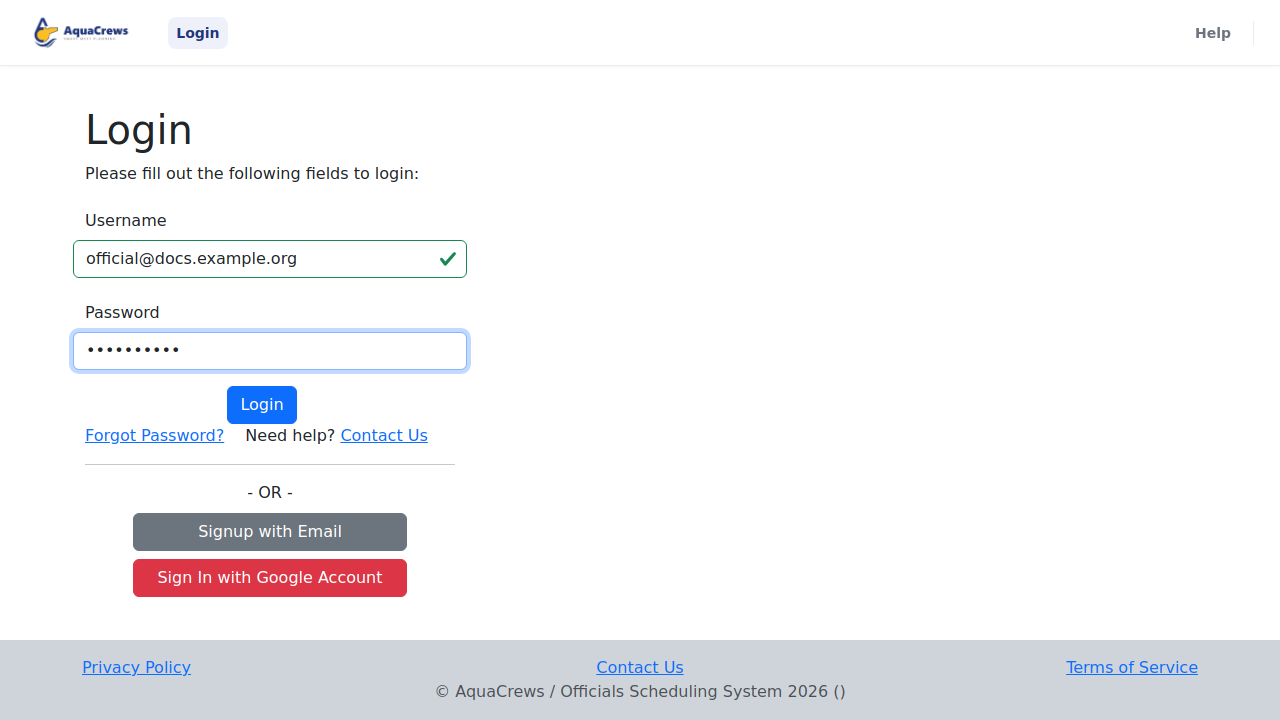
Enter your email address in Username.
- Enter your Password.
-
Click Login.
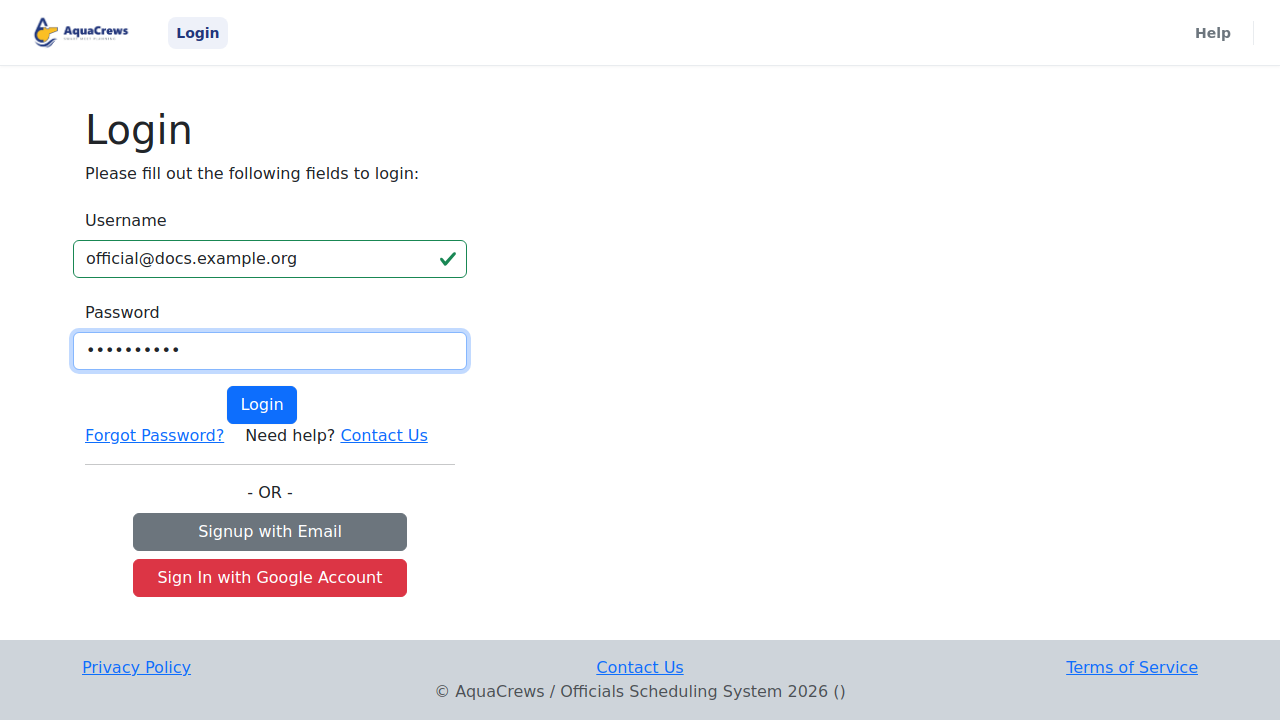
Click to see a larger version -
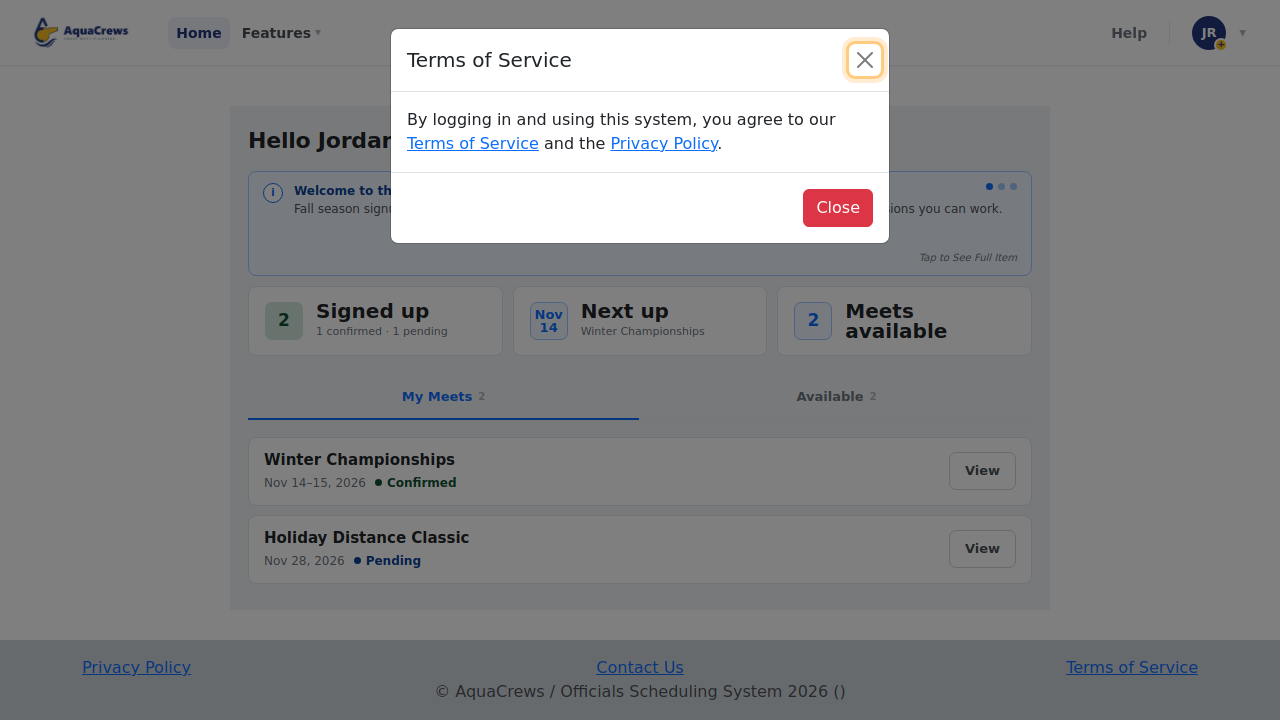
The first time you sign in, read the Terms of Service note and click Close.
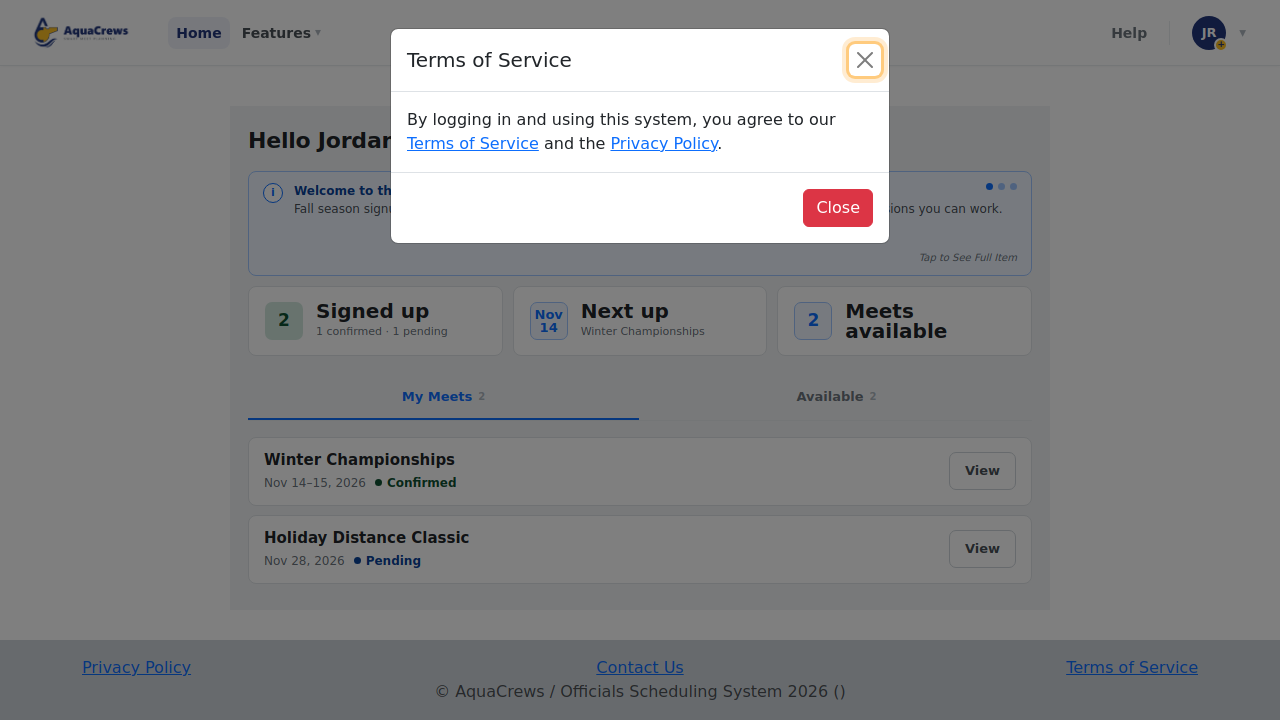
Click to see a larger version -
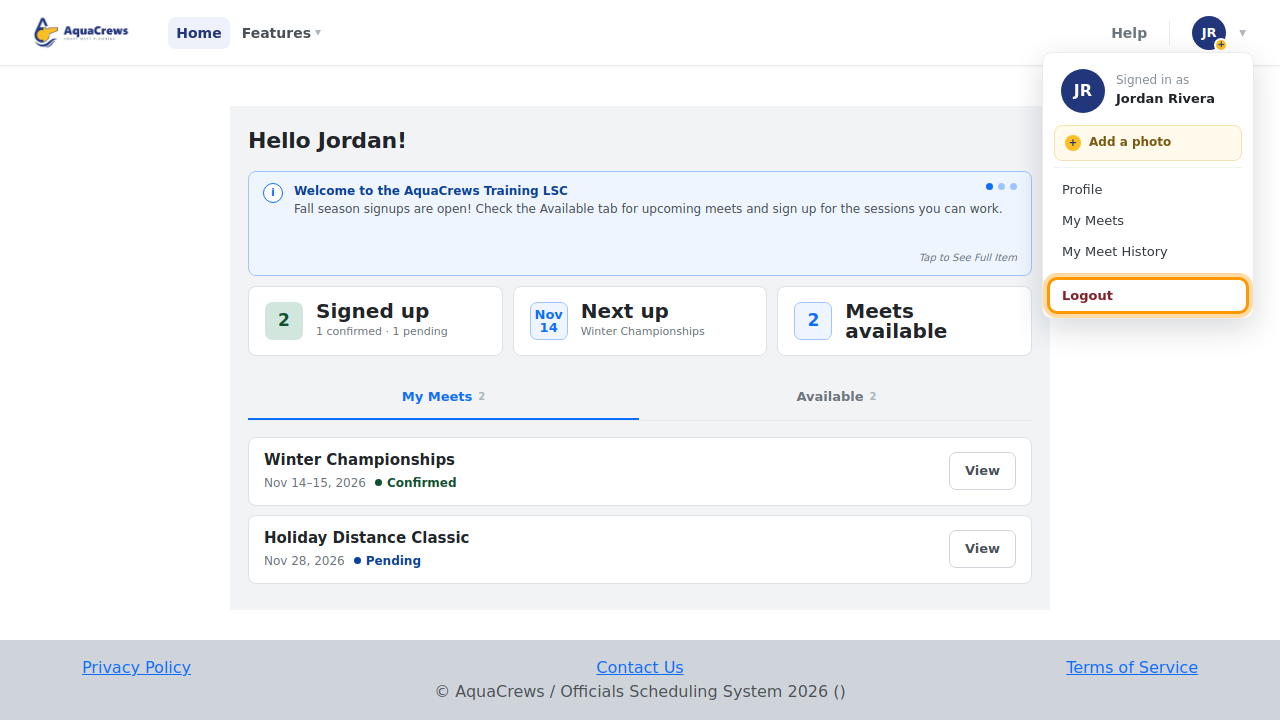
Your Home page opens.
- To sign out, click your name in the top-right corner.
-
Click Logout.
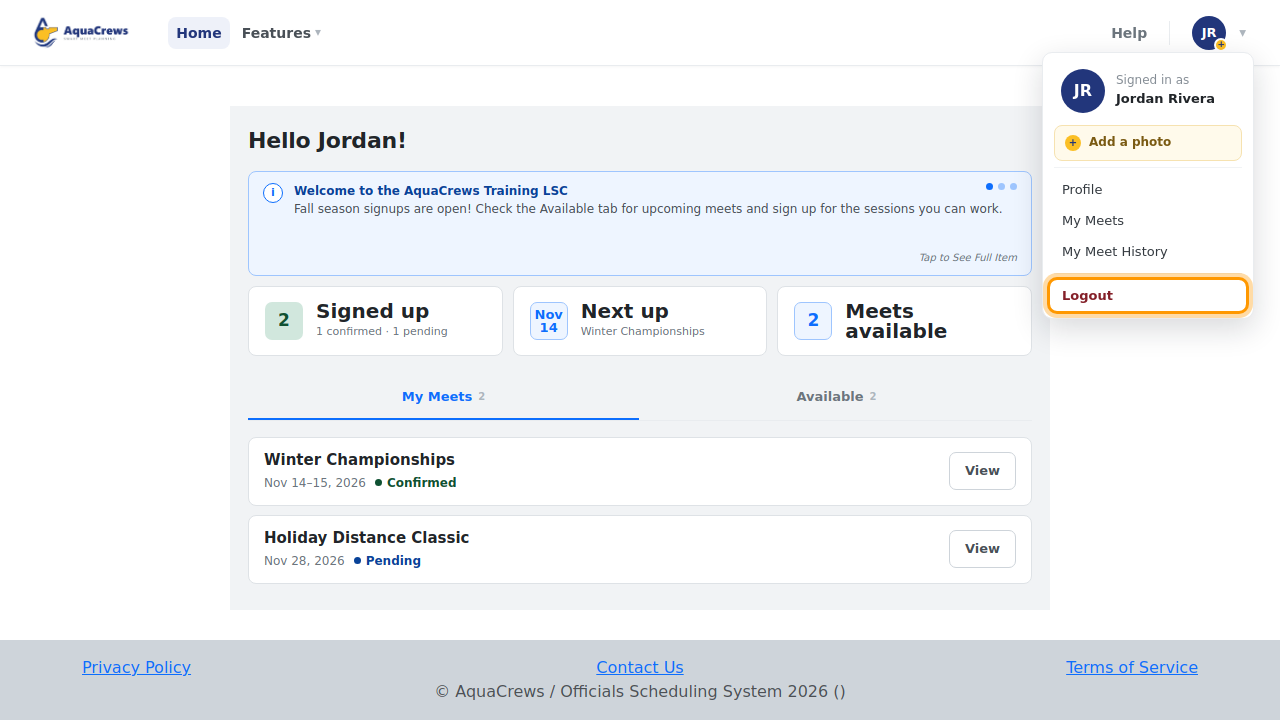
Click to see a larger version
Sign in with Google
- Go to www.aquacrews.com and click Sign In with Google Account.
- Choose your Google account if Google asks. Your Home page opens.
AquaCrews doesn't have access to your Google account - it only uses your name, email address, and profile picture. See Google's "Sign in with Google" help.
Tips & troubleshooting
- Use the same way you signed up. If you created your account with Google, use Sign In with Google Account - your account doesn't have an AquaCrews password.
- Forgot your password, or seeing a message instead of your Home page? See Fix sign-in problems.
- New to AquaCrews? Click Signup with Email or Sign In with Google Account to create an account.
Related: Fix sign-in problems · Tour of the Home page