
Create an account with Google
Use your Google account to create your AquaCrews account - there's no separate AquaCrews password to remember. Your LSC administrator approves your account before you can use it.
Prefer to use an email address and password? See Create an account with email.
Before you start: have a Google account (Gmail or a Google Workspace account).
Steps
-
Go to www.aquacrews.com and click Sign In with Google Account.
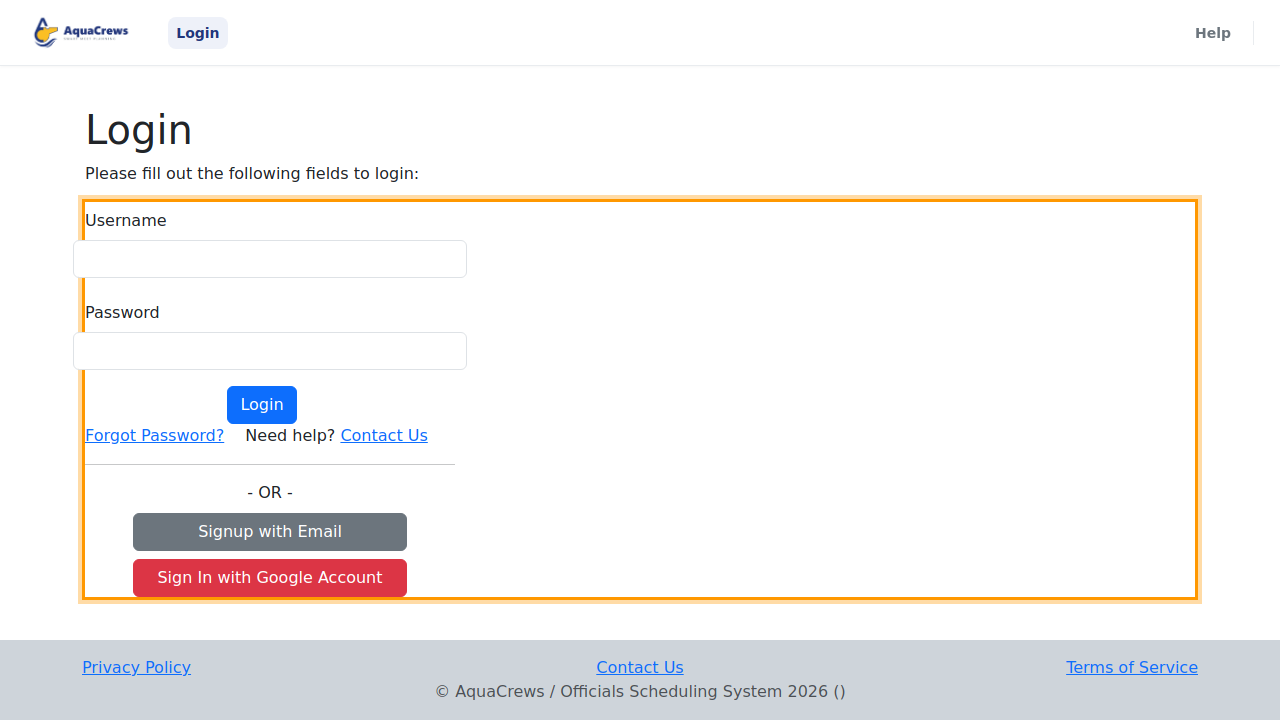
Click to see a larger version -
Choose your Google account, or sign in to Google if you're asked to.
- If Google asks, allow AquaCrews to see your name, email address, and profile picture.
- On Select Your Organization, choose your LSC from the LSC list (or "Demonstration LSC" if you want to test or evaluate the system).
- Click Continue.
- Wait for your LSC administrator to approve your account. You'll get an email when it's approved, and then you can sign in with Sign In with Google Account.
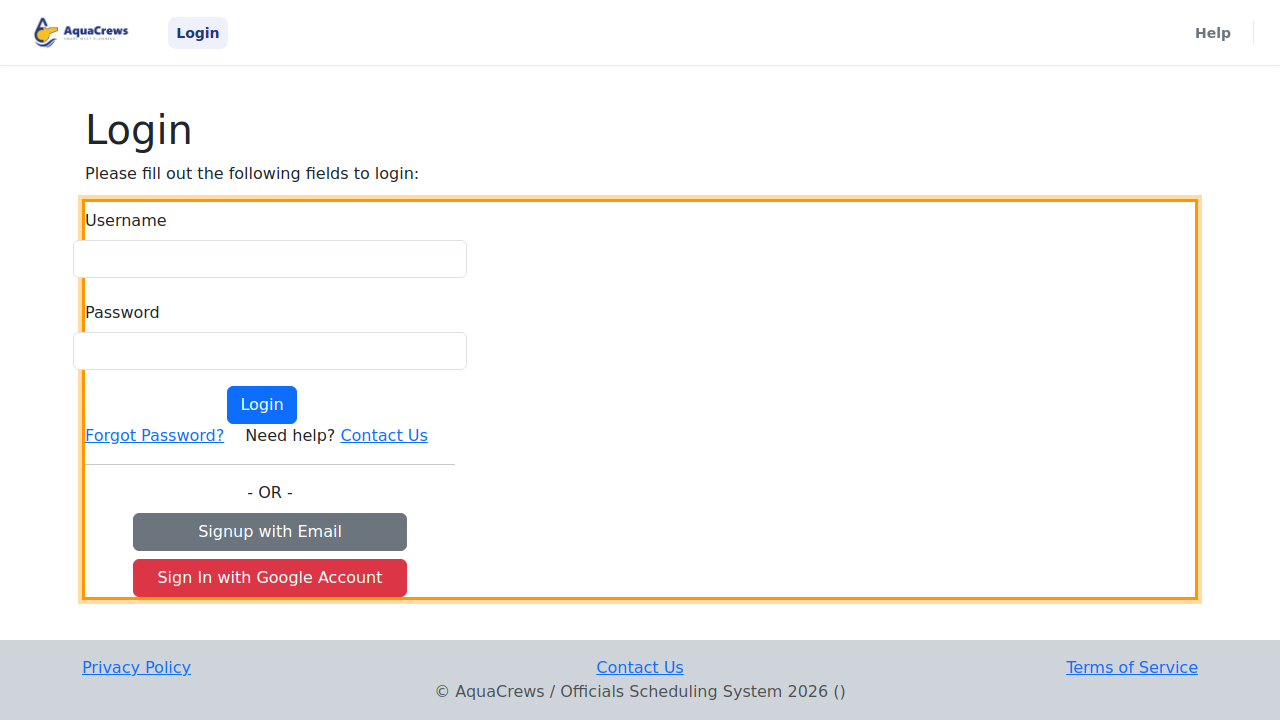
What happens next
Your LSC administrator is notified of your new account. Because Google has already confirmed your email address, there's no verification email. Until you're approved, signing in shows the message Your Account Has Been Created and Is Pending Administrator Approval.
Tips & troubleshooting
- AquaCrews only gets your name, email address, and profile picture from Google - it can't see anything else in your Google account. See Google's "Sign in with Google" help.
- Accounts made with Google don't have an AquaCrews password. Always use Sign In with Google Account to sign in.
- Picked the wrong LSC? Use Contact Us to ask for your account to be moved.
Related: Sign in · Fix sign-in problems