
Assign apprentices
Put apprentices in deck positions on the Assignments tab, either paired with a certified official who trains them or working a position on their own.
Note: Meet Planner must be turned on for the meet - see Meet Planner and meet staff.
Before you start: you've confirmed officials for the session. To learn the basics of dragging officials onto positions, see Build deck assignments.
Steps
- On the Home page, find the meet under My Meets and click Manage.
- Click the Assignments tab.
- Choose the session to work on.
- Drag an official onto a position - they're the primary official for that position.
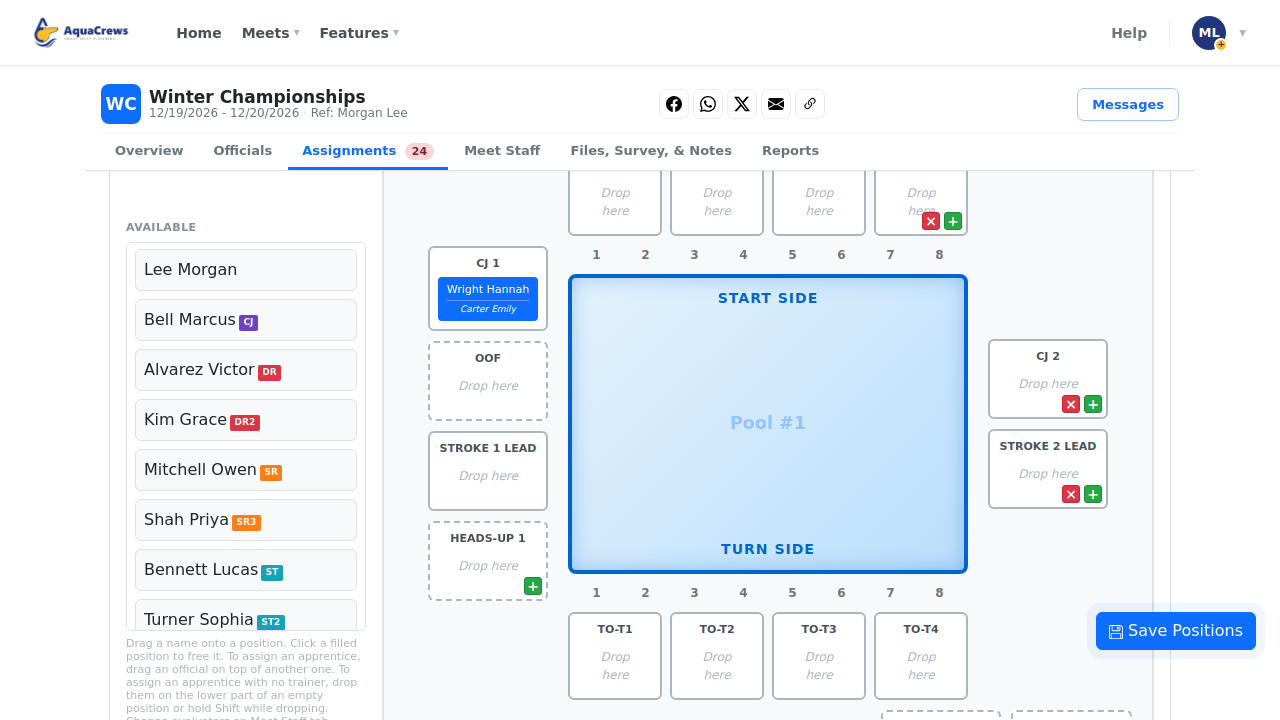
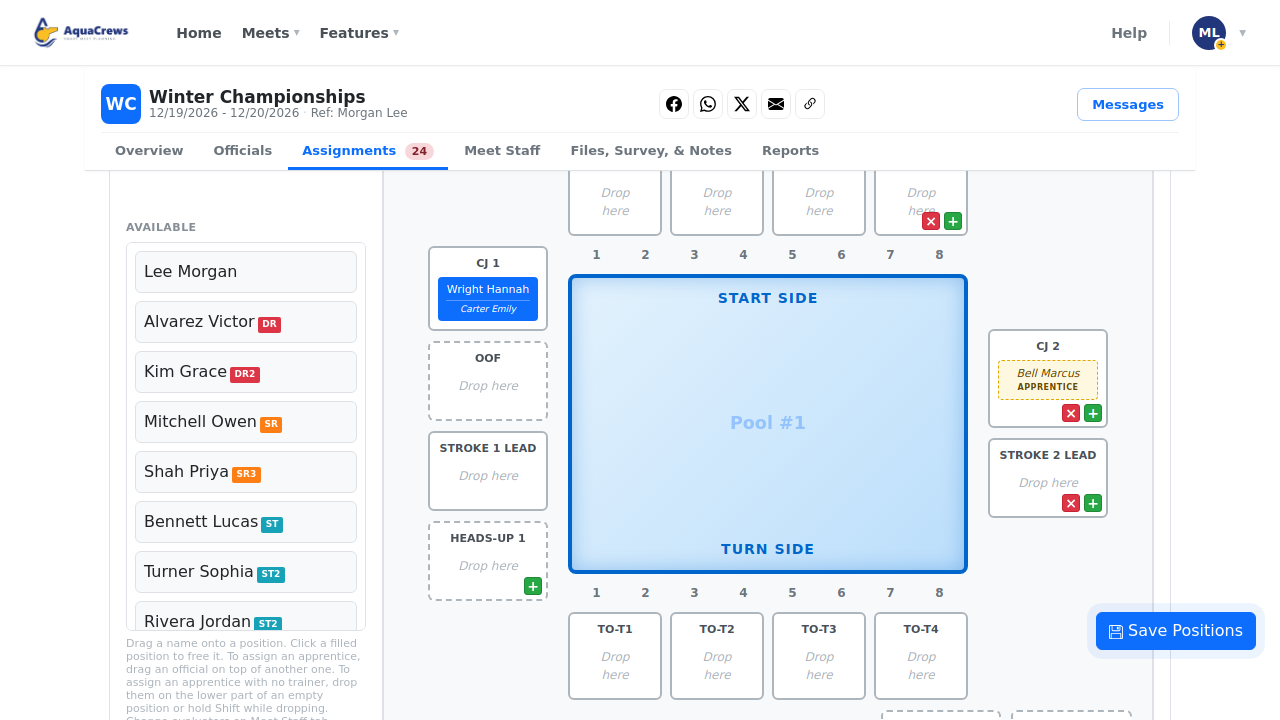
- To pair an apprentice with them, drag a second official on top of the primary - the apprentice shows in small italics under the primary's name.
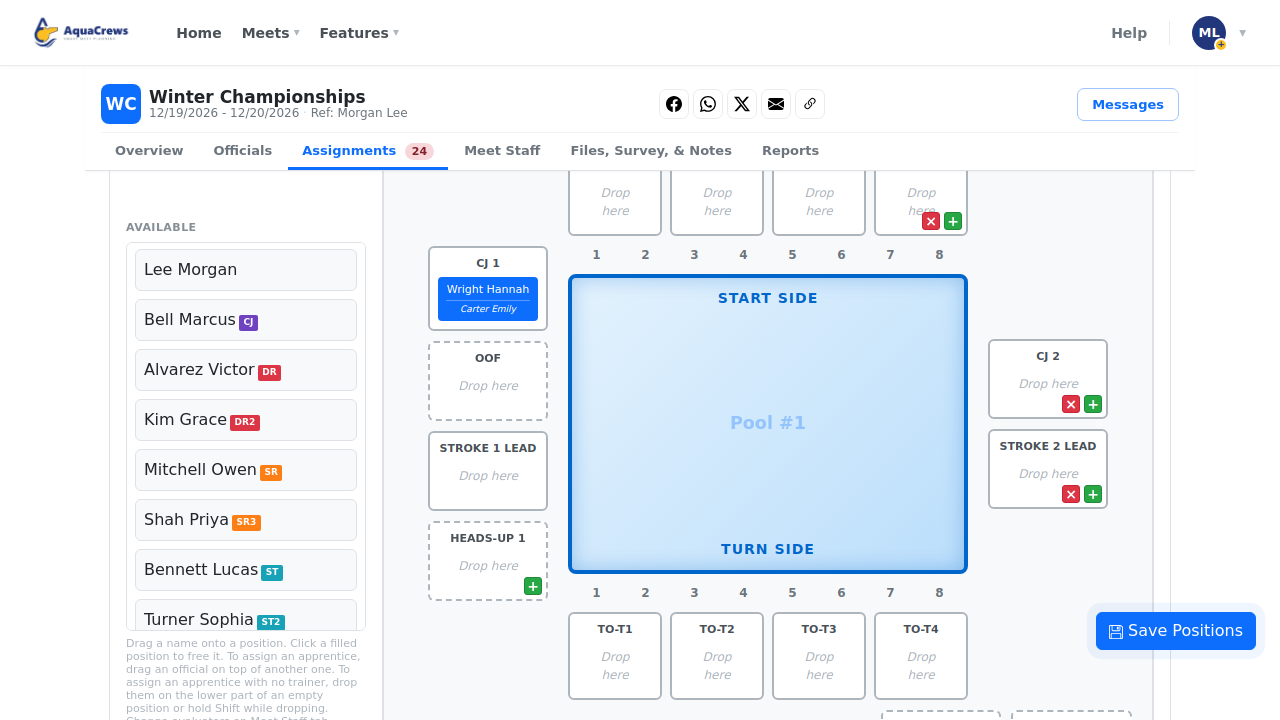
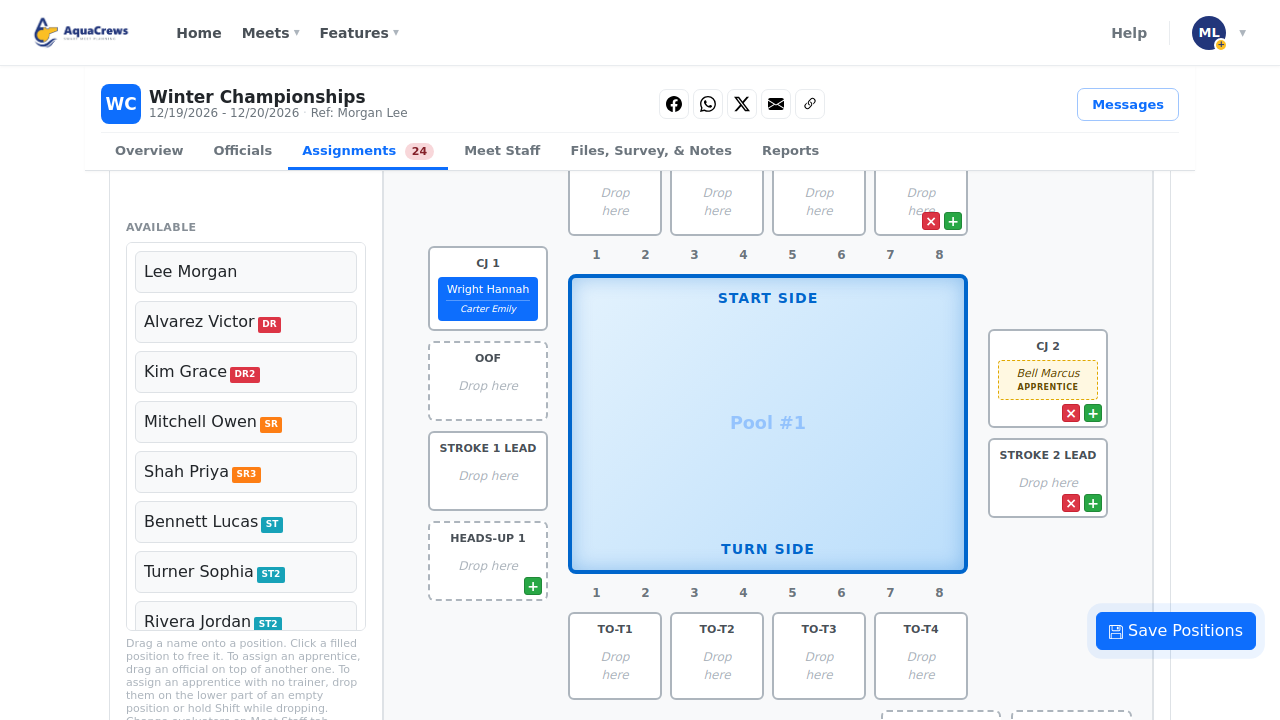
Click to see a larger version - To place an apprentice on their own, drag them onto the lower Drop as apprentice part of an empty position. They show in yellow with an Apprentice tag.
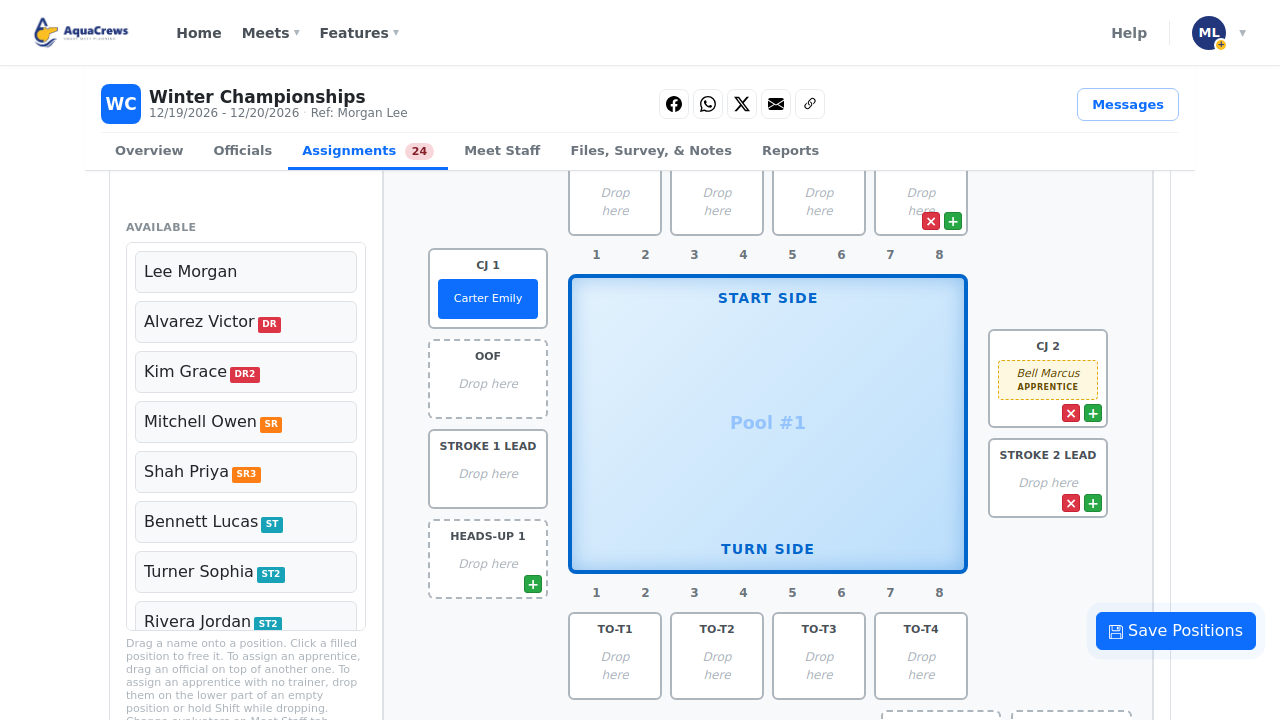
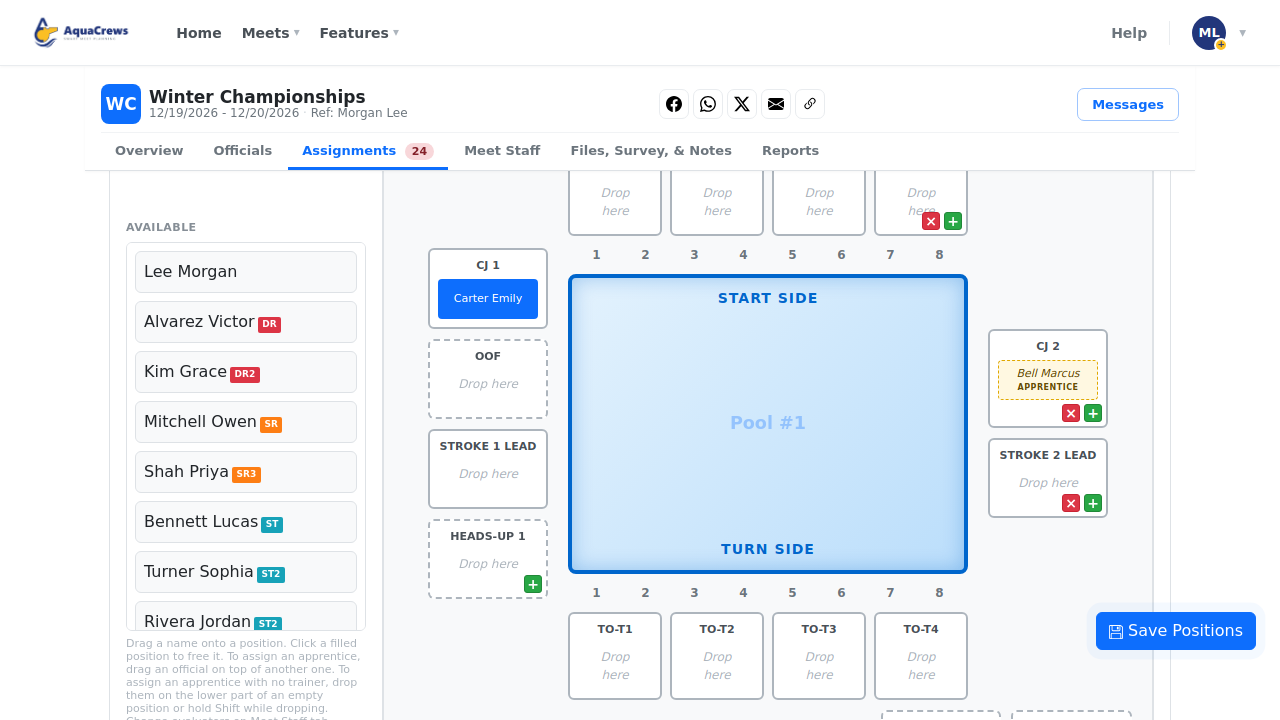
Click to see a larger version - To remove a primary, click their name - they go back to Available, and their apprentice stays in the position on their own.
- To make a stand-alone apprentice the primary, drag them onto the top part of their own position.
Click to see a larger version - Click Save positions.
What happens next
A position with only an apprentice counts as filled. On the published assignments, apprentices are shown in parentheses; the Post-Meet Report lists them with apprentice roles (for example, CJ-AP); and each apprentice sees (Apprentice) next to the position on their own Assignments tab.
Tips & troubleshooting
- Hold Shift while dropping to place an official as an apprentice anywhere on the position, instead of using the lower part of the box.
- To give a stand-alone apprentice a trainer, drag a certified official onto the top part of their position - the official becomes the primary and the apprentice stays as their apprentice.
- Dropping an official on a position that already has a primary and an apprentice replaces the apprentice, who goes back to Available.
- To remove only the apprentice, click the apprentice's name.
- To switch a lone primary to a stand-alone apprentice, drag them onto the lower part of their own position.
- On a phone, each position has Primary and Apprentice lists - for a stand-alone apprentice, choose them under Apprentice and leave Primary as Not Assigned.
- An apprentice is never used as the meet's Admin Official on the Post-Meet Report - set the Admin Official on the Meet Staff tab, or assign a primary to the first session's Admin position.
Related: Build deck assignments · Sanity Check and publish assignments · Report: Officials Role by Session