
Sanity Check and publish assignments
Check your assignments for problems, then publish them so officials can see their positions.
Before you start: you've built your deck assignments.
Steps
- On the Home page, find the meet under My Meets and click Manage.
- Click the Assignments tab.
- Click Sanity Check.
-
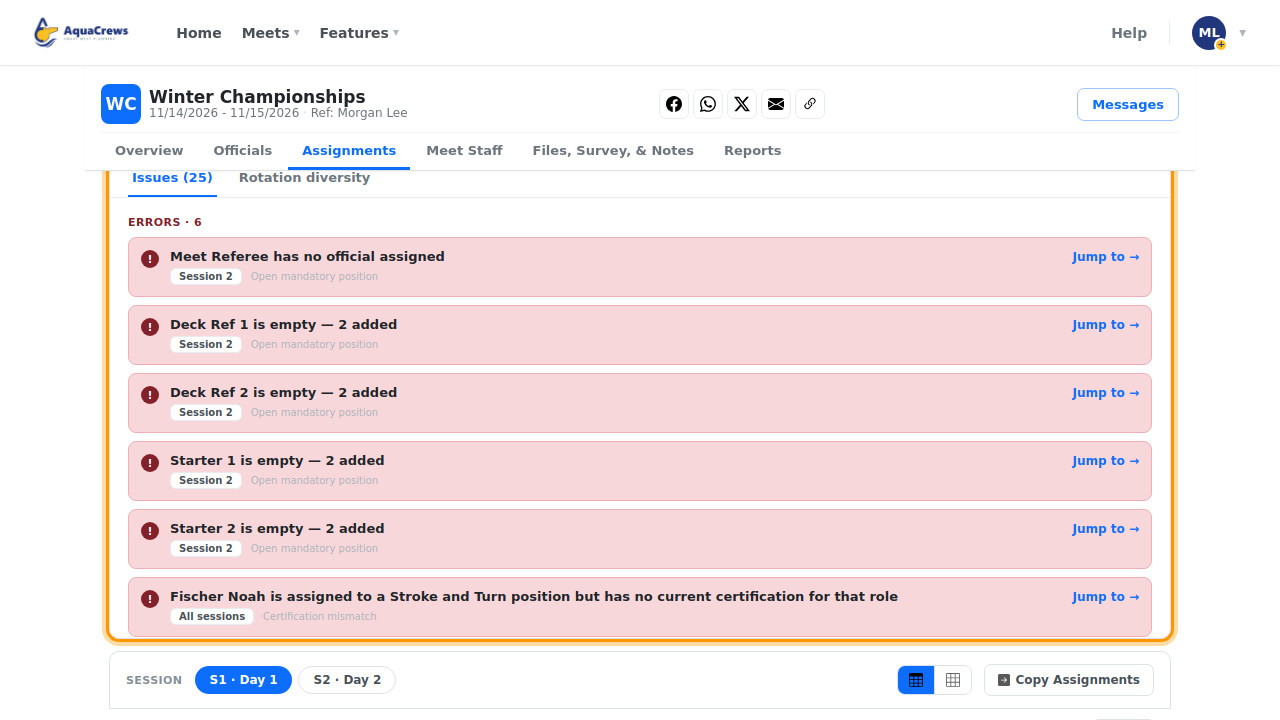
Errors and Warnings list problems - like empty positions or an official in two places.
 Click to see a larger version
-
Click Jump to on a problem to go straight to it, fix it, and run Sanity Check again.
- Turn on Visible to all officials so officials can see their assignments.
- Click Publish Assignments, then OK.
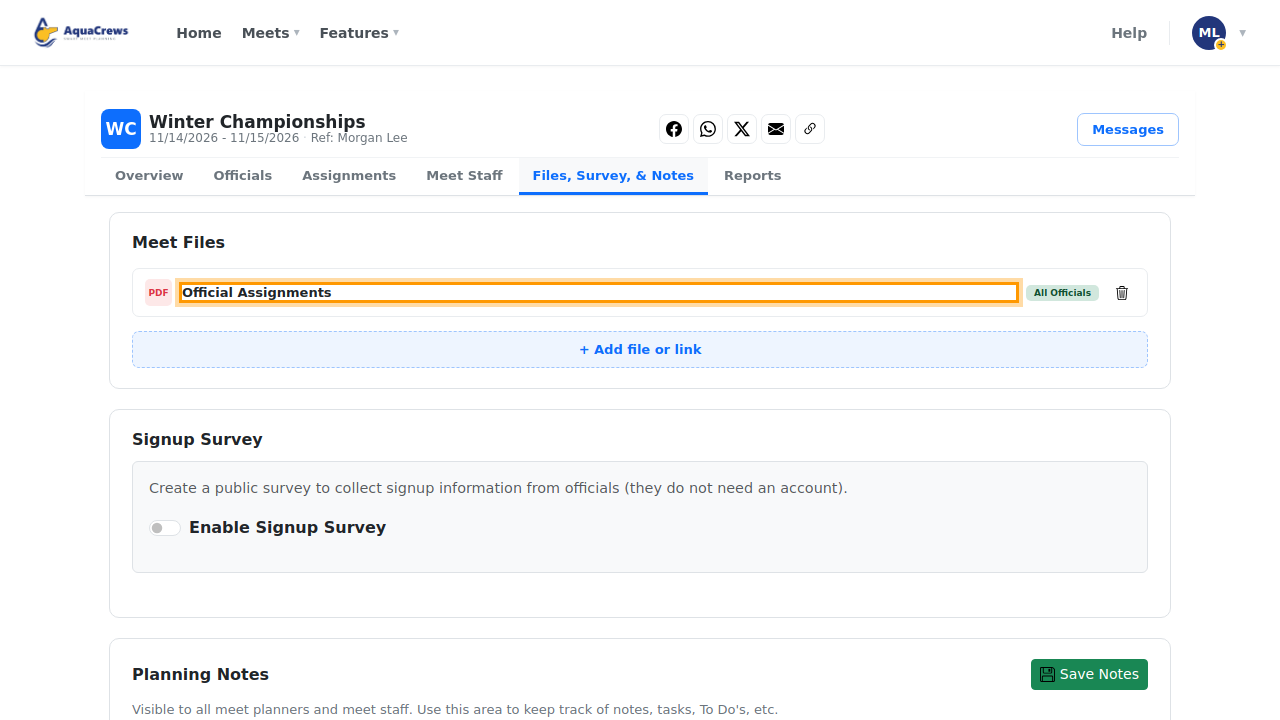
- The assignment sheet is created and shown on the Files, Survey, & Notes tab.
-
Officials see their positions on the meet page's Assignments tab, and the sheet under Meet files.
 Click to see a larger version
Tips & troubleshooting
- Rotation diversity (in the Sanity Check) shows whether officials are getting a mix of positions across rotations.
- Changed something after publishing? Click Publish Assignments again to update the sheet.
- Turn off Visible to all officials to hide assignments while you rework them.
- The sheet's layout is set by Assignment sheet format on the Overview tab.
Related: Build deck assignments · Report: Officials Role by Session