
Use the Voice Assistant (Larry)
Larry is an AI assistant you can type or talk to. Ask him a question, have him take you to a page or find a help article, or have him fill in a form for you: sign you up for a meet, create a meet, or (for LSC Admins) change a meet's referee. Larry only fills in the form. You always review it and click its button yourself.
Note: This feature must be enabled for your organization.
Before you start: you're signed in with Official permission or higher.
Steps
- Click Larry's button at the bottom-right of any page.
-
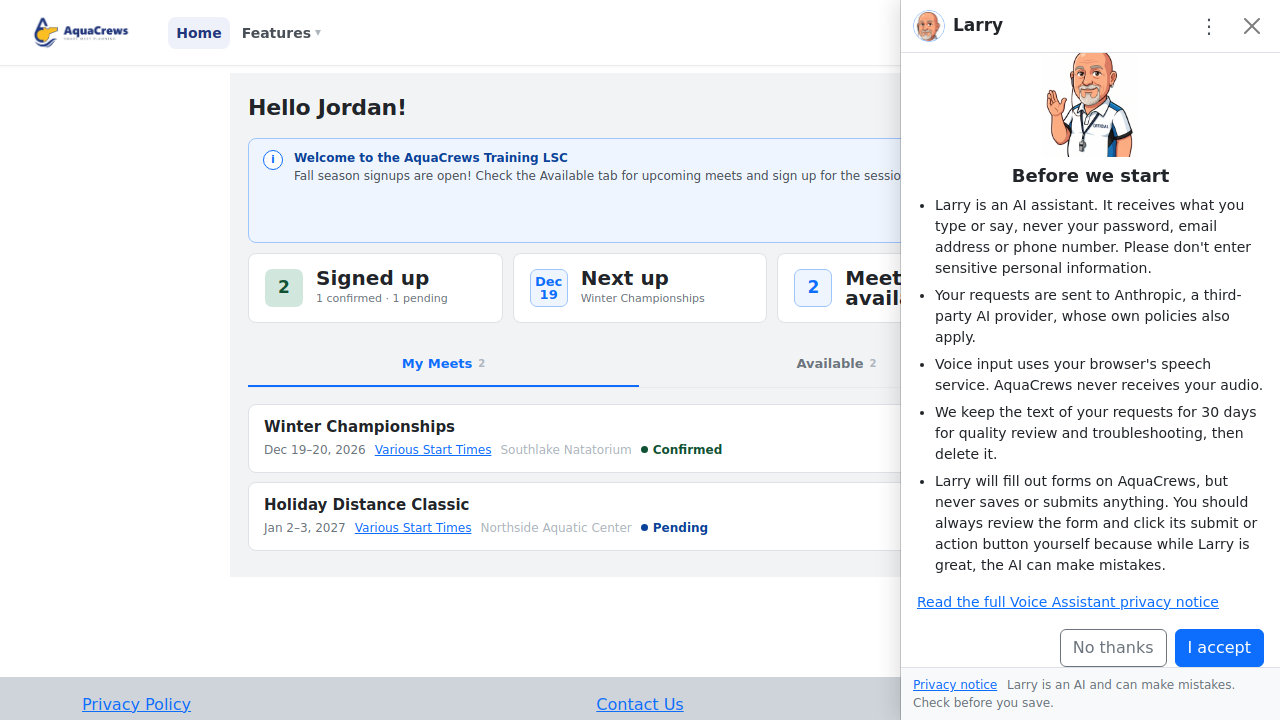
The first time, read Before we start and click I accept. (Click No thanks to close without using Larry.)

Click to see a larger version - To talk instead of typing, click the microphone button, say your request, then pause. Larry sends it after about 2 seconds of silence.
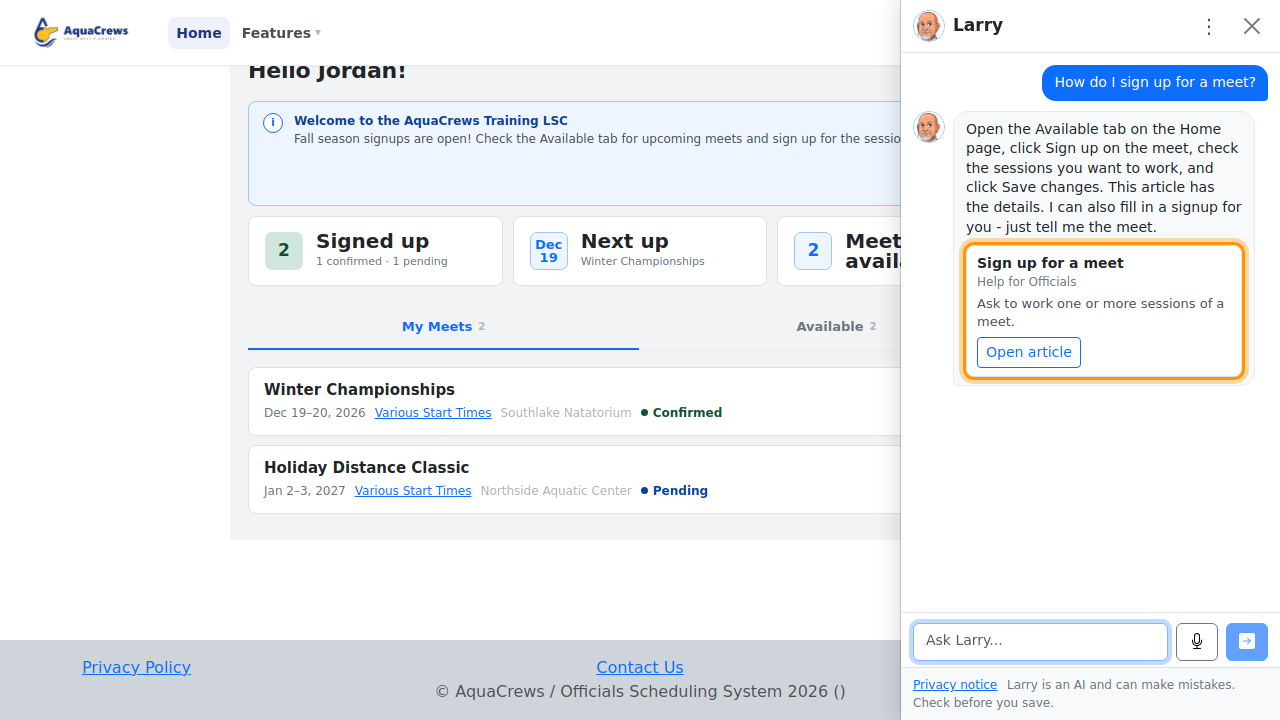
- Or type your request in the Ask Larry... box - for example "How do I sign up for a meet?" - and click Send (the arrow).
-
Larry answers. Click Open article on a card to read the full help article in a new tab.

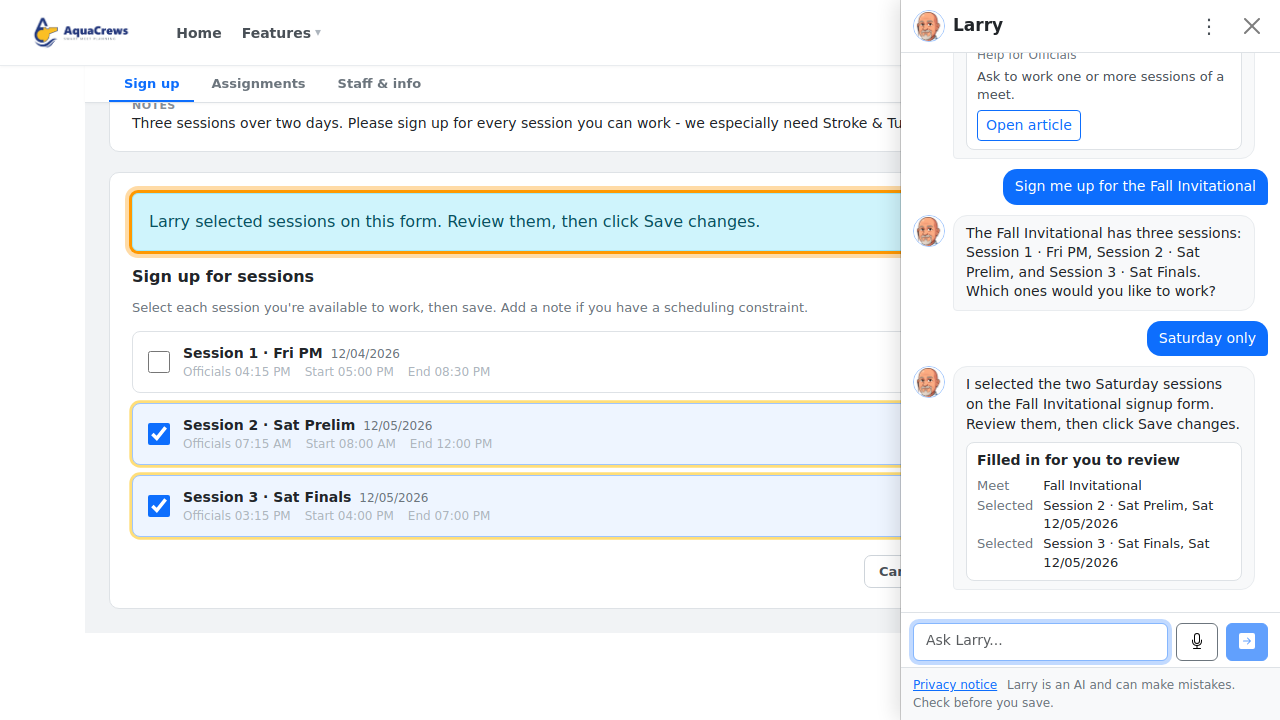
Click to see a larger version - Ask Larry to do something for you - for example "Sign me up for the Fall Invitational" - and click Send.
- If Larry needs more details (which meet, which sessions, which pool), he asks. Click one of the buttons under his answer, or type your answer.
-
Larry takes you to the form, highlights what he filled in, and shows a blue banner at the top of the form.

Click to see a larger version - Check every field - close Larry's panel with X if it covers the form. Change anything that's wrong yourself, or tell Larry what to fix (for example "Add the Friday session too").
- Click the form's own button (Save changes, Create, or Save) when it's right.
What Larry can do
| You are | Larry can |
|---|---|
| Official and up | Answer questions about using AquaCrews, take you to a page, show help articles, open the support chat, and sign you up for a meet's sessions |
| Meet Ref and up | Also create a meet |
| LSC Admin and up | Also change a meet's referee |
Talking to Larry
- Click the microphone button (next to Send), speak, then pause. Larry sends your request after about 2 seconds of silence. Click the microphone again to send straight away.
- The first time, your browser asks for permission to use the microphone. Click Allow.
- Voice input works in Chrome, Edge and Safari. In Firefox the microphone button doesn't appear; type instead.
- A request can be up to 500 characters, or about 45 seconds of speech. For longer requests, say it in smaller pieces.
Tips & troubleshooting
- Larry never saves anything. Nothing happens until you click the form's button.
- Larry is an AI and can make mistakes. Check before you save.
- Signing up: Larry keeps the sessions you're already signed up for, unless you say "only" or "instead".
- Larry can't cancel a signup, delete anything, or change your account. He'll point you to the right page.
- Larry doesn't answer swimming rules questions. Use Rules AI for those.
- Your conversation stays while you move between pages in the same browser tab. Click the ⋮ menu > Clear conversation to start over. Signing out clears it too.
- To stop using Larry, click ⋮ > Stop using Larry. This withdraws your acceptance of the privacy notice and deletes the stored text of your requests. You can accept again later.
- ⋮ > Privacy notice explains what is sent to the AI provider and how long it is kept.
Related: Sign up for a meet · Create a meet · Ask Rules AI