
Create pay sheets from a PDF template
Fill in your LSC's pay sheet (or another PDF form) for every confirmed official in your meet at once - each official's copy has their own name and sessions, all in one PDF to print or send.
Note: PDF templates must be enabled for your organization, and your LSC administrator must have set up a template - see Create a PDF template.
Before you start: you're the meet's referee, an LSC administrator, or on the meet's staff, and the officials are confirmed for their sessions.
Steps
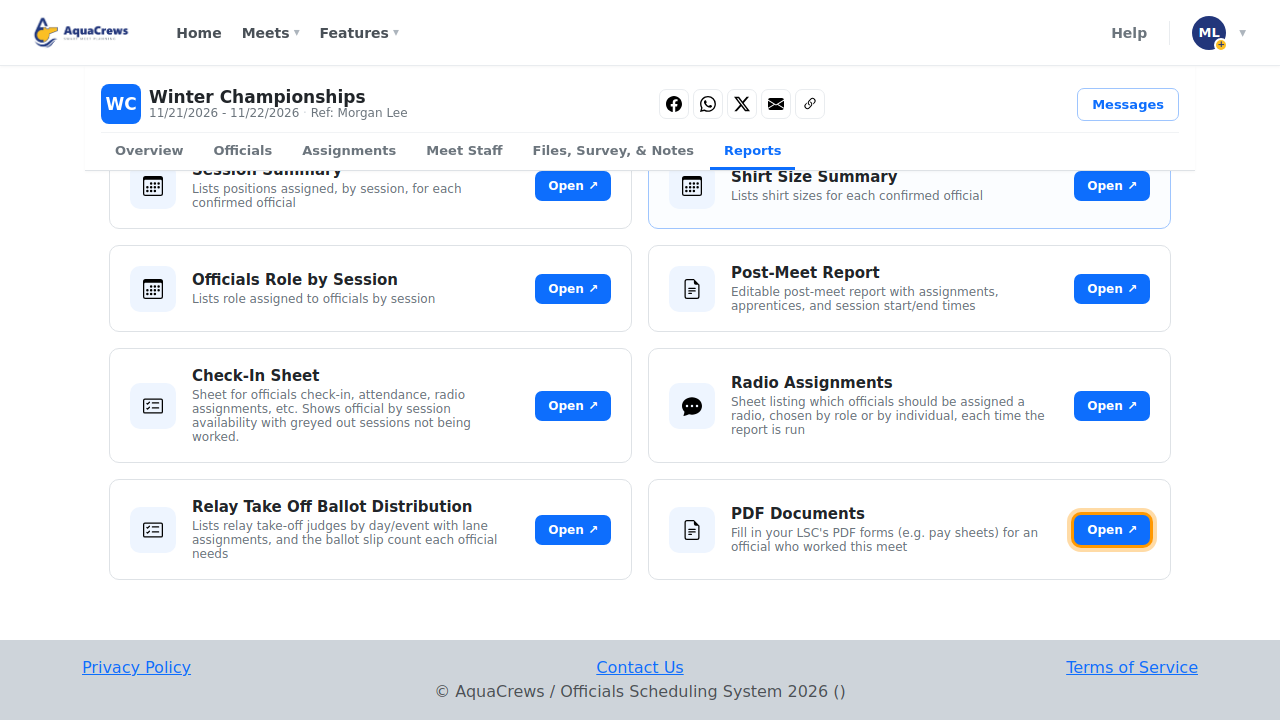
- On the Home page, find the meet under My Meets and click Manage.
- Click the Reports tab.
-
On PDF Documents, click Open.

Click to see a larger version -
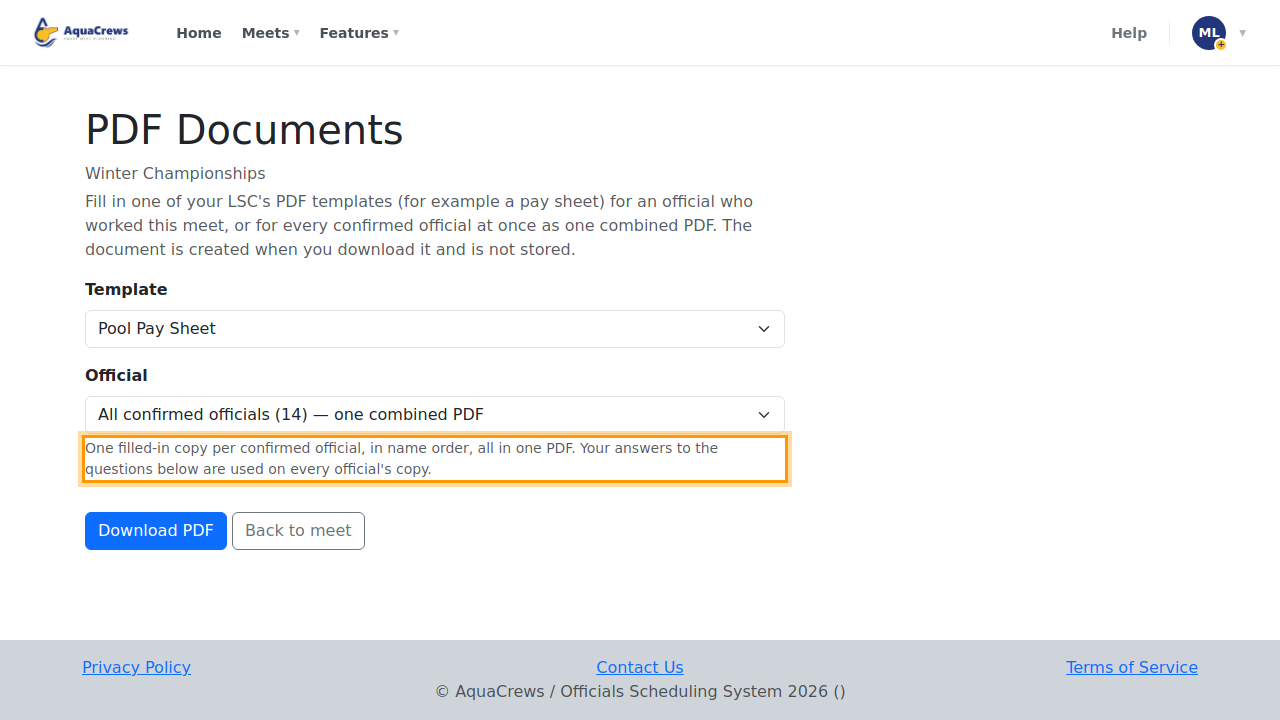
Choose the Template - for example, the Pool Pay Sheet.
- Under Official, choose All confirmed officials - or one official.
-
Answer any questions the template asks - this one fills everything in from AquaCrews.

Click to see a larger version -
Click Download PDF.
-
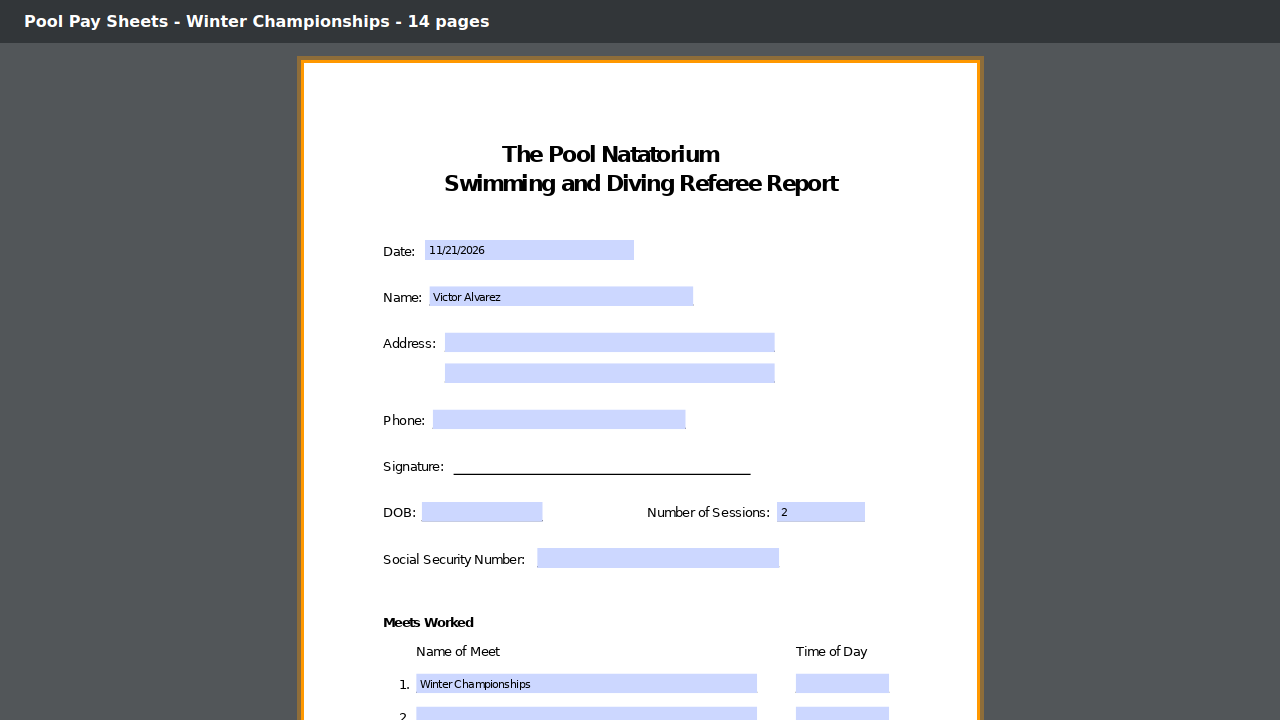
You get one filled-in pay sheet per confirmed official, all in one PDF to print or send.

Click to see a larger version -
Scroll down for the next official's copy - each page is filled in with their own name and sessions.
Tips & troubleshooting
- With All confirmed officials, the copies are in name order, and your answers to any questions are used on every copy. To give one official different answers, choose just that official.
- The PDF is created when you download it - AquaCrews doesn't keep a copy.
- Number of sessions counts the sessions each official is confirmed for.
- A notice appears if some text had to be shrunk or cut off to fit a box - ask your LSC administrator to adjust the box.
- Don't see PDF Documents, or no templates in the list? Ask your LSC administrator.
Related: Create a PDF template · Meet reports