
Create a PDF template
Turn a PDF form your LSC already uses - like a pay sheet or a referee report - into a template. Meet referees can then fill it in for every official who worked their meet, straight from the meet's Reports tab. See Create pay sheets from a PDF template.
Note: PDF templates must be enabled for your organization.
Before you start: you're signed in as an LSC administrator, and you have the blank PDF form.
Steps
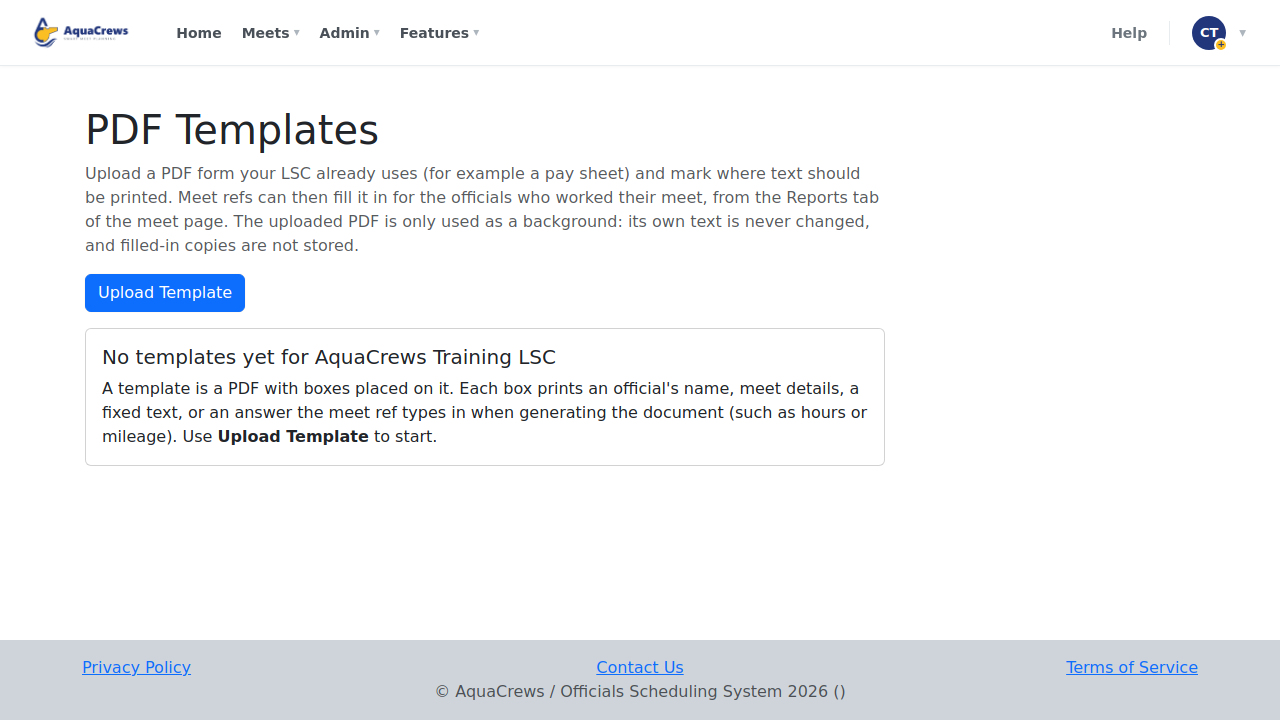
- Click Admin.
- Click PDF Templates.
-
Click Upload Template.

Click to see a larger version -
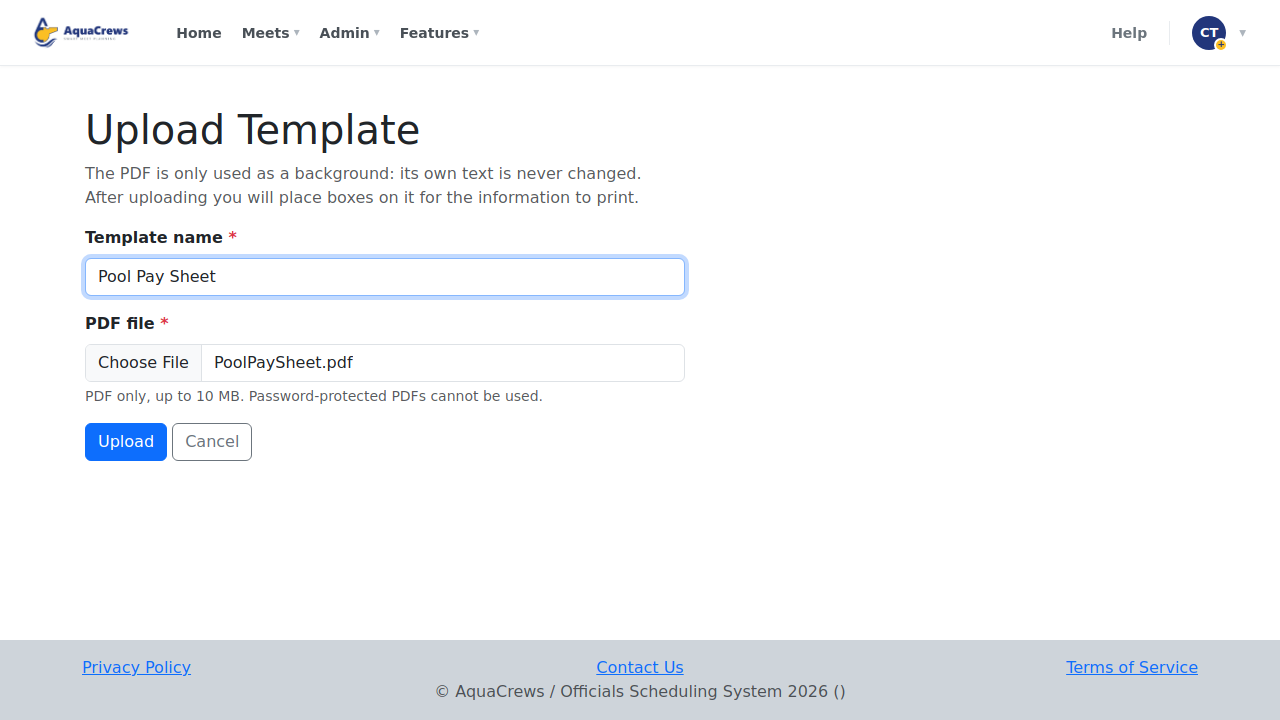
Enter a Template name and choose the PDF form your LSC already uses.

Click to see a larger version -
Click Upload - the layout editor opens with your form.
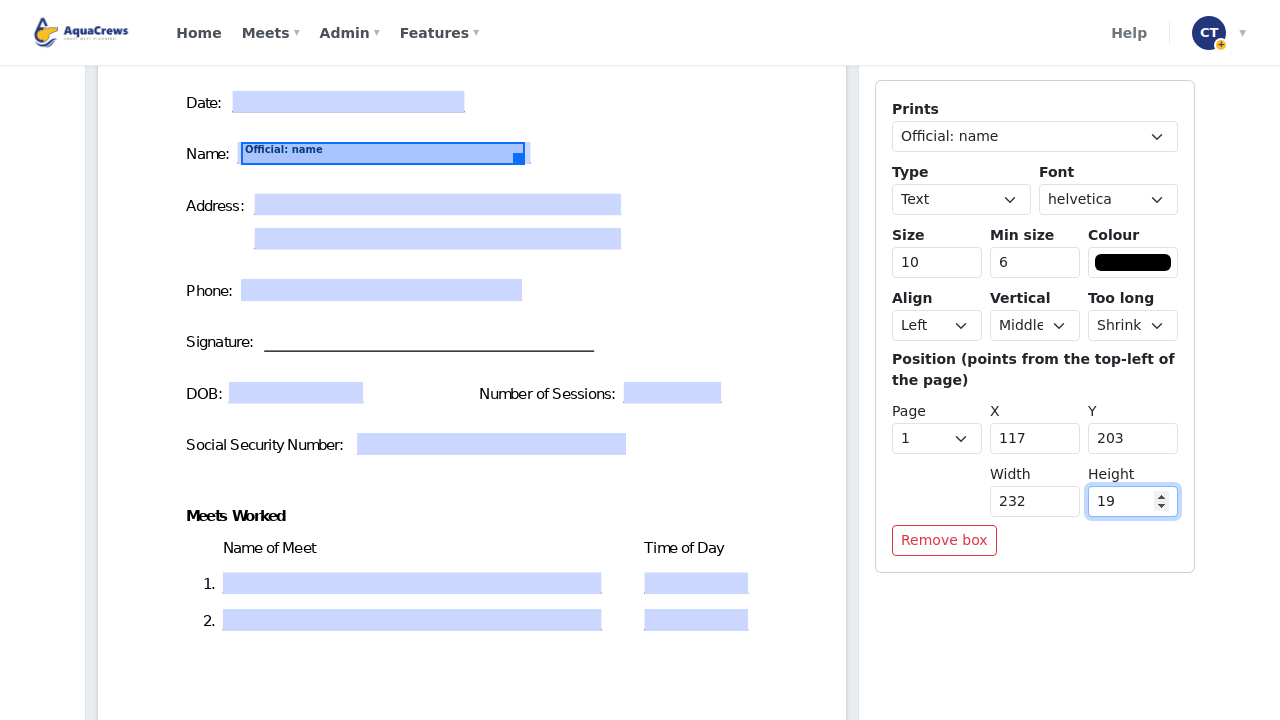
- Click Add box, and under Prints choose what goes in it - for example, Official: name.
-
Drag the box onto the Name field - or type its X, Y, Width, and Height.

Click to see a larger version -
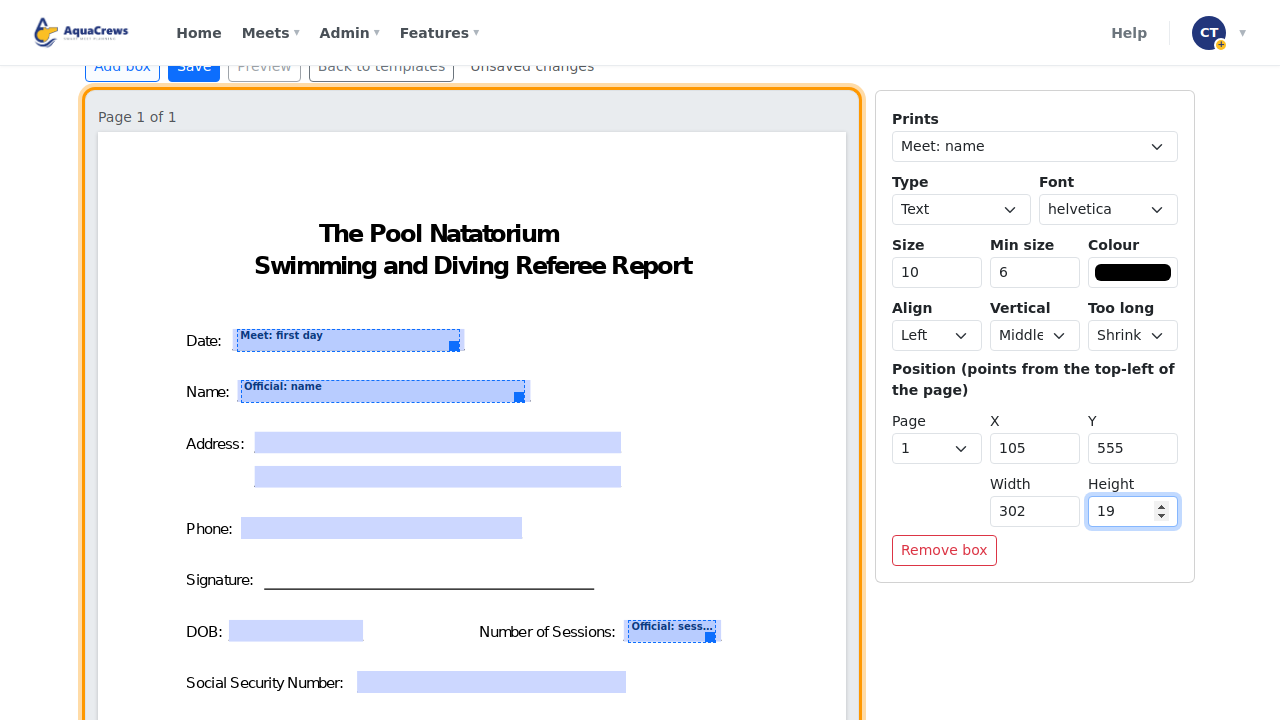
Add a box for each field. The video's pay sheet uses:
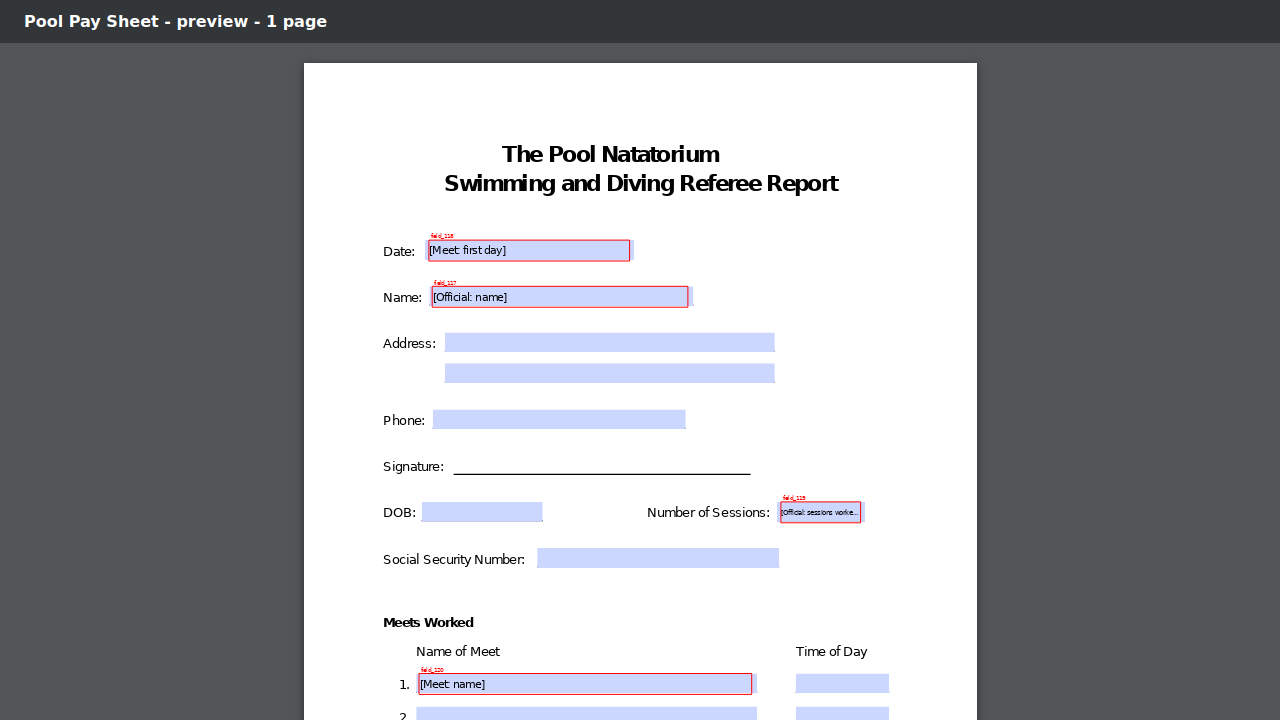
Field on the form Prints Name Official: name Date Meet: first day Number of Sessions Official: sessions worked at this meet (their confirmed sessions) Name of Meet Meet: name 
Click to see a larger version -
Click Save.
-
Click Preview to see where everything prints, using sample values.

Click to see a larger version -
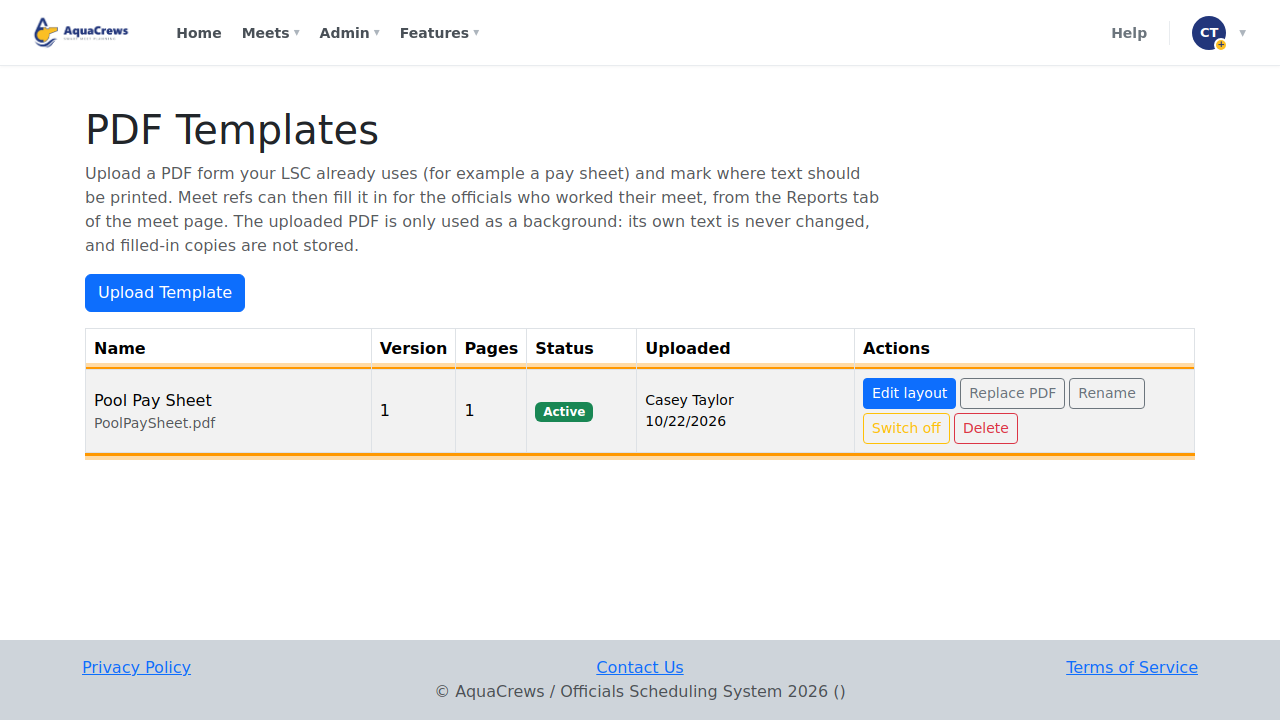
Back on PDF Templates, the template is Active - meet referees can now fill it in from their meet's Reports tab.

Click to see a larger version
What a box can print
- Details about the official or the meet - name, email, the meet's name and dates, number of sessions, and the sessions the official worked.
- Fixed text that's the same every time.
- An answer the meet referee types when they create the document (for example hours or mileage) - set the Question to ask.
- Tick box instead of text, for check boxes on the form.
Set the Font, Size, Colour, and alignment in the box's settings, and what happens when the text is Too long (shrink it, down to Min size).
Tips & troubleshooting
- "This PDF cannot be used as a template"? Some PDFs are saved in a format AquaCrews can't read. Open the form and save it as a PDF 1.4 (Acrobat 5) compatible file - in Adobe Acrobat, use Save as Other > Optimized PDF or Reduced Size PDF and choose Acrobat 5.0 and later - or print it to a new PDF (for example with Microsoft Print to PDF), and upload that copy.
- The PDF is only used as a background - its own text isn't changed, and filled-in copies aren't stored.
- Replace PDF uploads a new version of the form, which becomes the active version. The old version is kept but switched off, so you can Activate it again if you need to.
- Switch off hides a template from meet referees without deleting it. Remove box deletes the selected box.