
Home page Admin tab
The Admin tab on your Home page collects everything waiting for you: new accounts to approve, pools officials have asked you to add, and system alerts.
Before you start: you're signed in as an LSC administrator.
Steps
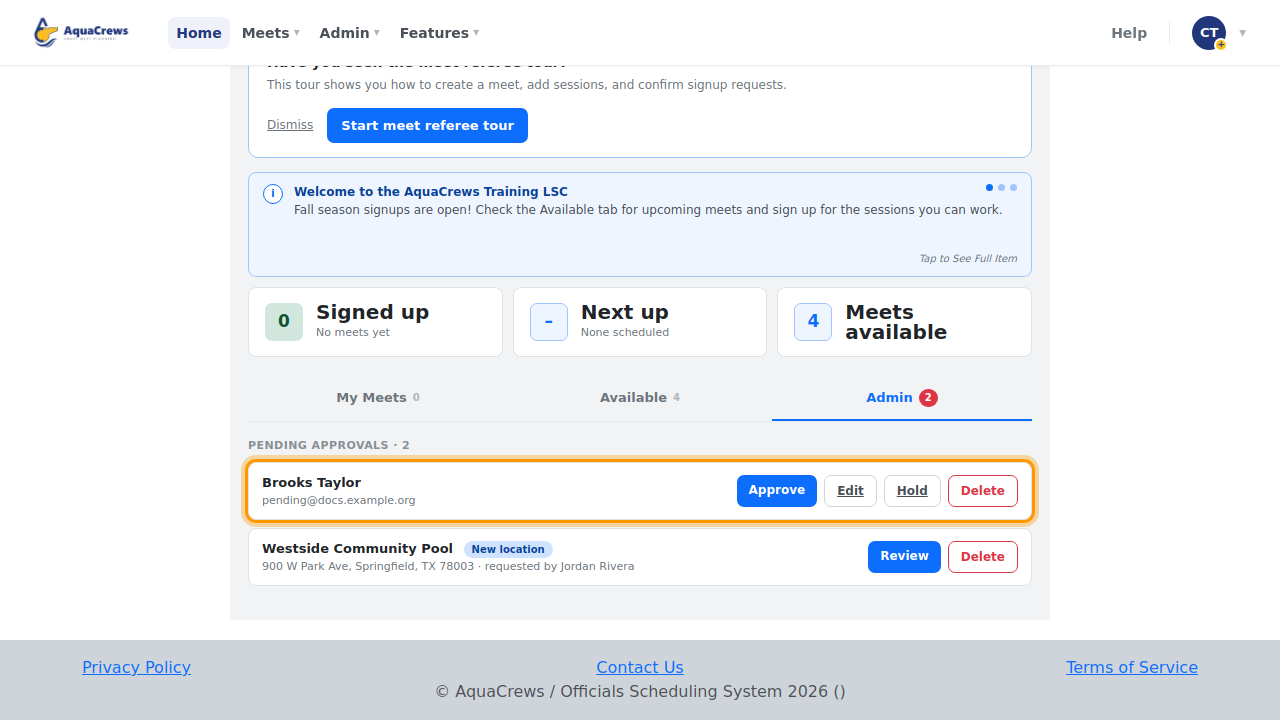
- On the Home page, click the Admin tab - the number shows how many items need you.
-
Pending approvals lists new accounts that have confirmed their email.

Click to see a larger version -
Click Edit to check or fix their details, like their name or region.
- Hold keeps the account waiting while you look into it, and Delete removes it.
- Click Approve.
-
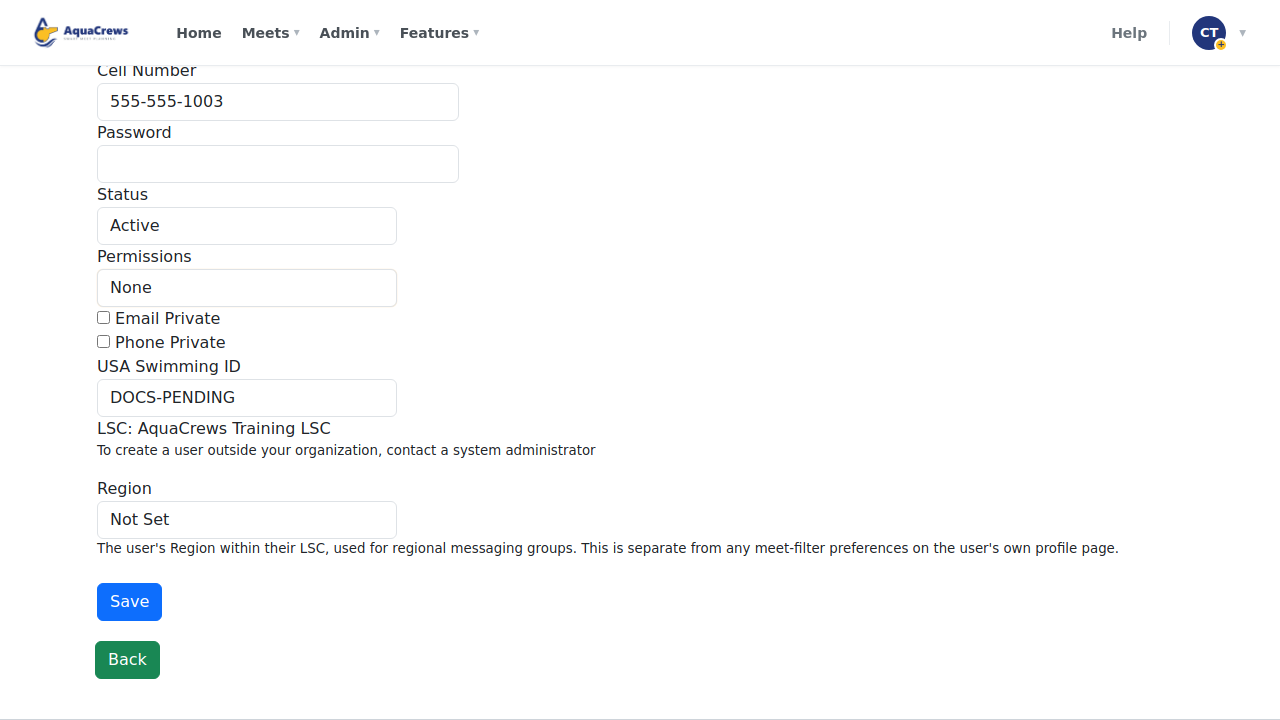
User Approved - Please Set Permissions appears: choose Official under Permissions.

Click to see a larger version -
Click Save - they're emailed that they can sign in.
- Click Home, then the Admin tab.
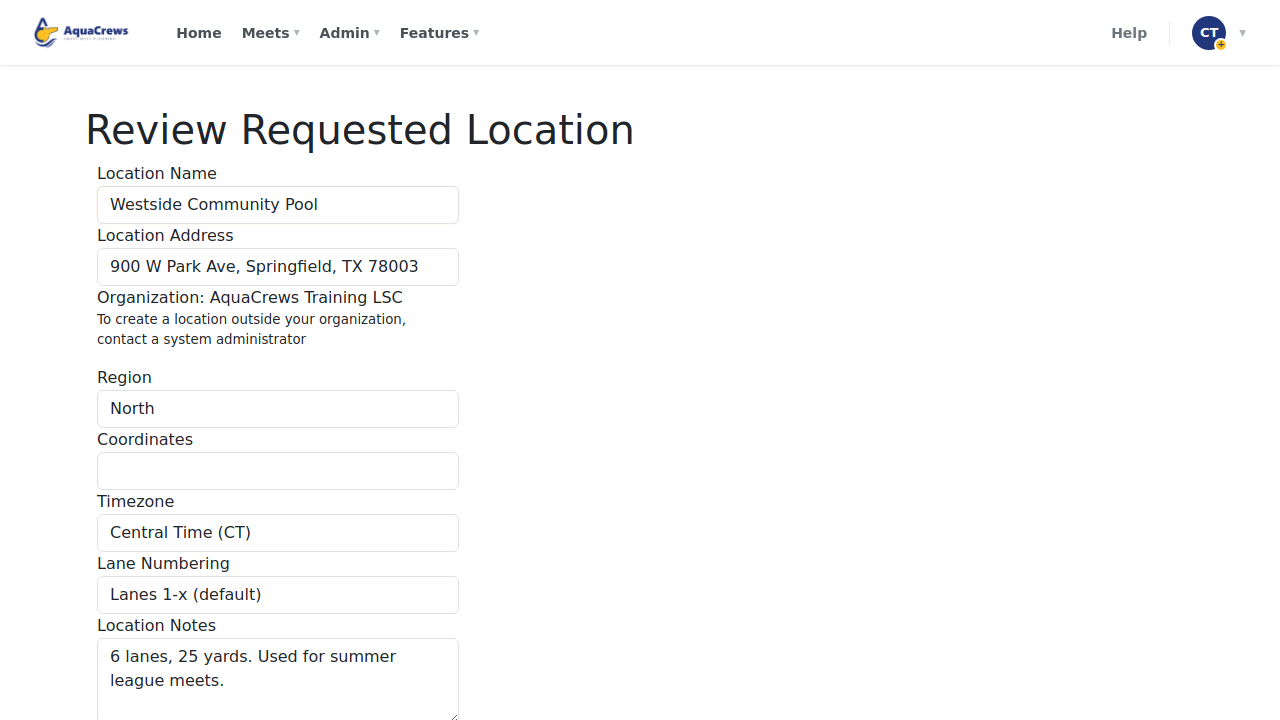
- New location requests from officials are listed too - click Review.
-
The pool's details are filled in from the request - check them and add anything missing.

Click to see a larger version -
Click Create to add the pool to your LSC's locations.
-
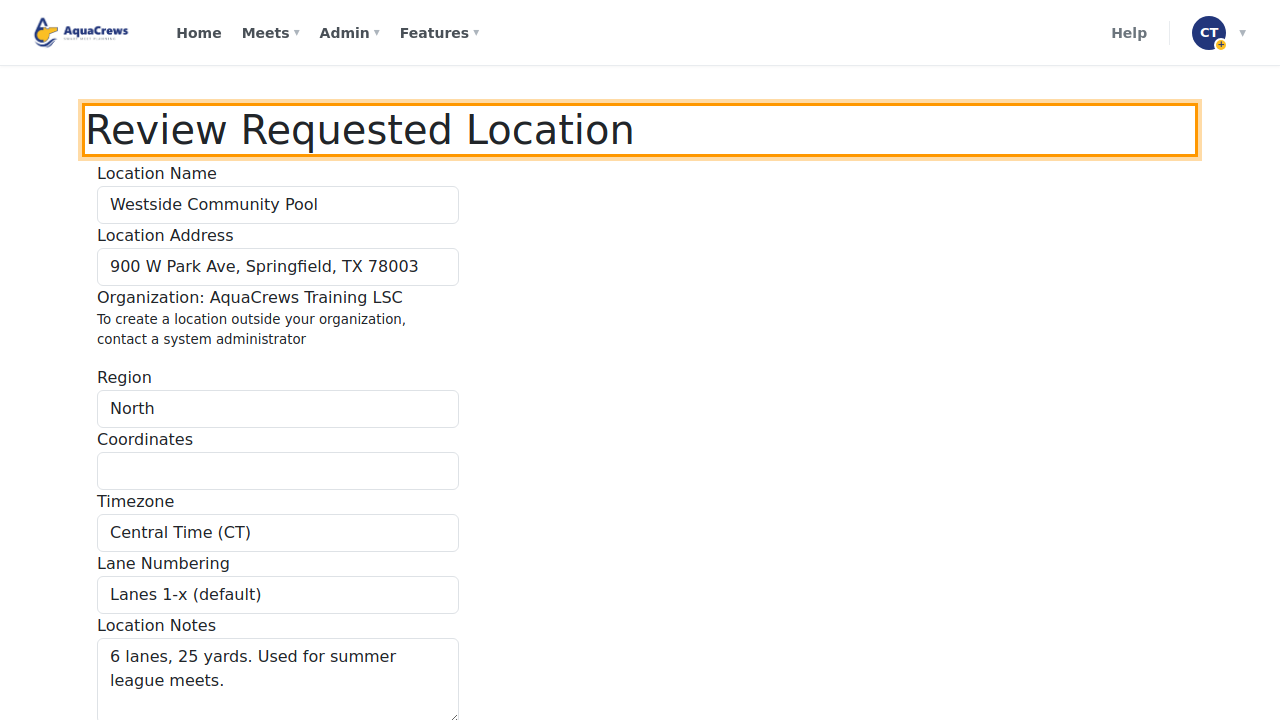
The pool is added, and meet referees can choose it for their meets.

Click to see a larger version
Tips & troubleshooting
- You're emailed about new accounts and location requests if you've turned those on - see Choose your email notifications.
- Permissions: Official for most people; Meet Ref for those who run meets; LSC Admin for other administrators. See Manage users.
- Not sure who someone is? Use Hold, check with them, then approve - or Delete if the account isn't genuine.
- System alerts (for example a meet info link that no longer works) appear at the top; click Clear once you've dealt with one.
Related: Manage users · Manage LSC locations