
Manage users
Find any official in your LSC and change their details, permissions, or account status.
Before you start: you're signed in as an LSC administrator.
Steps
- Click Admin.
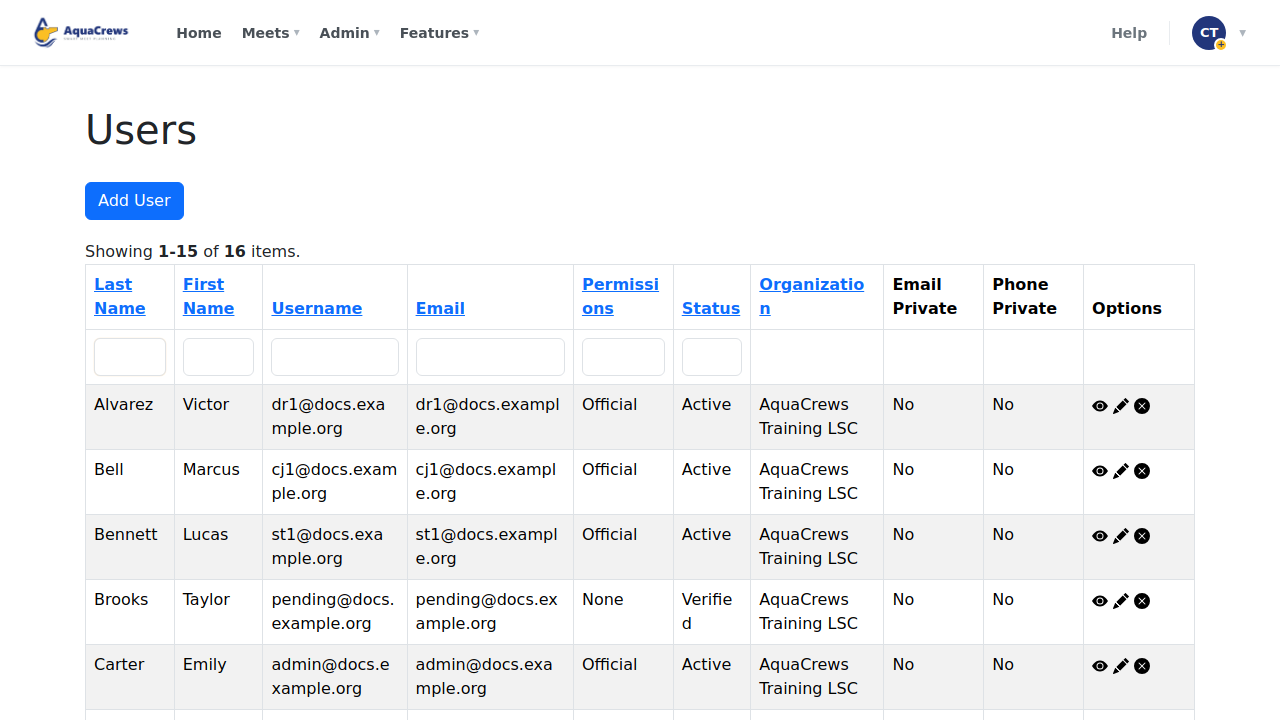
- Click Users.
-
To find someone, type in the box above a column - for example, their last name - and press Enter.
 Click to see a larger version
-
Click the pencil to edit the account.
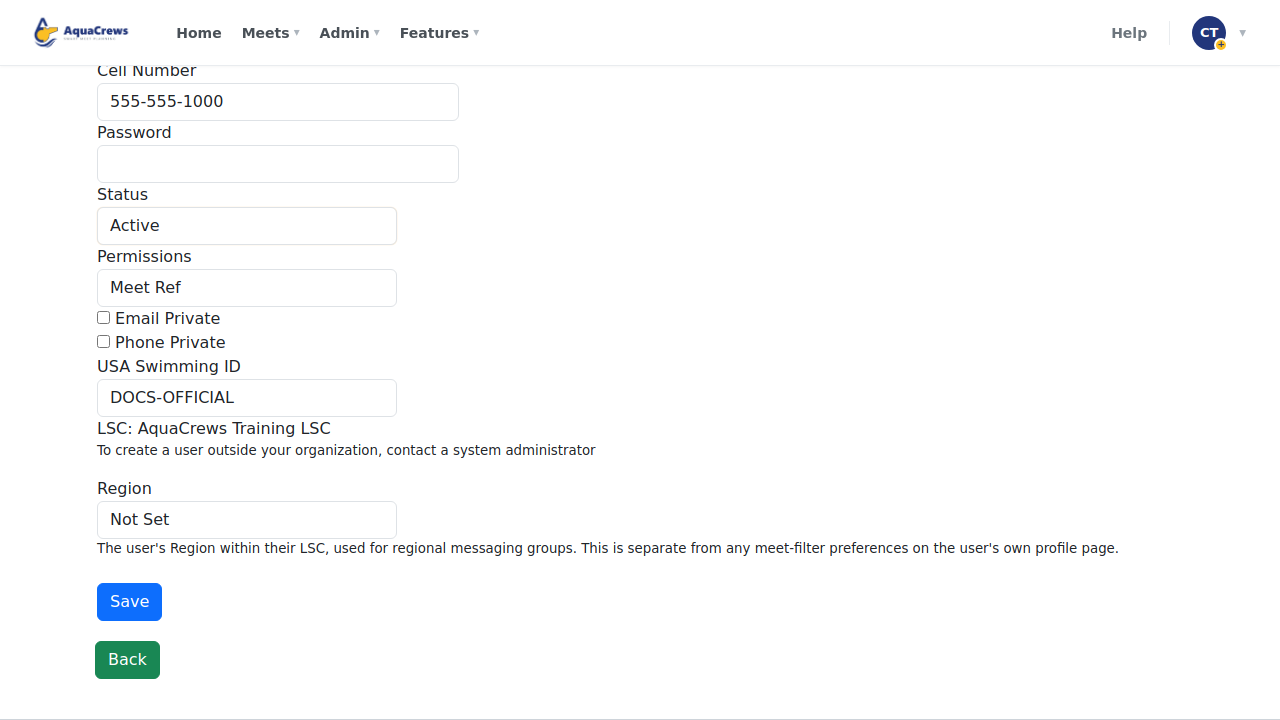
- Change Permissions to give more access - for example, Meet Ref to run meets.
-
Status turns an account on or off - Active accounts can sign in.
 Click to see a larger version
-
Click Save.
-
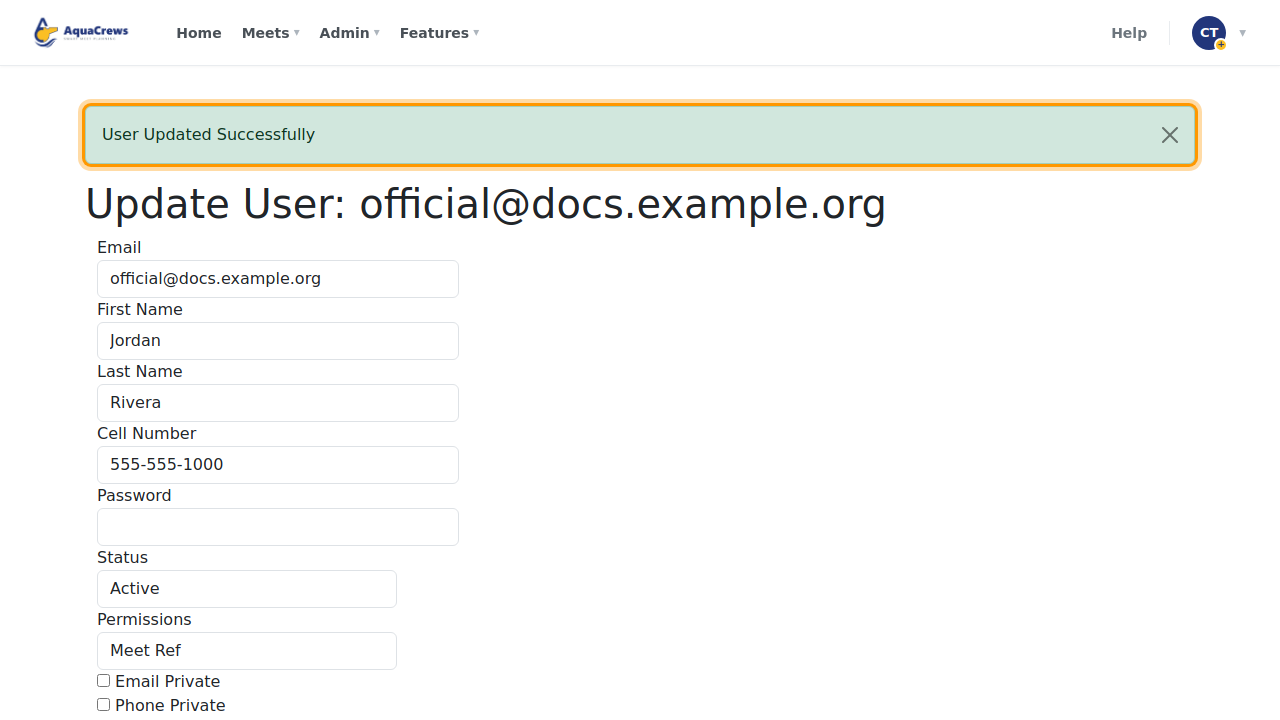
User Updated Successfully appears.
 Click to see a larger version
Permission levels
| Permission | Can |
|---|---|
| Official | Sign up for meets, see assignments, use the Features menu |
| Meet Ref | Everything an official can, plus create and run meets |
| Meet Admin | Same as Meet Ref |
| LSC Admin | Everything above, plus the Admin menu for your LSC |
Tips & troubleshooting
- Click the eye to see an account, or the x to delete it (you're asked to confirm).
- Click Add User to create an account for someone yourself.
- Click a column heading to sort the list.
- LSC Statistics > Needs attention finds officials who may need a follow-up - see LSC Statistics.
Related: Approve accounts · LSC Roster