
Upload files (Meets menu)
Upload a file - a meet packet, a timeline, a map - and get a link to it that you can use as a meet's info link or share with officials.
Before you start: you're signed in as a meet referee or LSC administrator.
Steps
- Click Meets.
- Click Upload Files.
-
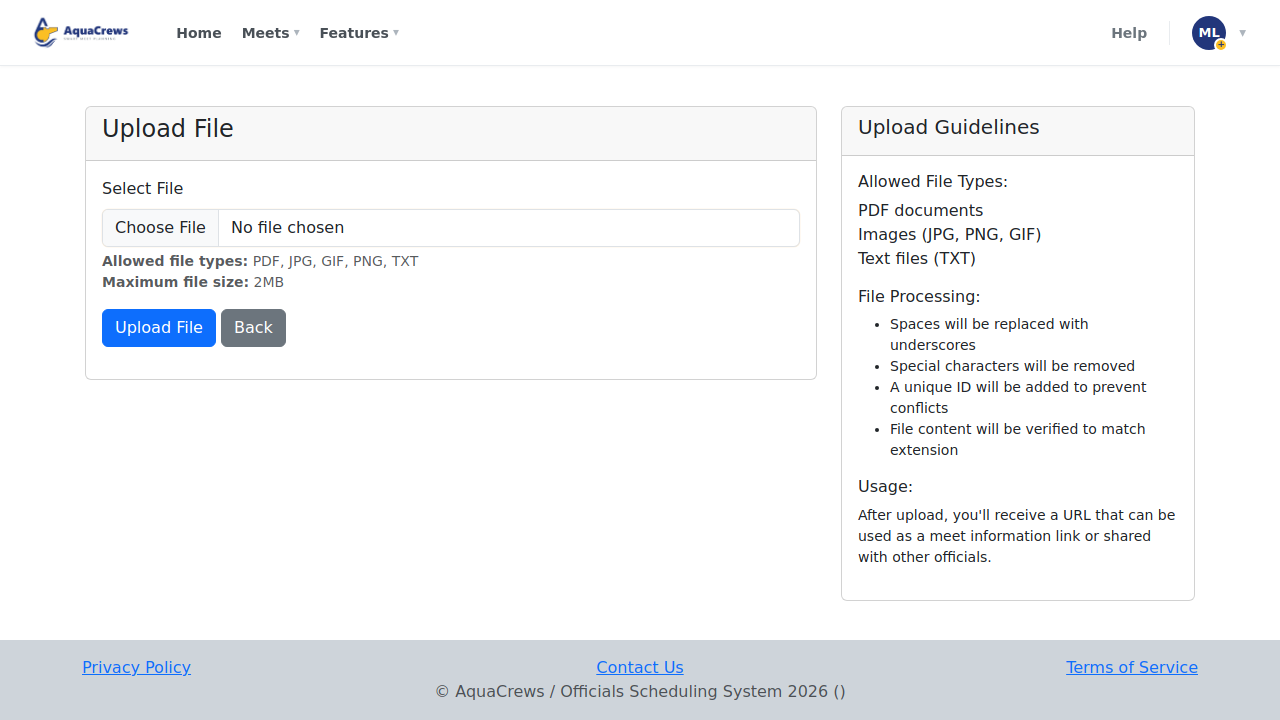
Click Choose File and pick a PDF, image, or text file (2 MB or less).
 Click to see a larger version
-
Click Upload File.
-
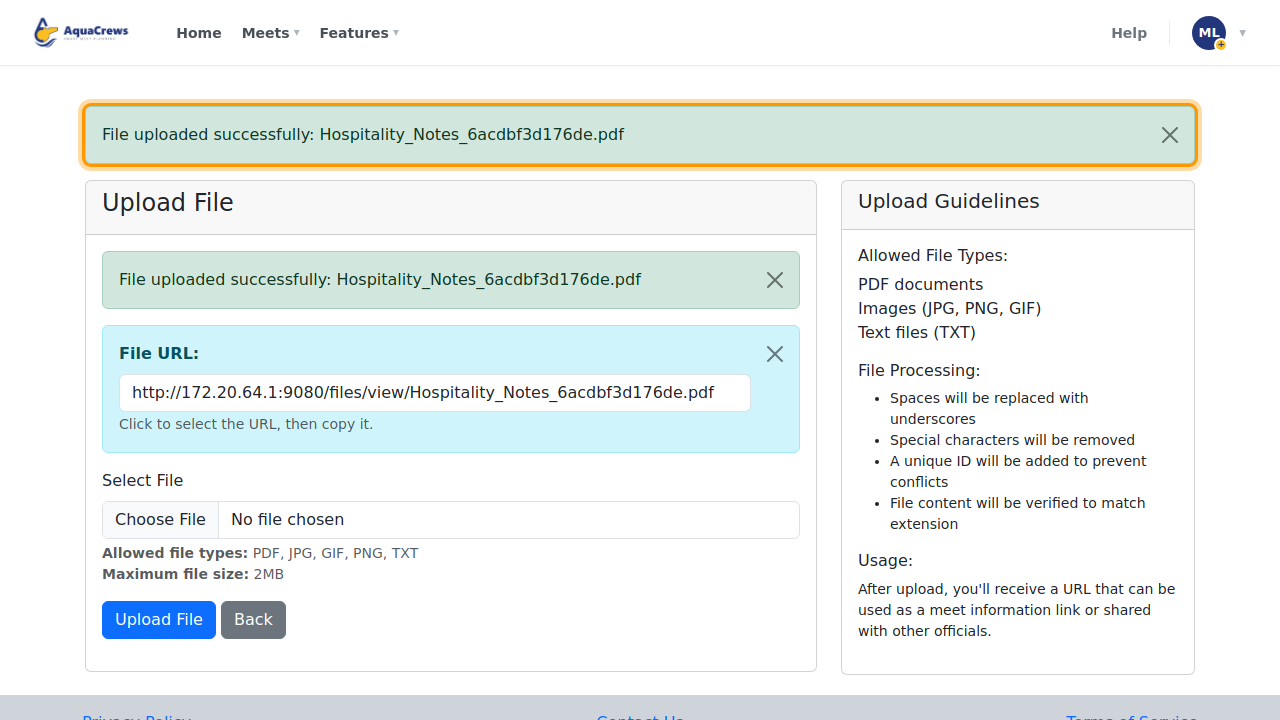
Copy the link under File URL - use it as a meet's URL for Meet Info, or share it with officials.
 Click to see a larger version
Tips & troubleshooting
- Spaces in the file name become underscores, and a unique code is added so files never overwrite each other.
- When you're creating or editing a meet, Upload File & Generate Link on the form does the same thing in one step - see Create a meet.
- For files that belong with one meet, use the meet's Files, Survey, & Notes tab instead - see Meet files, links, and planning notes.
Related: Create a meet