
Meet files, links, and planning notes
Share files and links with your officials - the meet packet, timelines, hospitality info - and keep planning notes for your meet staff.
Before you start: you're the meet's referee, an LSC administrator, or a planner for the meet.
Steps
- On the Home page, find the meet under My Meets and click Manage.
-
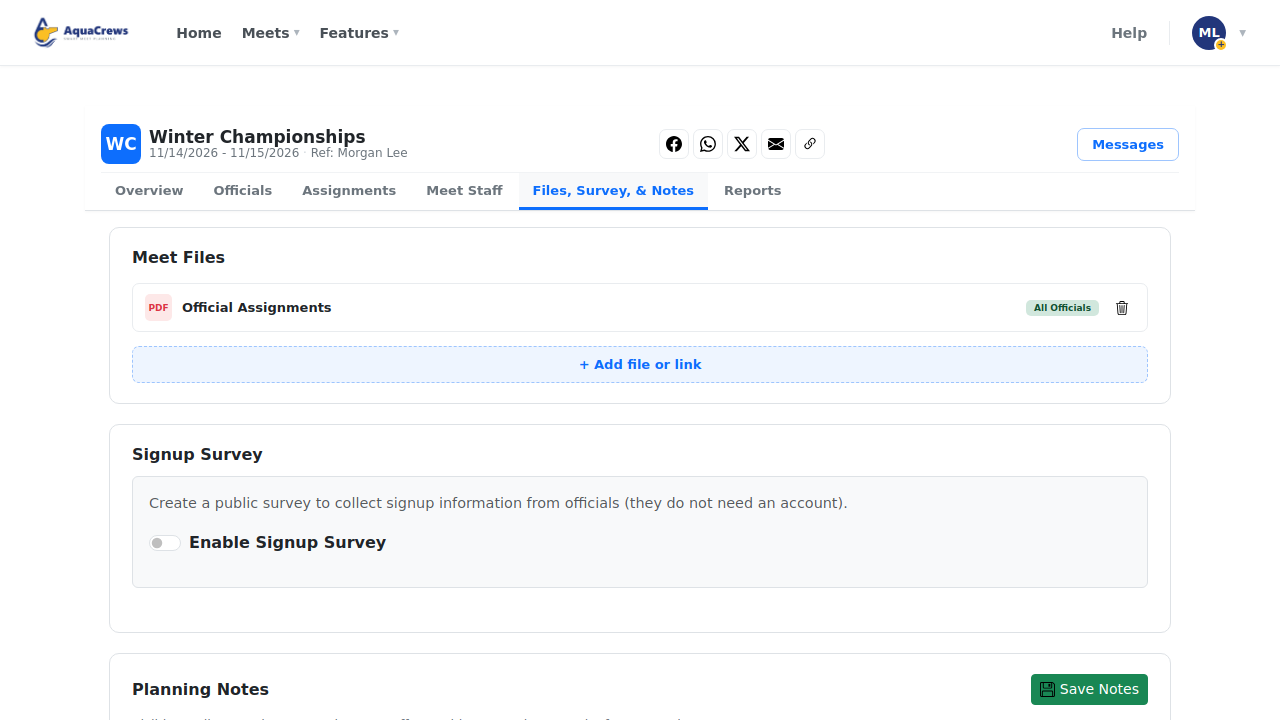
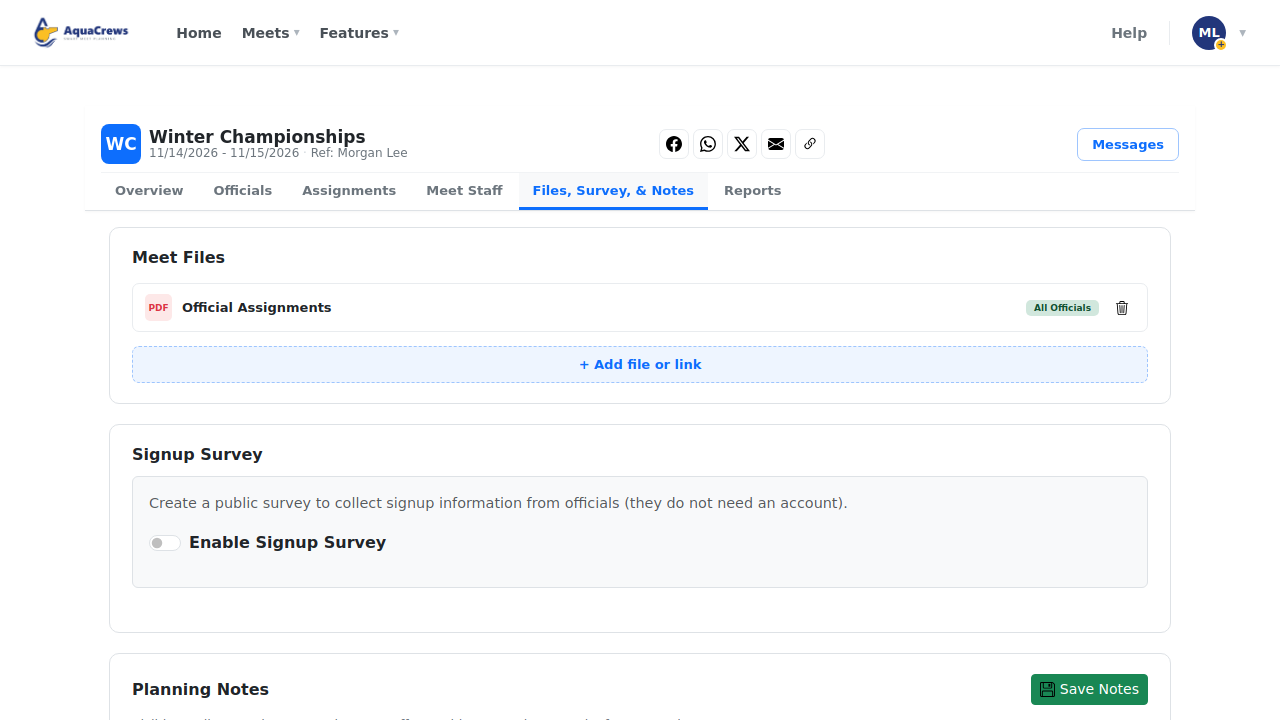
Click the Files, Survey, & Notes tab.
 Click to see a larger version
-
Under Meet Files, click + Add file or link.
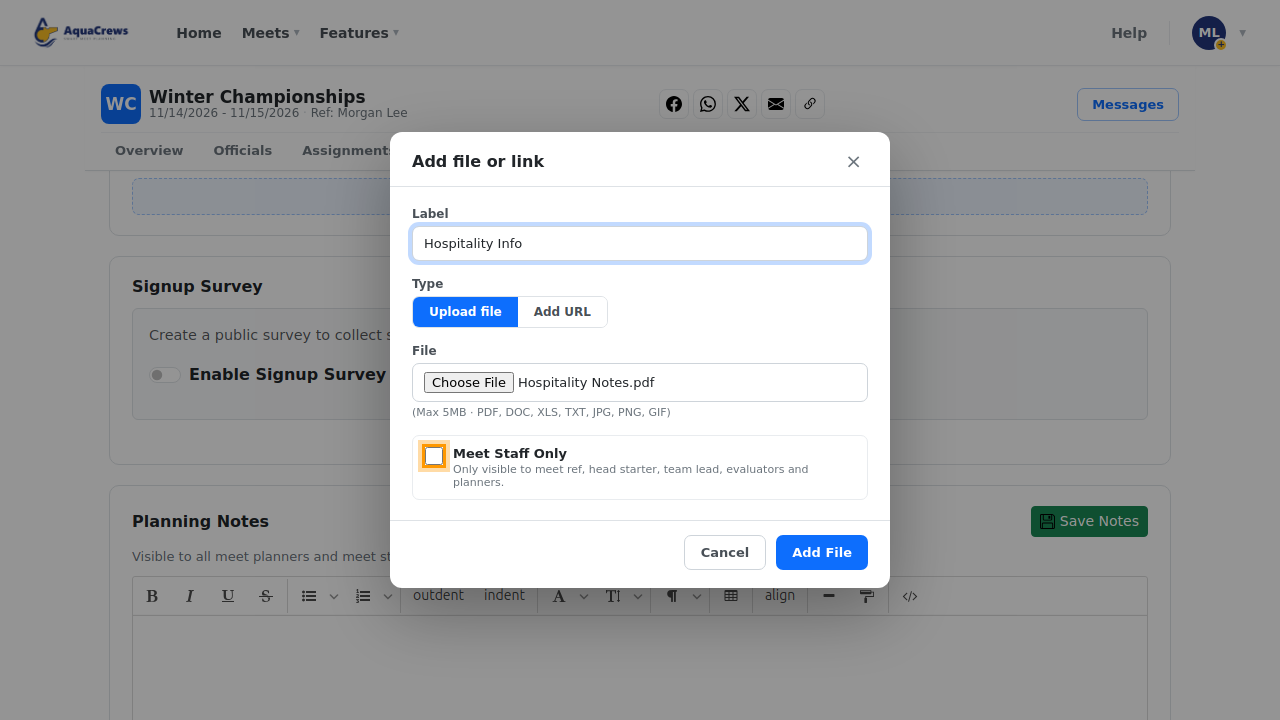
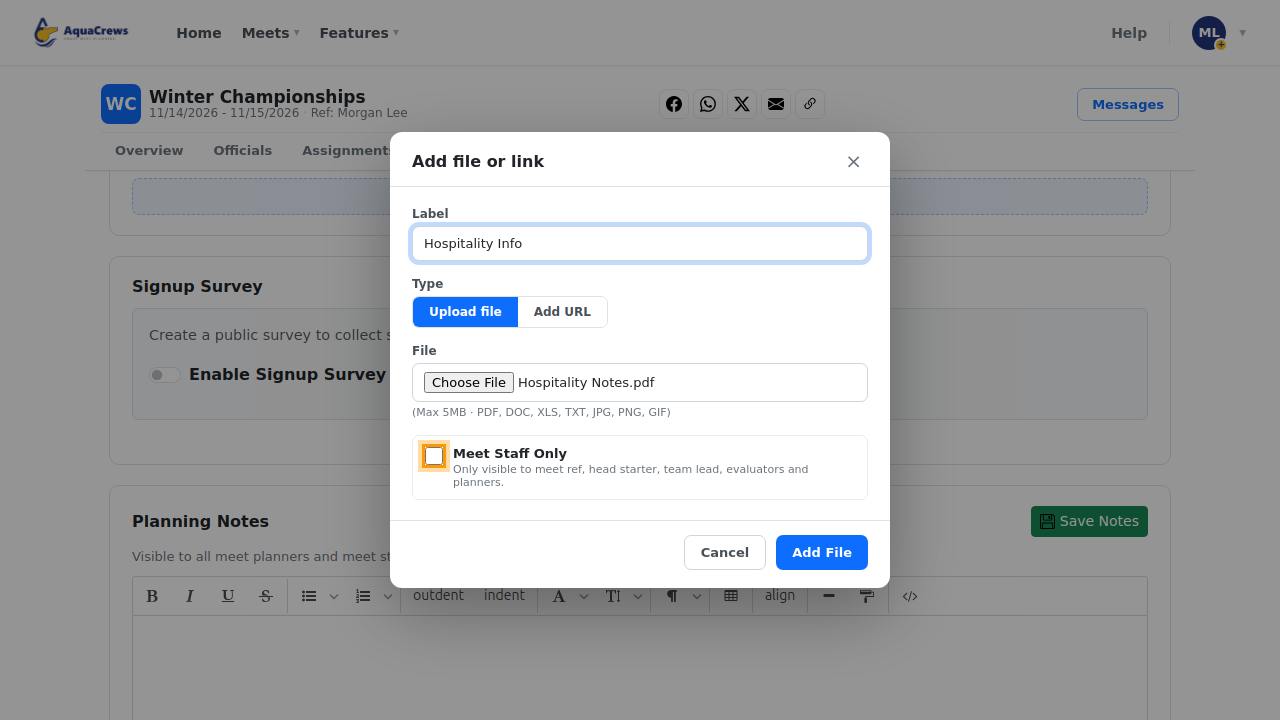
- Enter a Label, for example "Hospitality Info".
- Choose Upload file and pick the file - or choose Add URL and paste a link.
-
Optional: check Meet Staff Only to hide it from other officials.
 Click to see a larger version
-
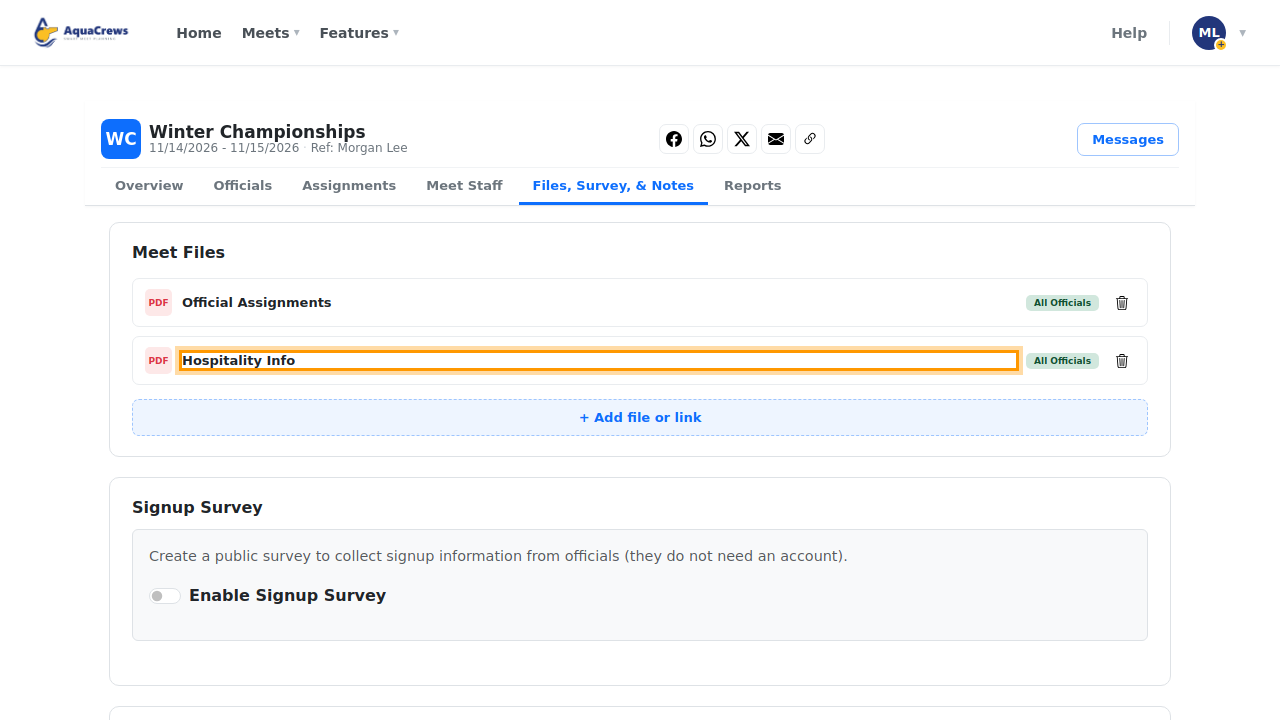
Click Add File.
-
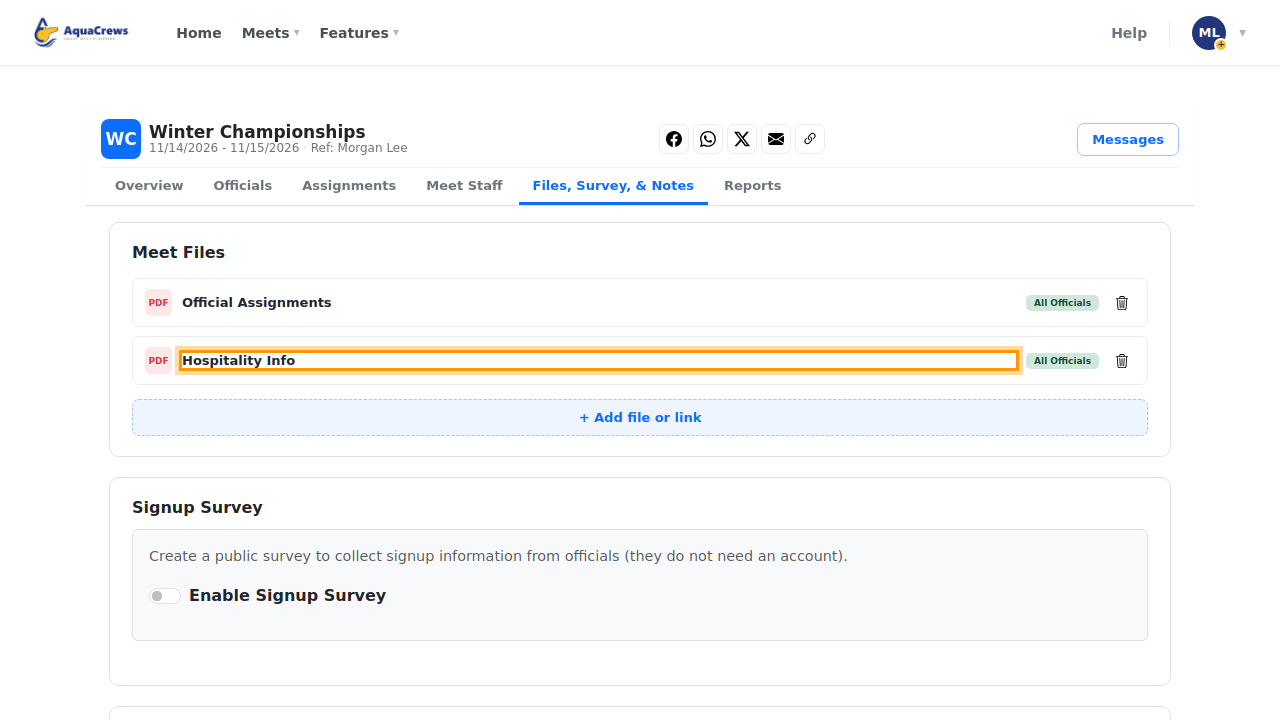
The file is listed under Meet Files, and officials see it on the meet's Staff & info tab.
 Click to see a larger version
-
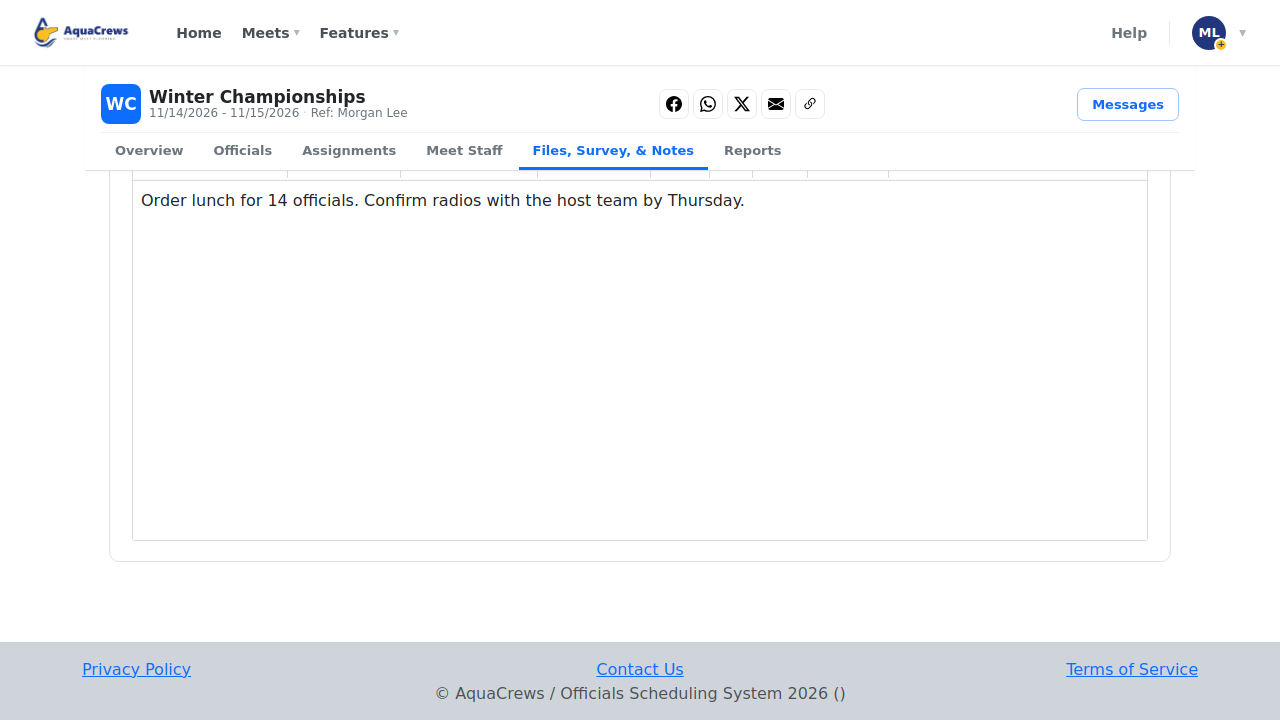
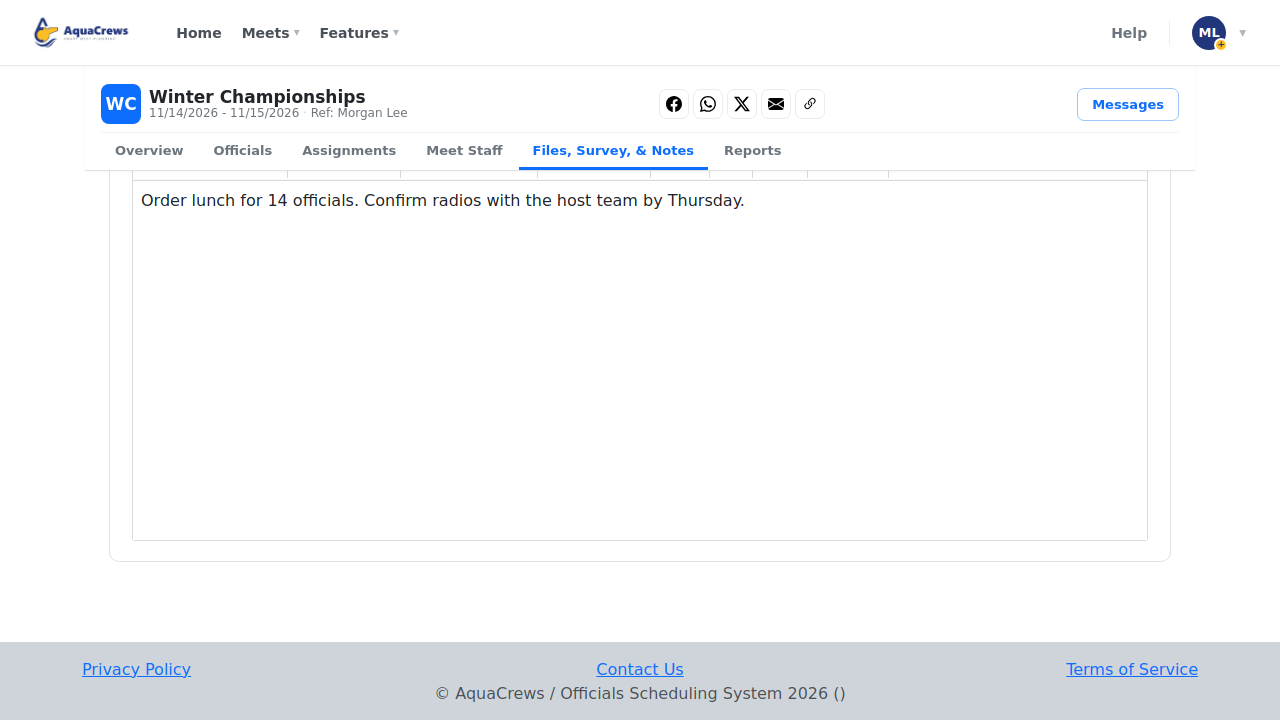
Under Planning Notes, type notes, tasks, or to-dos for your meet staff.
-
Click Save Notes.
 Click to see a larger version
Tips & troubleshooting
- Files can be PDF, Word, Excel, text, or images.
- The All Officials tag means everyone in the meet can see the file; Meet Staff Only files are visible only to the meet referee, head starter, team lead, evaluators, and planners.
- Click the trash can to remove a file.
- Planning notes are only visible to meet planners and meet staff.
Related: Meet Planner and meet staff · Upload files from the Meets menu