
File Repository admin
Organize your LSC's shared files into folders, and approve the files officials upload before everyone can see them.
Note: The File Repository must be enabled for your organization.
Before you start: you're signed in as an LSC administrator.
Steps
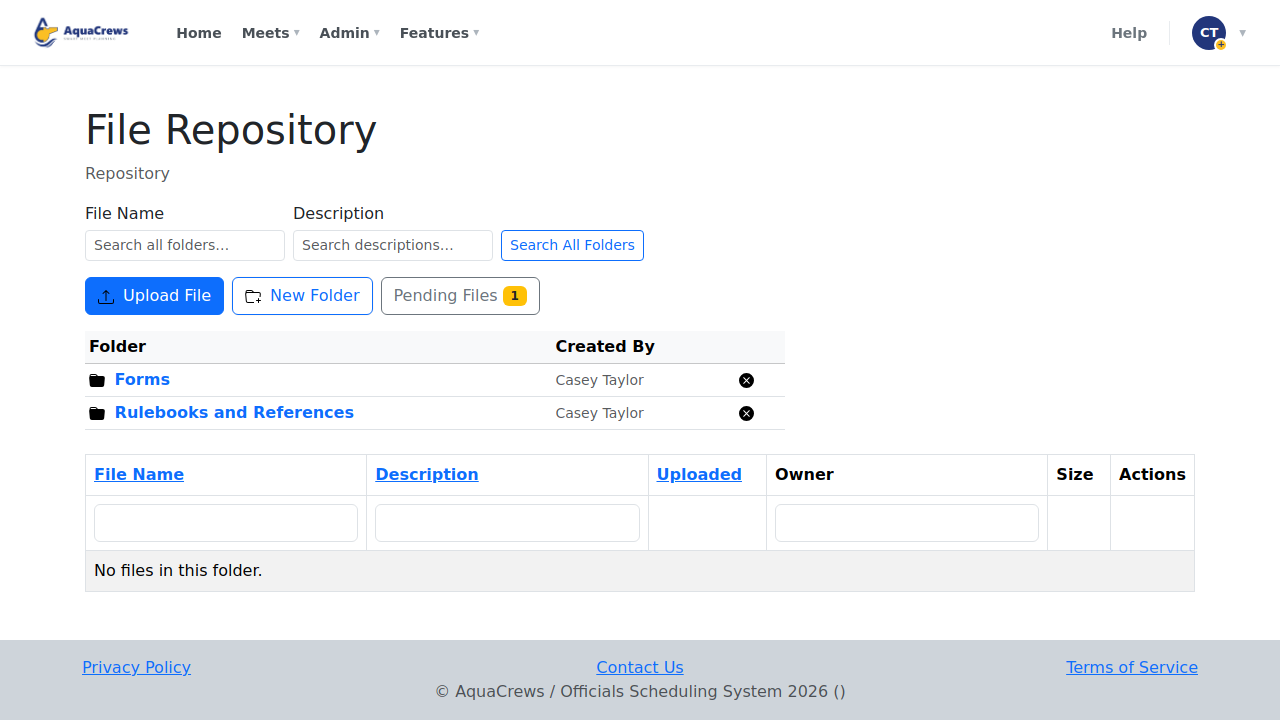
- Click Features, then File Repository.
-
Click New Folder.
 Click to see a larger version
-
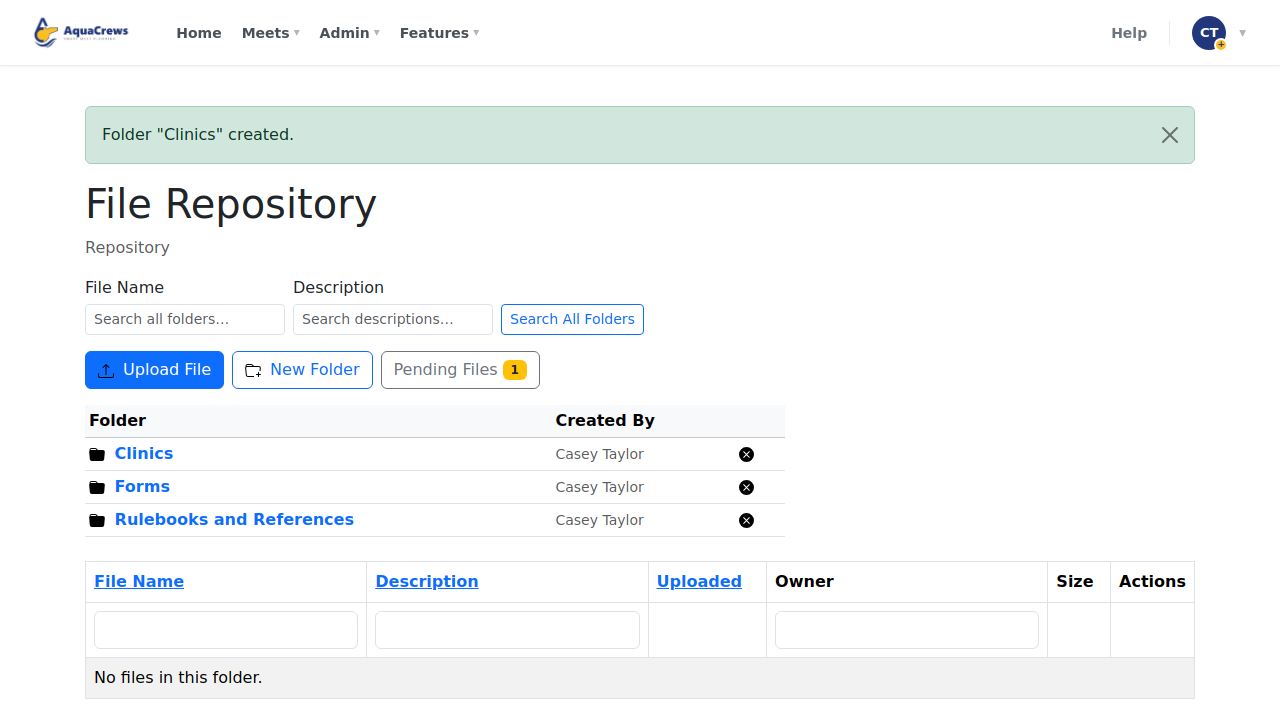
Enter the folder name and click Create.
-
Upload File adds a file to the folder you're in - your files are approved right away.
 Click to see a larger version
-
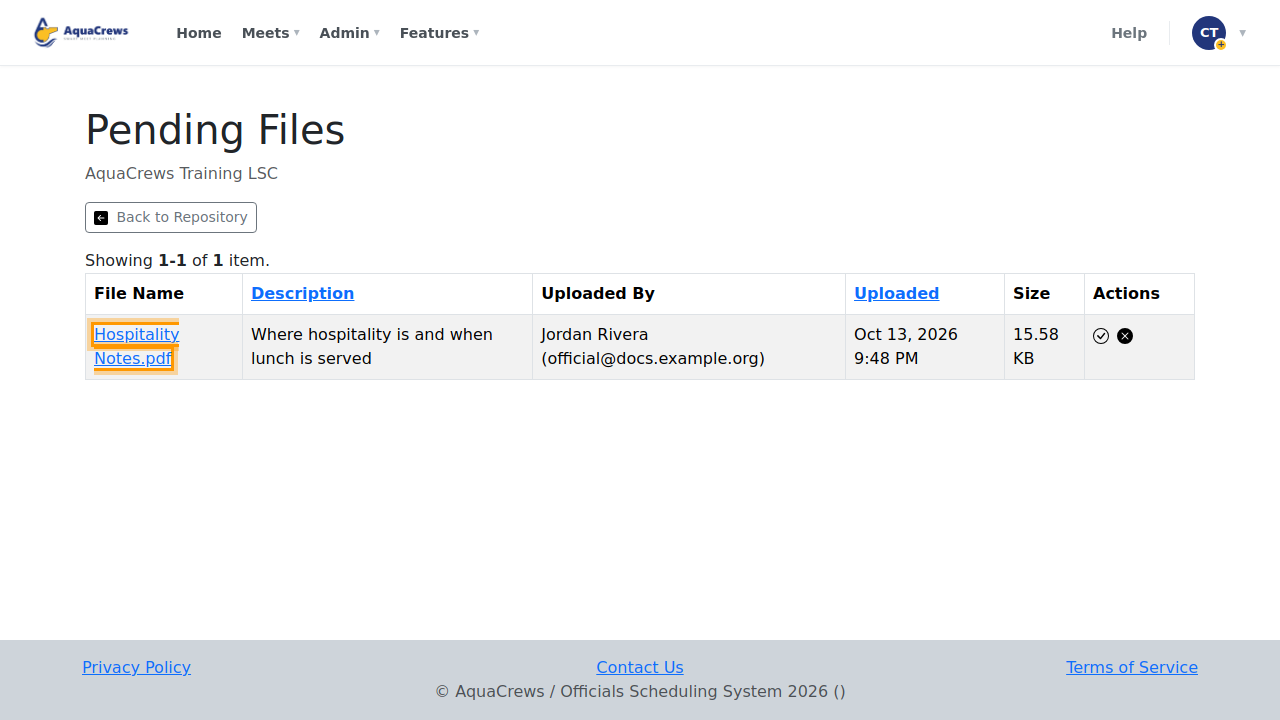
Files that officials upload wait for you - click Pending Files.
-
Click the file's name to look at it first.
 Click to see a larger version
-
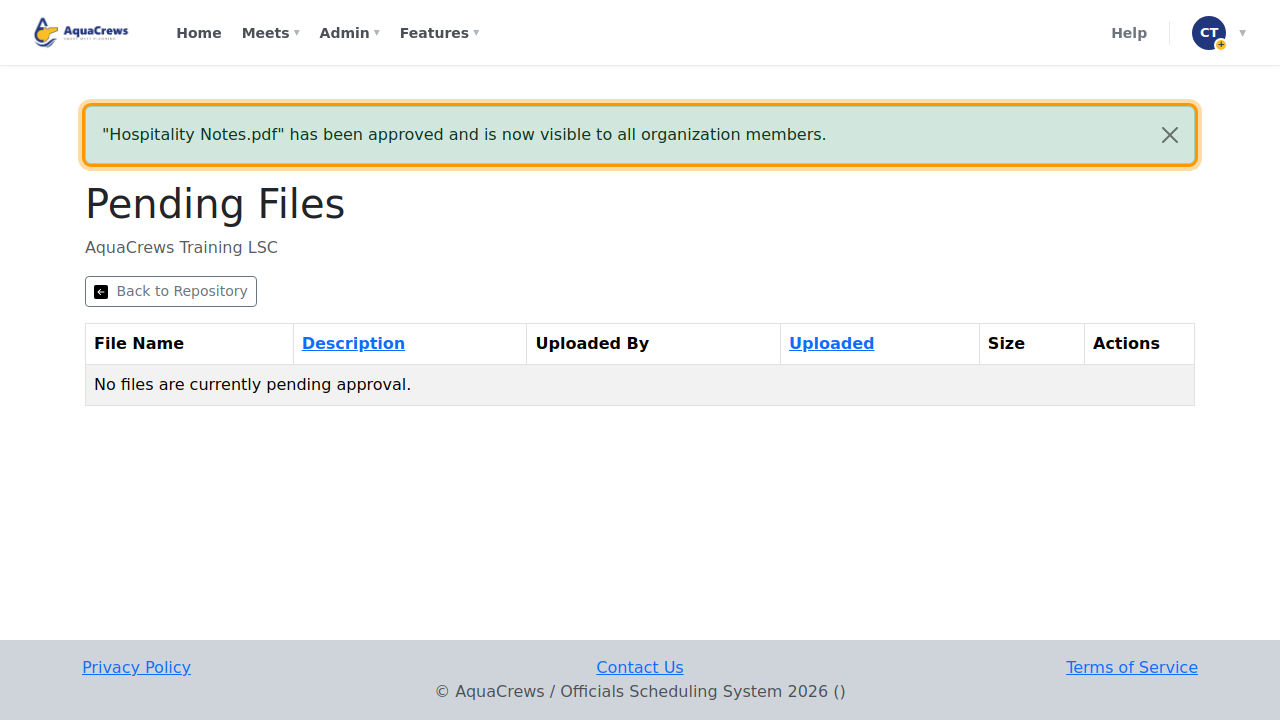
Click the green check to approve it, then OK - or the red X to reject and delete it.
-
The file is now in the repository for everyone in your LSC.
 Click to see a larger version
Tips & troubleshooting
- You're emailed when a file is waiting, if you've turned on Email when a file is uploaded to the org repository.
- Use the x next to a folder to delete it - it has to be empty first.
- Your organization has a storage limit; the upload page shows how much is used.
Related: Use the File Repository