
Manage LSC locations
Keep your LSC's list of pools up to date - address, region, lane numbering, and notes for officials on where to park and check in.
Before you start: you're signed in as an LSC administrator.
Steps
- Click Admin.
- Click LSC Locations.
-
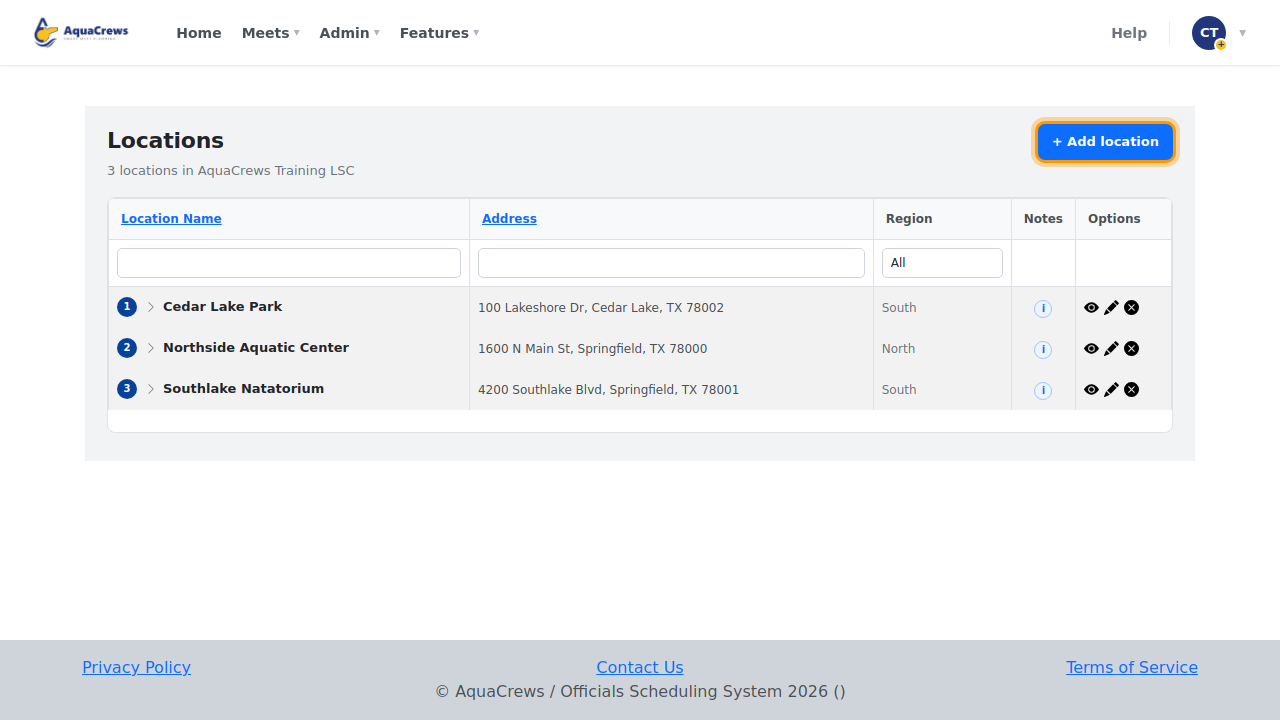
Click + Add location.
 Click to see a larger version
-
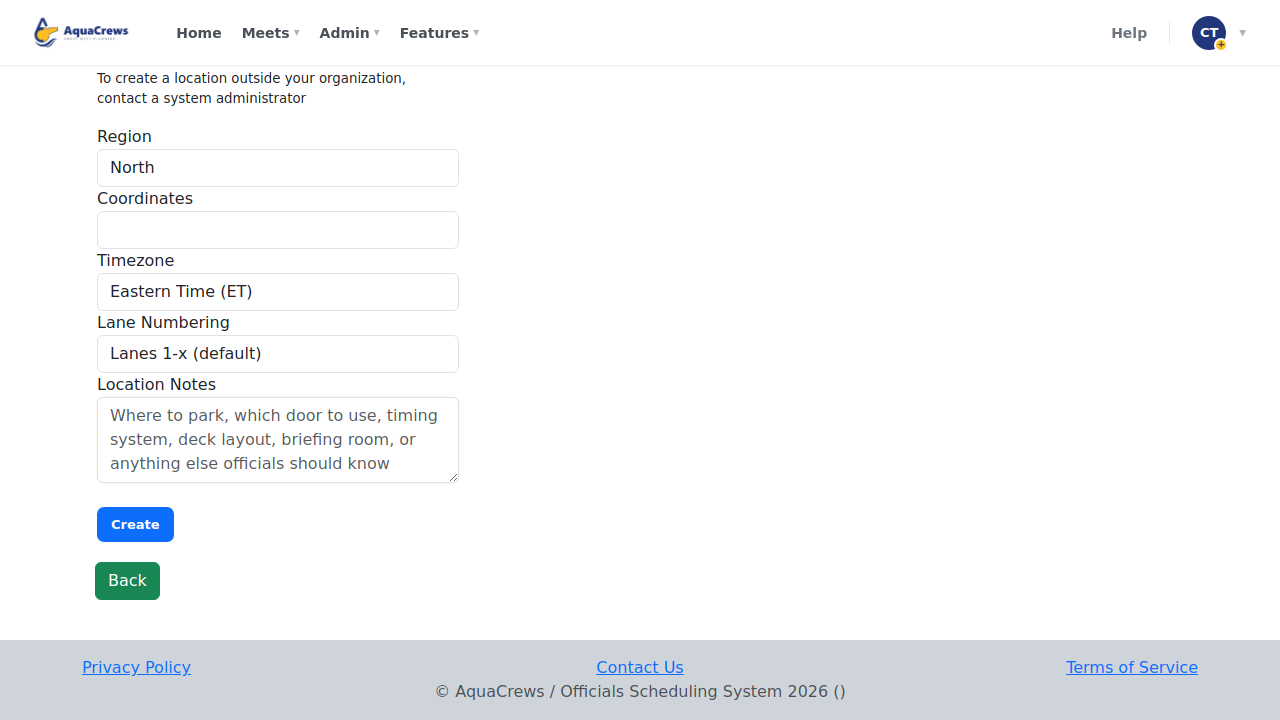
Enter the pool's name and address.
- Choose the Region and Timezone, and how the lanes are numbered.
-
Add notes for officials - where to park, which door to use, where to check in.
 Click to see a larger version
-
Click Create.
-
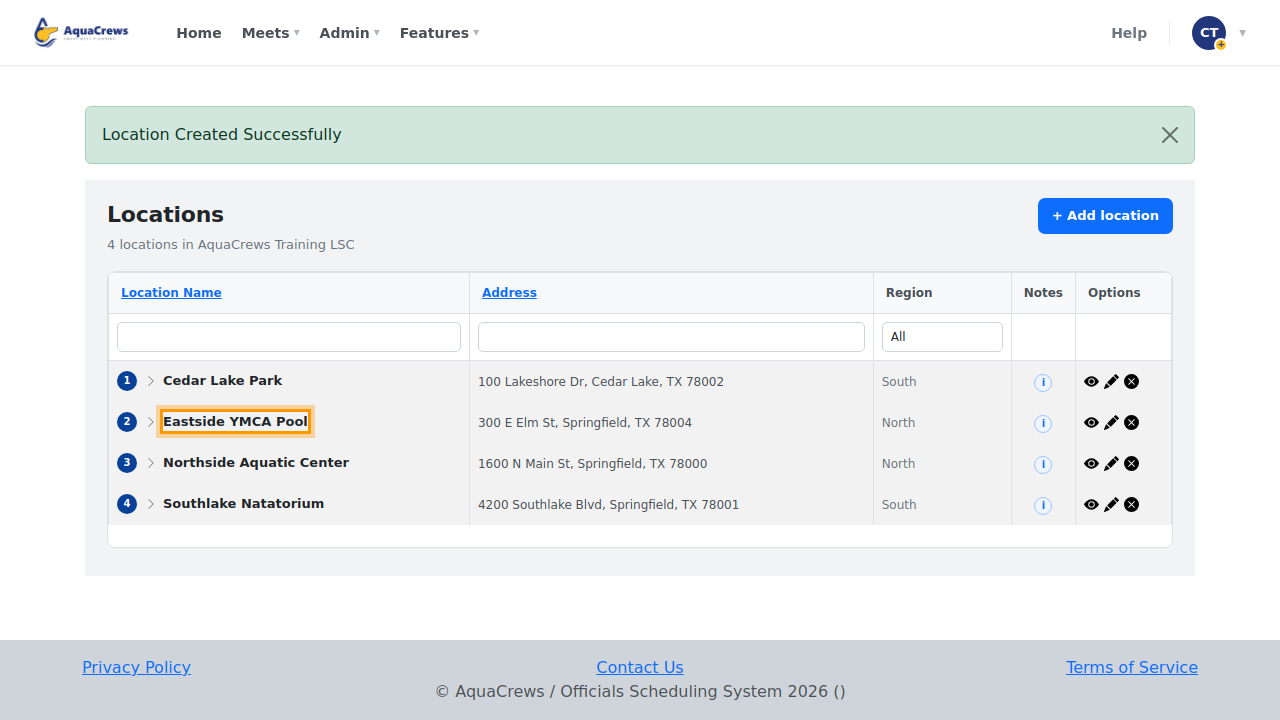
The pool is added - meet referees can choose it for their meets.
 Click to see a larger version
Tips & troubleshooting
- Add the map coordinates (or paste a Google Maps link) so officials get a Google Map link for directions.
- Use the pencil next to a pool to change it, or the x to delete it.
- Officials can ask for a pool to be added - those requests show on your Admin tab. See Approve accounts and requests.
Related: Manage regions