
Copy assignments between sessions
Same crew for another session? Copy a session's deck assignments - or a single rotation - to another session instead of building them again, then make any changes.
Note: Meet Planner must be turned on for the meet.
Before you start: you've built the assignments for the session you want to copy.
Steps
- On the Home page, find the meet under My Meets and click Manage.
- Click the Assignments tab.
-
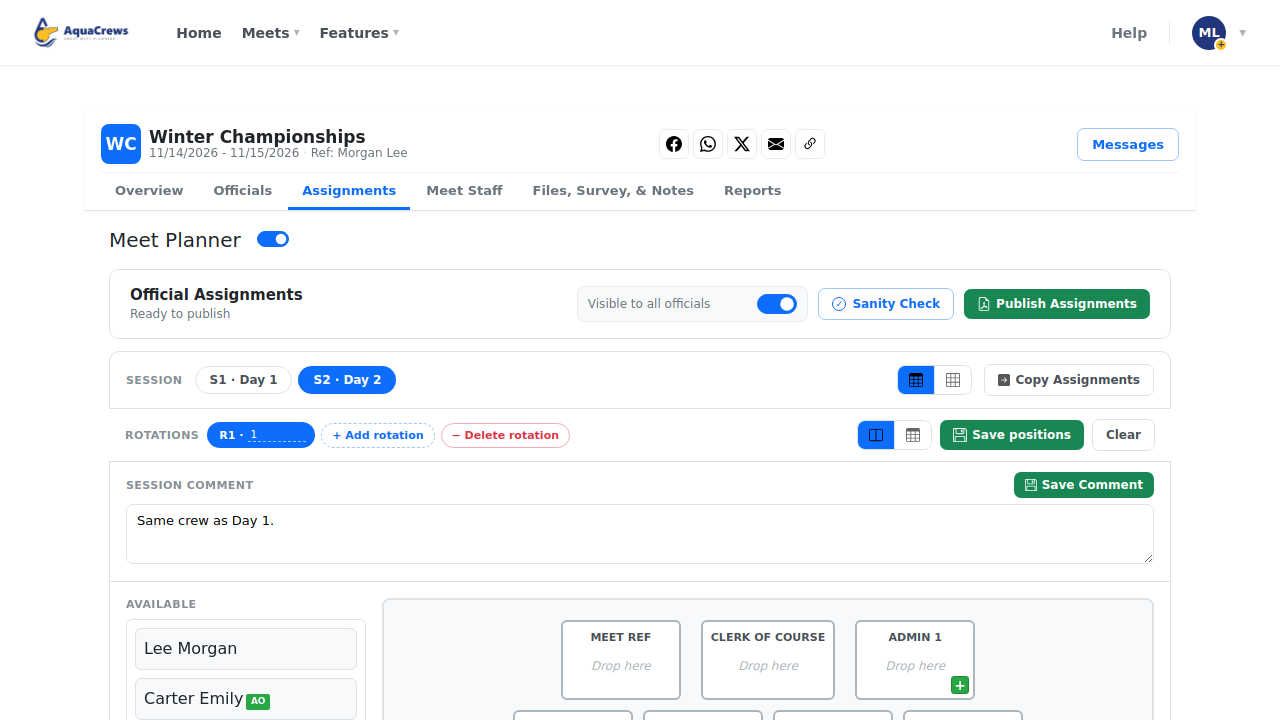
Session 1 is filled in - click Session 2 to see that it's still empty.
 Click to see a larger version
-
Click Copy Assignments.
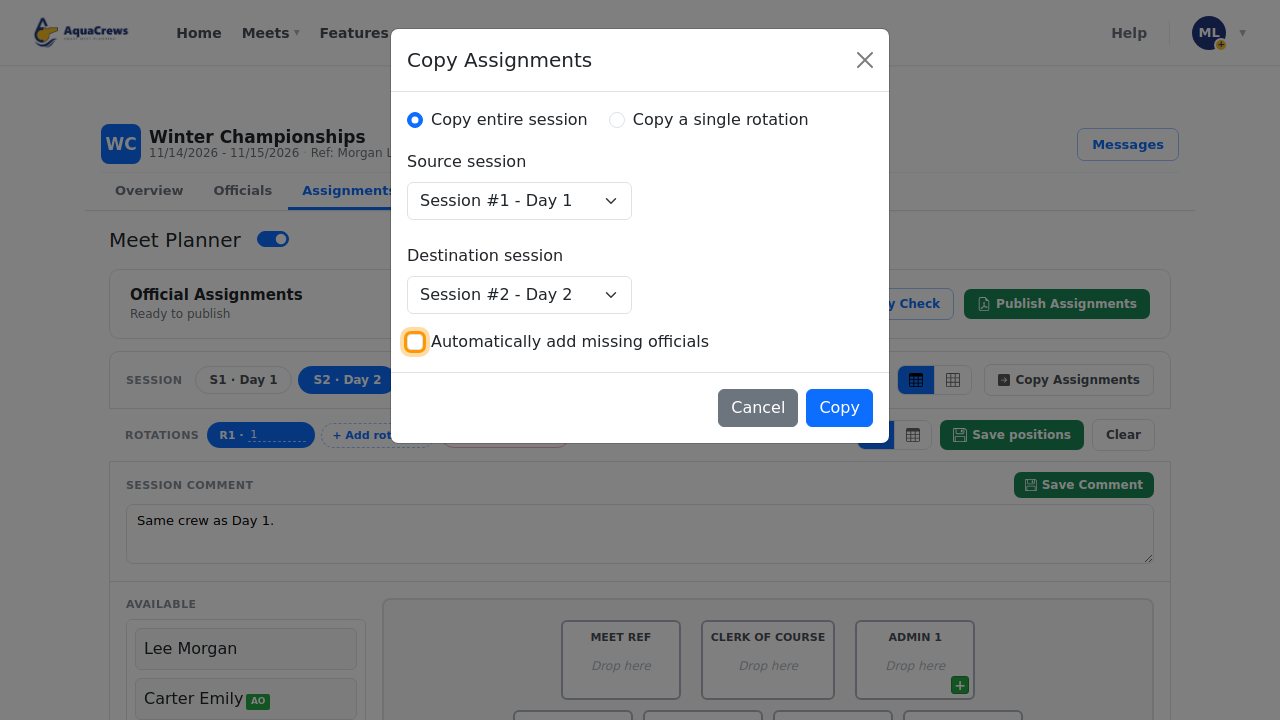
- Choose Copy entire session - or Copy a single rotation to copy just one rotation.
- Choose the Source session to copy from and the Destination session to copy to.
-
Optional: check Automatically add missing officials to confirm anyone not yet in the destination session.
 Click to see a larger version
-
Click Copy.
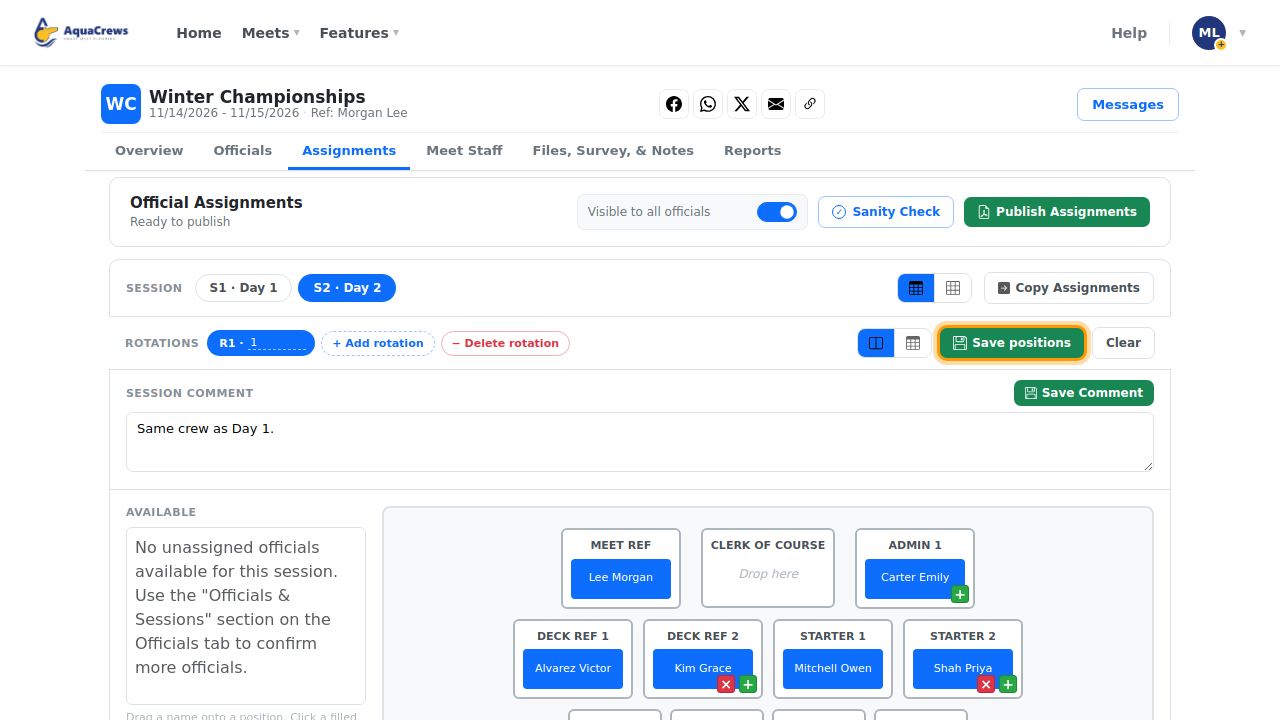
- Click Session 2 - it now has the same positions as Session 1.
-
Make any changes for this session, then click Save positions.
 Click to see a larger version
Tips & troubleshooting
- Copying replaces the destination's assignments.
- Without Automatically add missing officials, make sure everyone who was copied is confirmed for the destination session on the Officials tab. With it, they're confirmed for you (officials who had only asked to work the source session stay as requests).
- Copy a single rotation lets you choose a source and destination rotation, for example to repeat rotation 1 as rotation 3.
- Run the Sanity Check after copying.
Related: Build deck assignments · Sanity Check and publish assignments