
Set the officials count (minimum, ideal, maximum)
Tell officials how many people your meet needs. Enter the minimum, ideal, and maximum number of officials, and a staffing meter appears next to the meet's name so officials can see at a glance which meets still need help. You can also have signups pause by themselves once enough officials have signed up.
Note: This feature must be enabled for your organization.
Before you start: you're the meet's referee, or an LSC administrator.
Steps
- On the Home page, find the meet under My Meets and click Manage.
- Click the Overview tab.
-
Under Officials Count, enter the Minimum officials - the fewest you can run the meet with.
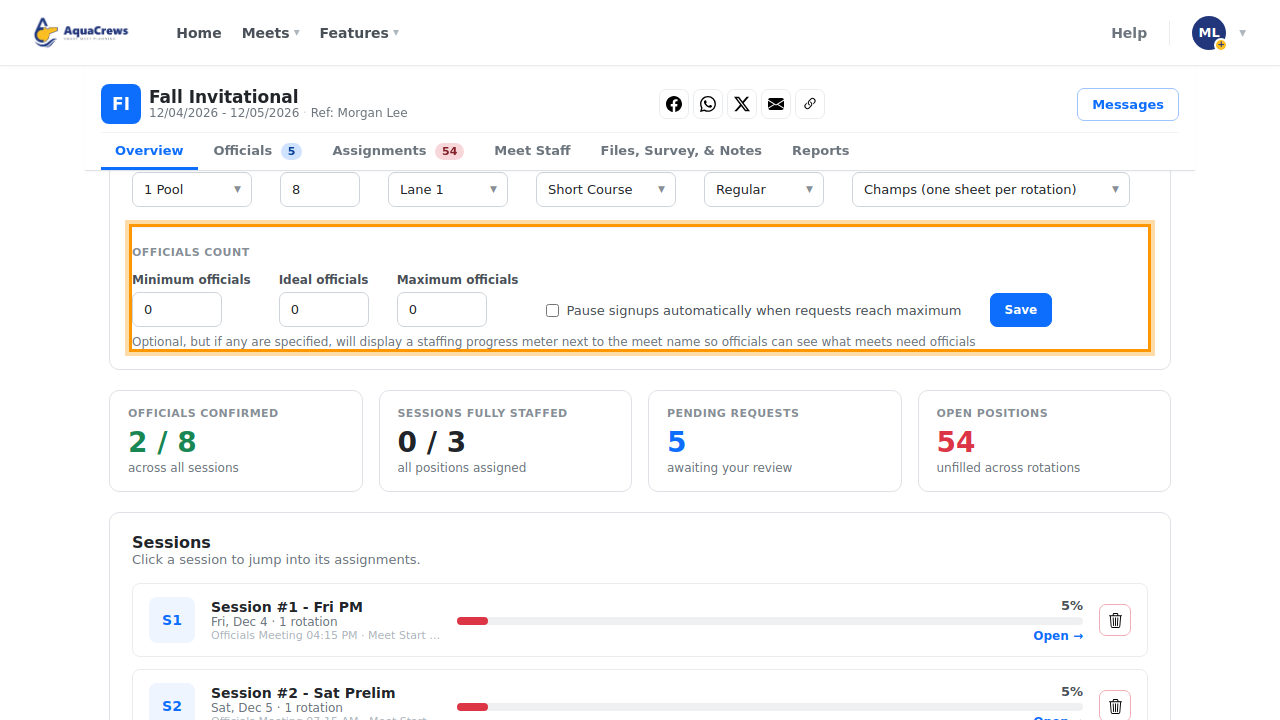
Click to see a larger version - Enter the Ideal officials - the number you'd like to have.
- Enter the Maximum officials - the most you can use.
- Optional: check Pause signups automatically when requests reach maximum.
- Click Save.
-
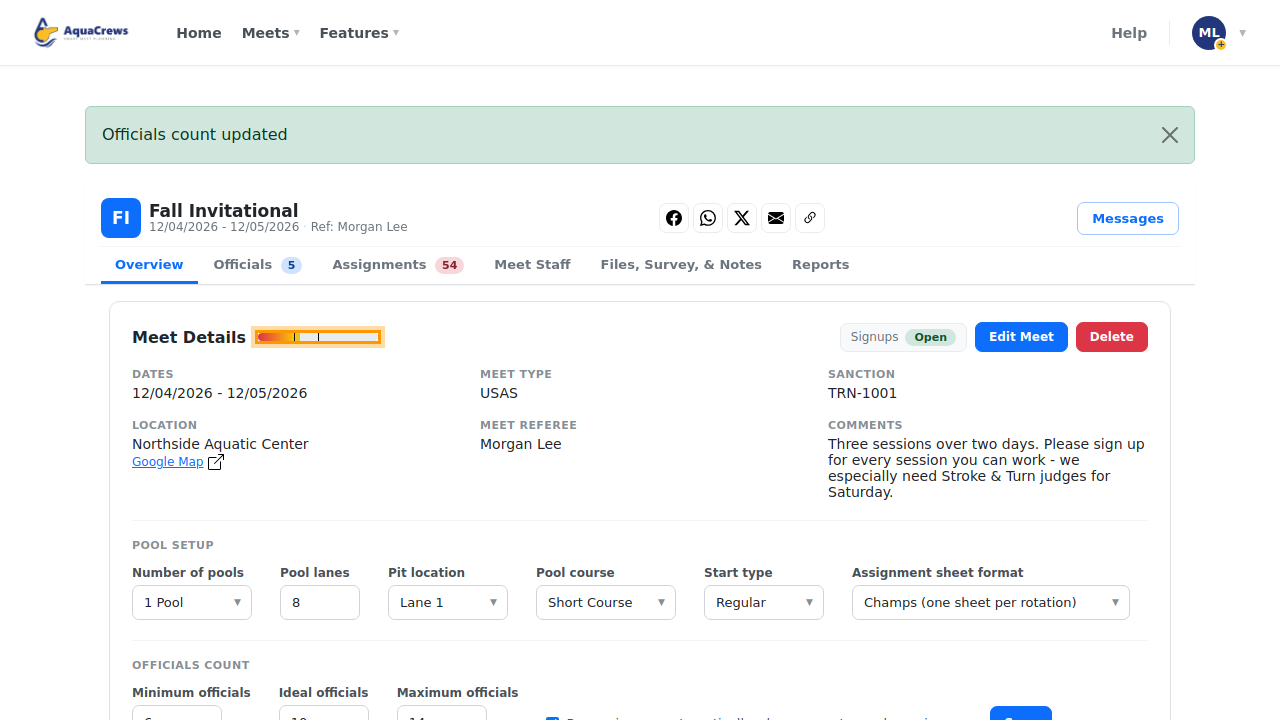
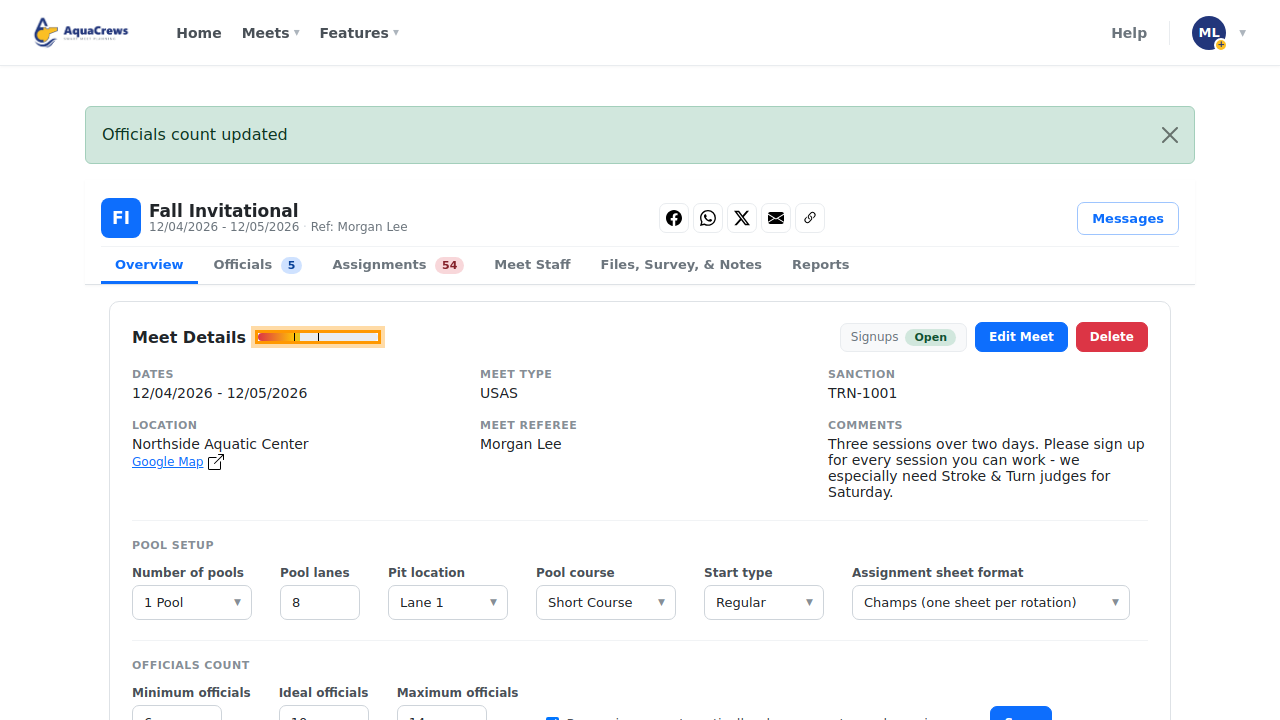
Officials count updated appears, and a staffing meter shows next to Meet Details. Point at the meter to see its status and the numbers.
Click to see a larger version -
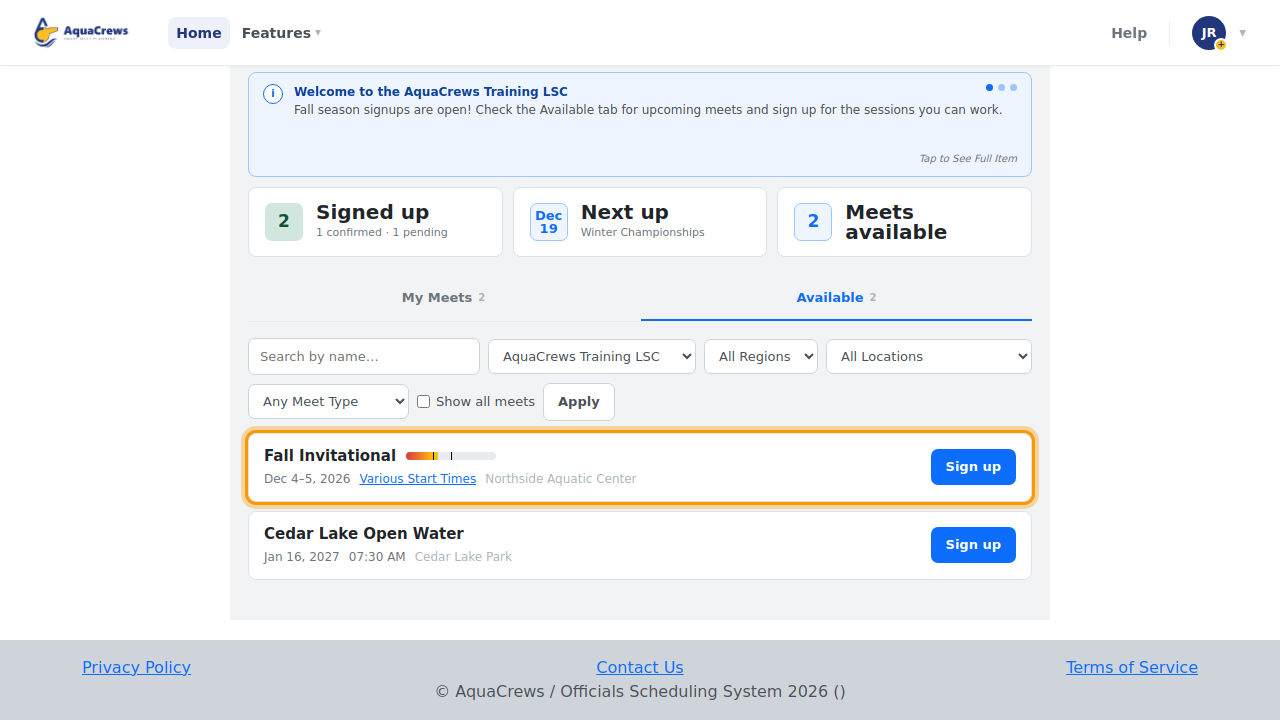
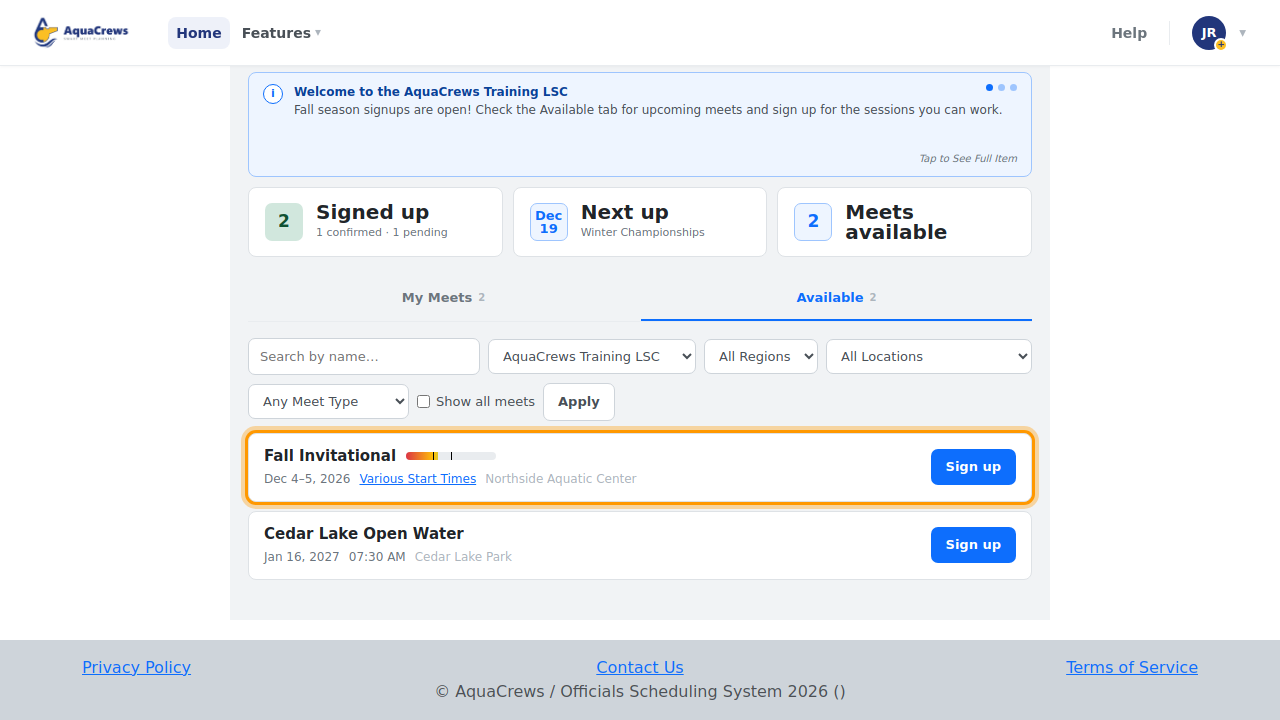
Officials see the same meter next to the meet's name on their Home page and on the meet's signup page.
Click to see a larger version
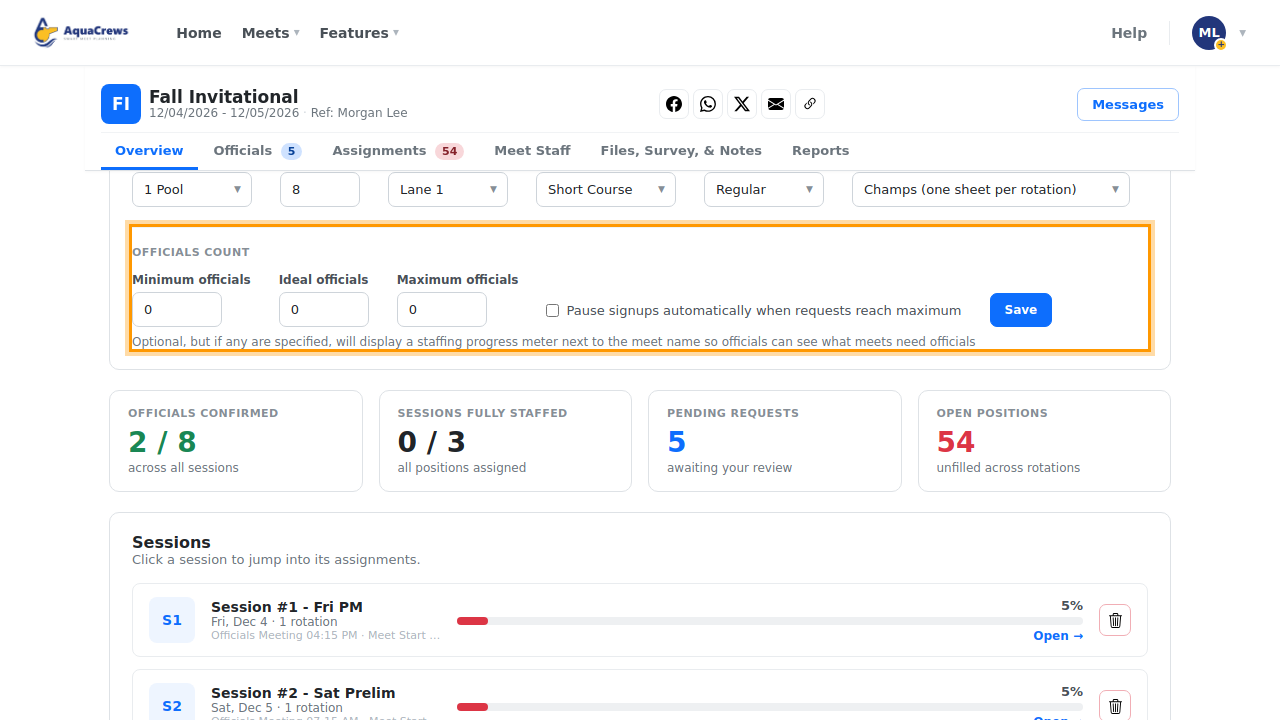
How the meter works
- It counts officials who are Pending or Confirmed for at least one session. The meet referee isn't counted.
- The bar fills from left to right. The thin line in the middle marks the ideal number; the bar is full at the maximum.
- Its color goes from red (below the minimum) through amber and light green (at the ideal) to dark green (at the maximum).
- Pointing at the meter shows its status: Needs officials (below the minimum), Filling, Well staffed (at or above the ideal), or Full (at the maximum), with how many officials have signed up.
Tips & troubleshooting
- All three numbers are optional - fill in only the ones you want. Leave a number at 0 to skip it. If all three are 0, no meter is shown.
- The numbers must be in order: minimum, then ideal, then maximum. You'll see a message if one is smaller than the one before it.
- Pause signups automatically needs a Maximum officials number. When pending and confirmed officials reach the maximum, Signups changes to Paused. It never reopens signups by itself - see Pause or reopen signups to open them again.
- If the maximum has already been reached when you click Save, signups pause straight away and the message says so.
- The Save button pulses when you have changes that aren't saved yet.
- If the Officials Count fields are grayed out, Meet Staffing Automations isn't enabled for your organization, or the meet is over.
Related: Pause or reopen signups · Approve, waitlist, or decline officials · Tour of the meet management page